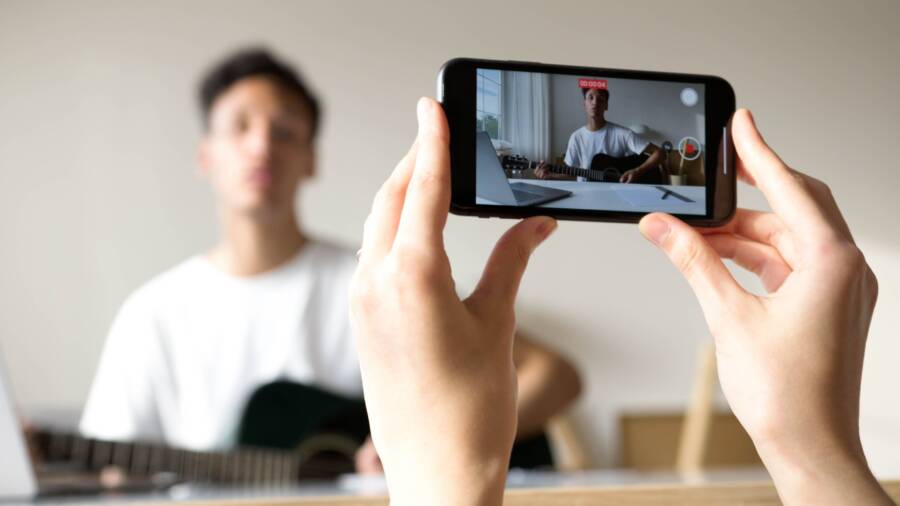
Phone screen recordings usually have no sound because microphone access is off, the wrong audio source is selected, the app blocks recording, or a temporary software issue affects your phone. Check the recording audio settings, test microphone access, restart the smartphone, and try recording with a different app.
The right fix depends on whether you need internal audio, microphone sound, or both. This guide covers Android phones and iPhones, app restrictions, audio settings, and ways to repair or recover a recording that already saved without sound. Start by checking the audio source selected by your phone.
How to Fix a Phone That Records the Screen Without Sound
A phone screen recording with no sound usually needs an audio-source change, not a hardware repair. Select the correct recording option, allow microphone access, and test whether the missing audio comes from the phone, your voice, or the app itself.
Choose the correct screen recording audio source
Screen recorders often separate device audio from microphone audio. Device audio captures sounds from videos, games, and apps. Microphone audio records your voice and nearby sounds. Some phones let you capture both sources at once.
On Android, open Quick Settings and tap Screen Recorder or Screen Record. Before starting, look for an audio menu with options such as:
Media sounds or Device audio for sound produced by apps
Microphone for your voice and surrounding audio
Media sounds and mic for both sources
No sound when you want a silent recording
The wording varies by manufacturer. On Samsung Galaxy phones, check Settings > Advanced features > Screenshots and screen recorder > Screen recorder settings, then select the preferred sound option. Other Android phones may show these choices after you tap the screen recording tile.
On an iPhone, open Control Center and press and hold the Screen Recording button. Turn on the Microphone when you need narration or room audio, then tap Start Recording. The microphone setting doesn’t control every type of internal audio. Apps can restrict audio capture, and some protected content may record without sound.
Check microphone access and audio routing
If your voice is missing, open your smartphone’s privacy settings and confirm that the screen recorder can use the microphone. On Android, go to Settings > Privacy > Permission manager > Microphone, although menu names can differ. On iPhone, open Settings > Privacy & Security > Microphone and turn on access for the relevant recording app.
Also check whether Bluetooth headphones, a headset, or a wireless microphone is connected. Your phone may send the recording input to that device instead of using its built-in microphone. Disconnect the accessory, raise the media volume, and make a short test recording.
A screen recording can contain silent video even when the phone speaker works normally, because the recorder may have permission to capture the screen but not the selected audio source.
Test for an app or system restriction
Record the home screen, then play a local video or open a game and record again. If the first test has sound but the second does not, the app may block internal audio capture. Streaming services, video calls, music apps, and some banking apps can apply recording restrictions for privacy, copyright, or security reasons.
If every test is silent, restart the phone and install available system updates. Then try the built-in recorder instead of a third-party app. A different app can confirm whether the problem comes from the recording tool or the phone’s system settings. Save a five-second test before recording important content, because a silent file usually cannot recover audio that the phone never captured.
Choose the right audio source for your screen recording
Select the audio source before you start recording. Device audio captures sound from apps, microphone audio captures your voice, and a combined option records both when your phone supports it. Choosing the wrong source can create a silent video even when your phone’s speakers and microphone work normally.
Use device audio for app sounds
Choose Device audio, Media sounds, or Internal audio when you want to record sound produced by your smartphone. This option is suitable for:
Videos saved on your phone
Gameplay and app demonstrations
Music or podcasts that allow recording
Notifications and other system sounds
Before recording, raise the media volume and play a short clip. The volume buttons may control ringtone volume when no media is playing, so test the sound inside the app you plan to record.
On Android, open Quick Settings and tap Screen Recorder. Look for an audio menu before starting, then select Media sounds or Device audio. The exact wording varies between Samsung Galaxy, Google Pixel, OnePlus, Motorola, and other Android models.
iPhones generally record supported app audio automatically when you start a screen recording. However, an app can block audio capture, and protected content may produce a silent recording. A working speaker does not override those restrictions.
Turn on the microphone for narration
Select Microphone when your recording needs your voice, explanations, or sounds from the room. On an iPhone, press and hold the Screen Recording button in Control Center, tap Microphone to turn it on, and then start recording.
Android phones may show a Microphone option in the screen recorder panel. If your voice remains missing, open the phone’s privacy settings and confirm microphone access for the screen recorder. Also disconnect Bluetooth earbuds, headsets, or wireless microphones during testing. The phone may route your voice to a connected accessory instead of its built-in microphone.
Choose both sources when available
Use Media sounds and mic when you need app audio and spoken commentary in the same file. This setting works well for tutorials, gameplay reviews, and instructions that explain what appears on screen.
The combined option can create unwanted background noise. Record in a quiet room, keep the microphone away from the phone’s speaker, and avoid using speakerphone at high volume. Make a five-second test first, then play it with headphones to check both sources.
If a local video records with sound but a streaming app does not, the app likely restricts audio capture. In that case, changing the audio source may not fix the recording.
Fix screen recording sound problems on Android phones
Android screen recording controls vary by manufacturer, but the audio fix usually starts in Quick Settings. Select the sound source before recording, check permissions, and save a short test clip. This confirms whether your smartphone captured internal audio, microphone input, or both.
Samsung Galaxy settings to check first
On most Samsung Galaxy phones, swipe down twice to open Quick Settings, then tap Screen recorder. Before the countdown begins, choose the audio option that matches your recording:
Media sounds records audio produced by apps, games, and videos.
Media sounds and mic records app audio along with your voice or nearby sound.
No sound creates a silent video.
The wording can vary by Galaxy model and One UI version. If the audio menu doesn’t appear immediately, check Settings > Advanced features > Screenshots and screen recorder > Screen recorder settings. Select the preferred sound source there, then return to Quick Settings and make a five-second recording.
Play the test with headphones and confirm that the correct audio is present. Raise the media volume before recording, since the ringtone and media volume controls work separately. If you selected Media sounds and mic but your voice is missing, check microphone access under Settings > Apps > Screen recorder or the relevant third-party recording app. Open Permissions, select Microphone, and choose an allowed setting.
Samsung may also show a privacy control under Settings > Privacy > Permission manager > Microphone. Make sure microphone access is enabled at both the system and app levels. Disconnect Bluetooth earbuds or an external microphone during testing if you want to use the phone’s built-in microphone.
Samsung can prevent screen recording for protected video, banking screens, private content, and some calls. A silent result in one app doesn’t always mean the recorder is faulty.
Phone calls and video calls may also be excluded because Android or the app restricts call audio capture. Test the recorder on the home screen and with a local video. If those clips have sound, the original app or content probably blocks recording.
Google Pixel and other Android troubleshooting steps
On a Google Pixel, swipe down twice to open Quick Settings, then tap Screen Record. If the tile isn’t visible, swipe left through the tiles or tap the pencil icon to add it. In the screen recording panel, turn on the audio option and select Device audio, Microphone, or the closest available choice.
Choose Device audio for sounds from supported apps. Select Microphone for narration or room audio. If the panel offers both sources, use the combined option for tutorials and gameplay commentary. Start a short recording, play a local video, and speak near the phone to check both channels.
Motorola, OnePlus, Xiaomi, Sony, and other Android brands use similar controls. Look in Quick Settings for Screen Record, Screen Recorder, or Screen Recording. Some phones place the audio choice under Settings > System, Settings > Additional settings, or the screen recorder’s own settings page.
Menu names differ after system updates, so search Settings for screen recorder if you can’t find the option. Also review Settings > Apps > [recording app] > Permissions and allow microphone access when narration is required. A five-second test recording remains the fastest way to confirm the setting before you capture a longer video.
Fix screen recording sound problems on an iPhone
When an iPhone screen recording has no voice audio, first check whether the Microphone button is available in Control Center. If the option is missing, dimmed, or won’t stay enabled, another app, a call, a privacy setting, or a temporary iOS error may be controlling microphone access.
What to do when the iPhone microphone option is missing or unavailable
An active phone call can prevent the screen recorder from using the microphone. End regular calls, FaceTime calls, and video meetings, then close the related app before trying again. Other apps may also hold microphone access, so swipe up from the bottom of the screen, or double-click the Home button on older iPhone models, and close recently used apps.
Next, check the microphone permission:
Open Settings > Privacy & Security > Microphone.
Turn on microphone access for the screen recording app, if it appears.
If you use Apple’s built-in recorder, open Control Center and press and hold Screen Recording. Tap Microphone so it shows as enabled.
Start a short recording and speak near the iPhone.
Screen Time can also block microphone changes. Go to Settings > Screen Time > Content & Privacy Restrictions and review the Microphone setting under the allowed changes or privacy restrictions. Remove the restriction, or ask the person who manages the Screen Time passcode to change it. Work or school-managed iPhones may apply additional controls that you can’t change yourself.
If the microphone still won’t appear, restart the smartphone. A temporary iOS glitch can affect Control Center controls even when the hardware works. After the restart, install any available iOS update and test the recorder again.
Use Voice Memos as a separate microphone test. Record a short clip, play it back, and listen for your voice. If Voice Memos is also silent, remove the case or screen protector if it covers the microphone openings, then test again. Persistent silence across Voice Memos and screen recordings may indicate a hardware problem that requires Apple Support or an authorized service provider. Avoid installing unofficial profiles or using unsafe workarounds to bypass microphone restrictions.
When screen recording still has no sound, use these final checks
If your phone screen recording remains silent after changing audio sources and permissions, test the saved file, the app, and the microphone separately. These checks help you identify whether the audio was never captured, muted during editing, or blocked by the app you recorded.
Can a silent screen recording be repaired after it is saved?
Missing audio cannot normally be recovered if the recorder never captured it. A video editor cannot restore sound that was absent from the original recording, just as increasing the brightness cannot add detail that the camera never recorded.
However, the file may only be muted. Open the original video in your phone’s Gallery, Photos app, or another media player and raise the playback volume. If you imported it into CapCut, iMovie, Adobe Premiere Rush, or another editor, check that the audio track isn’t muted, disabled, or set to zero volume.
Before deleting the file, check these points:
Play the original file outside the editing app.
Look for a speaker or mute icon in the player.
Check whether the editor shows an audio waveform or separate sound track.
Test the video with headphones and the phone speaker.
If the original file has no waveform and stays silent in multiple players, the recorder probably didn’t capture audio. Record a short clip with a permitted local video or the home screen, then confirm the sound before making another long recording.
Why does screen recording lose sound during calls or streaming?
Phone calls, video calls, streaming platforms, games, and other apps may restrict audio capture. Privacy controls can block microphone access or call audio, while copyright protections can prevent internal sound from being recorded. Some apps block the screen image as well.
This is often an app or system restriction, not a broken smartphone. For example, a screen recorder may capture your home screen and a saved video with sound, yet produce a silent file during a video call. That result points to the call app or operating system rules.
Use a permitted test app to confirm the cause. Record the home screen, play a locally stored video, or capture a simple app that allows recording. If those tests include sound, the original call or streaming app is limiting capture, and changing the volume won’t remove that restriction.
Do I need to reset my phone to restore recording audio?
A factory reset should be a last resort because it erases personal data, apps, accounts, and settings. Try less destructive fixes first:
Review screen recorder and microphone permissions.
Check the recording app’s audio settings.
Restart the phone and install available system updates.
On Android, clear the recording app’s cache.
Test the microphone with Voice Memos, a camera video, or another recording app.
Disconnect Bluetooth accessories and remove anything covering the microphone.
If the microphone fails in every app, back up your photos, videos, and other data. Then contact the phone manufacturer or a qualified repair provider, especially if the problem continues after updates and a restart.
Conclusion
Fixing a phone screen recording with no sound usually takes only a few checks. Select internal audio for app sounds, enable the microphone for narration, review permissions, and disconnect Bluetooth accessories that may redirect audio. Calls, streaming services, and protected apps can still block sound capture.
A silent saved file usually cannot be restored if the recorder never captured an audio track. Before recording an important tutorial, meeting, or gameplay session, make a five-second test clip and play it back. This quick step confirms that your smartphone is recording the right sound source.