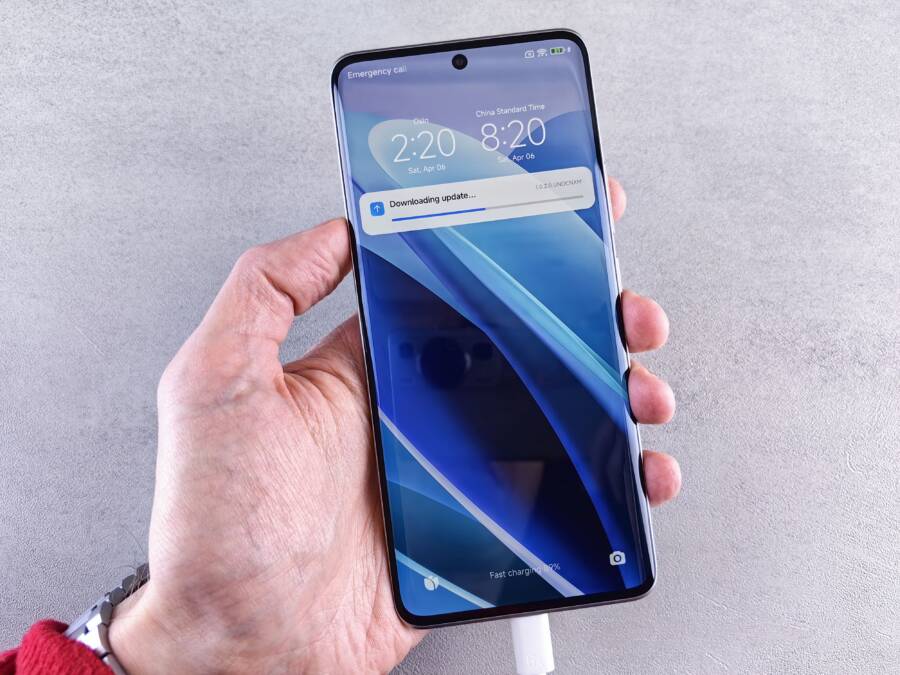
Your smartphone keeps the lock screen from hiding the right alerts because of notification priority settings and summary schedules that misjudge what you need to see. Important messages vanish into hidden lists or scheduled digests while low-priority updates stay visible right on the main display. You can fix this behavior by adjusting your notification grouping preferences and turning off automated summaries for critical apps.
Why Your Smartphone Hides the Wrong Alerts
Your smartphone decides which notifications demand your attention first based on automated sorting rules that often miss the mark. Software developers built these algorithms to reduce daily distractions, but they frequently bury urgent messages while keeping trivial updates visible. Understanding how these sorting mechanisms operate allows you to take back control over your screen.
Understanding Notification Summaries and Digests
Modern operating systems bundle non-urgent alerts into scheduled batches to reduce constant interruptions. This feature holds back incoming app activity until specific times of the day, delivering a single block of text instead of individual pop-ups.
When your smartphone groups these messages, it relies on automated usage patterns to determine what matters. Unfortunately, the software often misinterprets your habits. It might delay a time-sensitive delivery update because you rarely open that specific app during work hours. Meanwhile, low-priority social media pings bypass the summary entirely because they belong to a category marked as high urgency by default.
The Role of Focus Modes and DND Settings
Automated profiles and quiet hours silence specific apps based on your location, your calendar, or the current time. When you activate a sleep profile or a work profile, your smartphone silences notifications from unapproved senders and holds back general app updates.
These filters often block essential pop-ups because the initial setup process relies on broad categories rather than individual app permissions. A fitness tracker warning might get silenced alongside promotional shopping alerts simply because both use the same internal classification tag. Reviewing these automated profiles helps ensure critical messages appear immediately on your display.
Step by Step Guide on How to Fix a Phone That Cannot Keep the Lock Screen from Hiding the Wrong Alerts
Your smartphone needs precise instructions to display urgent alerts right on the main screen without interference from default sorting rules. When your device hides essential messages behind unhelpful summaries, you have to override the software manually. You can regain full control over your notifications by adjusting display permissions, changing priority levels, and disabling aggressive background savers.
Adjusting Lock Screen Display Permissions
Your operating system often hides certain app previews for privacy or clutter reduction, but you can force specific tools to show up directly on the main display. You need to open your device settings and locate the application management menu to change these rules.
Open the settings app on your smartphone and tap on notifications.
Select lock screen preferences or display settings from the list.
Toggle on the switch that allows detailed notifications to bypass hidden states.
Choose the specific messaging or utility apps you want visible at all times.
Changing Priority Levels for Specific Apps
Operating systems sort alerts into tiers, and default settings usually place standard text messages below automated app updates. You must manually promote your critical apps to a high priority status so the software treats them as urgent.
Navigate to your phone settings and open the app notification manager.
Tap on the specific messaging app you rely on most throughout the day.
Change the alert channel setting from medium or low to high priority.
Enable visual pop-ups and sound interruptions for that specific channel.
Disabling Aggressive Battery Savers That Block Pushes
Background restrictions stop alerts from reaching the user in real time because the system freezes inactive apps to save power. Your smartphone might delay incoming messages for hours if an aggressive power management profile cuts internet access to your background tasks. You must exclude your primary communication tools from these power-saving restrictions so they can maintain a constant connection.
Open your device battery settings and look for background usage limits.
Find the list of sleeping or restricted apps on your smartphone.
Remove your messaging and email clients from the restricted category.
Grant unrestricted background battery usage to any app that requires instant alerts.
Comparing Default Alert Styles Across Different Mobile Platforms
Mobile operating systems handle incoming alerts differently, which shapes how messages appear on your lock screen. Apple and Google use distinct sorting engines, meaning the same text message behaves differently depending on the hardware you own. Understanding these underlying platform mechanics helps you configure your smartphone to keep crucial alerts visible.
How iOS Manages Notification Center and Scheduled Summaries
Apple relies on a centralized notification center that groups incoming app activity by urgency and time. You can control this clutter by adjusting specific system settings. Scheduled summaries bundle non-urgent alerts into digests delivered once or twice a day. While this keeps your lock screen clean, it often buries important messages from messaging apps.
You can stop iOS from hiding critical alerts by turning off scheduled summaries for specific communication apps. Open your device settings, tap notifications, and select the specific app you want to manage. Turn off the delivery summary toggle to ensure messages from that app appear immediately. You should also change the preview setting to always show content so your lock screen displays the full message text instead of a generic notification banner.
How Android Handles Notification Channels and Bubbles
Google and Samsung devices use notification channels to let users control alerts with extreme precision. Every app on an Android smartphone splits its alerts into specific categories, such as direct messages, media playback, or promotional updates. You can adjust each channel independently to change sound, vibration, and display priority.
High-priority channels force alerts to appear as floating pop-ups and prevent the system from burying them in quiet lists. Samsung devices add another layer through edge lighting and floating notification bubbles that keep active conversations on your screen. You can customize these options by long-pressing an incoming alert, opening the category settings, and switching the importance level from medium to high.
Common Questions About Phone Alert Management
Managing your alerts on a smartphone often raises unexpected technical quirks that standard troubleshooting guides miss. Even after applying factory resets or updating your mobile operating system, certain notification anomalies can persist and disrupt your daily workflow. Resolving these lingering issues requires a closer look at background app behaviors and notification priority overrides.
Why Do Some Apps Still Hide After a Reset?
A full device reset does not always clear stubborn notification overrides tied to individual application profiles. Developers sometimes bake aggressive background rules directly into their software code, meaning the app dictates how it handles alerts independently of system-level preferences. When you reinstall a messaging or banking tool, it restores cloud-based profile flags that instantly reapply hidden states to your lock screen.
Software bugs within specific versions of an application can also trap alerts in an infinite loop of low-priority queuing. The operating system obeys these internal software flags, believing it is acting on user preferences when it actually enforces faulty developer defaults. You can override these hidden behaviors by digging into individual app settings rather than relying on global notification toggles.
How Can I Stop Silent Notifications From Taking Over?
Low-priority background alerts often drown out urgent messages by quietly stacking up in your notification shade without any audible or visual cue. You can regain control by actively pruning which applications receive permission to post silent updates.
Long-press any low-priority alert that slips into your quiet notification group.
Tap the settings icon or category prompt that appears on the pop-up menu.
Switch the channel classification from silent or low priority to high or default priority.
Disable background delivery channels entirely for apps that do not require instant updates.
Unchecking unnecessary background permissions stops trivial alerts from cluttering your screen and ensures your smartphone treats important communications with the urgency they deserve.
Conclusion
Fixing your smartphone lock screen requires a direct approach to notification channels, background rules, and priority settings. When you manually override automated summaries and adjust app permissions, important messages stop hiding behind trivial updates.
Take a few minutes today to review your device alert preferences so you never miss another critical text or call.