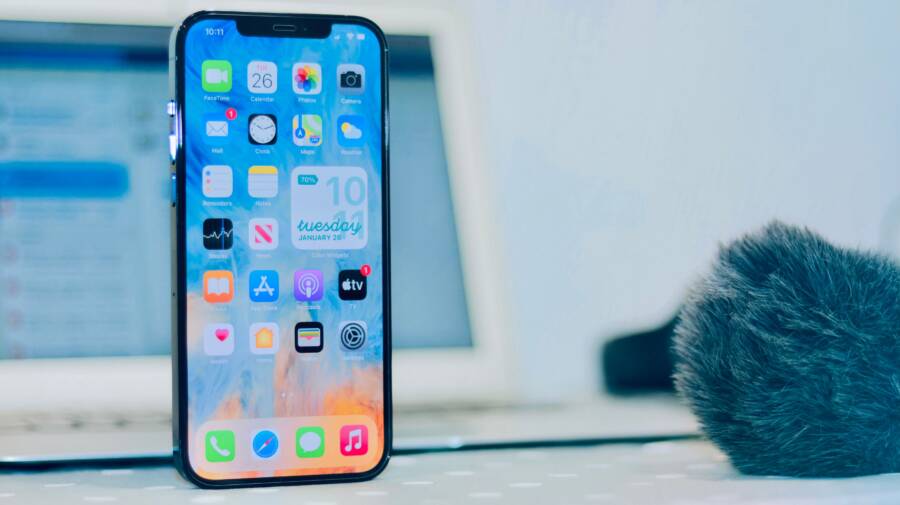
Cellular data suddenly drops on a single application because that specific program loses permission to access background networks or encounters a localized cache conflict. When your smartphone connects to the internet everywhere else, the issue isn’t your carrier or your main signal.
Why Your Phone Drops Mobile Data in Just One App
When your smartphone works fine on a web browser but fails inside a specific social media or streaming tool, the problem comes down to isolated software restrictions. Operating systems and app servers handle traffic individually. Because of this, a single piece of software can lose internet access while the rest of your device stays fully connected.
Checking Background Data Limits
Modern mobile operating systems aggressively restrict data usage for individual tools to save battery life. Your smartphone might cut off a background application if it consumes too much power or runs too many tasks while minimized.
Review your system settings to fix this restriction.
Open your device settings and locate the application manager.
Select the specific program that loses connection.
Tap on mobile data usage options.
Enable unrestricted data usage or allow background data access.
If these permissions are turned off, the application loses its network connection the moment you switch to another screen or lock your device.
Identifying Rogue Server Outages
Sometimes the issue is actually on the developer side rather than your mobile device. Cloud servers often experience localized outages that affect only specific features or login portals within an application.
Check external status trackers or social media channels to see if other users report similar trouble. If the backend servers are offline, your smartphone cannot maintain a stable connection no matter how many times you restart the software. Reinstalling the application or waiting for a patch solves this problem once the developers restore their servers.
How to Fix a Phone That Cannot Keep the Mobile Data From Dropping in One App
Fixing a stubborn network drop inside a single application requires targeted troubleshooting on your smartphone. When background permissions check out and server statuses are green, the problem usually lives inside local storage or outdated software packages.
Clearing Corrupted Cache Files
Temporary data builds up over time and often causes conflicts that sever connection streams. When a specific application accumulates corrupted cache files, network requests fail while other programs function normally.
On Android devices, open the system settings and navigate to the application manager. Select the misbehaving program from the list, tap storage, and choose the option to clear the cache. Avoid tapping clear data unless you want to log back in and reset your preferences completely.
On iOS devices, clearing application cache requires a slightly different approach because Apple does not include a direct button for every app. Open your general settings, go to iPhone storage, and locate the troublesome application. Tap offload app to remove the temporary files while keeping your personal documents intact, then reinstall it immediately through the App Store.
Resetting Network Settings Safely
Deep system glitches sometimes corrupt the communication pathways between your smartphone and cellular towers. Performing a full network reset wipes out saved Wi-Fi networks, Bluetooth pairings, and cellular configurations to restore default routing tables.
Open your system settings, locate the system or general management menu, and find the reset options. Select the command to reset network settings and confirm your choice with your device PIN. This process does not delete personal photos, videos, or application data, but you must reconnect to your home Wi-Fi and bluetooth accessories afterward.
Updating the Software and the App
Running mismatched software versions creates compatibility gaps that disrupt cellular data transmission. Developers constantly patch network protocols, and using an outdated application version on a modern operating system frequently triggers connection drops.
Open the App Store or the Google Play Store to check for pending updates for the problematic program. Simultaneously, open your system settings and verify that your smartphone runs the newest available operating system release. Installing these updates patches known bugs and restores stable communication channels.
Comparing Built-in Data Savers Across Different Brands
Different smartphone manufacturers handle data restrictions and power management in distinct ways. When a specific application loses its internet connection, the built-in system tools of your device are often the root cause. Understanding how your specific brand manages background connections helps you track down the blockage quickly.
Samsung Device Data Management
Samsung devices running One UI include aggressive background management utilities that frequently throttle cellular data for individual programs. The system features a dedicated setting called Data Saver, which blocks background synchronization for any software you are not actively using. If an application drops its connection the moment you minimize it, One UI is likely cutting off its network access to conserve battery power.
You can adjust these restrictions directly inside the application settings menu.
Open your device settings and select Apps.
Locate the problematic application in your list of installed programs.
Tap on Mobile data and check the options for background usage.
Toggle on the switch that allows background data usage while Data Saver is active.
Samsung also includes an adaptive battery feature that puts rarely used tools into deep sleep. If you have not opened a specific app in a few days, the operating system revokes its network privileges entirely. Disabling this sleep restriction for that specific tool restores normal connectivity.
Apple iPhone Cellular Restrictions
Apple handles background data limits through iOS settings that govern internet access for every installed program. The operating system includes a global low data mode alongside individual application toggles that restrict cellular data entirely. If your iPhone loses internet inside a single application, iOS might be blocking that program from using cellular networks while permitting Wi-Fi connections.
Checking these permissions requires a quick trip to your main settings menu.
Open the Settings application on your iPhone.
Scroll down and tap Cellular or Mobile Data.
Scan the list of applications to find the tool experiencing network drops.
Ensure the toggle next to the application is turned on to allow cellular data access.
If the toggle is already enabled, the global Low Data Mode might be active on your cellular plan. Go back to your cellular settings, tap cellular data options, and verify that Low Data Mode is turned off. Disabling this feature allows your smartphone to download background content normally without dropping connections mid-task.
Frequently Asked Questions About Mobile Data Drops
Many smartphone users experience confusion when connection failures target only one piece of software. Clear answers regarding app uninstalls and localized signal behavior help you troubleshoot connection drops quickly without guessing.
Does Reinstalling the App Delete My Data
When you uninstall an application to fix persistent data drops, your personal information reacts differently depending on whether your smartphone runs Android or iOS.
On an iPhone, using the offload feature preserves your personal documents and preferences while deleting the temporary application binaries. Because of this design, your local files wait safely on your device so you can log right back in after reinstalling the program from the app store.
Android devices handle this process through two distinct choices in the storage menu.
Choosing clear cache deletes only temporary files while keeping your saved preferences and account credentials completely untouched.
Choosing clear storage deletes all local data, returning the application to its original factory state and requiring you to log in again.
Cloud-based programs store your account history on external servers rather than local hardware. Because your chat logs or video watch history live online, deleting the local installation on your smartphone never erases your actual account data.
Can a Weak Signal Affect Only One App
Cellular signal strength affects heavy data streaming tools and simple text tools in very different ways. When your smartphone has a poor connection, low bandwidth cannot support high data demands, which leads to immediate connection drops.
Messaging applications require tiny packets of data to deliver text messages, so they often keep working even when signal bars drop to a minimum. Video streaming programs, high-end mobile games, and financial tools require continuous high-speed data streams to function properly. When cellular network congestion or weak signal strength occurs, your smartphone prioritizes basic tasks while data-heavy tools time out and lose their connection entirely.
Conclusion
Fixing a stubborn data drop inside a single application usually comes down to resetting local cache files, adjusting aggressive background power limits, or updating outdated software. When your smartphone connects everywhere else, targeting these localized restrictions restores normal network performance quickly.
Check your application permissions and clear out corrupted temporary files to keep your favorite tools running smoothly.