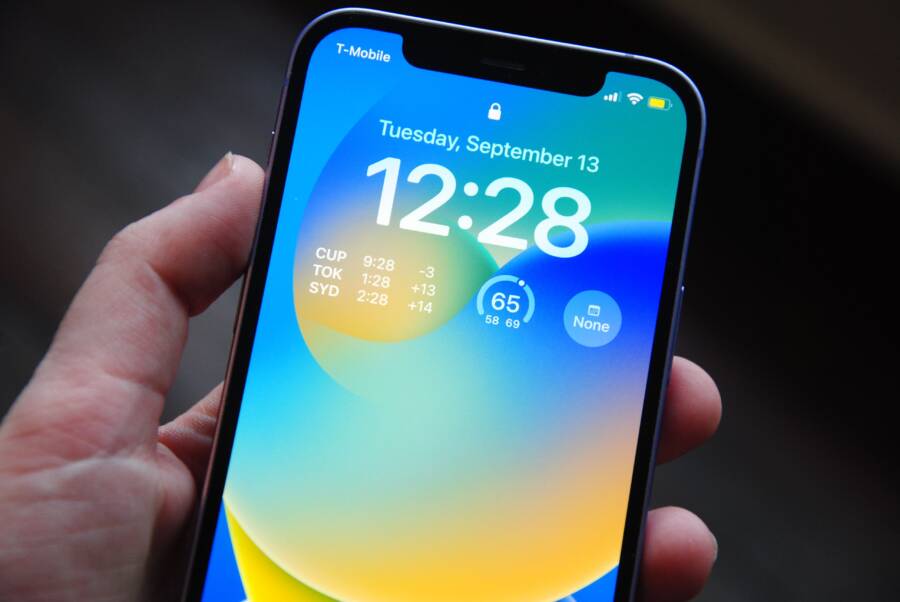
How to Fix a Phone That Hides Notifications on the Lock Screen
When your smartphone suddenly stops showing alerts on the lock screen, missing important text messages and call alerts is frustrating. This issue usually happens because of strict notification grouping, Do Not Disturb settings, or specific app permissions that got changed during a recent software update. Fixing the problem takes just a few moments once you know which settings to adjust.
Checking the Basic Notification Settings on Your Phone
Fixing hidden alerts begins by looking at your smartphone main configuration menus. Manufacturers hide notification controls deep inside system settings, so finding the right switch takes a few taps. Once you check the primary display parameters, messages will stop vanishing into thin air.
Enabling Lock Screen Previews in System Settings
Your smartphone needs explicit permission to show message text before the device gets unlocked. Operating systems hide this content by default for privacy reasons, which leads to blank reminder cards.
Open the main settings app on your smartphone.
Tap on the notifications menu.
Locate the lock screen section.
Select the option that shows conversations or detailed content.
Hidden previews occur because privacy flags take priority over convenience. Disabling sensitive notification filters forces your smartphone to reveal incoming message text immediately.
Reviewing Individual App Permission Toggles
Global settings might look correct, but individual applications often maintain custom overrides. Messaging clients, email apps, and social networks frequently manage their own alert profiles.
Open the application manager inside your main settings.
Select a specific app that fails to show alerts.
Check the notification category toggles for that program.
Turn on lock screen visibility for every desired alert channel.
Checking these specific toggles prevents messaging apps from overriding your global preferences. Your smartphone relies on both system and app-level permissions working together to display lock screen content properly.
Managing Do Not Disturb and Focus Modes That Block Alerts
Silent profiles on your smartphone often create the illusion of a broken device by intercepting notifications before they reach the display. Built-in quiet hours and automated routines intentionally suppress visual cues to protect your personal time. However, these aggressive filters frequently block urgent messages from appearing on the lock screen. Adjusting these automated barriers restores normal notification behavior without turning off your quiet hours entirely.
Turning Off Scheduled Summaries and Sleep Focus
Automated software features bundle your alerts into batch deliveries or hide them completely during nighttime hours. Apple and Android devices use schedules to hold back non-urgent messages, releasing them only at designated times during the day. Sleep profiles take this a step further by blanking the lock screen entirely so incoming pings don’t wake you up.
When your smartphone bundles alerts, missed messages vanish from immediate view because the system holds them in a hidden queue. Disabling these automated schedules brings your incoming alerts back to the lock screen immediately.
To turn off scheduled delivery or sleep filters, follow these steps:
Open the settings menu on your smartphone.
Tap on notifications or focus modes.
Select scheduled summary and turn the feature off.
Check the sleep focus profile and disable automated bedtimes.
Setting Up Exceptions for Important Contacts and Apps
Silence features do not have to be an all-or-nothing proposition for your daily communication needs. Modern operating systems let you carve out specific rules so high-priority messages always break through active focus profiles. Designating critical contacts and essential messaging applications ensures urgent alerts bypass silent barriers instantly.
You can configure these exceptions directly inside your focus settings menu.
Open the focus or Do Not Disturb settings on your smartphone.
Tap on the active profile you want to customize.
Choose the people category and add family members or close colleagues to your allowed list.
Select the apps category and include your primary messaging tools as approved exceptions.
Allowing specific applications to bypass silent modes keeps your lock screen active for the notifications that actually matter. Your smartphone will still block marketing pings and social media updates while letting true emergencies ring through.
Advanced Troubleshooting Steps When Standard Fixes Fail
Updating Your Operating System to Stop Notification Glitches
System software bugs frequently cause display errors on lock screens because outdated code interferes with how notifications render. Manufacturers constantly patch background display routines, so running an older software version often leaves known bugs unresolved. When your smartphone ignores lock screen alerts for no apparent reason, a missing patch is usually the culprit.
Installing the latest operating system update replaces corrupted interface files and restores normal alert behavior. Software updates also recalibrate the notification manager, clearing out persistent errors that block popups.
Clearing App Cache and Restarting Your Device
Corrupted temporary files often block popup alerts from reaching your display, even when your settings look completely correct. Restarting your smartphone clears out the temporary memory and forces all system processes to reload cleanly.
Follow these steps to clear corrupted app data and reboot your device:
Press and hold the power button and volume down key until the power menu appears on your smartphone.
Slide the power off indicator to shut down the device completely, then wait thirty seconds before turning it back on.
Open the main settings app and select storage or application management.
Tap on the specific messaging app that fails to show alerts, then select clear cache.
Clearing these cached files removes broken data packets that interfere with visual reminders. Once the app cache is empty and the smartphone restarts, incoming alerts will appear on your lock screen as expected.
Conclusion
Restoring visible notifications on your lock screen usually requires adjusting a few hidden system parameters or disabling aggressive sleep routines. When a smartphone hides incoming alerts, checking global display permissions and app overrides solves the problem quickly.
Start by verifying that your system allows detailed previews, then turn off any focus modes that block message popups. If alerts still fail to appear, clearing corrupted app caches and installing pending software updates will restore normal device behavior.
Are your lock screen alerts appearing normally now, or did you need a different troubleshooting step to fix the issue?