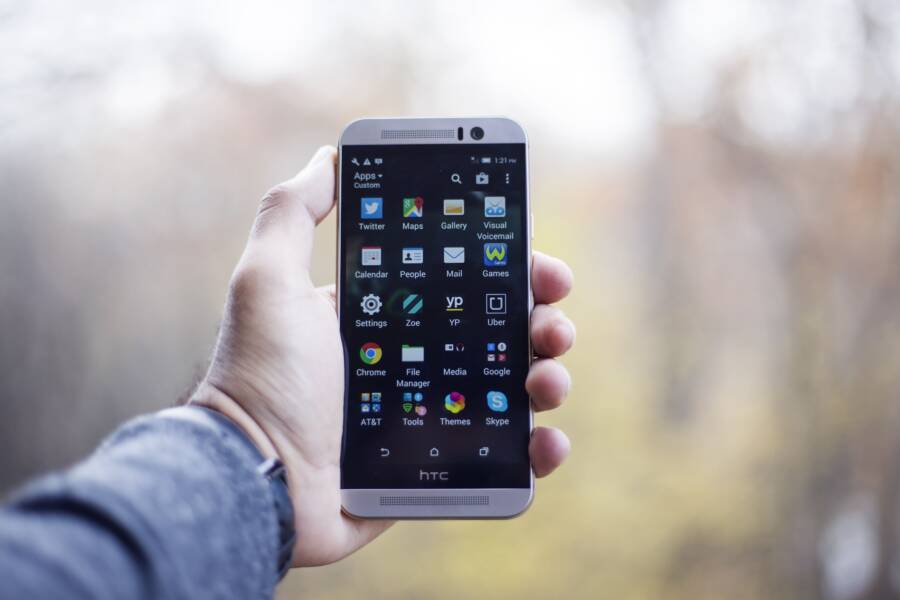
It is frustrating when you turn on your smartphone only to find your carefully arranged home screen icons scattered across different pages. This behavior usually stems from corrupted launcher cache files or an enabled setting that automatically organizes your workspace rather than a hardware defect.
You can often resolve this issue by clearing your launcher data or disabling the “Lock Home Screen” option in your device settings. Identifying the root cause requires a few quick checks on your system configuration.
Read on to learn the specific steps for securing your icon layout and preventing future reboots from disrupting your setup.
Fixing the Home Screen Shuffle Through Launcher Settings
Your smartphone relies on a launcher to display icons and widgets on your home screen. When these items move unexpectedly after a reboot, the launcher configuration is usually the culprit. Adjusting these settings within your phone’s interface can often stop the unwanted shuffling without needing complex technical fixes.
Checking the Lock Home Screen Layout Feature
Many modern smartphone models include a specific protection setting for your desktop interface. This feature is often labeled as Lock Home Screen Layout. When you toggle this option to the active state, the system prevents icons, folders, and widgets from moving positions.
If this setting remains disabled, the system launcher assumes you want the freedom to reorganize your apps at any time. Unfortunately, this also allows corrupted cache files or temporary glitches during a reboot to trigger an automatic reset of your icons. Follow these steps to secure your layout:
Open your phone Settings menu.
Navigate to the section labeled Home Screen or Display.
Locate the toggle for Lock Home Screen Layout.
Switch the toggle to the On position.
Once you enable this, your smartphone will ignore any commands to rearrange your icons, even if the system encounters a minor error during startup. If you ever decide to add a new app or adjust your layout later, simply return to this menu and deactivate the lock. This remains the most efficient way to prevent accidental changes while keeping your preferred arrangement intact.
Switching to a More Stable Third-Party Launcher
Sometimes the default software provided by your manufacturer struggles to maintain a stable environment. Bugs within the system launcher code can lead to icon displacement every time your smartphone power-cycles. If you have already enabled the lock feature but your icons continue to shuffle, your device may benefit from a fresh start with a different launcher application.
Third-party launchers act as a new interface layer that replaces the default home screen. Many of these alternatives prioritize stability and performance over the manufacturer-bloated versions that come pre-installed. Popular options like Nova Launcher or Niagara Launcher are known for their consistent handling of icon data.
Choosing a third-party app provides several advantages for your daily workflow:
You gain access to advanced backup features that save your home screen layout to the cloud.
These applications often undergo frequent updates to address bugs that cause display errors.
Most options allow for faster rendering of your icons upon waking the phone from a reboot.
Before switching, ensure you grant the new launcher the necessary permissions to function as your default interface. If the shuffling issue disappears after the switch, the problem clearly originated from the original system software. This transition resolves the issue while simultaneously providing you with more customization options for your smartphone experience.
Resolving System Conflicts and Cache Issues
Sometimes your icons shuffle because of corrupted background data rather than a simple setting change. Your smartphone keeps temporary files to help the home screen load faster, but these files can become outdated or conflict with system updates. Clearing this data forces the interface to rebuild its configuration from scratch, which often resolves persistent layout errors.
Clearing the Cache for Your Home Screen App
The home screen on your smartphone operates as a specific app process. When this process stores faulty information, your icon arrangement becomes unstable during startup. Resetting the app data removes these corrupted files and clears out temporary glitches that cause the system to default to a generic layout.
Follow these steps to clear the launcher cache and reset its state:
Open the Settings app on your smartphone.
Tap on Apps or Manage Applications to view your installed software list.
Select the option to show system apps if the launcher does not appear immediately.
Search for your specific launcher name, such as System Launcher, One UI Home, or Pixel Launcher.
Tap on Storage within the app information screen.
Choose the option to Clear Cache.
If the problem continues, select Clear Data or Clear Storage to restore the launcher to its original factory settings.
Note that clearing the data may revert your home screen to its default state. You might need to reorganize your folders and widgets after performing this step. This process creates a clean foundation for your icon layout and typically prevents further shuffling after you restart the device.
The Impact of Recent Software Updates
Software updates are intended to improve performance, but they can occasionally disrupt existing configuration files. If an update process is interrupted or fails to apply correctly, the system might struggle to read your saved layout files. This forced inconsistency often leads your smartphone to revert icons to their default positions during the next reboot.
You should always verify that your system is running the latest available patch to fix known bugs. Manufacturers release small updates to address stability issues reported by users after major version changes. To check for pending updates, navigate to your phone settings and look for the Software Update section.
If you recently performed an update and immediately noticed icon issues, the installation might be incomplete. Restarting the phone one more time sometimes allows the system to finalize pending background tasks. If this doesn’t work, ensure you have enough free storage space, as insufficient memory often prevents the system from properly saving new configuration files. Keeping your device updated helps maintain a stable connection between the hardware and the software, which is vital for preserving your custom interface settings.
Troubleshooting Advanced Smartphone Configuration Errors
If you still notice icon shuffling after checking your launcher settings and clearing your cache, the root cause might exist in more complex configuration conflicts. Occasionally, background processes or specific user data segments fail to synchronize during the boot sequence. This forces the Android system to revert to a default state to prevent a total crash. Addressing these deeper errors requires a surgical approach to your software environment.
Removing Corrupted Widgets That Cause Reverts
Widgets rely on active data feeds and real-time refreshes to display information on your home screen. If a widget becomes corrupted, it can cause the launcher process to hang or crash while your smartphone attempts to load the home screen during startup. When this crash happens, the system often defaults to a fresh, stock layout, which pushes your custom icons into a disorganized mess.
You should investigate your widgets if you recently added a new one or if an app update coincides with the shuffling behavior. To identify the culprit, try removing all widgets from your home screen temporarily. If the icons remain in their assigned spots after a restart, add your widgets back one by one.
Long-press any widget on your home screen.
Select the option to remove it or drag it to the trash icon.
Repeat this for all active widgets on your current pages.
Restart your smartphone to verify the icons stay in place.
Add back your essential widgets gradually, restarting after each addition to pinpoint which specific one causes the conflict.
This process eliminates the faulty software component from the launch sequence. By isolating the widget, you maintain your custom icon layout while restoring stability to the home screen environment.
Resetting System Preferences for a Clean Slate
Sometimes, the configuration files governing your overall system settings contain deep-seated errors that standard cache clearing cannot fix. The “Reset All Settings” feature targets these system-wide preferences, such as network configurations, display settings, and notification permissions. Importantly, this function does not touch your personal files, including your photos, videos, or downloaded documents. It only reverts the system operational settings to their original factory defaults.
Think of this as an automated tune-up for your phone. It cleans out lingering preferences that might interfere with how the launcher manages your layout. Follow these steps to perform this reset safely:
Open your device Settings menu.
Search for “Reset” in the provided search bar.
Select the option labeled Reset All Settings or Reset System Settings.
Confirm your choice by entering your security PIN or pattern.
Allow the smartphone to restart once the process completes.
After the phone reboots, you will need to reconnect to your Wi-Fi networks and re-enable features like Bluetooth or custom notifications. This is a powerful, non-destructive step that resolves complex software conflicts without the inconvenience of a full factory wipe. If your icons still shuffle after this, you have effectively narrowed the problem down to a deeper issue with the core firmware or a third-party app conflict.
When Should You Contact Professional Support
You should contact professional support if you have exhausted all standard troubleshooting steps without success. When basic settings, cache clearing, and system resets fail to stop your icons from shuffling, the issue might indicate deeper firmware corruption or a hardware-level failure. Relying on an official support channel is your safest option to avoid damaging your device or losing important data during more invasive repair attempts.
Recognizing Persistent Software Failures
Software errors that persist after a factory reset suggest a problem within the core operating system or the manufacturer-specific interface. If your icons rearrange themselves every time you perform a clean boot even after you have wiped the system cache, the underlying software image might be corrupted. Professional technicians can inspect the integrity of your current firmware version and perform a re-flash of the operating system if necessary.
You should reach out to support in these specific scenarios:
The shuffling happens even while the phone remains in Safe Mode, which indicates a problem with the core system rather than a downloaded application.
You recently installed an official system update and the icon layout issues began immediately afterward.
Your touch screen displays erratic behavior or ghost touches, as this often mimics icon movement by triggering phantom drags and drops.
Support teams have access to proprietary diagnostic tools that reveal hidden background processes that regular users cannot see. If your smartphone continues to struggle with basic home screen tasks, you might be dealing with a faulty storage partition where configuration files are failing to write correctly.
Dealing with Potential Hardware Defects
While icon shuffling is usually a software annoyance, it occasionally stems from physical damage or failing internal components. Excessive heat, liquid exposure, or accidental drops can affect how your smartphone handles memory writes. When the flash storage memory develops bad sectors, the device may fail to save your home screen layout properly.
Contacting a professional repair center is the correct next step if you notice these physical warning signs:
Your device becomes unusually hot while performing simple tasks on the home screen.
You notice the phone rebooting randomly in addition to the icon shuffling, which often points to a battery or motherboard failure.
The screen registers inputs incorrectly or has visible flickering that happens at the same time the icons move.
Attempting to force a fix on a device with physical damage can lead to total data loss or permanent hardware failure. Authorized service providers are trained to handle internal components safely and can verify if your device qualifies for a warranty repair. They will provide a clear assessment of whether the issue is fixable via software patches or if a hardware component needs replacement.
Conclusion
Fixing a disorganized home screen usually requires only a few minutes of troubleshooting. Most icon shuffling issues stem from a simple settings conflict or a corrupted cache file, rather than a failure of your smartphone hardware.
By locking your home screen layout or clearing your launcher data, you can restore order to your device and prevent future restarts from disrupting your setup. If the problem persists, switching to a different launcher or performing a system reset often creates the clean, stable environment your phone needs to function correctly.
You now possess the tools to secure your icons and stop the frustrating cycle of manual reorganization. Take a moment to verify your settings, and you will enjoy a consistent experience every time you power on your device.