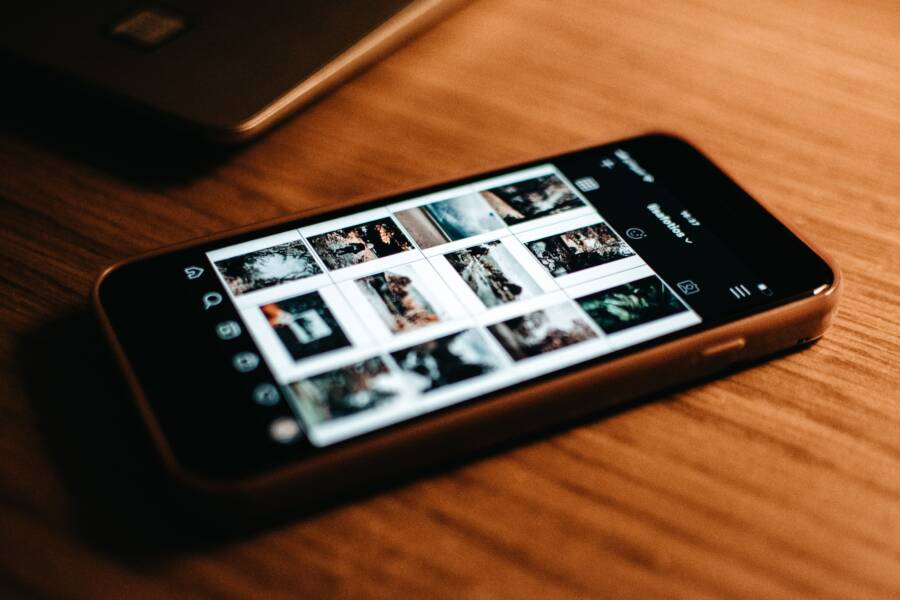
Your smartphone gallery fails to load new photos because of corrupted cache data, insufficient storage space, or a broken media scanner index. When the operating system cannot index new image files, the gallery app simply stops displaying them, even though the files sit safely in your device storage.
Fixing this problem takes just a few minutes of troubleshooting. Restarting your smartphone often forces the system to rebuild its media database automatically. If that fails, clearing the app cache or freeing up storage space resolves the indexing block and brings your pictures back.
Why Your Smartphone Fails to Show New Photos
Corrupted Media Index Files Explained
Your smartphone relies on a background database to track every image file stored on internal memory or the secure digital card. When you capture a new picture, the operating system registers the file and adds an entry to this media index. However, background processes often crash or get interrupted. When this happens, the index becomes desynchronized from the actual file directory. The smartphone keeps saving new photos, but the media database stops updating. Because the gallery app reads the database instead of scanning every folder live, your new pictures remain invisible.
Rebuilding this index usually requires forcing the system to rescan storage. You can trigger this by restarting the device or by clearing data for the media storage system process in your settings menu. Once the database resets, it reads all existing directories and populates the gallery app with your missing images.
Storage Full Warnings and Cache Overload
Running out of storage space stops your gallery app from functioning correctly because the system cannot write new thumbnail caches. Operating systems generate small preview files for every picture so the gallery can load quickly without rendering full-resolution images every time you scroll. When your device storage hits critical capacity, the operating system halts background writing tasks to prevent data corruption.
Without available space for new thumbnails, the gallery app fails to display newly added photos. Cleaning up junk files, offloading unused apps, or moving large videos to cloud storage restores the required headroom. Once the smartphone detects open storage, the gallery app resumes generating thumbnails and reveals your latest pictures.
How to Fix a Phone That Cannot Keep the Gallery from Loading New Photos
When your smartphone gallery refuses to show new captures, practical troubleshooting steps restore your media index quickly. You can resolve this issue by resetting app data, clearing storage bottlenecks, or forcing a system reboot.
Clear the Cache and Data on Your Gallery App
Your gallery app stores temporary files called cache data to load images faster. Over time, this cache accumulates corrupted files that block the application from reading new photos. Clearing this data forces the software to build a fresh catalog of your images without touching your actual picture files.
Open the settings menu on your smartphone and tap on applications or app management.
Scroll through the list until you locate your default gallery app, then select it.
Tap on storage usage to find the cache and data reset options.
Select clear cache first, and test the gallery to see if your photos appear.
Select clear data if the problem persists, knowing that your personal photos remain safe in device storage while only the app preferences and temporary viewing indexes reset.
Check Your Internal Storage and Free Up Space
Your smartphone needs empty memory overhead to process incoming image files and generate thumbnail previews. When internal storage reaches its absolute limit, the operating system halts background writing operations to prevent crashes. Removing unnecessary files gives your device the breathing room it needs to process new pictures.
Delete large video files that you no longer watch on your device.
Offload unused mobile applications that consume valuable memory space.
Transfer older photos to cloud storage or a desktop computer to reclaim gigabytes of space.
Empty your recently deleted folder because operating systems retain those files until you purge them manually.
Restart Your Device to Kickstart Background Services
A simple reboot forces the smartphone operating system to stop all hung background processes and reload essential services. During startup, the media scanner service runs an automated check across all internal storage directories. This scan detects newly added image files and writes them directly to the database that your gallery app relies on.
Power down your smartphone completely and wait about thirty seconds before turning it back on. Give the device a few minutes after booting up to finish background indexing tasks. Open the gallery app once the system stabilizes, and check if your missing photos appear in the main feed or folders.
Comparing Built in Gallery Apps and Cloud Alternatives
Choosing where to store your photos impacts how fast you can view them and how safe your files remain over time. Choosing between the default local gallery app on your smartphone and a cloud storage service involves weighing convenience against potential technical hurdles.
Pros and Cons of Using Native Gallery Apps
Native gallery apps provide instant access to your images because every file sits directly on your internal storage or SD card. You don’t need an active internet connection to browse your vacation pictures or show a friend a quick video. This local availability makes default gallery software exceptionally fast for everyday viewing.
However, local storage comes with distinct drawbacks. Your smartphone relies on a database index to display those files, and that database breaks easily when storage corruption occurs. If the index fails, your pictures stay hidden on the device even though you never deleted them. Relying solely on local memory also means a lost or broken smartphone destroys your entire photo collection instantly.
How Cloud Syncing Affects Local Image Loading
Cloud alternatives shift your photo library to remote servers, which changes how and when images appear on your screen. When you take a picture, the smartphone must upload the file over a Wi-Fi or cellular network before the cloud service processes it. Poor internet connections delay this upload process significantly.
Background backup settings also interfere with local image loading on your smartphone. If the cloud application tries to sync thousands of high-resolution files simultaneously, it consumes valuable processor power and network bandwidth. This heavy background activity makes your device sluggish, which frequently causes the local gallery app to stall or fail to render new thumbnails.
Troubleshooting Common Questions About Missing Pictures
When your smartphone gallery hides your pictures, you do not need to panic because the files usually still exist on your device. Most missing photo issues stem from hidden directories or synchronization glitches that you can fix in a few minutes.
What to Do If Photos Are Saved But Invisible
Your smartphone hides pictures when a specialized marker file blocks the operating system from indexing a specific folder. Developers and apps place a file named .nomedia inside directories to prevent personal images from cluttering your main gallery. However, third-party apps sometimes drop this hidden file into your main camera directory by accident. When that happens, the media scanner ignores the folder entirely, leaving your gallery empty even though your storage capacity shrinks from the new image data.
Fixing this invisible file problem requires locating the hidden marker and removing it from your directory. You can use any reliable file manager app to solve this issue on your smartphone.
Open your file manager application and enable the setting to show hidden files.
Navigate to your main storage directory and open the DCIM folder or the specific folder missing its images.
Look for a file named
.nomedia.Delete that file permanently.
Restart your smartphone to force the media scanner to rebuild the index for that folder.
How to Recover Deleted or Unsynced Camera Files
Sometimes pictures disappear because they were accidentally deleted or failed to upload to your backup service. Before you assume your smartphone lost the files forever, check the built-in recovery directories that hold temporary deletions. Most modern operating systems retain deleted media for thirty days before purging them from your device.
Open your gallery application and scroll to the bottom of your albums list to find the recently deleted folder. If you find your missing pictures there, tap the restore button to send them back to your main library. You should also check the trash bin inside your cloud storage app if you use automated syncing services. Cloud trash bins hold removed files for a limited window, giving you a reliable safety net when local storage syncs fail.
Conclusion
Fixing a stubborn smartphone gallery usually comes down to managing storage space, clearing out corrupted cache files, or removing hidden .nomedia markers that block the system from indexing new pictures. Most missing photo issues resolve in a few minutes once you reset the media database or give your device some breathing room.
Regular maintenance prevents these indexing bottlenecks from returning. Clear temporary app data and back up older files to cloud storage before your device hits maximum capacity.