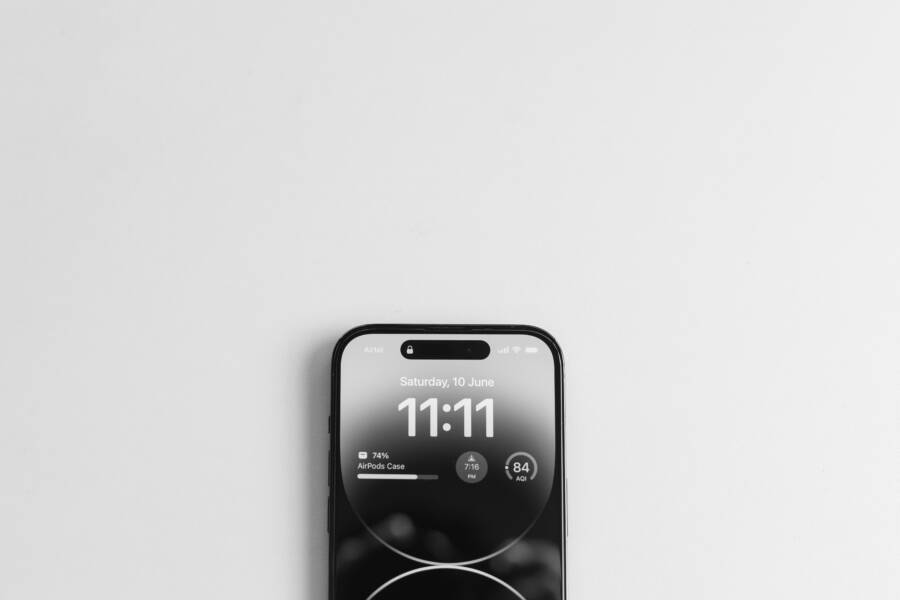
Why does your smartphone screen suddenly dim or brighten on its own while you are using an app? This annoying behavior usually happens because the ambient light sensor reacts to changing lighting conditions or a software glitch misinterprets your display preferences.
When your smartphone ignores manual adjustments and constantly shifts luminance, standard fixes involve resetting auto-brightness settings or disabling conflicting eye-comfort modes.
Why Your Screen Keeps Dimming or Brightening Inside Apps
Screen luminance shifts usually happen because ambient light sensors misread your physical environment, or because an active app demands specific display parameters. When a smartphone adjusts its output without your input, the hardware and software layers are often miscommunicating.
How Ambient Light Sensors React to Your Hands and Environment
The ambient light sensor sits near the top of your smartphone, measuring room illumination to adjust screen brightness automatically. When you hold a device in landscape mode while gaming or watching a video, your fingers frequently hover over or partially block this tiny window. Because the hardware registers a sudden drop in light, the system assumes you moved into a dark room and dims the display.
Light sources behind you also create erratic behavior because shadows cast by your hands confuse the sensor readings. Software algorithms attempt to smooth out these sudden changes, but rapid fluctuations in the environment still force the display to flicker between bright and dim states.
The Role of App Level Display Permissions and Overrides
Certain media players, reading utilities, and games request special permissions to adjust screen levels independently of system settings. Video streaming applications often override global brightness configurations to maximize contrast for dark scenes, returning to standard levels only when you exit the playback window. E-reader applications frequently implement night modes that alter color temperature and luminance, occasionally clashing with the core operating system preferences.
Developers include these overrides so content looks correct within their specific user interface. However, these independent adjustments often persist after you close the app, leaving the display stuck at an unexpected level until you manually reset the system controls.
Software Bugs and System Glitches That Trigger Sudden Shifts
Outdated operating systems and corrupted cache files frequently interfere with smooth display transitions. When the system framework responsible for auto-brightness fails to process sensor data correctly, the screen jumps erratically between maximum and minimum output. Background processes sometimes lock up display drivers, preventing the operating system from registering manual brightness slider changes.
Clearing the system cache or applying the latest software updates usually restores stable communication between the display panel and the light sensor. If the problem persists after a system patch, a deeper software reset often clears out the corrupted configuration files causing the erratic shifts.
How to Fix a Phone That Cannot Keep the Brightness from Changing in Apps
Regaining control over your display requires tracking down the hidden settings and automated features that override your manual choices. A smartphone constantly tries to balance legibility with battery preservation, often making unwanted adjustments while you use specific applications.
Disabling Adaptive Brightness and Auto Adjust Settings
Turning off automated brightness scaling stops the operating system from reacting to every shadow or shift in room lighting. On an Android smartphone, open the main settings menu and tap on the display section. Locate the adaptive brightness toggle and switch it off. For iOS users, open the settings app, select accessibility, tap display and text size, and scroll down to disable auto brightness. Disabling these options leaves the display slider entirely under your control. The screen stays at your preferred level until you manually change it again.
Turning Off True Tone and Night Shift or Eye Comfort Shield
Software filters and color temperature adjustments frequently conflict with manual display settings during daily use. True Tone alters white balance based on ambient environmental light, while blue light filters shift the screen toward warm amber tones. These tools continually manipulate the display panel behind the scenes, creating visual fluctuations that mimic brightness changes.
Open the system settings menu on your smartphone and navigate to the display or screen section.
Locate the True Tone option on iOS devices or the Eye Comfort Shield option on Android devices and turn the toggle off.
Disable scheduled night modes that activate automatically at sunset because these routines override manual slider adjustments.
Test a few apps after disabling these filters to verify that the display output remains stable.
Managing Individual App Permissions for Display Control
Certain applications request special access to modify system settings, allowing them to override your preferred display levels without warning. Checking these permissions stops rogue software from dimming or brightening your screen during use.
Open your device settings and locate the special app access menu, often found under apps or privacy settings.
Select the option for modifying system settings or changing display parameters.
Review the list of installed software currently granted permission to alter your display configuration.
Revoke access for any application that does not genuinely require control over your screen output.
Advanced Troubleshooting When Quick Fixes Fail
When standard adjustments and toggles fail to stop erratic luminance shifts, your smartphone requires deeper system intervention. Persistent display fluctuations usually stem from lingering software corruption, outdated drivers, or deep configuration conflicts that basic menu changes cannot reach.
Updating Your Operating System and Installed Apps
Outdated system software frequently leaves known bugs unpatched, causing display instability on a smartphone. Manufacturers regularly push out patches to fix sensor calibration errors and driver crashes.
Open your system settings and locate the software update menu.
Download and install any pending operating system updates for your device.
Open your app store, check your installed applications, and update every program to its latest version.
Restart your device after the installation finishes so the new system files load correctly.
Clearing App Cache and Restarting Your Device
Corrupted temporary files build up over time inside specific programs, causing erratic behavior and unexpected display overrides. Clearing these temporary caches forces applications to rebuild clean data files without touching your personal photos, messages, or saved documents.
Open your phone settings and tap on the storage or applications menu.
Select the specific app that behaves erratically and open its storage details.
Tap the button to clear the cache, repeating this process for any resource heavy applications.
Turn your smartphone completely off and wait for thirty seconds before turning it back on to flush the system RAM.
Resetting All Settings Without Losing Personal Data
Configuration conflicts deep within the operating system often resist simple fixes, but a full settings reset clears out bad data without erasing your personal files. Your photos, contacts, and text messages remain untouched while the device restores factory defaults for Wi-Fi networks, Bluetooth pairings, and display preferences.
Navigate to the general management or system menu in your settings and locate the reset options. Select the command that resets all settings and confirm your choice by entering your device PIN. Your smartphone reboots automatically and applies clean default configurations to stop the runaway brightness shifts for good.
Preventing Future Screen Brightness Glitches
Stopping future display fluctuations on your smartphone requires proactive maintenance of both physical hardware components and installed software. When you understand what triggers sudden brightness shifts, you can prevent them from returning after a successful reset.
Cleaning the Front Sensor Area and Screen Protectors
Dust, oil smudges, and thick tempered glass protectors frequently trick ambient light sensors into misreading room lighting. Because the sensor relies on clear optical paths to measure environmental illumination, a layer of grime acts like permanent sunglasses. When sunlight or indoor lamps hit a dirty sensor window, the hardware misinterprets the data and forces the display to dim unexpectedly.
Clean the top bezel of your smartphone regularly using a microfiber cloth to remove fingerprint oils and trapped dust particles. If you install a new screen protector, verify that the cutout aligns correctly over the sensor rather than covering it with tinted glass or adhesive residue.
Checking for Rogue Third Party Applications
Poorly coded applications frequently meddle with system display parameters by requesting background permissions to alter screen parameters. A flashlight utility, a custom media player, or an aggressive reading app can easily override your preferred settings without your knowledge.
Open your device settings and navigate to the application manager to review recently installed software.
Check app permissions specifically for system modification or display override capabilities.
Uninstall untrusted utilities or free reader tools that lack developer transparency and trigger frequent display flickering.
Monitor your smartphone performance in safe mode to confirm whether a third party background process causes the erratic brightness changes.
Conclusion
Fixing erratic screen brightness on your smartphone usually comes down to disabling automated sensor overrides and clearing out conflicting app permissions. When you turn off adaptive lighting features and keep the front sensor clean, your display remains steady during daily use.
Take a moment to check your device settings and revoke display permissions from untrusted apps today.