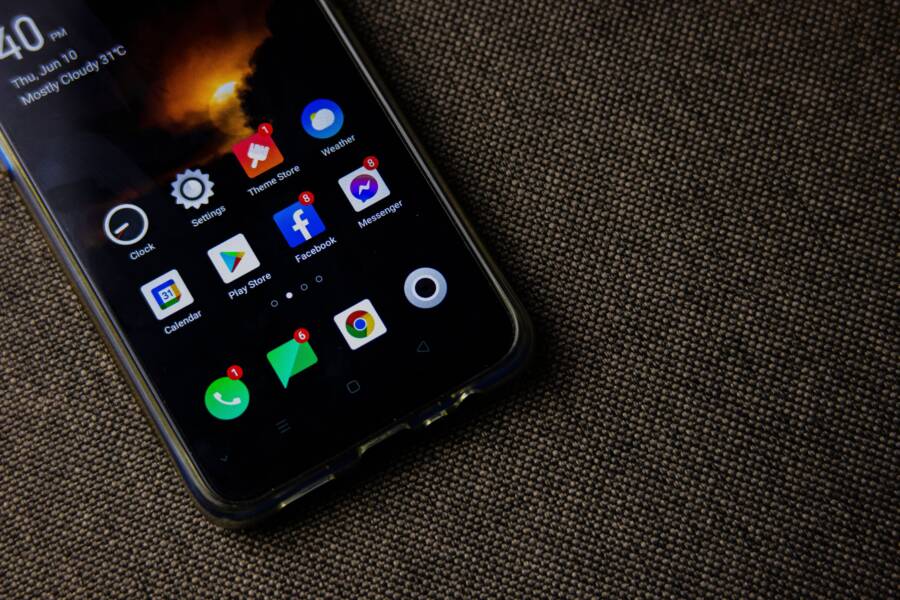
If your app permissions keep resetting after a system update, you do not need to perform a factory reset or buy a new phone. This problem often occurs because the operating system prioritizes strict security protocols when it encounters permission conflicts during an update, which forces apps to default to a restricted state.
You can resolve this annoyance by clearing the cache of the system settings app or manually resetting the specific permission preferences in your device menu. These steps restore control over your data without harming your personal files.
Read on to see exactly how to prevent your smartphone from stripping away your access settings every time you update your software.
Understanding Why Your Smartphone Permissions Keep Changing
Your smartphone maintains strict boundaries between apps and your personal data. When you update your operating system, these boundaries often reset to ensure no app retains access that you no longer intend to grant. This process prevents outdated access rules from carrying over into a newer, more secure environment.
How Operating System Updates Affect App Access
Modern operating systems like Android and iOS view updates as critical points for security revalidation. During a major version upgrade, the underlying software architecture often shifts how it manages hardware resources like your camera, microphone, or location services. Because these core structures change, the operating system must ensure every installed application still meets the current security requirements.
When a device transitions to a new software version, it initiates a verification cycle. The system inspects every application to confirm it follows the latest privacy standards. If an application lacks the necessary metadata to function under the updated protocols, the operating system defaults to a restricted state. This behavior acts as a safety barrier against apps that might attempt to exploit legacy permissions that existed before the update.
You might notice this behavior more frequently when major updates introduce new privacy dashboards. These dashboards often require a clean slate to accurately categorize how apps interact with your hardware. By resetting permissions, the phone provides you with a clear view of which applications currently have access, allowing you to manage those settings manually based on the updated functionality of your device.
The Security Logic Behind Permission Resets
The auto-reset feature, often called removing permissions for unused apps, serves as a proactive defense mechanism. If you do not interact with an application for a significant period, the operating system assumes you no longer wish for that app to track your data or access your hardware. When a system update occurs, it often triggers a review of these usage logs to prune unnecessary access points.
This safety precaution addresses several common risks:
It stops abandoned or forgotten apps from running background processes that monitor your location or activity.
It clears access for applications that you downloaded for a one-time task but never opened again.
It forces applications to re-request access, which reminds you to consider if the app truly needs the permission it is asking for.
If you find that an app loses its permissions right after an update, it typically signals that the system flagged the app as inactive or incompatible with the new security baseline. While this can feel disruptive, it serves a clear purpose. It keeps your personal information private by removing persistent access for software that no longer maintains an active or verified connection to your daily routine. By forcing a reset, the smartphone ensures that you are the final authority on what your apps can see and do.
Step by Step Guide to Fixing Resetting App Permissions
When your smartphone ignores your privacy choices after an update, the most effective approach is to address both system-wide configurations and application-specific settings. You can regain control by verifying your dashboard toggles, clearing temporary system files, or performing a clean installation for persistent issues.
Verifying Global Permission Settings
Most modern operating systems include a centralized privacy dashboard that manages permission behavior across all installed apps. If your settings keep reverting, the system may have an active “Auto-reset” feature enabled. This function automatically revokes permissions for apps you haven’t opened recently, which often triggers right after a system update refreshes your usage logs.
To check these global settings, navigate to your phone’s main Settings menu and search for “Privacy” or “Permission Manager.” Look for a toggle labeled “Remove permissions if app is unused” or “Auto-reset permissions.” Turning this off prevents the system from stripping access rights based on inactivity. Some manufacturers also include an “App Management” or “Security” dashboard that acts as a master switch for location, microphone, and camera access. Reviewing these master toggles ensures that your phone isn’t programmed to periodically wipe your manual selections to satisfy new security protocols.
Clearing App Cache and System Data
Sometimes, the configuration files responsible for storing your permission choices become corrupted during an update process. When this happens, the Settings app cannot write your preferences correctly, causing the phone to default back to restricted access. Clearing the cache often forces the system to rebuild these files and recognize your settings again.
Start by going to the Settings app, then select “Apps” or “App Management.” Find the “Settings” app in the full list and select “Storage,” then choose “Clear Cache.” If a specific app is the source of the trouble, navigate to that app’s specific info page, select “Storage,” and perform a cache clear. For more stubborn cases, you may need to clear the cache of the “Permission Controller” or “System UI” apps. Restarting your device after this process is helpful because it forces the operating system to reload its permission database from scratch.
Reinstalling Problematic Applications
When clearing the cache fails to fix the issue, a fresh installation is the most reliable way to clear out legacy bugs. An update might change how an app interacts with the hardware, and if the existing installation carries over broken permission metadata, the app will never accept the access you grant. Uninstalling the app completely removes these corrupt remnants from your storage.
After you uninstall the app, restart your smartphone to clear any remaining temporary files from the system memory. Download the app again from your official store to ensure you have the latest version compatible with your current software environment. During the initial launch of the reinstalled app, the system will prompt you for permissions again. By accepting these prompts during the initial setup, you allow the operating system to create a clean, compatible link between your data and the application. This method is particularly effective for apps that heavily rely on background services, as it creates a fresh permission entry that the updated OS can verify without error.
Advanced Troubleshooting for Persistent Permission Issues
When standard settings adjustments fail to stop your permissions from resetting, deeper software conflicts are often the root cause. A persistent issue usually means a background service or an improperly configured system preference is overwriting your choices during startup or after an update. You should approach these problems by isolating the software environment and resetting the underlying management files.
Using Safe Mode to Isolate Third Party Conflicts
Safe Mode is a diagnostic environment that loads only the pre-installed system software. By running your smartphone in this mode, you stop all third-party applications from starting in the background. If your permissions stay stable while in this state, one of your downloaded apps is almost certainly forcing the resets by clashing with system security protocols.
To enter Safe Mode on most Android devices, follow these steps:
Press and hold the power button until the power menu appears on your screen.
Tap and hold the “Power Off” or “Restart” icon on the display.
Select “OK” or “Reboot to Safe Mode” when the prompt appears.
Once the device restarts, you will see a “Safe Mode” indicator in the corner of your screen. If your permissions no longer reset, you have confirmed a conflict exists. You should then uninstall recently added applications or apps that manage security, antivirus, or battery optimization, as these are frequent offenders. After removing the suspected app, restart your smartphone normally to exit Safe Mode and test if the behavior persists.
Factory Resetting App Preferences
Sometimes the permission database on your device becomes corrupted or contains conflicting entries that persist across updates. Resetting your app preferences clears these stuck states without deleting your personal files, photos, or data. This process returns all app settings to their default, which forces the system to rebuild its permission registry from scratch.
Follow this path to reset your app preferences:
Open your phone’s Settings menu.
Select “Apps” or “App Management.”
Tap the three-dot menu icon in the top right corner.
Select “Reset app preferences” or “Reset all app preferences.”
Confirm your choice by tapping “Reset apps” in the final prompt.
This action resets disabled apps, notification restrictions, and background data limitations. You will need to re-grant permissions to your apps as you open them again, but this often fixes the glitch where the system refuses to save your manual changes. If you still encounter issues after this reset, the problem might stem from a deeper OS configuration error that requires a cache partition wipe or a full software restore.
Common Questions About Phone Permission Management
Many users wonder if they can permanently lock in their settings so they never reset again. While operating systems prioritize security by periodically checking your access choices, you can minimize these interruptions. Understanding how the system treats your privacy settings helps you manage your device more effectively.
Can I stop my smartphone from resetting permissions automatically?
You cannot completely disable the internal security logic that monitors app access, but you can turn off the features that revoke permissions for unused apps. Most modern devices include a toggle in the settings menu that governs this behavior. By disabling the auto-revoke function, you prevent the system from stripping access rights simply because you haven’t opened an app in a few weeks. Keep in mind that system updates may occasionally reset these toggles as part of a security refresh. Checking these settings after a major update is a standard way to maintain your preferred configuration.
Does a permission reset mean my data is unsafe?
A reset doesn’t mean your data is currently at risk. Instead, it indicates the system is enforcing a tighter security policy. When a smartphone resets a permission, it forces the application to re-request access to your data or hardware. This gives you a fresh opportunity to decide if that app still needs those specific privileges. You remain the final authority on access, and the reset is often a tool to help you clean up old or unnecessary connections.
Why do certain system apps ignore my manual changes?
Some system-level applications have hard-coded permissions that you cannot modify. These apps perform core functions like hardware management or network connectivity, so the operating system protects them from user-initiated changes. If you notice a specific app consistently ignores your settings, it is likely a system component rather than a typical third-party download. You can usually identify these by looking for a system app icon or a restricted menu in your application manager.
How often should I check my permission settings?
Reviewing your access settings once every few months or immediately following a major software update is a good practice. Frequent manual checks help you identify which apps are requesting new access or retaining privileges you no longer use. Consider the following schedule to keep your data private:
After installing a major system update that changes the user interface.
Once per quarter to audit apps you installed but rarely use.
Whenever you notice an application behaving unexpectedly, such as requesting location data when it is not in use.
Staying consistent with these audits keeps your digital footprint small. It also ensures that your smartphone functions exactly how you expect without unauthorized background activity.
Conclusion
When your smartphone resets app permissions after an update, the issue usually stems from internal security protocols that prioritize data privacy over user convenience. You can regain control by adjusting your global privacy dashboard or clearing the cache for the system settings app to remove corrupted configuration files.
While these recurring resets feel disruptive, they act as a safeguard for your personal data. This behavior verifies that no legacy access remains active without your explicit permission.
Keep your software updated regularly to benefit from the latest security patches. A consistent update schedule ensures your device remains protected against modern threats while maintaining the stability of your permission settings.