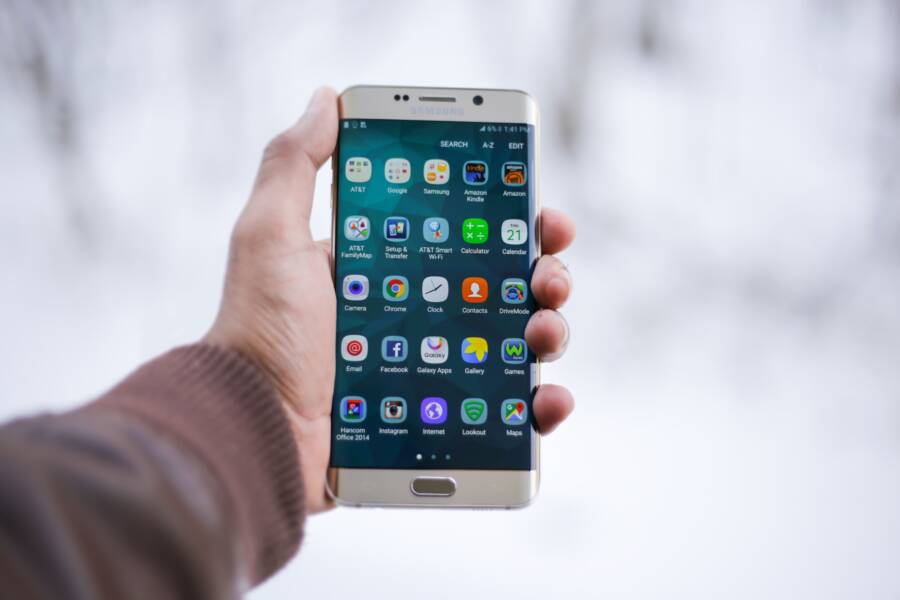
Update or reinstall the outdated app, restart your phone, then clear the affected app’s cache or reset its sharing defaults on Android. You should also install the latest system update, since these steps often remove stale entries from the phone’s share sheet.
The share sheet is built by the operating system, so an old app can remain visible because of cached data, an incomplete uninstall, a disabled app, a duplicate installation, or a system indexing error. Android gives you more controls for managing these entries, while iPhone users may need to update or reinstall the app, restart the device, or reset settings. The same fixes apply to most smartphone models, but the menu names can differ between Android versions and iOS. Next, follow the platform-specific steps to refresh the share sheet without deleting your personal files.
Why Old Apps Keep Appearing in the Share Sheet
Old apps remain in a phone’s share sheet because the operating system builds the menu from installed apps, registered sharing extensions, and stored usage data. Updating or deleting an app doesn’t always refresh those records immediately, so the share sheet can show an app that appears outdated, inactive, or no longer useful.
The share sheet uses app registration data
When an app supports sharing, it registers a share target with Android or iOS. The operating system then adds that target to the share sheet when you send a photo, link, document, or other file.
An app can still appear if:
You installed an update but the system has not refreshed its share extension.
The app is disabled but its registration remains stored.
An uninstall ended before the operating system removed every related entry.
Two versions or profiles of the same app exist on the smartphone.
The app supports only certain file types, yet remains listed for other content.
This is why the share sheet can look out of sync with your current apps. The menu is based on system records, not only the icons visible on your home screen.
Cached suggestions can preserve old entries
Android may store share targets and ranking information to make frequently used apps appear near the front. That information can survive an app update, a failed installation, or a change in the app’s sharing features.
For example, an old version of a messaging app may have registered one sharing action, while its current version uses another. Until Android rebuilds its app index, both the old target and the newer target may appear. Clearing the affected app’s cache, resetting default preferences, or restarting the phone can prompt the system to create a fresh list.
An outdated share-sheet entry doesn’t always mean the app itself is unsafe or broken. It often indicates that the operating system has not refreshed its saved app information.
iPhone suggestions and extensions work differently
On iPhone, the share sheet can include app extensions as well as Siri suggestions based on your sharing habits. An app may remain visible because its Share extension is still installed, even if you rarely open the main app.
iOS provides fewer direct controls for clearing individual share targets. Updating the app, restarting the iPhone, or removing and reinstalling the app usually refreshes its extension. If the problem affects several apps, resetting system settings may help, but that step also changes preferences such as Wi-Fi networks and keyboard settings.
How to Fix a Phone That Cannot Keep the Share Sheet from Showing Outdated Apps
Android lets you clear app cache and reset sharing preferences directly. iPhone offers fewer controls, so updating, restarting, and refreshing the affected app’s Share extension are the safest first steps. Use the platform-specific method below before considering a broader settings reset.
Clear Android cache and reset sharing defaults safely
Android menu names vary by manufacturer, but the usual path is Settings > Apps > [affected app] > Storage. Tap Clear cache, then restart your phone and check the share sheet again. This removes temporary files that may preserve an old sharing target without deleting your account, documents, or app settings.
Do not confuse Clear cache with Clear storage or Clear data. The latter options can sign you out, erase downloaded content, and remove local preferences. Use them only after confirming that the app can restore your information through an account or backup.
If the wrong app still appears as the preferred choice, check Settings > Apps > Default apps. Choose the relevant category and change the selected app. Some Android smartphones place this control in the affected app’s settings instead.
You can also reset broader app preferences. Look for Settings > Apps, open the three-dot menu, and select Reset app preferences. This normally keeps personal files, photos, and installed apps, but it can re-enable disabled apps and remove chosen defaults.
Finally, install any available Google Play system update under Settings > Security and privacy or Settings > System and updates. Restart the phone after applying the reset so Android can rebuild its sharing records.
Refresh iPhone sharing extensions without erasing the phone
iOS doesn’t provide a general share-sheet cache button like Android. Start by updating iOS and the affected app, then restart your iPhone. Afterward, open the share sheet, swipe across the app row, and tap More or Edit. Remove the stale app from Favorites, then add the current app again if it remains available.
If the app still shows an outdated sharing option, delete and reinstall it. Before doing so, check its iCloud sync status or in-app backup options because local drafts and downloaded data may not return automatically. Reinstalling can register a fresh Share extension with iOS.
Use Reset All Settings only after these steps fail. You can find it under Settings > General > Transfer or Reset iPhone > Reset. This option doesn’t delete photos, apps, or other personal files, but it resets network connections, privacy permissions, keyboard settings, and other system preferences. Avoid third-party cleaner apps, which cannot reliably clear iOS share-sheet data.
Fix Share Sheet Entries That Still Point to a Removed or Older App
When a share sheet still points to an app you removed or replaced, refresh the app registration instead of deleting personal files. Start with the affected app, then check for duplicate installations, work profiles, and system updates on your smartphone.
Remove stale entries after uninstalling an app
First, restart your phone after uninstalling the old app. A restart can reload the share-target list and remove an entry that remained after the uninstall process.
If the old app still appears, install the latest version of the replacement app, open it once, and sign in if required. Then share a file that the app supports. Opening the app gives the operating system a current sharing record to use.
On Android, check Settings > Apps for another copy of the old app. Search for the app name and review entries under personal, work, or cloned-app profiles. Samsung phones may list cloned apps through Settings > Advanced features > Dual Messenger, while other manufacturers use names such as App clone or Parallel apps.
A work profile can also retain an older version that doesn’t appear with your personal apps. If you no longer use that profile, remove it through your device’s work-profile settings or contact your organization before changing it.
Refresh an older app’s share target
An outdated entry may belong to the current app rather than a removed one. Compare the app name and icon in the share sheet with the version installed through the Google Play Store or App Store. Update the app, launch it, and restart the phone.
Android users can also open Settings > Apps > [app name] > Storage and tap Clear cache. If the entry still points to the wrong version, uninstall the app, restart the device, and reinstall it from the official store. Back up local files first because some apps store drafts or downloads only on the device.
On iPhone, delete and reinstalling the app usually registers its Share extension again. Check iCloud sync or the app’s backup options before removing it, especially if it contains local documents.
If only one app remains outdated, refresh that app first. Resetting the entire phone’s settings is usually unnecessary.
Check whether the entry is a shortcut
Some share sheets show a direct conversation or action instead of the app itself. Android may display a suggested contact, while iPhone may show a Siri suggestion linked to an app extension. Remove the suggestion through the share sheet’s editing controls, then share the same content again.
If the removed app remains after these steps, install pending operating system updates and restart once more. A system update can rebuild the registration database that controls available share targets.
How to Prevent Outdated Apps From Returning to Your Smartphone Share Menu
After removing an outdated app from the share sheet, prevent the same entry from returning by keeping apps updated, removing duplicate installations, and reviewing sharing suggestions. A clean share menu depends on the operating system’s current app registrations, so changes must be completed across both the app and the phone.
Keep apps and system software updated
Enable automatic updates through the Google Play Store or App Store. Updates can change an app’s share extension, supported file types, or registered actions. Installing the latest version helps your smartphone maintain an accurate list of share targets.
Also check for system updates, including Google Play system updates on Android. These updates can fix problems with app indexing and share-sheet behavior. Restart the phone after installing updates so the operating system can reload its app registration data.
If you rarely use an app, uninstall it instead of leaving an old version disabled. A disabled app may still have stored sharing information until the system refreshes its records.
Remove duplicate apps and unused profiles
Duplicate installations are a common reason an old app returns to the share menu. On Android, check for cloned apps, work-profile versions, and apps installed under a secondary user account. Device manufacturers may label these features Dual Messenger, App clone, Parallel apps, or Work profile.
Remove the unused copy only after confirming that it doesn’t contain separate messages, files, or business data. If the duplicate belongs to an employer-managed profile, contact your administrator before deleting or disabling it.
An app can return to the share sheet when a second copy remains installed, even if you removed the version from your personal profile.
Manage share suggestions and favorites
Android may rank apps and direct contacts based on recent sharing activity. iPhone can also show Siri suggestions and app extensions in the share sheet. Review these suggestions after removing an old app, then turn off or remove entries you no longer want when the platform provides that option.
On iPhone, open the share sheet, swipe across the app row, and tap More or Edit. Remove outdated apps from Favorites. On Android, the exact controls depend on the manufacturer and Android version, but resetting app preferences can clear selected defaults without deleting your personal files.
Avoid installing third-party cleaner tools for this issue. They usually cannot manage system share extensions reliably, and some request access to files or other sensitive data. Keep the official app installed, updated, and registered only in the profile where you plan to use it.
Common Questions About an Outdated App in the Share Sheet
An outdated app in the share sheet usually comes from saved app registration data, a duplicate installation, or a sharing suggestion. The answers below cover the most common situations on Android phones and iPhones.
Why does an old app still appear after I uninstall it?
The operating system may not remove a share target immediately after an app is uninstalled. Cached registration data, a work profile, or a cloned app can keep the old entry visible.
Restart your smartphone first, then open the share sheet again. If the app remains, search Settings > Apps on Android for another copy under a personal, work, or secondary profile. On iPhone, reinstalling the replacement app and restarting the device can refresh its Share extension.
Is an outdated share-sheet app a security problem?
Usually, no. An old entry often means the phone has not refreshed its app index. It doesn’t automatically indicate malware, unauthorized access, or a damaged app.
However, check the app’s actual status before using it. Open the Google Play Store or App Store, search for the app, and confirm whether an official update is available. Remove the app if you no longer recognize it, especially if it came from outside the official store.
Why does the old app appear only for certain files?
Share targets register support for particular content types. An app may appear for photos but not documents, or for web links but not videos. The share sheet filters available apps based on the item you’re sending.
An outdated-looking entry can also be a direct action, such as a contact shortcut or conversation suggestion. In that case, edit the share sheet’s suggestions or favorites instead of reinstalling the entire app. Test the menu with a different file type to identify whether the issue affects the app or only one sharing action.
Will resetting app preferences remove my personal files?
On Android, Reset app preferences normally keeps photos, documents, accounts, and installed apps. It can still re-enable disabled apps, restore notification permissions, and clear selected default-app choices.
Before using it, record any custom defaults you rely on. If the problem affects only one app, clear that app’s cache or reinstall it first. iPhone users should choose Reset All Settings only as a later step because it resets Wi-Fi networks, privacy permissions, keyboard settings, and other preferences without deleting personal files.
Conclusion
When a smartphone shows an outdated app in its share sheet, first identify whether the entry belongs to an old app, a duplicate installation, a favorite, or a saved default. Restart the phone, update the operating system and apps, then refresh Favorites or sharing defaults before using deeper fixes.
Android provides more direct controls, including app-cache clearing and preference resets. iPhone usually relies on system and app updates, share-menu customization, reinstalling the affected app, or resetting settings. Back up important app data before clearing storage or uninstalling anything.
If the stale entry remains after a clean reinstall and system update, contact the app developer or device maker. Persistent entries may require a platform-level fix rather than another change to your phone’s settings.