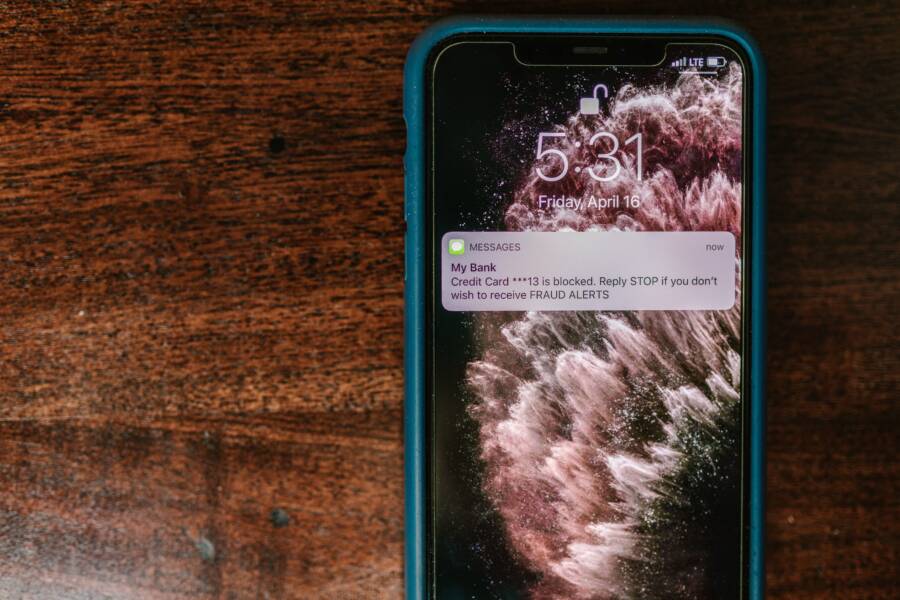
Missing notifications on your smartphone lock screen are frustrating, but the fix is usually simple. Whether you use an iPhone or an Android device, these alerts often stop appearing because of hidden software settings, active focus modes, or minor system glitches.
Most users find that their device is either set to silence incoming alerts or has specific notification permissions disabled for certain apps. You can usually resolve this by adjusting your notification history, checking your focus settings, or updating your operating system.
Correcting these settings restores your ability to see messages and updates at a glance. Below are the specific steps to identify the cause and return your lock screen to normal functionality.
Quick Fixes for iPhone Lock Screen Notifications
Most notification issues on an iPhone stem from small adjustments within your system preferences. If your smartphone screen remains dark when a message arrives, your first move is to verify that your global and app-specific settings permit these alerts. Software updates or accidental changes often toggle these switches off.
Adjusting Notification Settings in iOS
You can control exactly how each app interacts with your lock screen through the main settings menu. If you stop receiving alerts for a specific app, follow these steps to reset the permissions.
- Open the Settings app on your smartphone.
- Tap the Notifications menu near the top of the list.
- Scroll down to find the specific app that is not showing alerts.
- Verify that the Allow Notifications toggle is green.
- Check the Alerts section and ensure the Lock Screen checkbox is selected.
- Make sure the Banner Style is set to Persistent if you want the alert to remain until you interact with it.
Repeat this process for every app that fails to notify you correctly. Sometimes, toggling the Allow Notifications switch off and back on again clears a minor software glitch. If your smartphone is running an older version of iOS, consider checking for a software update in the General menu, as Apple frequently releases patches for notification bugs.
Mastering Focus Modes and Do Not Disturb
Focus modes act as a filter for your incoming data. If you have a mode like Work, Sleep, or Do Not Disturb active, your smartphone suppresses non-urgent alerts to help you stay productive or rested. You might find that your lock screen is clear simply because your phone is actively hiding these distractions.
Check if a crescent moon or a specific icon appears in your status bar, as this indicates a mode is currently running. You can manage these settings by opening the Control Center and tapping the Focus button. If you want to allow specific alerts, customize your settings by following this path:
- Go to Settings and select Focus.
- Tap the specific mode you use most often.
- Select People or Apps to whitelist specific contacts or software.
- Add individuals or apps that must bypass the filter to ensure their messages always reach your lock screen.
Using these filters allows you to maintain peace while still receiving urgent updates. If you still have trouble, try disabling all Focus modes entirely to see if your notifications return to their default behavior.
Troubleshooting Android Lock Screen Alerts
Android devices offer deep control over how apps display information while your phone is locked. If your smartphone fails to show expected updates, the issue often hides within the specific notification categories assigned to each application. Software updates or accidental changes frequently adjust these settings, causing alerts to vanish from the lock screen.
Managing App Notification Categories
Android organizes alerts into specific channels or categories. Each app might have several categories, such as messages, status updates, or account alerts. If one category is set to silent or hidden, your smartphone won’t show the alert on your lock screen even if other notifications from the same app appear correctly.
You can review these settings by following these steps:
- Open your phone Settings app.
- Select the Notifications menu.
- Tap App Settings to view a list of all your installed software.
- Locate the app that isn’t sending alerts.
- Tap on the app name to see its specific notification channels.
- Check each category to ensure the toggle for Show as pop-up or Lock screen is enabled.
Some apps group these settings under a Notification Categories header within the app-specific menu. If you don’t see this option immediately, look for an Advanced section or tap directly on the notification label text itself. Ensure the priority is set to Alerting rather than Silent to guarantee that a visual notification appears. If you find a category set to Silent, changing it to Alerting often resolves the issue instantly.
Checking Battery and Background Restrictions
Modern smartphones include aggressive power-saving features that restrict apps from running in the background. If your device enters a low-power state, it may block background processes for apps to save juice. This action stops the application from checking for new data, which means no notifications reach your lock screen until you manually open the app.
To determine if battery management is the culprit, check your background usage settings:
- Navigate to Settings and select Apps.
- Choose the app experiencing issues.
- Tap on Battery or App Battery Usage.
- Switch the setting from Optimized or Restricted to Unrestricted.
Restricting background activity prevents an app from communicating with servers while the screen is off. If you rely on a specific app for timely updates, keeping it on the Unrestricted list ensures it maintains a connection. Always balance this setting carefully, as allowing too many apps to run in the background can drain your battery faster throughout the day. If changing the battery profile doesn’t help, disable any system-wide power saving modes to see if notifications return to your smartphone lock screen.
Advanced Software Solutions for Persistent Issues
Sometimes basic settings adjustments fail to bring back your lock screen notifications. When your smartphone refuses to display alerts despite correct configuration, the root cause often lies in deep-seated system data conflicts or corrupted cache files. These advanced steps help you clear out hidden roadblocks that basic toggles cannot reach.
Clearing System Cache and Data
Apps store temporary files to speed up performance on your smartphone. When these files become corrupted, they can prevent your device from triggering lock screen updates. Clearing the cache forces the application to build a fresh, error-free link with your system notification service.
For Android users, you can clear this data through the application manager. Navigate to your device settings, select the apps menu, and choose the specific application. Tap on storage and clear the cache. For some apps, you might need to clear the data as well, but remember that this action often logs you out of the account. iPhone users do not have a manual cache clear option for individual apps. Instead, you must uninstall the app entirely, restart your device, and reinstall it from the app store to achieve the same result.
Updating System Software and Firmware
Your smartphone relies on a complex web of background services to manage incoming data. If your operating system is outdated, these services may contain bugs that block notifications from reaching the lock screen. Manufacturers frequently release patches to fix these exact synchronization errors.
Always check for pending system updates if you experience persistent notification failures. Go to your settings menu, select general or system updates, and verify your current software version. Install any available updates, as these packages often replace unstable system files with fresh code. A restart after an update is necessary for the changes to take effect across your smartphone hardware.
Resetting Network and System Settings
A malfunctioning network stack can prevent your smartphone from receiving signals for new messages. If your phone cannot establish a stable handshake with server push services, the notification never arrives to trigger a lock screen alert. Resetting your network settings clears saved Wi-Fi passwords, Bluetooth pairings, and cellular configuration data to restore factory defaults.
If network resets fail, a total system settings reset might be necessary. This process does not delete your photos, videos, or personal files. It only reverts display preferences, notification permissions, and system configurations to their original state. You can find this option under your system reset menu. It effectively scrubs away accidental configuration errors that are difficult to locate manually. Use this method only after you exhaust the other troubleshooting steps, as you will need to reconfigure your personal preferences afterward.
Frequently Asked Questions About Mobile Alerts
Users often have common concerns when their lock screen stops showing updates. Addressing these questions helps clarify why your smartphone acts in specific ways and how you can restore standard notification behavior.
Why do some apps show notifications while others stay silent?
Most of the time, this happens because each application has its own set of notification permissions. Your smartphone treats every app as an individual entity. You might have accidentally muted one app or restricted its ability to display content on the lock screen during a previous update. Check the app-specific settings in your system menu to see if notifications are allowed for that particular software.
Does turning off background data affect my alerts?
Yes, restricting background activity prevents an app from checking for new data when you aren’t using it. If your smartphone enters a power-saving mode, it may kill these background processes to save battery life. Without an active connection, the app cannot receive the signal that a message has arrived. If you need timely updates from a specific app, switch its battery usage setting to unrestricted.
Will a factory reset fix all my notification problems?
A factory reset is rarely necessary and should remain your last resort. Most issues stem from minor configuration errors or focus modes that are easy to change in the settings. Only consider a full reset if you have already updated your system software, cleared the cache, and verified all notification permissions without success.
How do focus modes influence my lock screen?
Focus modes are designed to filter out non-essential alerts based on your current activity. If you have a mode enabled, your smartphone hides notifications that don’t come from whitelisted contacts or apps. This is a common reason for missing alerts during work or sleep hours. You can easily view your active focus mode in the control center to see if it is suppressing your incoming messages.
Can a software update break my notifications?
Occasionally, a system update can reset notification preferences or cause a temporary glitch in the notification service. If you notice problems immediately after an update, restart your smartphone to force the system to reload its services. If the issue continues, look for a secondary patch from the manufacturer that addresses known bugs in the operating system.
Conclusion
Most missing lock screen alerts on your smartphone stem from minor misconfigurations rather than hardware failure. You can usually restore functionality by checking notification permissions, disabling restrictive focus modes, or adjusting background battery settings.
Take a moment to test your device after you modify these settings. Send a test message from a secondary account or have a friend reach out to confirm your lock screen displays the alert correctly.
If your notifications still fail to appear, verify that your system software is current. A quick restart often resolves lingering cache issues that block alerts, bringing your device back to full working order.