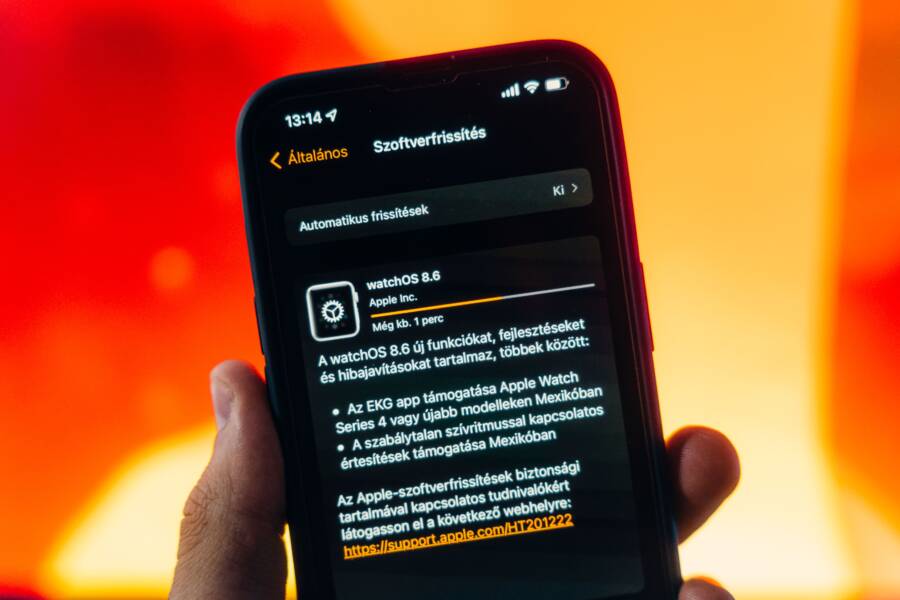
Your quick settings panel acts as the control center for your smartphone, but updates often cause these icons to vanish or reset unexpectedly. This issue usually occurs because the system UI cache conflicts with new software files or specific display layout preferences reset during the installation process.
You can typically resolve this by clearing the system cache partition, resetting the notification shade, or manually re-adding the icons through the edit menu. Because this glitch is a common byproduct of major software patches, these fixes restore your panel without requiring a full device wipe.
The following sections explain why your settings disappear and provide step-by-step instructions to get your status bar back to normal.
Why Your Smartphone Quick Settings Disappear After an Update
Software updates modify system files to improve performance and security. During this process, the operating system often overwrites configuration files that store your layout preferences. When the system UI refreshes after a patch, it might fail to reload your custom icon arrangement correctly. This results in missing quick settings or icons resetting to their default positions.
System Cache Conflicts
The system cache holds temporary data that helps your apps and interface load quickly. Sometimes, old cache files become incompatible with the new software version installed on your smartphone. These remnants cause the system UI to experience minor glitches, such as failing to render the quick settings grid properly.
When you notice items missing, it often points to a conflict between the outdated cache and the new system framework. Clearing this temporary storage forces the interface to rebuild the layout from scratch. This action effectively removes the corrupted data without deleting your personal files, photos, or app data.
Reset of User Preferences
Updates often include changes to the underlying display grid or system icons. If the manufacturer updates the default quick settings layout, the phone may ignore your manual customizations to ensure compatibility with the new design. The system assumes you want the latest version of the interface, which triggers a reset to factory defaults.
Think of it like a room renovation where the builders move your furniture to install new flooring. The items are still in the house, but they no longer sit exactly where you left them. Your smartphone handles this update by clearing the saved coordinate data for your icons, forcing you to manually re-add them if you prefer a different setup.
Software Bug in the Notification Shade
Occasionally, the update package contains a minor bug specific to the notification shade code. This software flaw prevents the device from displaying certain tiles even if they remain active in the system background. These bugs usually surface on specific smartphone models due to the way different hardware handles the new software code.
Manufacturers often release follow-up patches to address these display issues once users report them. If a patch is available, check for additional updates in your settings menu before attempting manual fixes. A small secondary update often contains the specific code needed to repair the missing icon functionality on your smartphone.
How to Verify Settings Status
You can easily check if your quick settings tiles are simply hidden rather than missing. Most Android devices include an edit menu that shows all available tiles, including those currently inactive.
Swipe down twice to reveal the full quick settings panel.
Tap the pencil icon or the button labeled “Edit” at the bottom or top of the screen.
Review the list of inactive or hidden tiles.
Drag the missing icons back into your active panel area.
Tap “Done” or “Save” to apply your changes.
If you find the icons in the edit menu, it confirms the update simply disabled them during the reset process. Simply dragging them back into the active zone restores your configuration permanently. If the icons do not appear even in the edit menu, the system UI likely requires a cache clear or a deeper reset to recognize the features again.
Essential Troubleshooting Steps to Restore Quick Settings
When your Quick Settings disappear, the issue often stems from a simple software oversight rather than a hardware failure. Most smartphones keep these controls accessible, even if they aren’t visible on the primary screen. The following methods help you recover your configuration without losing personal data.
Manually Customizing Your Quick Panel Tiles
Updates frequently shift your preferred buttons into a hidden drawer. This happens because the system resets its default layout during a major software install, moving custom tiles into an overflow area. You can easily drag these items back to the active section to regain control over your connectivity, brightness, and other tools.
To locate these hidden tiles, swipe down from the top of your screen until the entire notification shade opens. Look for an icon that resembles a pencil, a grid, or a text label marked Edit. Tapping this opens the customization mode, which divides the screen into active tiles and available options.
If you find a missing icon in the lower half of the screen, hold your finger down on it. Drag the icon up into the active grid. Once you place it where you want, tap the back button or the Save command to confirm your layout. This manual refresh usually resolves the missing icon issue immediately. If a specific tile is not in the list, you might need to check if the app associated with that feature requires its own update or permission fix.
Clearing System UI Cache to Refresh the Interface
Sometimes the graphical shell of your smartphone, known as the System UI, retains corrupted data after an update. This leftover information prevents the screen from rendering icons correctly. Clearing the cache for the System UI app forces the interface to rebuild its view from fresh files without removing your personal settings, photos, or saved logins.
Follow these steps to refresh your interface:
Open your phone Settings app.
Navigate to the Apps or Application Manager menu.
Tap the menu icon in the corner and select Show System Apps.
Search for the app labeled System UI in the list.
Select Storage.
Tap the button that says Clear Cache.
Do not worry about selecting Clear Data or Clear Storage, as those options reset more significant user settings. Clearing only the cache is a safe and non-destructive way to fix layout glitches. After you complete this, restart your smartphone to ensure the system reloads the interface components properly. Your missing Quick Settings should reappear once the software reinitializes the display grid. If the icons remain hidden, you may want to verify that no third-party themes are interfering with the default system appearance.
Advanced Fixes When Simple Methods Fail
If standard interface tweaks fail to bring back your Quick Settings, the problem often resides deeper within the software environment. Your smartphone acts like a complex computer, and sometimes a background process or an app conflict disrupts system-level functions. These advanced steps help you isolate whether a third-party application is the culprit or if the system settings need a clean slate.
Testing Your Phone in Safe Mode
Safe Mode is a diagnostic environment that loads only the core software necessary to run your smartphone. It effectively disables every third-party application you installed, allowing you to see if the Quick Settings panel functions correctly without external interference. If the menu reappears in this mode, you know an app you downloaded is causing the conflict.
To enter this mode on most devices, follow these steps:
Press and hold the physical power button until the power menu appears on your screen.
Tap and hold the “Power Off” icon on the display for a few seconds.
A prompt appears asking if you want to reboot into Safe Mode; confirm your choice.
Your device restarts, and you will see “Safe Mode” displayed in the corner of your screen.
Once the phone boots up, swipe down to check your Quick Settings. If they work, you have confirmed that a recently installed app is the issue. You should restart the phone normally to exit Safe Mode and begin uninstalling your most recent apps one by one to find the specific source of the trouble. If the menu remains missing even in Safe Mode, the issue is more likely a system-level configuration error.
Resetting App Preferences for a Fresh Start
Sometimes the interaction between system services and user-installed apps becomes tangled after a major update. Resetting app preferences allows you to return these background behaviors to their factory states without losing your personal data like photos, contacts, or messages. This process clears out custom permissions, disabled app notifications, and background data restrictions that might block the Quick Settings UI from loading.
You can perform this reset by visiting your system settings:
Open the Settings menu on your smartphone.
Select the section labeled Apps or Application Manager.
Tap the three-dot menu icon or the overflow menu button at the top of the screen.
Select the option that says “Reset app preferences.”
Confirm the action when the warning window appears.
This operation re-enables any apps you previously disabled and restores default notification settings for every application. It effectively removes any restrictive rules that might conflict with the system UI framework. After the reset finishes, restart your device to ensure all system processes initiate properly. Most users find that this restores a stable interface, as it clears away conflicting permission sets that frequently occur during significant software migrations.
Preventing Future UI Glitches on Your Device
Maintaining a stable interface requires consistent habits after your smartphone receives a major system update. You can minimize the risk of missing settings and display errors by managing how your device handles new software files. These preventive measures stop common conflicts before they affect your daily workflow.
Managing System Updates and Maintenance
Software updates are necessary for security, but they often trigger temporary display issues. You can reduce these risks by clearing your partition cache immediately after a major installation. This process removes residual files from the old operating system version that might clash with your new settings.
Wait a few days after a major release before updating your smartphone if you are concerned about stability. Manufacturers often release minor patches shortly after a big update to fix bugs reported by early adopters. Checking community forums or your brand’s support site reveals if others have experienced interface glitches after installing the latest version.
Monitoring App Compatibility
Third-party applications sometimes interfere with the system shell if they are not optimized for the latest software. An app that modifies your status bar or interface icons can crash during an update, causing your quick settings panel to disappear. Remove any apps that promise to customize your notification shade if you notice frequent UI instability.
Check your application settings regularly to ensure you have the latest versions of your installed software. Developers often update their apps shortly after a manufacturer releases a new OS version to ensure full compatibility. Keeping your apps current prevents the system from struggling with outdated code when it attempts to render the quick settings grid.
Keeping Your Interface Configuration Simple
Custom themes and third-party launchers often conflict with system updates. These tools modify core files that the manufacturer usually overwrites during a standard OS patch. You can avoid many UI glitches by sticking to the stock interface provided by your smartphone manufacturer.
If you prefer to use a custom launcher, be ready to reset its settings whenever a significant software change occurs. Creating a backup of your home screen layout and icon arrangement allows you to restore your preferences quickly if an update wipes them. Following these steps helps keep your smartphone interface stable and functional throughout the lifespan of your device.
Conclusion
Missing quick settings after an update are almost always caused by software configuration errors rather than physical damage to your phone. These issues occur when the operating system resets your display preferences or struggles to reconcile old cache files with new code.
You can resolve most of these glitches by manually re-adding tiles in the edit menu, clearing the system UI cache, or resetting your app preferences. These steps are safe, non-destructive, and restore your interface to its original state without requiring a full device wipe.
Your smartphone is a complex system, and minor interface bugs are common during significant software migrations. With these troubleshooting steps, you can regain control of your panel and maintain a stable, functional experience.