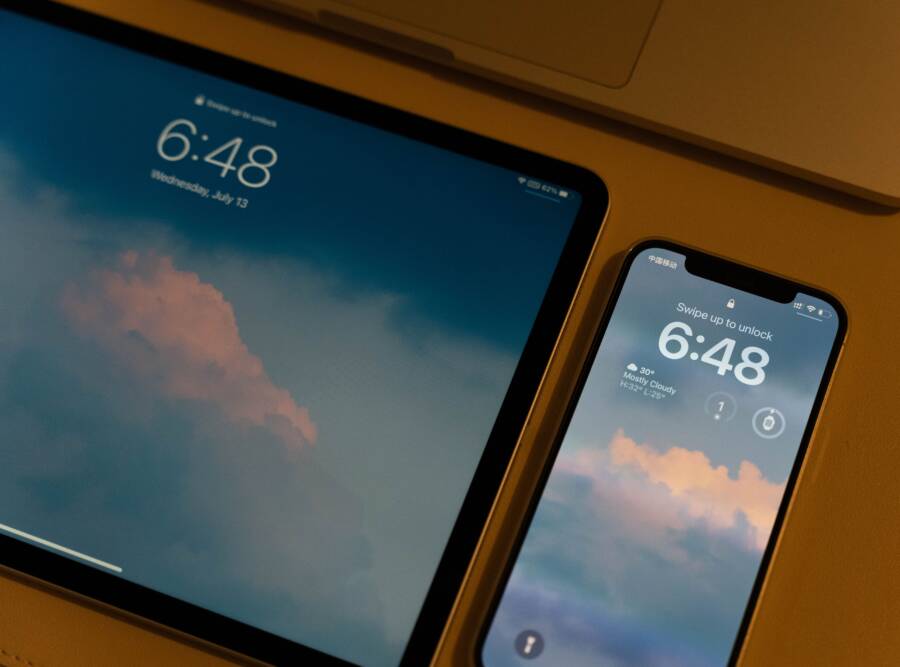
If your smartphone lock screen hides the emergency dialer, you cannot reach help when you need it most. This feature is a safety requirement for every modern device, so its absence indicates a software error or a conflicting security setting. You can restore this functionality by adjusting your system lock settings or removing interfering third-party applications.
Restoring your emergency access requires a clear understanding of your device settings. Identifying whether the issue stems from a system update, a custom launcher, or a specific security policy is the first step toward a permanent fix. Below, you will find the specific actions to troubleshoot your phone and get your emergency dialer back on the screen.
Quick Checks to Restore Your Emergency Access
Before you attempt complex software repairs, verify if your screen lock settings are causing the missing button. The emergency dialer relies on your security configuration to authorize specific functions on the lock screen. If these settings encounter a conflict, the operating system might hide the button to prevent unauthorized access.
Verifying Your Screen Lock Status
Your lock screen is a gatekeeper. When you set a pattern, PIN, or biometric lock on your smartphone, the device restricts access to keep your data safe. However, this same system can accidentally block the emergency dialer if the security policy is misconfigured or if a background glitch interrupts the display layer.
Check these primary security settings to confirm the lock screen is active and functioning:
Open your phone settings and navigate to the security or lock screen menu.
Confirm that a secure lock method, such as a PIN or password, is currently active.
Toggle the secure lock settings off and then back on to reset the state.
Check for any work or school profile restrictions, as these often disable specific lock screen features for compliance reasons.
Sometimes, a partial software crash leaves your screen in a limbo state. The phone acts as if it is locked, but the interface fails to load the security buttons. Simply toggling your security method forces the OS to re-initialize the lock screen components. If you recently changed your security settings or updated the system, the device might have hung during the process. Resetting these preferences clears out any lingering errors that prevent the dialer from appearing.
Refreshing Your System Interface
If your security settings look normal, the system user interface (System UI) might be the culprit. This background app handles every visual element on your smartphone screen, including the clock, notifications, and the emergency dialer. When this process stalls or experiences a memory leak, UI elements often disappear or become unresponsive.
You can attempt to resolve this by performing a hard restart or clearing the cached data of the System UI app:
Perform a standard restart first, as this clears temporary files and reloads the interface from scratch.
Navigate to the Apps section in your settings menu and enable the option to show system processes.
Find System UI in the list, then select storage and clear the cache.
Restart the device once more to see if the button reappears on the lock screen.
Avoid clearing the data of the System UI app unless you are prepared for minor customization resets, as this action sometimes reverts wallpaper or theme settings to their defaults. A simple cache clear is usually enough to fix minor visual glitches without disturbing your personal files. If the button remains hidden, the issue likely resides in a deeper system file or an incompatible third-party application.
Deep Dive into Software and Security Settings
Your smartphone relies on complex software layers to manage access to emergency features. When the dialer disappears, it often indicates a conflict between the core operating system and installed software. Security settings act as a gatekeeper, but overzealous configurations or incompatible applications can block the emergency interface. Understanding how these layers interact is the first step toward fixing the issue.
Checking Third Party Security Apps
Many users install additional security software to block malware or monitor device activity. These applications often monitor your screen to prevent unauthorized access, which can accidentally hide the emergency dialer. When a security app takes full control of your lock screen, it might override the system default settings.
You can determine if an app is causing the problem by testing your device in safe mode. This mode disables all third-party software and runs only the base operating system.
Hold the power button on your phone to open the power menu.
Long-press the “Power Off” or “Restart” icon on your screen.
Select “Safe Mode” when the prompt appears.
Check your lock screen for the emergency dialer once the phone finishes rebooting.
If the dialer appears while in safe mode, a third-party security app is likely interfering with your lock screen. You should check the settings of your antivirus or screen-locker apps to see if they restrict emergency access. Many security apps include an “emergency override” toggle that you need to enable. If the issue persists, consider uninstalling these applications one by one to identify the specific software causing the conflict.
Disabling Custom Themes and Launchers
Customization is a popular feature on many smartphones, but it carries a risk for system-level functions. Third-party themes and launchers often replace the standard system interface to provide a unique look. Unfortunately, these modifications do not always account for essential safety features like the emergency dialer. If the developer failed to map the emergency button correctly in the theme, the icon may simply vanish from the interface.
Reverting to the default system settings is the best way to determine if a theme is the source of your trouble. Most Android devices allow you to return to the original interface quickly through the settings menu.
Open your settings app and navigate to the “Themes” or “Wallpaper and Style” section.
Select the default or “System” theme provided by the manufacturer.
If you use a custom launcher, switch your default home app back to the system launcher in the “Apps” or “Default Apps” menu.
Apply the changes and restart your phone.
Once you return to the default theme, check the lock screen again. If the emergency dialer is visible, the custom theme or launcher was likely incompatible with your current software version. You can check the developer page of your theme or launcher for updates that specifically address lock screen bugs. Many developers fix these issues once they receive user feedback, so keeping your apps updated is a good practice for maintaining system stability.
When to Perform a System Update or Factory Reset
Deciding whether to update your system or reset your phone depends on the severity and frequency of the missing emergency dialer. Software updates offer non-destructive fixes for known bugs, while a factory reset acts as a complete wipe of your data to remove deep-seated errors. Before choosing either path, evaluate whether the issue appeared after a recent change or if it persists despite basic troubleshooting.
Updating the Operating System
Manufacturers frequently release firmware updates that contain patches for UI glitches, including display bugs on the lock screen. When a specific version of an operating system has a documented issue with its security interface, developers address this in the next software rollout. Installing the latest firmware ensures your device receives these official repairs, which often fix components that control the emergency dialer display.
These updates also improve compatibility between core system files and updated security protocols. If your smartphone runs an outdated version of the operating system, it may struggle to render buttons correctly on a modern lock screen. You can check for pending updates by navigating to the software update section in your settings menu. Keep your battery charged above 50 percent and connect to a stable Wi-Fi network before initiating the download to prevent installation errors. Official updates remain the safest way to repair lock screen issues because they preserve your personal data while applying necessary code corrections to the system architecture.
Considering a Factory Data Reset
A factory reset returns your smartphone to its original out-of-box state. You should treat this as a last resort, reserved for situations where all other troubleshooting steps fail to restore the emergency dialer. This process deletes every file, app, and setting currently on the internal storage, so it is vital that you create a full backup of your data first. Use cloud services or external storage to save your contacts, photos, and messages before starting the reset.
Performing a reset clears persistent corruptions in the system partition that standard maintenance cannot reach. It removes conflicting security policies, hidden malware, or configuration errors that might be suppressing the emergency dialer. If you decide to proceed, access the reset option through your phone settings, typically located under system or general management menus. Once the phone finishes the wipe and restarts, test the lock screen immediately before you restore your data. If the dialer appears, the issue was likely tied to a specific file or configuration that you can now avoid by carefully reviewing which apps or settings you reinstall.
Alternative Ways to Call for Help
When the emergency dialer remains missing from your screen, you still have options to initiate a call for help. Modern smartphones include integrated safety protocols designed to function even when the standard software interface fails or becomes unresponsive. These physical triggers operate independently of the screen lock display, meaning they often work even if your UI is currently experiencing a glitch.
Using Physical Hardware Shortcuts
Manufacturers build hard-coded emergency triggers into the physical buttons of your smartphone to ensure you can reach help during a crisis. These shortcuts bypass the software layer that usually displays the emergency dialer. By pressing a specific combination of physical buttons, the device triggers an SOS signal that connects you to local emergency services automatically.
On most modern Android devices, the hardware shortcut follows a standard pattern:
Locate the power button and the volume buttons on the side of your smartphone.
Press the power button rapidly five times in succession to activate the Emergency SOS feature.
Some models require you to press and hold the power button and one volume key simultaneously for several seconds until the emergency slider appears.
Follow the on-screen prompts if they appear, or wait for the device to dial the default emergency number for your region automatically.
Verify your specific button combination by checking the safety or emergency settings menu when your phone is fully accessible. Customizing these shortcuts allows you to trigger an alert without looking at your screen, which proves useful in high-stress situations. If your buttons feel physically stuck or unresponsive, clean the edges around the hardware keys with a soft brush, as debris often prevents the necessary physical contact required to register these rapid button presses.
When to Contact Professional Support
If your emergency dialer remains hidden despite your attempts to fix the software, you may have a deeper hardware failure or a corrupted firmware partition. You should reach out to a professional service center if you notice the screen itself showing signs of damage, such as flickering pixels, ghost touches, or unresponsive areas near the bottom where the dialer usually sits. These symptoms suggest the digitizer is failing, which prevents the screen from registering the necessary interactions to launch emergency functions.
Consider a professional repair if you encounter any of the following signs:
Your physical buttons click but do not perform their expected actions, indicating a loose internal ribbon cable.
The screen displays vertical lines or dark patches that persist after a factory reset.
You accidentally dropped the phone or exposed it to water shortly before the dialer disappeared.
The device refuses to boot into safe mode or enters a constant restart loop during the troubleshooting process.
Internal software corruption that survives a factory reset points toward a failure of the read-only memory on your motherboard. A technician can re-flash the original factory firmware, which is a process that restores the base code of your smartphone in ways a standard user interface reset cannot. Do not ignore these issues, as the ability to call for help is a fundamental safety requirement that your device must provide. Taking your phone to an authorized repair shop ensures that any underlying hardware defects are addressed using genuine components and verified diagnostic tools.
Conclusion
Restoring an emergency dialer on your smartphone lock screen depends on isolating the conflict between your security settings, system interface, and third-party software. Basic steps like refreshing your screen lock configuration or clearing the System UI cache often resolve the issue without further intervention.
When those methods fail, testing your device in safe mode identifies problematic apps or themes that suppress essential safety features. Always verify that the emergency dialer is accessible immediately after you apply a new system update, install a security application, or change your phone theme.
If software troubleshooting does not work, physical hardware buttons remain your most reliable path to contact help. If the dialer continues to vanish despite these efforts, contact a repair technician to rule out a failing screen digitizer or corrupted firmware.