Ever tried to go live from your phone and got a shaky, blurry stream that just dies mid thought? You’re not alone. Bad quality streams are a common hurdle for creators who rely on their smartphone as a main tool, but real-world fixes can make a big difference.
In this guide you’ll find practical steps to improve your live streams without a big gear overhaul. We’ll cover simple tweaks to lighting, framing, and audio that can dramatically boost how your video looks and sounds on mobile. You’ll also learn quick checks for your network, app settings, and the most reliable presets for smooth, consistent streams.
This isn’t about expensive gear or fancy setups. It’s about smart, repeatable fixes you can apply in real time, right from your phone. By the end, you’ll know how to fix low quality live streams and keep your audience focused on your message, not the technical glitches. If you’re chasing higher mobile video quality, these phone streaming tips will help you level up fast.
Identify the core causes of low quality live streams
When your live stream looks rough, the problem usually isn’t just one thing. It’s a combination of factors that stack up and degrade quality. In this section we’ll identify the core causes and give you practical checks to prevent each one from dragging your broadcast down. Think of this as a quick diagnostic flow you can run before you go live or mid stream if you notice a dip in quality.
 Photo by Caleb Oquendo
Check your network connection and bandwidth
Your connection is the backbone of a smooth live stream. If your upload speed is slow or fluctuates, your video will wobble, lag, or drop frames. Here’s how to test and verify you have enough bandwidth, plus a simple prego-live checklist.
- Test upload speed before you start
- Run a reliable speed test on your phone or laptop. Look for your upload speed (measured in Mbps). A reliable baseline for most mobile streams is at least 3–6 Mbps for 1080p, higher for 4K or if you’re sharing audio and video accessories. For quick checks, use Speedtest by Ookla to get a solid read quickly. Speedtest by Ookla – The Global Broadband Speed Test
- If you’re often below 5 Mbps, plan for lower resolution or switch to a more efficient encoder.
- Check for data cap throttling
- Some mobile plans throttle data after you hit a cap, which can reduce your upstream speed. If you’re approaching your limit, monitor usage and consider turning on a limiter or switching to a plan with a higher cap for streaming.
- Ensure the live app has enough bandwidth
- Open the streaming app and review its network status indicator if available. Some apps show real-time bandwidth usage and buffering. If the app consistently reports low bandwidth, pause the stream, move to a stronger network, or reduce the settings to match what you can reliably deliver.
- Simple pre-live network checklist
- Connect to a stable network (prefer Wi‑Fi) with strong signal if possible.
- Avoid crowded networks (coffee shops, events) that saturate bandwidth.
- Close other bandwidth-heavy apps on your device.
- Run a quick speed test at the location and time you plan to stream.
- If you must use cellular data, enable “5G” where available or switch to the highest reliable 4G/5G band.
- Quick tips to stay steady
- If you’re in a crowded area or on Wi‑Fi, switch to a dedicated mobile hotspot from a secondary device, or temporarily pause the stream while you relocate to a better signal.
- What to do if speeds vary
- Set a backup plan: choose a lower resolution or frame rate that matches your current bandwidth. This reduces dropouts and keeps viewers engaged.
- Useful reference about testing bandwidth
- For a practical overview of testing uploads on mobile networks, you can explore resources like Upload Speed Test options that measure real-world performance. Upload Speed Test
- Additional reading on staying on solid networks
- If you want broader context on connection quality and mobile streaming, consider reliable guidance on connection quality measurement. nPerf application on iOS & Android
- A note on settings that help with bandwidth
- You don’t have to guess. Use diagnostic settings in the app to see how changes affect bandwidth needs and stream stability. For guidance on encoder settings, bitrate, and resolutions, see the quick reference in the app help or the linked resources.
Evaluate device performance and heat
Phones get loud with activity. If the device overheats or runs too many processes in the background, performance tanks and your stream stutters. Let’s cover simple, reader-friendly steps to keep heat down and performance up.
- Why overheating matters
- High temperatures slow down the CPU and GPU, which can cause dropped frames, audio sync issues, and poorer video quality. Extended streaming without proper cooling taxes the hardware and reduces overall stability.
- How background apps harm streaming
- Apps running in the background compete for CPU, memory, and network resources. A busy foreground app plus several background tasks can push the device to its limits during a live broadcast.
- Practical steps to reduce heat and free resources
- Close unused apps before going live. Double-check that no resource-heavy apps are running in the background.
- Clear storage if the device is close to full. When storage is tight, the system can slow down, impacting encoding and buffering.
- Turn on power-saving features only if you know they won’t throttle critical streaming tasks. Some devices reduce performance to save energy, which hurts your stream.
- Keep firmware and apps updated. Updates include performance and security improvements that help streaming run more smoothly.
- Use a cooler environment when possible. If you’re outdoors, shade and ventilation matter more than you think.
- Simple, 4-step prep
- Close all nonessential apps.
- Check available storage and clear cache if needed.
- Turn off battery-saver modes that may throttle performance during streaming.
- If heat rises, pause briefly to cool, or lower the stream’s quality until the device stabilizes.
- Reader-friendly maintenance tips
- Restart the phone before a long live session. A fresh start often makes a noticeable difference.
- Use a clip-on fan or a small cooling accessory if you livestream frequently in warm environments.
- Keep the device out of direct sun and in a cooler case while you stream.
- Useful reference about overheating
- For guidance on reducing heat specifically for better streaming, see practical tips from experienced creators. Improving Smartphone Overheating for Better Streaming
- How to monitor performance in real time
- Some devices show CPU/GPU usage per app; use these indicators to confirm your live app isn’t the sole consumer of all resources.
Assess streaming app and settings
The app you choose and how you configure it often determine how clean your stream looks. You can have a solid connection and a fast device, yet the app settings still hold the key to quality. Here’s a straightforward way to diagnose and optimize.
- Understand the key settings
- Bitrate: Higher bitrates deliver crisper video but require more bandwidth. Lower it if your upload is unstable.
- Resolution: 1080p looks sharp, but if your bandwidth or device struggles, 720p can look just as good with less strain.
- Frame rate: 30fps is standard for most mobile streams. If your device overheats or the connection is weak, 24fps can provide smoother playback with less load.
- Encoder options: Some apps offer hardware vs software encoding. Hardware encoding uses the phone’s GPU/SoC more efficiently and often yields better stability.
- A simple diagnostic approach
- Start with a conservative baseline: 720p, 30fps, moderate bitrate.
- If the stream looks smooth, you can try a slight upgrade: 1080p, 30fps, higher bitrate.
- If you notice buffering or dropped frames, drop to 720p or reduce to 24fps. Re-test after each change.
- Quick checklist to decide if the app is the bottleneck
- Check if other apps in the background are using bandwidth or CPU.
- Verify you’re on the latest app version and OS version.
- Compare two or three different apps to see if one consistently performs better in the same conditions.
- How to adjust settings safely
- Change one setting at a time and test. Then revert if needed.
- Save a “live test” profile with preconfigured settings so you don’t waste time adjusting mid stream.
- Document the results so you know which combination works best for your typical locations and network conditions.
- Practical examples to guide decisions
- If you often stream from busy locations, start with 720p at 30fps and a moderate bitrate. This setup often yields the most stable results when the connection fluctuates.
- If you’re in a stable, fast network and want better video, try 1080p at 30fps with a higher bitrate, but only if your tests show consistent uplink speeds.
- Helpful resources on encoder settings and resolutions
- For a solid overview of choosing the right resolution and bitrate, see practical guidance from reputable streaming sources. Best resolution for streaming: SD, HD, and 4K explained
- YouTube Help also provides guidance on encoder settings, bitrates, and resolutions to optimize live streams. Choose live encoder settings, bitrates and resolutions
- Quick ignition questions to wrap this up
- Is the issue consistent across apps or limited to one platform? If it’s universal, the problem is likely network or device, not the app.
- Did you test with a known-good network before streaming? If not, run a test at the same location to isolate variables.
- One more practical tip
- Keep a short, standard flow ready for going live. A pre-live checklist helps you avoid last-minute changes that could destabilize the stream.
External resources mentioned in this section provide practical ways to verify and optimize your settings, from assessing bandwidth to choosing the right encoder approach. If you want a robust, real-world reference on testing bandwidth and maintaining stable streams, these articles offer concrete steps and pro tips.
- Bandwidth testing and reliability: Speedtest by Ookla – The Global Broadband Speed Test
- Upload speed testing for real world results: Upload Speed Test
- Connection quality measurement on mobile: nPerf application on iOS & Android
- Handling overheating for better streaming: Improving Smartphone Overheating for Better Streaming
- Higher resolution streaming guidance: Best resolution for streaming: SD, HD, and 4K explained
- YouTube live encoder guidance: Choose live encoder settings, bitrates and resolutions
Optimize phone and app settings for quality streaming
Smartphone streaming quality hinges on choosing the right app, the right encoder, and dialing in settings that match your network and device. In this section we’ll outline practical, easy-to-follow steps to maximize video and audio quality on the go. You’ll learn how to pick beginner-friendly apps, tune core video and audio parameters, and enable performance features that keep your stream stable even when conditions aren’t perfect.
Choose the right streaming app and encoder
When you’re streaming from a phone, the app you pick matters as much as the hardware you use. For beginners, starting with a well-supported, all-in-one solution makes a big difference. Streamlabs Mobile is popular for its ease of setup and broad platform compatibility, letting you stream to multiple services with minimal fuss. CameraFi Live offers straightforward controls and reliable performance for live video from a phone, with guides that help you get started quickly. If you want to test a broader set of options, check articles that compare mobile streaming apps and their ease of use. For a quick overview, see Streamlabs Mobile Apps and related resources.
Practical guidance for choosing an encoder that fits your device, network, and goals:
- Start with hardware-friendly options. If your device supports it, hardware encoding can provide steadier performance with less heat.
- Match bitrate to network stability. If your upload fluctuates, prefer moderate bitrates and 720p resolution to reduce dropped frames.
- Consider your workflow. If you need on-the-fly overlays or multi-platform streaming, a single app with built-in encoder controls saves setup time.
- Run quick tests. Open a basic stream for 5–10 minutes, then adjust settings based on stability and image quality.
If you want more context on available mobile apps, you can explore sources that compare popular options and highlight beginner-friendly features. These resources help you pick the right fit for your goals and device.
Links you may find useful:
- Streamlabs: Mobile App overview and setup
- The 20 Best Live Streaming Apps for Mobile Broadcasting
- Streamlabs tools for mobile creators
Fine tune video and audio settings
Starting with solid defaults keeps you out of trouble. A reliable baseline is 720p at 30fps with a bitrate in the 2–6 Mbps range for 720p, or 4–8 Mbps for 1080p. Audio should sit around 128–192 kbps. These settings balance image quality with bandwidth, helping you avoid stutters when the connection wobbles.
How to adjust settings and what each change does:
- Resolution and frame rate: 720p at 30fps is more forgiving on shaky networks and cooler on devices; 1080p looks crisper but requires steadier uplink.
- Bitrate: Higher bitrates improve detail but demand more bandwidth. If you see buffering, drop the bitrate or resolution first.
- Audio bitrate: 128–192 kbps delivers clear voice and ambient sound without gobbling up bandwidth.
- Encoder choice: Hardware encoding uses the phone’s built-in GPU/SoC and often yields better stability than software encoding on mobile devices.
Practical approach to dialing in:
- Begin with 720p, 30fps, 4 Mbps video, 128 kbps audio. If the stream is stable, you can try 1080p at 30fps with a higher bitrate. If you notice drops, revert to 720p or lower the frame rate to 24fps.
- Save a live-test profile with your chosen settings so you don’t have to reconfigure during a broadcast.
- Monitor the stream during the first minutes and adjust in small steps.
Helpful references on encoder settings and resolutions:
- Best resolution for streaming explained
- YouTube live encoder settings and recommended bitrates
Enable hardware acceleration and reduce background tasks
Hardware acceleration can smooth out encoding, but it isn’t guaranteed on every device or app. If your app supports hardware-accelerated encoding, enable it and see if you notice a difference in stability and heat. At the same time, reduce background load by closing nonessential apps before you go live.
Tips to maximize stability:
- Turn on hardware acceleration where available; this shifts encoding work to the device’s GPU and can lower CPU load.
- Close apps that use camera, microphone, or heavy network activity. Each background task competes for resources, which can cause drops in frames.
- Disable battery saver before streaming. It often throttles CPU performance and can degrade encoding quality.
- Silence nonessential notifications during the broadcast. Alerts can interrupt audio streams and pull processing power away from encoding.
A practical four-step prep:
- Close nonessential apps
- Revisit storage and clear caches if needed
- Turn off battery saver
- If heat rises, pause briefly to cool or drop to a lower quality
Monitoring helps you respond in real time. Some devices provide per-app CPU usage indicators; use them to confirm the live app isn’t the sole resource drain.
External guidance on hardware acceleration and performance:
- Hardware-accelerated video encoding
- Hardware acceleration in Android: what you need to know
Additional tips to keep streams steady:
- If your device supports it, test both hardware and software encoding in the same environment to compare stability.
- Use a clip-on cooling solution if you livestream often in warm settings.
References with practical hardware acceleration insights:
- Hardware-accelerated decoding and encoding
- Android hardware acceleration guidelines
By applying these settings and keeping background tasks under control, you’ll notice more consistent video and audio across a range of network conditions.
External links for deeper reading:
- Hardware-accelerated video encoding
- Hardware acceleration | Android Developers
Boost network stability for live streams
When you go live from a phone, the network you use can make or break the show. A stable connection keeps your video steady, your audio in sync, and your audience engaged. In this section, you’ll learn practical decisions and smart habits to keep your stream flowing smoothly, even when conditions aren’t perfect. We’ll cover when to prefer WiFi or cellular, quick network fixes you can apply on the fly, and a solid backup plan for drops. Think of your network as the runway for your broadcast—the smoother it is, the longer your message stays front and center.
Prefer stable WiFi or reliable cellular connection
Choosing the right connection is the first line of defense against low quality streams. In most homes or studios, a strong, stable WiFi signal is your best bet. Aim for a dedicated, less congested network and, if possible, a 5 GHz band. The shorter range of 5 GHz often means fewer devices sharing the same channel, which translates into steadier uploads. If you’re in a crowded environment or away from a router, a reliable cellular connection can save your broadcast, but it’s not always consistent in every location.
- When to use WiFi: If you can connect to a router with a solid signal and minimal interference, WiFi provides higher and more predictable upload speeds. Prefer 5 GHz if your router supports it, and stay within a reasonable distance from the device.
- When to use cellular data: If WiFi is weak or unstable, switch to cellular data with the strongest signal. If the plan supports it, enable the fastest available band (for example, 5G) and avoid networks that throttle or saturate easily.
To minimize interference, limit other devices on the same network during your live session and keep the phone close to the router when possible. If you’re unsure about the best band, a quick test can reveal whether 5 GHz delivers noticeably better stability than 2.4 GHz in your space. For deeper guidance, you can explore comparisons like WiFi bands, including 2.4 GHz versus 5 GHz, and how they impact streaming performance. 2.4 GHz vs. 5 GHz Wi-Fi: What’s the Difference?
If you’re frequently streaming on the go, a dedicated mobile hotspot can be a lifesaver. It creates a controlled link for your broadcast and prevents household devices from competing for bandwidth. When you must rely on cellular, consider testing at the spot ahead of time and staying within the strongest signal zone you can reach.
Helpful reference on testing internet speed and understanding how to plan around bandwidth is available here: Internet Speed Planning: Speedtest Tips for Home, Work & Travel
Practical network tricks that help
Small, well-timed tweaks can dramatically improve stability. In this part, you’ll find actionable tricks you can apply before and during a live stream. The goal is to keep your data flowing smoothly without adding complexity to your setup.
- Improve cellular signal: If you’re using mobile data, position yourself near windows or higher ground where the signal is strongest. In urban areas, specific bands may perform better; a quick test can confirm the best option.
- Consider a dedicated hotspot: A separate device or a spare phone used exclusively as a hotspot can isolate your stream from household traffic. This reduces contention and helps maintain uplink consistency.
- Test speeds before you go live: Run a quick upload speed test at the exact location you’ll stream from. If you can’t meet your target, don’t go live at that moment. It’s better to pause and relocate than to broadcast a choppy stream.
- Avoid VPNs during a broadcast: VPNs can slow traffic and add latency. If privacy is essential, try to run without a VPN during the stream and enable it for other tasks when you’re not live.
For real world context on best practices when streaming over wireless connections, you can review guides that cover how to get the most from a wireless link. Best Practices for Live Streaming on Wireless Connections
Other practical tips include keeping a spare data plan or a secondary device ready, so you can switch quickly if your primary connection falters. Once you’ve verified the network in the moment, you can keep your audience focused on your message rather than on buffering.
- Quick pre-live checks you can perform in minutes:
- Run an upload speed test and compare it to the bitrate you plan to use.
- Check your app’s bandwidth indicator if available and ensure it stays above a comfortable margin.
- Disable nonessential apps that could steal CPU power or network bandwidth.
- If you must use cellular, ensure the device is not in a dead zone and you have a solid line to a tower.
If you want to explore a practical method for testing upload performance on mobile networks, see this resource: Upload Speed Test. Another solid overview of staying on solid networks can be found here: nPerf application on iOS & Android.
- Quick tip: keep monitoring during the first minutes of the stream. Real-time indicators help you catch stability issues early.
Plan for network drops and recovery
Even with great planning, networks can fail. The key is to have a clear, simple plan that you can execute without breaking the momentum of your stream. A robust plan includes local recording as a fallback, a quick restart routine, and a short recovery checklist you can follow mid stream.
- Local recording as a fallback: If your streaming app supports it, enable local recording so you capture a high-quality backup on the device. You can post the saved video after the stream if needed and keep your audience engaged even if the live feed drops.
- Quick restart process: Have a one-page restart protocol. Include steps like pausing, rechecking connections, toggling airplane mode briefly, and reloading the stream with a lower bitrate if the connection is unstable.
- Recovery checklist readers can follow mid stream:
- Pause and assess network status. Check upload speed and signal strength.
- Switch to a reliable backup connection if available (second phone, hotspot, or wired backup if possible).
- Lower the resolution or frame rate to fit current bandwidth.
- Reconnect the stream and announce a brief, reassuring message to your audience.
- Resume with a steady, lower setting and gradually increase as conditions improve.
For readers who want a proven failover approach, consider tools designed to aggregate multiple connections and keep you online. These solutions can combine WiFi and cellular into a single, stronger link. A well-known option in this space discusses achieving failover using multiple phones and fast switching to keep you connected. Failover Using Multiple Phones: Never Lose Connection
- Packet loss is a common killer of live streams. If you notice stuttering or dropped frames, address it quickly with the recovery steps above and consider a quick network test to identify where the issue sits. For a practical guide on avoiding packet loss, you can read this article: How To Avoid Packet Loss When Live Streaming
- A reliable backup mindset: always have a plan and a ready-to-go lower quality setting. This keeps your stream from freezing during a critical moment and buys you time to fix the root cause without interrupting your narrative.
If you want a broader view on how to prepare for bandwidth challenges and plan for better internet performance, these resources can help you stay one step ahead. The right way to run an internet speed test and How to test your internet speed offer practical guidance that you can apply before you go live.
- Quick start checklist for mid-stream recovery:
- Verify signal strength and switch networks if needed.
- Lower the live bitrate and resolution to a stable baseline.
- Enable local recording to capture a high quality fallback.
- Communicate briefly with your audience that you’re adjusting quality for stability.
External resources mentioned provide practical steps to test bandwidth, monitor performance, and implement failover strategies, helping you stay online when conditions turn unfriendly.
- Bandwidth testing and reliability: Speedtest by Ookla – The Global Broadband Speed Test
- Local backup options and failover strategies: Failover Using Multiple Phones: Never Lose Connection
- Avoid packet loss with practical steps: How To Avoid Packet Loss When Live Streaming
If you want a quick, actionable approach to mid stream changes, this section gives you a straightforward playbook. You can read more on how other creators handle survive-and-thrive moments during long broadcasts with reliable backup plans. For best practices on testing bandwidth and keeping streams steady, see the linked articles above.
Improve visuals and sound for a more professional feel
To keep your audience engaged, your visuals and sound need to feel crisp and purposeful. Small, consistent improvements can elevate a smartphone live stream from basic to broadcast quality. The goal is to make viewers focus on your message, not the technical hiccups. Below are practical steps you can apply before and during every broadcast.
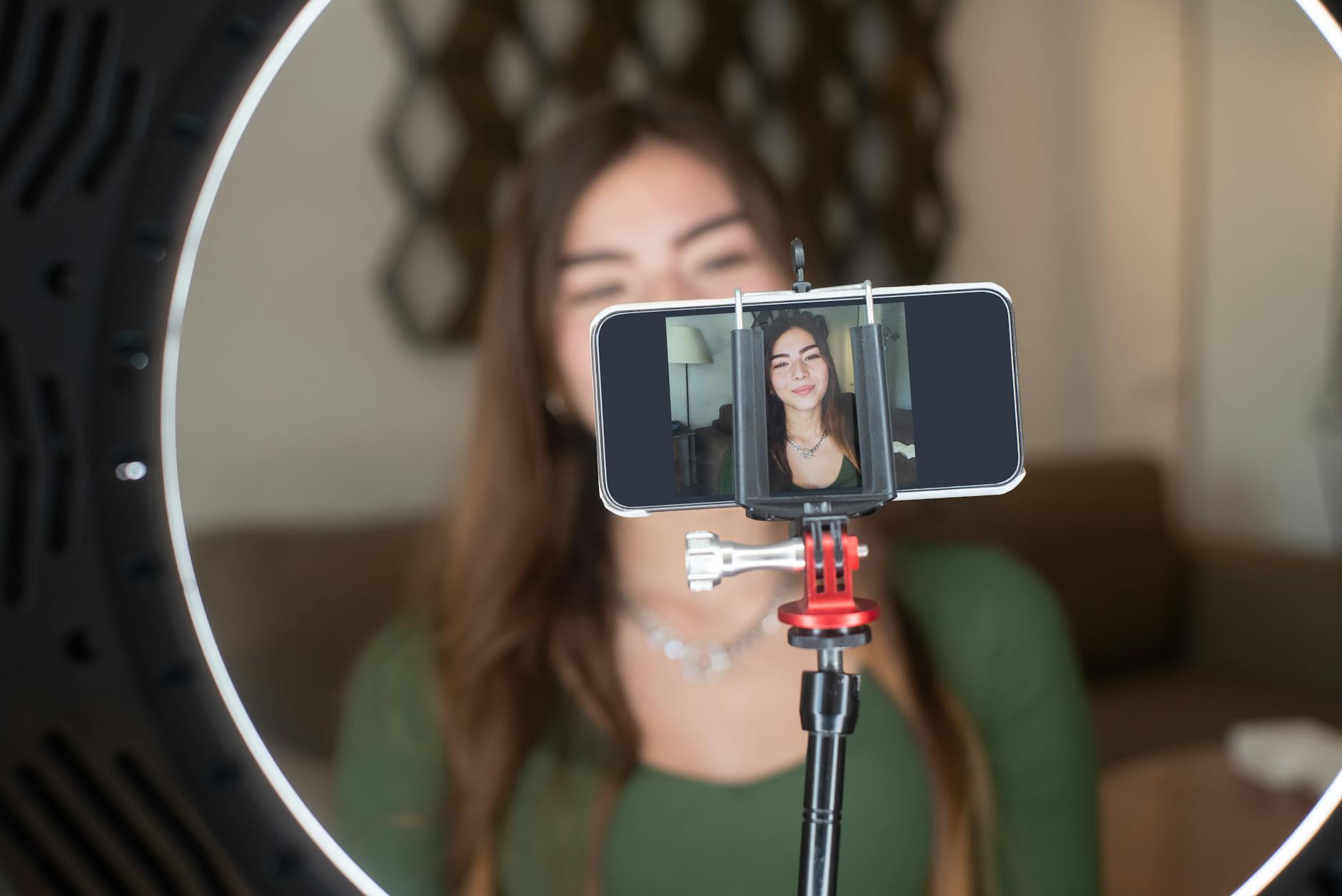 Photo by Kampus Production
Lighting and camera angles
Soft front lighting makes you the focus without harsh shadows. Position lights at about eye level and slightly in front to flatten facial texture and reduce glare. Avoid overhead lighting that creates unflattering shadows under the eyes. Use the rule of thirds: imagine a grid that splits the frame into thirds; place your eyes near the top third line for a natural, engaging look. Keep shots steady with a stable mount or tripod, and avoid frequent camera tilts that distract viewers.
- Aim for even illumination from the front. If you only have a single lamp, bounce light off a wall or ceiling to soften it.
- Keep the camera at eye level or slightly above. This posture flatters most faces and prevents chin shadows.
- Frame the subject so the head and shoulders fill the frame without clipping the top of the head.
- Stabilize with a compact tripod, a phone clamp, or a mini gimbal for smoother motion during movement.
For quick context on cinematic composition and camera angles, you can explore guides like Mastering iPhone Cinematography. The idea is to experiment with angles and backgrounds until your shot feels intentional and professional.
- Practical tip: if you’re filming in a busy environment, use a plain background or a simple backdrop to avoid visual clutter that competes with your message.
Sound quality and background noise
Clear voice is the backbone of a strong live stream. A small lapel mic or compact USB mic can dramatically reduce breath and room noise compared with the built-in mic. When you’re talking, keep the mic close to your mouth to improve clarity and reduce the impact of echoes.
- Choose a mic that matches your device: wired lavalier or USB-C/Lightning options are straightforward and reliable.
- Minimize room echoes by using soft surfaces: a rug, curtain, or foam panels can absorb reflections.
- Limit background noise: turn off fans, close doors to rooms with other people, and mute notifications during the broadcast.
- Test levels before going live: speak at your normal pace and check that your voice sits comfortably in the mid to upper range without distortion.
A good mic dramatically lowers post production needs. For those evaluating options, popular choices include compact wireless lavalier mics and USB mics that connect directly to your phone. Practical guidance from creators shows how a small investment in audio gear pays off in viewer retention and overall professionalism.
- Quick setup tip: position the mic roughly 2–3 inches from your mouth for steady, consistent pickup.
Stabilization and framing
Steady footage sells the professionalism. Use a tripod or a solid phone mount to prevent shake and keep the subject centered. Frame the subject clearly within the shot and avoid wide, dizzying pans. If you’re moving, plan your steps so you don’t cross the frame or disrupt the focus.
- Place the subject near the center of the frame at the start, then adjust to maintain balance as you speak.
- Ensure even lighting on the face to avoid dark shadows that draw attention away from your message.
- Use a simple, clean background that supports your content rather than competing with it.
- If you must move, keep motion minimal and controlled; small movements feel intentional and professional.
Tips from seasoned mobile creators emphasize that a stable frame and thoughtful lighting are often more impactful than fancy gear. A well framed shot with crisp audio instantly communicates credibility and helps keep viewers engaged.
- Example workflow: set up the camera on a tripod, test the framing, run a short test recording, and adjust before you go live.
Images can illustrate good framing. If you want to see how different angles affect the perceived quality of a live stream, look for tutorials on mobile cinematography that cover the basics of framing and movement.
External reading for framing and composition:
- Mastering iPhone Cinematography: A Beginner’s Guide
- This guide delves into lenses, resolution, and frame rate options to help you craft compelling mobile shots.
By combining stable framing with clean lighting and precise microphone placement, you’ll create a more polished, professional feel in every phone broadcast. Use these checks as a quick pre-live ritual so you always present your best on camera.
External resources for lighting and framing:
- How to Make Your Live Streams Look and Feel Professional
External links:
- Mastering iPhone Cinematography: A Beginner’s Guide
- How to Make Your Live Streams Look and Feel Professional
Images credit:
- Photo by Kampus Production on Pexels
End of section
Troubleshooting quick fixes and checklists
When you’re live from your phone, a smooth stream comes down to a handful of reliable checks you can perform in minutes. This section offers practical quick fixes and a focused pre-live checklist to keep your mobile broadcasts stable, crisp, and distraction-free. Think of these as your bedside toolkit: you reach for them when you see a hiccup or want to prevent one from happening in the first place. A few small adjustments can dramatically boost viewer trust and engagement, so you can stay in the moment and deliver your message confidently.
Common streaming hiccups and fixes
Buffering, lag, and dropped frames are the top three issues that sap momentum from any live session. Here are clear, actionable remedies you can apply on the fly.
- Buffering and slow load times
- Lower the bitrate and, if needed, drop to a calmer resolution. Start with 720p at 30fps and a midrange bitrate, then test for stability. If the stream remains smooth, you can gradually increase quality.
- Pause briefly to allow the buffer to fill, then resume. A short pause can prevent viewers from seeing a stalled feed.
- Use the app’s bandwidth indicator to guide adjustments. If the indicator stays in the red, reduce settings further or switch networks.
- Lag and stuttering
- Ensure you’re on a stable network. Prefer WiFi over crowded public networks. If you must use cellular, aim for the strongest available signal and, when possible, enable the fastest reliable band on your plan.
- Disable nonessential apps that compete for CPU and bandwidth. A quiet background improves encoding and delivery.
- Try a quick restart of the stream or the device if the lag persists. Sometimes a fresh start re-syncs audio and video.
- Dropped frames and poor motion clarity
- Use hardware encoding if your device supports it. It can reduce CPU load and improve stability.
- Lock focus and exposure, then avoid rapid camera movements. A steady shot is often better than a jittery one.
- Monitor temperature. If the device heats up, pause the stream and let the phone cool or drop to a lower setting to prevent thermal throttling.
- Quick tests you can run before going live
- Run a short, controlled test at the location you’ll stream from. Check audio, video, and synchronization for a few minutes.
- If possible, connect to a fixed network rather than a shared one. A reliable test readout helps you set realistic expectations for quality.
- Real-time bandwidth checks and resources
- Use a reputable speed test to gauge uplink speed at your location. A baseline of 3–6 Mbps is typically enough for 1080p under stable conditions, with higher needs for 4K or multi-stream setups. Check out Speedtest by Ookla for quick results. Speedtest by Ookla – The Global Broadband Speed Test
- If you’re on the go, consider a mobile hotspot to isolate your broadcast from other household traffic. This is a common, effective strategy for maintaining steady uplink.
- Reference guidance on streaming stability
- For additional context on improving streaming reliability, see practical write-ups that cover reducing lag and buffering during live sessions. Troubleshooting a live stream
- A note on staying adaptable
- If speeds vary, have a backup plan in place. Lower the resolution or frame rate to a level your connection can sustain without interruption.
- Quick tips to maintain momentum
- Announce a brief adjustment to viewers when you switch settings. A short, transparent note keeps trust high and preserves engagement.
- Where to learn more about bandwidth testing
- For real-world testing approaches on mobile networks, explore options like Upload Speed Test and related guidance. Upload Speed Test
- Additional reading on network planning
- If you want broader context on planning around bandwidth, see guidance on planning and testing internet connections. Internet Speed Planning: Speedtest Tips for Home, Work & Travel
- Practical takeaway
- Keep a single, repeatable playbook for mid-session changes. A concise set of steps helps you recover quickly without breaking the flow.
Checklist before going live
A solid pre-live checklist reduces the chance of surprises mid broadcast. Here’s a simple, practical 10-item list you can run through to ensure you’re ready to stream from a smartphone. It covers power, storage, permissions, lighting, audio, network, privacy, and a quick test run. Use it as a quick ritual before you press go live.
- Battery and storage check
- Ensure the phone is charged, ideally above 80 percent. Close nonessential apps and clear enough storage for the session and any local recording you plan to keep.
- Permissions confirmed
- Verify the app has camera, microphone, and storage permissions. Disable any unnecessary permissions that could trigger pop-ups during the stream.
- Lighting plan in place
- Set up a simple, flattering light source. If possible, place the light in front of you at eye level to avoid harsh shadows and glow.
- Audio plan locked
- Attach an external mic if available and test audio levels. Aim for clear voice with minimal room noise.
- Network readiness
- Run a quick upload speed check at the streaming location. If possible, connect to a stable 5 GHz WiFi or a strong cellular signal.
- Privacy and framing
- Preview the frame and ensure there’s nothing sensitive in the background. Position yourself with the eyes on the upper third of the frame and keep the shot steady.
- Quick test run
- Do a 2–3 minute test stream to verify audio, video, and synchronization. Check for any lag or buffering indicators in the app.
- Settings baseline saved
- Save a live-test profile with your chosen settings so you can switch quickly if conditions change.
- App and OS up to date
- Confirm you’re on the latest app version and have the latest OS updates installed for stability and security.
- Plan for interruptions
- Have a short script ready for any interruptions or network hiccups. A calm, brief explanation keeps viewers engaged while you fix things.
A few practical notes to help you stay on track
- Keep a smartphone handy for on-the-fly checks. A dedicated device for uptime or as a backup can be a lifesaver.
- Have a backup plan for audio. If your main mic fails, a built-in mic on a headset or a spare external mic can keep you broadcasting.
- Create a one-page go-live guide. A compact set of steps for your specific setup saves seconds and reduces stress.
Helpful references you can consult as you prepare
- A thorough pre-stream checklist compiled by other creators can offer fresh angles and tips. The Ultimate Pre-Stream Checklist: What to Do Before You Go Live
- For a broader streaming readiness perspective, see The Ultimate Live Streaming Checklist. The Ultimate Live Streaming Checklist to Ensure Smooth Streaming
Closing thought
- A disciplined pre-live routine cut by even small tweaks yields bigger returns than chasing power-user gear. With these fixes and a solid checklist, your mobile streams stay crisp and reliable, letting your audience focus on what you say rather than what they see or hear.
External resources referenced in this section provide practical steps to verify your setup and ensure a smooth broadcast, from bandwidth checks to pre-live checklists. If you want more detailed guidance on testing bandwidth and maintaining stable streams, the linked articles offer concrete, real-world tips.
Conclusion
Fixing low quality live streams from your phone comes down to testing, adjustments, and preparation more than gear. Start with a stable network, balanced app and encoder settings, and clear audio and lighting on your smartphone. Practice with short test streams and compare results to find a reliable baseline you can reuse. Share your results or questions in the comments and keep refining your setup; steady pace and preparation beat flashy gear every time.