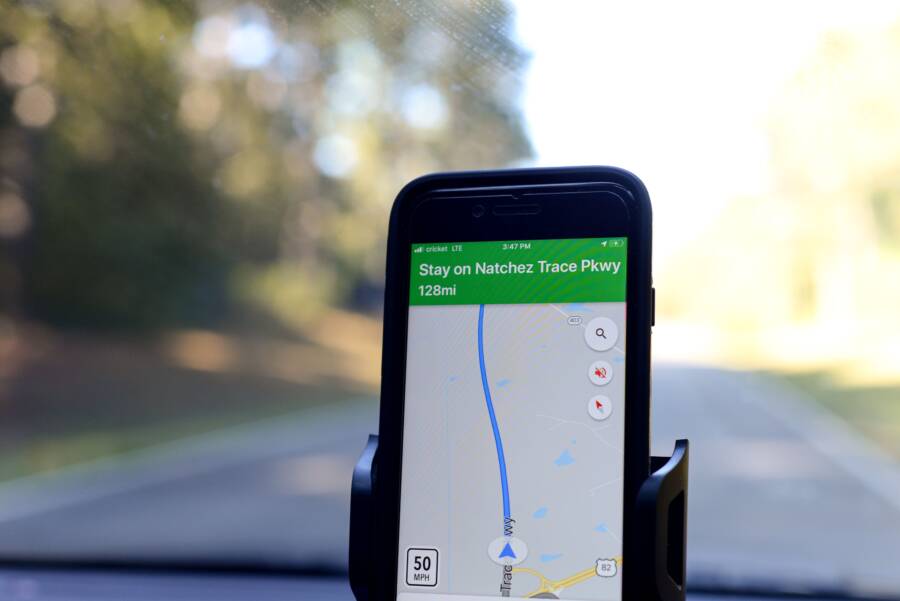
When your location sharing stops updating in real time, you usually deal with a software conflict rather than a broken device. These delays often stem from aggressive battery management settings, outdated system permissions, or restricted background activity on your smartphone.
Power saving modes are the most common culprits, as they limit how often your device pings satellite and cellular data to conserve energy. You can typically restore consistent tracking by adjusting these specific background permissions and disabling power-optimization settings.
Read on to identify the exact settings on your smartphone that interfere with location precision and how to fix them for good.
Why Your Smartphone Struggles to Update Location in Real Time
Your smartphone relies on a complex dance between hardware sensors and software processes to pinpoint your location. When this process falters, your position on a map often lags behind or jumps sporadically. Several technical barriers frequently prevent your device from maintaining a live connection. Understanding these factors helps you distinguish between a temporary glitch and a deeper configuration issue.
The Role of Battery Optimization
Modern mobile operating systems prioritize energy efficiency above almost all other background functions. To extend your daily battery life, both Android and iOS employ aggressive power management protocols that monitor app behavior. When an application requests constant location updates while running in the background, the system often flags it as a high-drain process.
The system then restricts this app, forcing it to sleep or limiting its ability to wake up the GPS module. This creates a direct conflict with real-time tracking needs. If you rely on a service to share your whereabouts with family or friends, the operating system may block that app from sending data while the screen is off.
You can check these settings in your phone menus to keep specific apps active:
-
Android Battery Optimization: You should look for menus labeled Battery or Apps, then select your specific tracking app to set its usage to Unrestricted or Don’t Optimize.
-
iOS Background App Refresh: Navigate to your settings to ensure Background App Refresh remains enabled for critical services, which allows them to pull data even when you are not actively viewing the map.
Connectivity and Signal Interference
Hardware limitations often create gaps in location data before the software even receives it. Your smartphone identifies your position using a combination of GPS satellites, nearby Wi-Fi networks, and cellular towers. If your device cannot maintain a stable connection to these sources, the location accuracy drops immediately.
It is important to distinguish between finding a location and transmitting it. A device might calculate its position perfectly via internal GPS, yet fail to broadcast that update due to a weak cellular data signal. Dense urban areas, thick walls, or remote regions cause this communication breakdown.
These factors typically cause the most common signal disruptions:
-
Obstructions: Tall buildings and heavy foliage block direct lines of sight to GPS satellites, which forces the phone to rely on less accurate cellular triangulation.
-
Data Latency: If your mobile data connection is unstable or throttled, your phone may fail to upload your coordinates to the cloud, even if the GPS fix remains active.
-
Network Switching: As your phone moves between Wi-Fi access points or cellular towers, the momentary handoff can cause a pause in data transmission.
While you cannot control satellite coverage, toggling your Wi-Fi settings or forcing a refresh of your cellular connection often clears these intermittent transmission delays.
How to Fix Real Time Location Syncing on Your Phone
Your smartphone updates its location through a constant loop of background processes. If this loop breaks, your location data becomes stale or incorrect. Restoring this functionality requires you to verify that your system permissions, data settings, and power profiles allow these applications to function without interference.
Adjusting Precise Location Permissions
Most mobile operating systems default to standard location accuracy to save resources. When an app needs to track you in real time, it requires access to precise location data. You must confirm that your essential tracking apps hold these elevated permissions.
On Android, navigate to your Settings, select Location, and then choose App Permissions. Find the specific application and verify that it is set to “Allow all the time.” Within this same menu, toggle the switch for “Use precise location” to the “On” position. Without this setting, your smartphone uses coarse data from nearby cell towers, which lacks the accuracy needed for real-time monitoring.
On an iPhone, go to the Settings app, tap Privacy & Security, and select Location Services. Locate your tracking app in the list and ensure it is set to “Always.” Also, confirm that the “Precise Location” toggle is green. These steps grant the app full access to GPS data even when you aren’t actively using the app.
Disabling Background Data Restrictions
Your smartphone often restricts background data usage to conserve mobile plans or battery. If a location app cannot transmit data while the screen is off, your location appears static to others. You need to verify that your device permits these apps to communicate freely when they are in the background.
For Android users, open the Settings app and tap on Apps. Select the tracking application from the list, then tap on Mobile Data. Ensure the “Allow background data usage” switch is active. If your device has a Data Saver mode enabled, you can also add the app to the allowed list within the Data Saver settings menu to prevent connectivity drops while the phone is in your pocket.
iOS manages this through a setting called Background App Refresh. Go to Settings, tap General, and then select Background App Refresh. Ensure the feature is on, then scroll down to find your specific app and flip its toggle to the “On” position. This allows the app to communicate with servers as soon as it detects a location change.
Managing Battery Saver and Performance Modes
Power-saving modes are the most aggressive tools on your smartphone, as they frequently kill background services to save energy. When you enable a battery saver, the system often treats real-time location apps as high-drain processes and suspends them. To maintain constant updates, you must exclude your tracking tools from these restrictions.
On Android, go to your Battery settings and look for “Battery Optimization” or “App Battery Usage.” Find the tracking application and set it to “Unrestricted” or “Don’t Optimize.” This prevents the operating system from forcing the app to sleep.
iPhone users don’t have an equivalent granular list for individual apps, but Low Power Mode significantly impacts performance. If you enable Low Power Mode, the system automatically stops background tasks like location syncing. You should disable Low Power Mode by going to Settings, tapping Battery, and switching off the toggle. Keeping your battery level above 20 percent is often the easiest way to prevent your smartphone from limiting these essential background services.
Comparing Popular Location Tracking Tools and Their Needs
Choosing the right tool for tracking your location depends on your priority, whether it is long-term safety for family members or simple coordination during a quick trip. While third-party apps often promise extra features like custom geofences or travel history, they frequently struggle to maintain the same level of reliability as native system services.
Native OS Solutions vs Third Party Apps
Apple’s Find My and Google’s Location Services are built into the core framework of your smartphone. Because these services run at the kernel level, the operating system grants them constant access to location data without needing to bypass battery optimization rules. They use low-energy pings to maintain a baseline connection, which allows them to remain active for days without draining your battery.
Third-party apps, in contrast, exist as standard applications that must fight for resources against other active software. Every time you install a tracking app, you must manually grant permissions and exempt it from power-saving modes. If you fail to configure these settings perfectly, the operating system eventually kills the app process to recover system memory or battery life.
Native solutions are better for consistent, long-term tracking because they possess a permanent “whitelist” status in your phone software. If you use a third-party application, you should expect to re-verify permissions after major system updates, as these updates often reset security policies to their default, more restrictive states.
Understanding Update Frequencies
Many users assume that “real-time” means a constant, unbroken stream of GPS coordinates. In reality, modern location services rarely maintain an active, high-power GPS lock every second, as this would deplete a typical smartphone battery in just a few hours. Instead, they use a hybrid approach that samples your position at intervals.
Most systems refresh your location based on your movement patterns. If you remain stationary, the device might only report your location every fifteen or thirty minutes to save power. Once the built-in accelerometer detects movement, the system increases the frequency of these pings to provide a more current view for your contacts.
You can often identify a technical glitch by watching the timestamp on your tracking map. If the data remains stuck at a specific time even while you are clearly moving, the application has likely entered a suspended state. If the timestamp updates but the position icon stays in the same place, you are likely experiencing a cellular signal drop or a failure in GPS acquisition. If you notice persistent delays, check if your phone shows a “GPS signal lost” notification or if the app’s permission status changed, as these are the most common indicators that the background sync process failed.
Common Questions About Troubleshooting Location Sharing
Users frequently encounter confusion when real-time tracking fails on their smartphone. You might wonder if your privacy settings are incorrect or if your cellular signal is the primary issue. Addressing these common concerns helps you verify your configuration and ensures your device remains detectable when you need it most.
Does turning off Wi-Fi save battery and help with location accuracy?
Many people believe that disabling Wi-Fi improves battery life during travel. While this is technically true, it often harms your location accuracy. Your smartphone uses Wi-Fi scanning to identify your position even when you are not connected to a specific network. It detects nearby routers to triangulate your location faster than GPS alone. If you turn off Wi-Fi, your device relies exclusively on satellite pings and cellular towers. This process consumes more power because the GPS chip must work harder to acquire a signal. Keep Wi-Fi enabled to maintain high precision and lower overall battery consumption.
Will my location update if my screen is locked?
Your phone intentionally restricts background activity to save energy. When the screen is off, the operating system limits how often apps can access the GPS. Most apps remain functional if you explicitly set their permissions to allow background data usage. You must verify these settings in your battery manager. If you notice your location only updates when you unlock the screen, your device is likely killing the app process to conserve power. Adjusting your settings to ignore battery optimizations for that specific app fixes this delay.
Why does my location jump between two distant points?
Sudden jumps in your location history usually result from signal interference or switching between networks. Your smartphone constantly calculates its position using the best available data source. If you move indoors, your phone might drop the GPS signal and switch to a less accurate cellular tower coordinate. This causes the map to jump instantly to the location of that tower, which could be miles away. Once you move back near a window or outdoors, the phone re-establishes a satellite lock and snaps back to your true position. These jumps are normal for mobile devices in areas with weak signal density.
Is it necessary to restart my smartphone to fix location lags?
A quick restart often resolves temporary software conflicts that prevent location services from functioning correctly. Sometimes, the background daemon responsible for tracking becomes unresponsive due to a memory leak or a temporary handshake failure with the system GPS driver. Restarting forces all system services to reinitialize their connection to hardware sensors. If you have verified all your permissions and power settings but still experience issues, a reboot remains the most effective way to clear underlying technical glitches.
Does low power mode affect location precision?
Low power mode is the most common reason for stalled location sharing. This setting suppresses background processes, reduces the frequency of location pings, and disables non-essential sync tasks. If you need consistent real-time tracking, you should keep your battery level above 20 percent or disable power-saving features entirely. Many devices automatically disable this mode once you plug them into a charger, which instantly restores full location functionality. Always check your battery status if you notice your friends report that your location has stopped moving.
Conclusion
Maintaining real-time location sharing on your smartphone depends on the constant interaction between battery settings, app permissions, and signal quality. When location updates lag or fail, you can usually resolve the issue by adjusting system-level constraints that restrict background activity. Consistent tracking requires these services to operate without interference from aggressive power-saving protocols.
If you continue to experience delays, follow this final checklist to verify your configuration:
-
Confirm that your location permission is set to “Always” or “Allow all the time” for your chosen app.
-
Ensure the “Precise Location” toggle is active in your system settings.
-
Disable Battery Saver or Low Power Mode to prevent the operating system from suspending background tasks.
-
Add the tracking application to your phone’s list of unrestricted battery usage apps.
-
Keep your Wi-Fi enabled to assist with location triangulation, even when you are not connected to a network.
Addressing these specific settings restores the accuracy and reliability of your location data. You can now monitor your whereabouts with confidence knowing your device is configured to prioritize these background services.