Thousands of People Were Struggling With Money Until They Discovered This One Ancient Secret Hidden in Sound
>>> Unlock It Now <<<

Are you tired of links popping open in the wrong browser on your phone, no matter how you tap them? This happens on both Android and iPhone and can be really annoying when you’re trying to stay organized. In this guide we’ll walk through the most common causes and practical fixes you can try with minimal fuss.
You’ll learn how to reset default apps, adjust how links are handled by each app, and refresh settings that may be blocking the right browser from opening. The steps are designed for real devices and real-life use, so you can apply them quickly without technical jargon or guesswork. By the end, you’ll have a clear path to make sure the browser you want is the one that actually opens.
We’ll start with the easy fixes you can try right away, then move to device specific steps for Android and iPhone. Along the way you’ll find quick testing tips to confirm the change works, plus a few extra tips to prevent the issue from returning. If you read this far, you’ll be able to take back control of how links behave on your smartphone.
Understanding why links open in the wrong browser on phones
When you tap a link on your phone, you expect it to open in the browser you prefer. But many times it lands in a different app or a different browser than you expect. This section breaks down the common reasons and how to fix them. You’ll learn how system defaults work, why apps sometimes use their own in-app browsers, how per-link rules can steer behavior, and how cached data or old profiles can keep stubborn settings alive. By understanding these factors, you can predict and control where links open, even on a busy smartphone.
There Is a Frequency That the Wealthiest Families Have Used for Generations and Most People Will Never Know It Exists
>>> Open the Door <<<

System defaults explain most cases
Your phone uses a set of default apps to handle specific tasks. The default browser is just one example. If Android or iPhone has a different browser set as the default, tapping a link may open there instead of your preferred choice. In most cases, changing the default app fixes the issue quickly.
- Android: The system asks you to pick a default browser when you first tap a link after installing a new browser. You can change this later by going to Settings, then Apps or Apps & notifications, and selecting Default apps. From there, choose your browser under the Web browser entry. If you spot a link opening in Chrome even though you’d rather use Firefox or Brave, this is usually the fix. For reference, Android Help provides step-by-step guidance on changing the default browser: https://support.google.com/android/answer/14324187?hl=en and Chrome’s default setup guide offers a quick path to set Chrome as the default if you prefer it: https://support.google.com/chrome/answer/95417?hl=en&co=GENIE.Platform%3DAndroid
- iPhone: Apple’s system lets you assign a default browser in Settings > Apps > Default Apps (or in some versions, Settings > Chrome or Settings > Safari and the option to set as default). After you pick a new default, you may need to confirm a few on-screen prompts. Apple’s official guidance explains how to adjust default apps on iPhone and iPad: https://support.apple.com/en-us/121430 and a dedicated guide shows how to change the default web browser: https://support.apple.com/guide/iphone/change-the-default-apps-iphc57feab64/ios
The quick path: open Settings on your device → find Default Apps (or Default web browser) → select your preferred browser → test a link. If the link still opens in a different app, move to the next sections to check other causes.
A practical note for readers: if you’ve just installed a new browser or updated your device, a reset of defaults can fix lingering behavior. It’s common for updates to reset or re-prioritize default apps, so a quick review is worth it.
Apps using in app browsers or web views
Many apps don’t hand links to the system browser right away. Instead, they open links inside their own built-in or in-app browser. This behavior keeps you within the app’s environment and can feel seamless, but it can be frustrating if you want the link to open in a specific browser.
- Social media apps: When you click a link on platforms like Facebook or Instagram, the link may open in an internal browser. That internal browser uses its own settings, not your system default.
- Email and messaging apps: Some apps open links in their own view rather than launching Safari, Chrome, or another choice.
The fix is usually simple: look for in-app settings that control link handling. You might find an option labeled something like “Open links in external browser,” “Open web links in app,” or “Use external browser by default.” Turning off the in-app browser option or selecting the external browser can align behavior with your preferred default.
If you want a quick view of this behavior in action, you can test by tapping a link in a social app or a mail app and noticing whether the link opens in a new tab within the app or in your device’s browser. If it’s the former, adjust the app’s settings or disable in-app browsing.
For additional context, here are official guides and explanations about app behavior and defaults you can consult:
- Android: Make Chrome your default browser and related settings guide: https://support.google.com/chrome/answer/95417?hl=en&co=GENIE.Platform%3DAndroid
- iPhone: How to set default apps, including web browser apps, on iPhone: https://support.apple.com/guide/iphone/change-the-default-apps-iphc57feab64/ios
Per link rules and domain level handoffs
Some apps or devices implement per-link or per-domain rules. That means certain websites or domains are hard-wired to open with a particular app or browser, regardless of the general system default. This can happen at the device level, within the app, or through a special setting the developer has included for that domain.
- A scenario you might encounter: tapping a government site link opens in a specific app’s internal viewer, while a social site link opens in your usual browser. The domain is effectively handed off to a preferred app.
- Per-link options: Some apps expose per-link controls within their own settings. Look for options such as “Open with external app” or “Always use [App] for this domain.” If you’ve noticed that only some domains misbehave, this is a likely culprit.
How to check and reset per link settings simply:
- Open the app that opened the link.
- Look for link, browser, or web view settings related to that app.
- If you see per-domain or per-link options, reset them to the system default or disable the special-handling feature.
- Test by tapping a link from different apps to confirm consistent behavior.
If you want more authoritative guidance on how devices handle per-domain handoffs, you can consult the official resources listed above. These guides often include notes about how to adjust default apps for features and how to disable per-link behavior in specific apps.
Cached data, old defaults, and stale profiles
Even after you change defaults, older settings can linger. That can happen because of cached data, stale profiles, or remnants from previous browser installations. You might see a browser that used to be the default still opening certain types of links, or a newly chosen browser not taking effect immediately.
- Cached data: Some apps store preferences locally. A cache cleanup can flush outdated rules.
- Old defaults: If you updated your OS or uninstalled a browser, the system may still carry over a previous default in a hidden preference file.
- Stale profiles: Sometimes a user profile in a browser keeps old settings that override new ones.
A straightforward reset helps most users:
- Clear app caches: Go to Settings > Apps > [App Name] > Storage > Clear cache.
- Reset browser data: Open the browser, find Settings > Privacy > Clear data (cache, cookies, history) as appropriate.
- Reconfirm default apps: After clearing caches, reselect your preferred default browser in Settings.
If you’re still seeing odd behavior after a reset, a clean start can help. Uninstalling and reinstalling the browser you want to use can also force the system to rebuild its default associations correctly. This approach is especially useful if you suspect a corrupted profile or a misbehaving update.
To support these points, you can refer to official reset and default-setting guides:
- iPhone default apps and settings: https://support.apple.com/guide/iphone/change-the-default-apps-iphc57feab64/ios
- Android default browser help and related steps: https://support.google.com/android/answer/14324187?hl=en
What to do next
- Start with system defaults. If your phone’s default browser is not the one you want, switch it and test again.
- Check in-app browsers. If a popular app opens links inside itself, adjust its internal settings or disable the in-app browser.
- Look for per-link rules. If a single site misbehaves, inspect the app’s per-link or per-domain options and reset them.
- Clean caches and reset if things feel stuck. A quick purge can clear stubborn leftovers that block the new settings.
Quick testing tip: after making a change, open a few different links from various apps to confirm that the browser you want actually opens. If you still see inconsistent results, re-check each step above. A few minutes of adjustment now can save you hours of frustration later. You can also review more practical guides on changing defaults for both platforms: Android and iPhone. For a deeper dive into how to adjust defaults on Android devices, see Android Help and Chrome Help; for iPhone specifics, Apple’s official support pages cover per-feature defaults and how to manage default apps.
Android fixes that usually work
If you’re wrestling with links opening in the wrong browser on Android, you’re not alone. Many fixes sit at the intersection of system defaults, app behavior, and per-link rules. In this section, you’ll find practical, straight-to-the-point steps that address the most common culprits. Each fix is designed to be implemented quickly and tested with real-world taps, so you can confirm a consistent, predictable browsing experience on your smartphone.
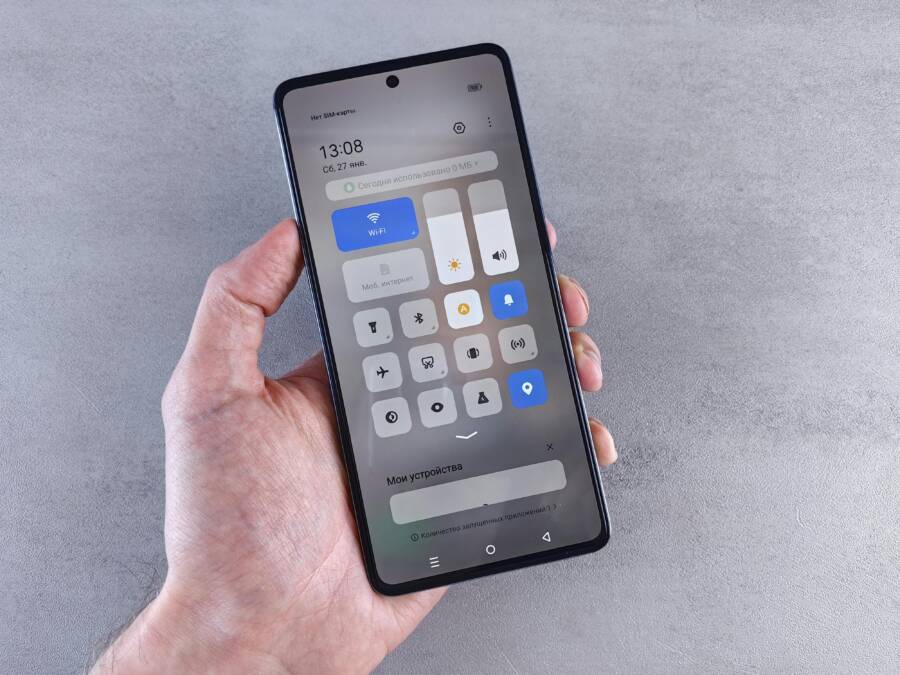
 Photo by Andrey Matveev on Pexels
Set and verify the default browser
Setting the default browser is the first and most reliable step. When Android has a distinct default for web handling, tapping links from almost any app will open in that browser. If you’ve changed devices or updated your OS, the default may have shifted again, so a quick check is worth it.
- Path to set the default browser:
- Open Settings on your Android device.
- Go to Apps or Apps & notifications.
- Tap Default apps and look for Browser (sometimes labeled Web browser or found under a submenu like “Opening links”).
- Choose your preferred browser (for example, Firefox, Brave, or Chrome).
- Alternate labels you might see:
- On Pixel devices you may see Set as default or Default apps directly under Settings.
- On Samsung devices look for Choose default apps or Web browser in the Apps menu.
- Some devices require you to open the chosen browser first and then confirm a prompt to set it as default.
- Quick test:
- Tap a link in a text message or chat app. It should open in the browser you set as default.
- If it still opens elsewhere, move to the next fixes and re-test after each step.
- Helpful reference
- Android’s official guidance on changing the default browser: https://support.google.com/android/answer/14324187?hl=en
- Chrome’s guide for setting itself as the default browser: https://support.google.com/chrome/answer/95417?hl=en&co=GENIE.Platform%3DAndroid
If you want to see this in action on your own device, keep the test links ready. A simple tap in a messaging app followed by a quick check in the browser confirms you’re set.
Clear old defaults and reset app preferences
Sometimes lingering defaults from prior updates or installs keep behavior stuck. Clearing defaults and resetting app preferences forces the OS to reassign handlers, which often fixes stubborn cases.
- How to clear defaults for the misbehaving app:
- Open Settings > Apps > select the misbehaving app.
- Tap Open by default or Set as default and choose Clear defaults.
- If there is no explicit option, choose to clear all defaults by returning to the app info screen and tapping Clear defaults if available.
- When to reset all app preferences:
- If multiple apps behave oddly, a full reset of app preferences can help. This will reset notifications, permissions, and default associations without removing apps or data.
- Path: Settings > System > Reset options > Reset app preferences.
- Practical effect:
- The system will prompt you to choose a default browser again when you tap a link, which gives you a clean slate.
- Quick testing approach:
- After the reset, tap links from several apps to ensure the desired browser opens consistently.
- Additional context sources:
- Pixel Phone Help on setting or clearing default apps: https://support.google.com/pixelphone/answer/6271667?hl=en
- Android help threads about changing open-with behavior: https://support.google.com/android/thread/312680304/changing-the-default-settings-for-opening-pdf?hl=en
This reset approach often resolves issues caused by background changes after app updates or OS updates. It’s a reliable, non-destructive step you can retry any time defaults seem unsettled.
Disable in app or web view handling
A common reason behind the wrong browser is that an app uses its own in-app browser or a specialized web view. Turning off this behavior forces the app to hand links to the system browser, aligning with your default choice.
- How to disable in-app handling for popular apps:
- Social apps (for example, messaging or social platforms): Open the app’s internal settings and look for terms like Open links in external browser, Open web links in app, or Use external browser by default. Disable the in-app option or switch to external browser.
- Email apps: Some mail apps offer a toggle to open links in an in-app viewer. Disable that option so links open in the system browser.
- Practical steps you can try:
- In the app settings, locate any web or browser-related controls. Turn off in-app web views and choose external browser when prompted.
- If no such option exists, rely on the system default and proceed to other fixes.
- Note on limitations:
- Not all apps provide an in-app browser toggle. In those cases, consider default app or domain controls as alternative fixes.
- Quick verification tip:
- Tap a link from a culprit app and observe whether it still stays inside the app or opens in your system browser. If it’s the latter after adjustments, you’ve likely overridden the internal viewer effectively.
- Related resources:
- A practical guide on disabling in-app browsing and related settings: https://www.techlockdown.com/guides/disable-web-browser-android
- Community discussions about keeping Chrome as the default while disabling in-app browsing: https://android.stackexchange.com/questions/201150/disable-all-in-app-browsing-while-keeping-chrome-as-default-browser
By turning off in-app handling, you reclaim control over where links open and reduce surprises when you tap a link in a favorite app.
Check per link handling and domain rules
Some apps apply per-link or per-domain rules. A site might be forced to open with a specific app or in-app viewer, even if the system default points somewhere else. Inspect these possibilities when the problem only shows up for certain sites.
- What to look for inside apps:
- Open the app that opened the link and search for per-domain or per-link options. These can appear as “Always use [App] for this domain” or “Open with external app for this site.”
- If you identify a domain-specific rule, reset it to the system default or disable this per-domain handling.
- How to test per-domain rules:
- Try links from different apps that lead to various sites. If only one domain misbehaves, you’re likely dealing with per-link settings rather than a global default.
- How to reset:
- In the app, remove the per-domain rule, or switch it back to use the system browser by default.
- If the app lacks such controls, reinstalling the app can reset its internal link handling logic.
- Helpful hint:
- Some apps offer a per-domain control within their own settings, so it’s worth scanning for domain-level preferences after you notice a single site behaving oddly.
- Supporting links:
- Discussion on app links and domain level handling: https://bhoos.com/blog/part-2-universal-and-deep-links-android-setup/
- A Stack Exchange conversation about per-domain linking and app behavior: https://android.stackexchange.com/questions/218558/open-links-to-particular-domain-with-particular-app
Per-domain controls can quietly override your system default for specific sites. Resetting or disabling those rules often restores consistent behavior across apps and sites.
In the next sections, we’ll cover how to handle cached data and stale profiles, plus practical tips to prevent this issue from returning. If you want to dive deeper into platform specifics, you can consult Android’s and Apple’s official guides, which provide additional context on defaults and per-feature settings. For broad reference, see Android Help and Chrome Help, and Apple’s guidance on default apps.
iPhone fixes that usually work
When links keep opening in the wrong app or browser on your iPhone, it can feel like a constant tug of war. The solution usually lies in a few targeted fixes you can apply quickly. In this section, you’ll find practical steps that many readers use to restore predictable link behavior across apps. The goal is to have links open in the browser you choose, every time.
Set the default browser in iOS
Your iPhone can designate a single browser to handle web links from most apps. This is the fastest way to ensure consistency after you install a new browser or update iOS.
- Navigate to Settings.
- Tap the browser you want to use (for example, Chrome, Firefox, or Brave).
- Look for the option to set as default browser and enable it.
- If a prompt asks you to confirm, approve it and then test by tapping a link in a text or email.
Note that the default option appears only after you install a new browser. If you don’t see the setting, open the browser first and then revisit Settings. Apple’s official guide covers default app changes on iPhone: https://support.apple.com/en-us/121430
If you’d like a quick reference on how changes flow, this Apple support article explains the steps in straightforward terms. For readers who regularly switch browsers, this can be a real time saver: https://support.apple.com/guide/iphone/change-the-default-apps-iphc57feab64/ios
He Was Drowning in Bills and Burnout Until a Simple Daily Ritual Rewired His Brain for Wealth in Less Than a Week
>>> Start Your Shift Today <<<

Quick tip: after you set a new default, test a few links from different apps to confirm the change sticks. You’ll often see results immediately.
Handle in app browsers and deep linking
A lot of apps still use their own in-app browsers. This can override your system default even if you’ve set a preferred browser. When possible, turn off in-app web views or switch to the app’s option to open in Safari or your chosen browser.
- Social apps like Facebook or Instagram may open links inside their own viewer.
- Email and messaging apps sometimes render links in an embedded browser rather than launching Safari.
Check each app’s settings for options such as “Open links in external browser,” “Open web links in app,” or “Use external browser by default.” If you can disable the internal viewer, links will honor your device-wide default. If the app doesn’t offer a direct toggle, proceed to other fixes and test again.
For a practical perspective, you can look at how to stop in-app browsers in popular apps (including guidance on Facebook and Safari) in these resources:
- How to turn off Facebook in-app browser: https://www.youtube.com/watch?v=3yYolRFsGdI
- How to stop Safari from opening apps automatically: https://www.youtube.com/watch?v=bYEZXwkvk6o
- Open link in system browser instead of in-app browser on Stack Exchange: https://stackoverflow.com/questions/76888215/open-link-in-system-browser-instead-of-in-app-browser
If you prefer official guidance on iPhone behavior, Apple explains how default apps work across features and apps here: https://support.apple.com/guide/iphone/change-the-default-apps-iphc57feab64/ios
A quick verification approach: tap a link from a culprit app and observe whether it opens in the system browser or inside the app. If you see the external browser, you’ve addressed the issue. If not, continue with the remaining fixes.
Per link rules and domain handoffs
Some apps apply per-link or per-domain rules. A site might be forced to open with a specific app or viewer, regardless of the general default. Inspect these possibilities when the problem shows up only for certain sites.
- Look inside the app for domain or link-specific options such as “Always use [App] for this domain.”
- If you find a domain rule, reset it to the system default or disable this per-domain handling.
- If the app lacks such controls, reinstalling the app can reset its internal link behavior.
Test across different sites to confirm whether the issue is global or domain-specific. If only one site misbehaves, you’re likely dealing with per-domain rules rather than a system-wide default.
Helpful context on per-domain behavior can be found in these discussions:
- Part about universal and deep links in Android setups (for cross-platform context): https://bhoos.com/blog/part-2-universal-and-deep-links-android-setup/
- Stack Exchange discussion about per-domain linking and app behavior: https://android.stackexchange.com/questions/218558/open-links-to-particular-domain-with-particular-app
If a domain rule is the culprit, simply reset or disable it in the affected app. Re-test by tapping links from different apps to confirm consistent behavior.
What If the Only Thing Between You and the Life You Deserve Is a Hidden Wealth Code Waiting to Be Activated
>>> Open the Door <<<

Cached data, old defaults, and stale profiles
Even after you update defaults, old settings can linger. Cached data, stale profiles, or remnants from previous browser installations can cause erratic results.
- Clear app caches for the misbehaving apps.
- Clear browser data from within the browser’s settings (cache, cookies, history as appropriate).
- Reconfirm the default browser in Settings after clearing caches.
If issues persist, a clean reinstall of the desired browser often helps. This forces the system to reestablish default associations.
For official guidance on resets and defaults, see:
- iPhone default apps and settings: https://support.apple.com/guide/iphone/change-the-default-apps-iphc57feab64/ios
- Android default browser help and related steps: https://support.google.com/android/answer/14324187?hl=en
What to do next
- Start with the system default. If your phone isn’t using the browser you want, switch it and test again.
- Check in-app browsers. If a popular app uses an internal viewer, adjust its in-app settings or disable the in-app option.
- Look for per-link rules. If a single site misbehaves, inspect the app’s per-domain controls and reset them.
- Clean caches and reset if needed. A quick purge can clear stubborn leftovers.
Quick testing tip: after changes, test a few link types from different apps to confirm the desired browser opens. If results vary, revisit each step and re-test.
For deeper context across platforms, you can consult official guides from Android Help and Apple Support, as well as browser-specific help like Chrome’s default settings guide and related resources.
Test across apps and links
A final practical check helps confirm you’ve stabilized link behavior. Test a variety of link types from multiple apps to ensure the browser you want consistently opens.
- Email links: Open a message and tap a URL.
- Messaging links: Send a link in a chat and tap it.
- Social links: Tap a link from a social post or bio.
- Web-to-app links: Try a link that often opens in-app and see if it redirects to the system browser.
Testing checklist
- Is the chosen browser opening for mail links?
- Do social links open in the system browser rather than within the app?
- Are government or educational sites opening in the intended browser?
- Do app-to-app transitions respect the system default?
If any category still misbehaves, revisit the relevant subsection. Consistency comes from methodically applying these steps until every link type behaves as expected.
External references and additional reading
- Apple support on changing default apps on iPhone: https://support.apple.com/en-us/121430
- Apple guide to default apps on iPhone and iPad: https://support.apple.com/guide/iphone/change-the-default-apps-iphc57feab64/ios
- Chrome help on setting the default browser on Android: https://support.google.com/chrome/answer/95417?hl=en
- Android help on changing default apps: https://support.google.com/android/answer/14324187?hl=en
If you’re aiming for a friction-free browsing experience on your smartphone, these steps form a solid playbook. After a few quick tests, you should see consistent results and fewer surprises when you tap links in any app.
Extra tips and edge cases
Even after you nail the basics, a few tricky situations can pop up. This section covers practical edge cases and quick wins you can rely on when standard fixes fall short. Think of these as your backup playbook for stubborn link behavior on your smartphone.
Per domain and per link controls across apps
Reviewing domain rules helps you understand why certain sites behave differently from others. Some apps lock specific domains to open in a given app or viewer, regardless of your device default. The fix is usually simple: reset the domain-specific setting or turn off the per-link rule so the system default takes precedence.
- Quick example: government or ticketing sites sometimes force a dedicated app to handle their links, while news sites open in your preferred browser.
- How to review and adjust:
- Open the app that triggered the link and look for domain or link options like “Always use this app for [domain]” or “Open with external app for this site.”
- If you find a per-domain rule, disable it or set to the system default.
- Test by tapping links from a mix of apps to confirm consistent behavior.
A practical note for readers: if a site misbehaves only in one app, you’re likely dealing with per-link controls rather than a global setting. For deeper context, see resources on per-domain handling and universal links.
- Useful references:
- Apple Universal Links guidance for iOS and domain association
- Android App Links handling and setup guides
Keep OS and apps updated
Software updates matter for how links are handled. Updates can reset defaults or introduce changes to how apps register as handlers. Keeping your OS and apps current reduces surprises and fixes many stubborn cases.
- Why updates help:
- They fix bugs that cause incorrect handoffs.
- They refine how deep links, universal links, and in-app browsers interact with system defaults.
- Quick reminders:
- Enable auto update where possible so you don’t miss critical fixes.
- Manually check for updates if you notice odd link behavior after a new app install or OS release.
To explore how updates influence defaults, refer to official guidance for Android and iPhone updates, and keep an eye on release notes for your browser of choice.
Dealing with managed devices or vendor quirks
If you’re using a work or school phone, extra controls may block or redirect link handling. IT departments sometimes enforce a custom default or lock down in-app browsers for security reasons.
- What to do if you’re in a managed environment:
- Contact your IT administrator to request changes to default apps or to loosen in-app browser restrictions.
- Check device admin settings under your profile to see if there’s a management policy affecting web handling.
- If IT can’t adjust the policy directly, ask for a temporary exemption or a documented exception that allows you to set your preferred browser as the default for standard links.
Your device may also come with vendor-specific apps that act as the default handler. In those cases, IT can provide the official path to align vendor settings with user preferences.
When to seek help
If none of the self-service fixes work, it’s time to gather details before you reach out for support. A structured report makes it easier to diagnose the issue quickly.
- What to collect:
- Device model and exact OS version (Android or iOS)
- Browser names you want to use as default and the ones that currently open
- A few example links that consistently misbehave and a few that work as expected
- Screenshots of any error dialogs or prompts you see when tapping links
- Who to contact:
- The browser’s support team for issues tied to that app
- Your device manufacturer’s support page for device-specific quirks
- Your IT department if the device is managed
Having these details ready can shorten the path to a solution. It also helps the support team reproduce the problem and provide a precise fix.
By keeping these edge cases in check, you reduce the odds of recurring issues and maintain a smoother, more predictable browsing experience on your smartphone. If you want to dig deeper, you can explore universal link behavior and per-domain controls across platforms for a broader understanding of how links flow through apps.
Conclusion
Taking control of how links open on your smartphone is worth a few quick checks. Start with the system defaults, then review in app browsers, per link rules, and finally clear caches or reset preferences. After each change, test with several link types from different apps to confirm the browser you want actually opens.
If you still see surprises, document the exact app and site that misbehaves. Share your device model, OS version, and the culprit app in the comments so others can apply the same steps with confidence. This kind of real world detail helps build a reliable, repeatable fix for everyone.
Thanks for sticking with it. With a little testing and the right tweaks, you can restore predictable, browser-forward browsing across apps and sites.
There Is a Frequency That the Wealthiest Families Have Used for Generations and Most People Will Never Know It Exists
>>> Open the Door <<<