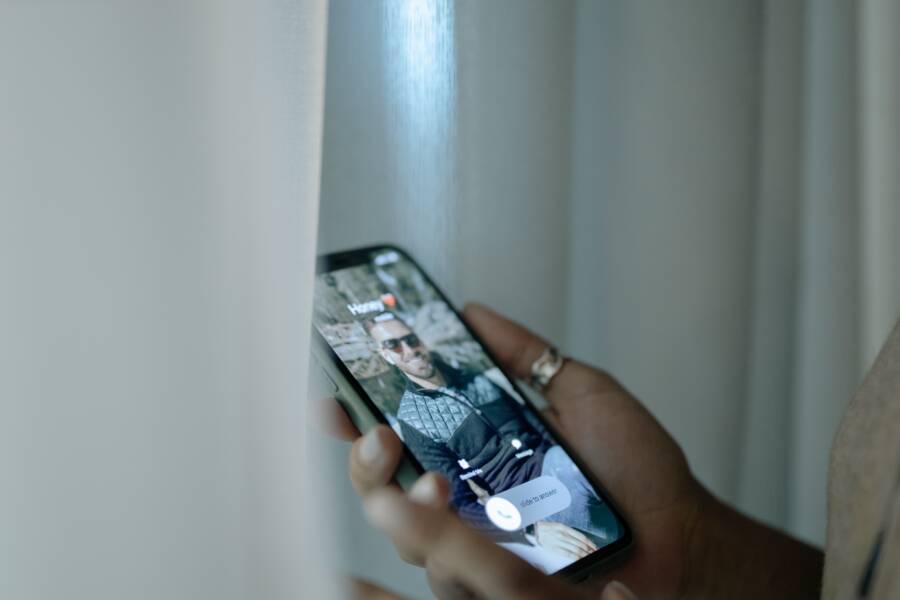
Your phone rings, yet the screen stays dark or locked, forcing calls straight to voicemail. This frustrating issue often stems from simple software glitches or misconfigured notification settings on your smartphone.
Most users resolve this problem quickly without visiting a repair shop or replacing their device. You can usually fix these missing alerts by adjusting a few internal settings or clearing background process conflicts.
The following steps explain how to restore your incoming call display and ensure you never miss an important conversation again.
Common Reasons Your Incoming Call Screen Is Missing
When your phone rings but the screen remains dark, the culprit is often a hidden setting or a temporary system error. These issues interrupt the connection between an incoming signal and your display. Identifying the source takes only a few minutes of troubleshooting. Most users resolve this behavior by verifying notification permissions or checking focus modes that block visual alerts.
Checking Your Focus or Do Not Disturb Settings
Focus modes and Do Not Disturb (DND) settings act as gatekeepers for your notifications. When active, these features prioritize silence and prevent the screen from lighting up during incoming calls. You might have toggled these on by accident while browsing your settings or using your smartphone.
Follow these steps on your iPhone to verify your current status:
Open your Settings app.
Tap Focus.
Select Do Not Disturb or any other active mode.
Check if the status is active, then toggle the switch to off if necessary.
Review the Apps section within the Focus menu to ensure the Phone app is set to allow notifications.
On an Android smartphone, the steps look slightly different:
Swipe down from the top of your screen to reveal the Quick Settings panel.
Look for the Do Not Disturb icon and verify it is not highlighted.
Navigate to Settings, then tap Notifications.
Select Do Not Disturb to confirm it is turned off.
Tap on App notifications and verify that the Phone app has full permission to display alerts.
If these settings are already off, your phone might still be suppressing calls due to specific silence rules. Check your individual app notification settings to ensure the default alerts are enabled for incoming calls.
Software Glitches and Temporary App Errors
Sometimes your smartphone software encounters a minor internal error that prevents the call screen from rendering properly. This often happens after a system update or if your phone app has been running for a long period without a restart. These bugs create a disconnect between the incoming signal and the user interface.
Keeping your operating system current is vital because manufacturers regularly release patches for these communication issues. If your software is outdated, your smartphone may struggle to interpret new notification protocols correctly. Check your settings menu for any pending system updates and install them to resolve known bugs.
If your OS is up to date, you can try resetting the Phone app to clear temporary conflicts:
Force close the Phone app by swiping it away from your recent apps list.
Open your device settings and navigate to the App management section.
Locate the Phone app and select Clear Cache.
Restart your smartphone to refresh the connection process.
These actions clear out corrupted temporary files that interfere with standard operations. If the problem persists after a restart, your device might require a deeper scan for conflicting third-party calling apps that could be overriding your system default. Always stick to the pre-installed dialer if you suspect a compatibility error between your smartphone and a secondary calling service.
How to Fix Incoming Call Notifications on iPhone
If your iPhone rings but shows no notification on the screen, the issue often lies within specific app permissions. When these settings become corrupted or misaligned after an update, your phone fails to trigger the visual alert. You can fix this by resetting the communication between the system and the Phone app.
Resetting Phone App Notification Permissions
Sometimes, the connection between your smartphone software and the Phone app requires a manual refresh. You can force the system to re-recognize the app by toggling the notification switches off and back on. This action clears minor configuration errors that prevent the call screen from appearing.
Follow these steps to reset the permissions:
Open the Settings app on your iPhone.
Select Notifications.
Scroll down the list until you find the Phone app and tap it.
Toggle the Allow Notifications switch to the off position.
Wait about ten seconds, then toggle the switch back to the on position.
Verify that the Lock Screen, Notification Center, and Banners boxes are all checked.
After you complete these steps, perform a soft restart of your device. A restart clears temporary cache files that might still hold onto old settings. If the incoming call screen still does not appear, check your banner style settings within the same menu to ensure they are set to Persistent rather than Temporary.
Managing Unknown Caller Blocking
Your iPhone includes a feature designed to prevent spam, but it sometimes proves too aggressive for daily use. The Silence Unknown Callers feature automatically sends calls from numbers not in your contacts directly to voicemail. If you rely on calls from unknown numbers, such as deliveries or medical offices, this setting hides the visual alert entirely.
To check if this feature is causing your missing notifications:
Navigate to your Settings menu.
Tap the Phone option.
Select Silence Unknown Callers.
Toggle the switch to the off position if you want to see all incoming calls.
When this feature is active, your smartphone treats unknown numbers as distractions rather than alerts. You might notice a small notification in your recent call list later, but the screen remains dark when the call actually arrives. Disabling this function ensures that every incoming signal triggers your screen, even if the number is not saved in your personal contact list. Use this adjustment carefully if you receive high volumes of spam calls, as it removes the automatic filter that guards your attention.
Troubleshooting Call Screen Issues on Android
When your smartphone fails to show an incoming call screen, the software often struggles to prioritize the dialer interface over other active processes. You can usually restore this functionality by removing temporary data conflicts or adjusting system-level display permissions. These issues rarely indicate hardware damage, so you can often fix them by resetting how your phone manages the call notification flow.
Clearing the Cache for Your Dialer App
Temporary data files frequently accumulate inside your dialer application. When these files become corrupted, they interfere with the app’s ability to trigger the full-screen caller interface. You can refresh the app and clear these conflicts by following a few simple steps.
Open the Settings app on your smartphone.
Tap Apps or Application Manager.
Find your Phone app in the list.
Select Storage and then tap Clear Cache.
Restart your device to finalize the process.
Clearing the cache does not delete your contact list, call history, or voicemail. It only removes the temporary data that the app uses to load faster. If the call screen still stays hidden after this, you should also consider tapping Clear Data, though this may reset your dialer preferences to their factory defaults.
Verifying Default Apps and Display Permissions
Android devices require specific permissions to allow an app to display content over other active windows. If your dialer lacks the “appear on top” permission, the incoming call notification stays trapped in the background. This setting is a common point of failure, especially after a major system update or when installing new interface themes.
To check these permissions, navigate to your Settings menu and search for “Display over other apps” or “Special app access.” Locate the Phone app in that list and ensure the toggle is set to allowed. If this switch is off, your smartphone cannot interrupt your current activity to show the incoming call screen.
In addition to display permissions, verify that your default dialer is set correctly:
Go to Settings and tap Apps.
Select Default Apps.
Tap Phone app.
Ensure the system dialer is selected rather than a third-party app or a messaging service.
Third-party apps sometimes override your default settings to handle communication tasks. If you installed a new caller ID app or a secondary dialer, it might be competing with your system dialer for control of the display. Setting the stock dialer as the permanent default usually prevents these conflicts and returns your call alerts to normal.
Advanced Steps if Basic Fixes Fail
When standard troubleshooting does not bring back your incoming call screen, the issue often sits within deeper system settings or persistent background conflicts. You may need to address your device configuration at a more granular level. These steps resolve deeper software mismatches that simple restarts or cache clears cannot fix.
Resetting Network Settings
Network configuration errors sometimes prevent your smartphone from registering incoming signals as active display requests. Resetting these settings forces the device to re-establish its connection with your carrier towers and internal communication protocols. This process wipes saved Wi-Fi passwords and Bluetooth connections, but it does not touch your personal photos or files.
To reset your network settings on an iPhone, open Settings, tap General, select Transfer or Reset iPhone, then choose Reset Network Settings. Your device will restart automatically once the process finishes.
For Android users, navigate to Settings, search for Reset, and select Reset Wi-Fi, mobile, and Bluetooth. Once the system finishes the reset, reconnect your wireless devices and test if your call screen appears during an incoming call.
Evaluating Battery Optimization Overrides
Battery optimization features sometimes aggressively limit background processes to save power. If the Phone app loses its ability to run as a high-priority process, the incoming call screen fails to trigger. You must manually exempt your dialer app from these power-saving restrictions to ensure it always remains active.
On an Android smartphone, follow these steps:
Open the Settings app and tap Apps.
Select your Phone app from the list.
Tap Battery or Battery optimization.
Set the preference to Unrestricted to allow the app to function without power-saving limits.
These settings prevent the system from putting the dialer into a deep sleep mode. Keeping this permission set to unrestricted ensures your screen lights up the moment a signal reaches your device.
Performing a Factory Reset
If the problem remains despite all other efforts, a hidden software corruption might be the cause. A factory reset returns your smartphone to its original state, which removes any deep-seated bugs or conflicting system configurations. This is your final option, so ensure you back up all important data to the cloud or a computer before proceeding.
Navigate to your system settings, search for factory reset, and follow the prompts to erase your device. Once the phone restarts, set it up as a new device and test the calling function immediately. If the issue disappears, you know a software conflict was the cause. You can then restore your data, but avoid restoring older system backups that might reintroduce the same configuration error.
Conclusion
Most cases where your smartphone fails to display an incoming call stem from minor software conflicts or misconfigured notification settings. You can resolve these problems by adjusting focus modes, clearing temporary app cache, or verifying display permissions.
Test your device settings after you apply each fix. This practice helps you identify the specific cause quickly and confirms your device works as expected.
If these steps fail to restore your incoming call screen, a deeper system issue might exist. Reach out to your wireless carrier for further assistance if the problem continues.