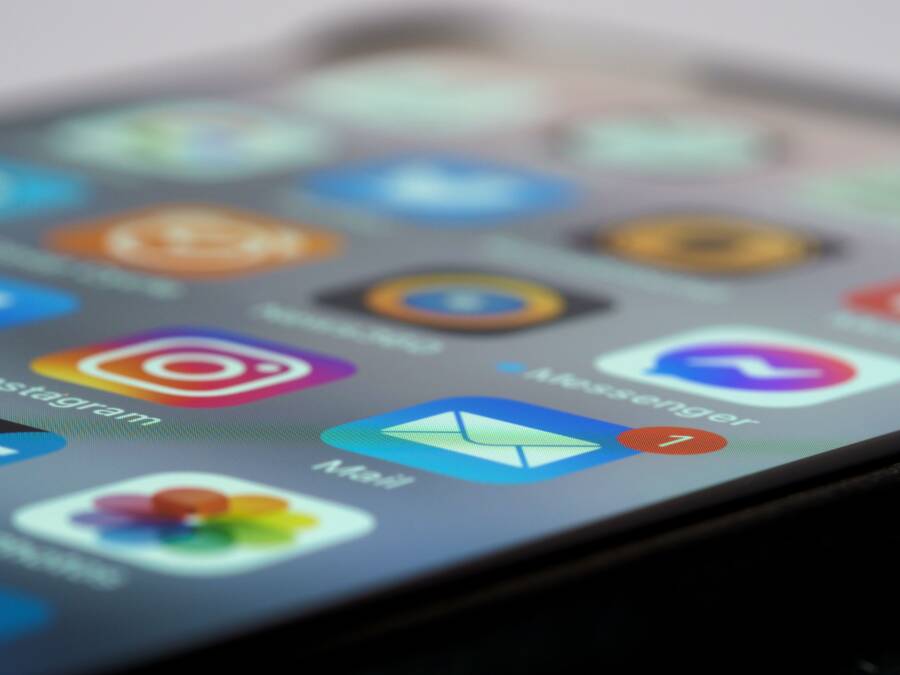
You pick up your smartphone, expecting to see a quick update, but the notification badge shows an old number that refuses to disappear. This glitch happens because of sync errors, temporary cache buildup, or conflicting system settings that prevent the app from refreshing its status.
Fixing these inaccurate badges is usually straightforward, as it rarely indicates a major hardware defect. You can often resolve the issue by clearing the app cache, toggling specific permission settings, or performing a simple system restart.
Follow these steps to restore your notification badges to their normal state.
Refreshing App Data and Cache
When an app stops reporting notifications correctly, it often means the background data has become corrupted or stuck in a loop. Your smartphone stores these small pieces of information in a temporary cache, and clearing this file often forces the system to re-sync with the server.
Navigate to your device settings and open the application manager. Find the app causing the trouble and look for the storage or cache menu. Selecting the clear cache option removes the temporary files without deleting your account data or personal settings.
If the problem continues, you might need to clear the data as well. Remember that this step may log you out of the application or reset your in-app preferences. Once you finish, restart your phone to ensure the system processes the changes and updates the badge count.
Adjusting System Notification Settings
Sometimes the issue is not with the app itself but with how the operating system handles alerts. Smartphone software occasionally blocks the permission for an app to display a badge, or a recent update may have shifted these settings back to a default state.
Check the notifications menu in your main settings to ensure badge support is enabled for the specific app. You should verify that the badge style is set to include the count rather than just a simple dot. Some devices allow you to toggle this feature off and on again, which acts as a soft reset for the notification handler.
Troubleshooting Persistent Sync Issues
If the badge count remains wrong after you adjust the settings, you are likely dealing with a sync conflict. Background data restrictions can prevent an app from reaching the internet to confirm whether you have read all your messages.
Verify that your smartphone has background data usage enabled for the application. You should also check if your device is currently in a battery saver mode, as these power-management features frequently disable background syncing to save energy. Turning off these restrictions often restores the accuracy of your alerts immediately.
Most users find that clearing the cache or restarting the device resolves the issue. If the count stays inaccurate, reinstalling the app is the final resort for fixing deep-seated synchronization errors.
Common Questions About Notification Badges
Why do my badges show numbers for messages I have already read?
This occurs when the app fails to send a clear signal to the operating system that a message status has changed. Clearing the app cache or checking for a pending software update usually fixes this mismatch.
Will I lose my data if I clear the app cache?
Clearing the cache is safe and does not delete your personal content. However, clearing the data is different, as it removes your login information and custom app settings.
Does battery saver mode stop badge updates?
Yes, many smartphone operating systems limit background activity when your battery is low. This restriction prevents apps from checking for new notifications, which keeps the badge count stagnant until you charge the device or disable the power-saving mode.
Quick Summary for Fixing Badges
Accuracy in your notification badges depends on the communication between your apps and the operating system. You should start by clearing the app cache, as this handles most minor sync bugs. If that fails, check your background data permissions and battery settings to ensure the app has the clearance to refresh. A quick restart of your smartphone often applies these changes and clears any lingering display errors.
Understanding Why Your Smartphone Notification Counts Fail
Notification badges are the small numbered circles on your app icons that signal missed messages or updates. When these counts fail to clear or display correctly, the communication loop between your apps and the operating system is interrupted. Multiple factors contribute to these inconsistencies, ranging from how the smartphone manages background processes to how the system stores temporary information.
Common Software Glitches That Cause Badge Errors
System instability often stems from how your smartphone handles background app refresh. This feature allows apps to fetch new content even when you are not actively using them. If the process hangs, the app fails to receive the signal that a message was read, leaving the badge count stuck at an old number. Your phone constantly performs these invisible handshakes to keep your interface updated with the latest status.
The system cache serves as a secondary culprit in this scenario. This area of memory holds temporary files that help applications load faster and function more smoothly. Over time, these files become cluttered or corrupted, causing the operating system to display outdated information on your home screen. Clearing this cache forces the app to rebuild its temporary data from scratch, which usually restores accurate badge counts.
Locate the app settings in your system menu.
Select the specific app showing the incorrect badge.
Access the storage or memory section within that app settings page.
Tap the button to clear the cache.
Restart your smartphone to finalize the refresh.
Settings Conflicts You Should Check First
Battery optimization modes are designed to prolong your daily usage by curbing background activity. When your smartphone enters a low-power state, it aggressively restricts apps from connecting to servers to conserve energy. This power management is excellent for battery life, but it frequently prevents the system from updating notification badges until you manually open the app.
Do Not Disturb settings also influence how your device prioritizes alerts. If you have restricted certain categories of notifications or set strict scheduling, the system might suppress the visual indicator alongside the audible alert. You should verify your notification focus settings to ensure the smartphone allows persistent badge updates for your messaging and social media apps.
Check your battery settings to see if the app is currently excluded from power-saving restrictions.
Review your Focus or Do Not Disturb profile to confirm that notification badging is permitted during restricted hours.
Toggle the badge display setting off and back on within the notification management menu to reset the visual handler.
These adjustments ensure your device balances efficiency with the constant need for real-time information. When your phone manages background processes correctly, the badge counts will remain accurate without draining your battery or interrupting your workflow.
Simple Troubleshooting Steps to Refresh Your Notification Badges
Inaccurate notification badges often result from minor software communication errors between your apps and the operating system. You can usually resolve these display glitches by forcing a state change within your settings. These actions prompt your smartphone to re-establish its connection to the notification service, which clears out stuck counts and updates your screen with current information.
Toggle Your Notification Settings for a Hard Reset
Forcing a system refresh is a primary way to make your smartphone recognize the correct number of pending items. This process essentially tells your device to drop the current notification handler and load a fresh one, which removes ghost icons that refuse to disappear.
Open your device settings and navigate to the Apps or Application Manager menu.
Select the specific application that is showing an incorrect badge count.
Tap on the Notifications section for that app.
Locate the toggle switch for Badge icons or Notification dots and turn it off.
Exit the menu entirely, then return to the same settings page and toggle the badge switch back to the on position.
Performing this sequence forces the operating system to re-poll the app server for active notifications. If your device supports it, choosing to set the badge style to “Number” instead of “Dot” and then back again provides an even more effective refresh. This simple reset clears out the display logic without requiring you to modify any of your actual account data or app preferences.
The Power of Clearing App Cache
Temporary files often accumulate as your smartphone runs background tasks, and these files sometimes contain outdated data that contradicts your actual message status. Clearing this cache is a safe way to resolve inconsistencies because it only deletes the temporary junk data, not your personal login state or messages.
To clear the cache for a specific app:
Open your Settings and select Apps.
Tap on the app that displays the wrong count.
Select the Storage or Storage and Cache option.
Tap the button labeled Clear Cache.
You should perform this action for any messaging or social media app that consistently displays stale notification numbers. This process remains completely safe for your data, as your account credentials and app settings are stored in a different location on your device. After you clear the cache, your phone automatically begins rebuilding the temporary files using the most recent data from the server. Restarting your smartphone immediately after this step often helps the system finalize the update and clear the stubborn badge from your home screen.
When System Updates and App Versions Are to Blame
Sometimes the root cause of stuck notification badges lies beyond your specific app settings. If your smartphone software is outdated or an app version contains known bugs, standard troubleshooting steps often fail to resolve the problem. These software-level conflicts require a different approach because the underlying code that manages badges may be faulty or incompatible with your current operating system version.
Updating Your Apps to Fix Known Bugs
Developers frequently push updates to fix bugs that interfere with notification systems. If your smartphone runs an older version of an app, it might struggle to communicate correctly with the operating system, resulting in frozen badge counts. Updating your apps is the most effective way to eliminate these software-based glitches.
Check the app store on your phone to see if any updates are waiting for your installed applications. Most developers include performance improvements and bug fixes in their release notes, which are usually visible before you hit the update button. If you see an app that handles messaging or social alerts in the list of pending updates, install it immediately.
Keeping your apps current ensures that you have the latest patches for the notification display logic. When developers realize that users are reporting stuck badges, they often prioritize fixing that specific communication handshake in the next release. If you find that one specific app is the only one showing inaccurate counts, check the developer support page or app store reviews to see if others are experiencing the same issue. If they are, the problem is likely a known bug that only an official update can fix.
Managing Operating System Compatibility
Your smartphone relies on the operating system to act as a bridge between various apps and the notification display. When this core system software is out of date, it may develop incompatibilities with newer app versions. This disconnect frequently manifests as persistent badge errors because the operating system loses the ability to interpret the update signals sent by your apps.
Look for pending system updates in your main settings menu to ensure your phone operates on the latest available firmware. Manufacturers release these updates to patch security holes, improve performance, and fix system-wide bugs that prevent features like badges from updating correctly. If a new version of your operating system is available, install it after backing up your important data.
If you recently performed a system update and the badge issues started immediately afterward, wait for the next incremental patch. Sometimes a new release contains minor bugs that the manufacturer identifies and corrects within a few days or weeks. You can also visit your manufacturer website or official support forums to verify if other users with your specific smartphone model are reporting similar display issues after a recent update. If the problem is widespread, you know the issue is temporary and you should wait for the next official software correction.
Advanced Fixes and When to Seek Extra Help
If standard troubleshooting fails to clear your notification badges, the issue might stem from deeper system conflicts or persistent application errors. Most smartphone users find that a quick cache clear or a simple settings toggle works, but occasional bugs require more assertive intervention. When you have exhausted the basics, focus on these advanced methods to regain control over your alert status.
Reinstalling Applications for a Clean Slate
Sometimes an application enters a state where its internal database becomes permanently corrupted, preventing it from communicating accurately with the operating system. If you suspect an app is the primary culprit, deleting it entirely and installing a fresh copy often resolves these deep-seated sync errors. This process removes the problematic local data store that may be holding onto ghost notifications.
Before you delete an app, confirm that your information is backed up to the cloud. Messaging apps often have built-in backup tools you should check to ensure you don’t lose chat history during the reinstallation. Once you verify your backups, remove the app through your phone settings, restart the device to clear any remaining registry remnants, and download the app again from the official store. This fresh installation forces the app to re-sync its state with the server, which usually clears incorrect badge counts.
Troubleshooting Persistent System Glitches
If multiple apps show incorrect counts, the problem likely lies within the core notification management service of your smartphone. Software bugs sometimes trap this service in a loop, preventing it from listening to update signals from your apps. You can try to reset the system’s notification preferences to default, which forces the OS to re-establish its connection with every installed application.
Look for a “Reset App Preferences” or “Reset System Settings” option in your device settings menu. This action does not delete your personal files or photos, but it resets permissions and notifications to their original factory status. You will need to re-enable specific notification settings for your essential apps afterward. While this takes a few minutes, it acts as a powerful fix for broad synchronization issues that standard individual app troubleshooting cannot reach.
Identifying When to Contact Support
Rarely, an issue with notification badges indicates a hardware or firmware failure that you cannot solve through software adjustments. If you notice other system behaviors such as delayed touch responses, constant app crashes, or battery drain alongside your badge problems, your device might suffer from a corrupted OS partition.
Check your manufacturer support page or official user forums to see if other owners of your smartphone model report the same persistent issues. If a known bug exists, official support channels may offer a custom patch or recommend a factory reset. A factory reset is the most aggressive solution, and you should only use it as a final resort after backing up all your personal data. If these steps do not help, your device might require a professional diagnostic check to ensure the underlying motherboard or memory is functioning correctly.
Summary of Essential Steps for Accurate Notifications
Getting your smartphone notification badges to display the correct number of alerts requires a clear understanding of how the system processes data. When these numbers fail to update, it indicates a communication breakdown between your applications and the underlying software. You can restore functionality by focusing on system synchronization, application cache management, and permission settings.
Prioritize These Immediate Fixes
Most badge errors vanish after a quick refresh of the application or the operating system. You should start with these steps to see if they resolve the count mismatch on your device.
Toggle the badge setting off and on within your system notification menu to force a refresh of the visual handler.
Clear the cache of the affected application through the storage settings to remove temporary files that contain stale data.
Restart your smartphone to reset the background processes and re-establish the connection between your apps and the server.
Verify that background data usage is permitted for the application so it can fetch new message counts without restriction.
Verify System Permissions and Battery Settings
If basic refreshes fail, the issue often stems from power management features that limit background activity. Your smartphone is built to preserve battery life, which sometimes results in suppressed notification updates.
Check your battery optimization settings to ensure the messaging or social apps are set to unrestricted or allowed status.
Review your Focus or Do Not Disturb modes to confirm that you have not blocked badge visibility during specific periods of the day.
Confirm that your operating system has the latest updates installed, as outdated firmware occasionally creates compatibility gaps with newer app versions.
Maintenance Tips for Ongoing Accuracy
Maintaining accurate notification counts is easier when you manage your apps and system settings periodically. Avoid keeping apps in a suspended state for too long, as this often leads to synchronization errors that cause badges to freeze. If you notice a specific app consistently displays wrong numbers, reinstalling that application serves as a clean way to reset its local database. These proactive steps keep your home screen clear and ensure you only see alerts for truly pending messages.
Conclusion
Stuck notification badges are usually a result of minor software synchronization errors rather than permanent damage to your smartphone. You can typically fix these display glitches by clearing the app cache, toggling notification permissions, or simply restarting your device to force a status refresh.
Most users resolve these issues through these basic maintenance steps without losing any personal data or messages. Keep your operating system and apps updated to ensure the best performance and avoid future display bugs. Consistent software updates act as the most effective long-term solution for maintaining an accurate notification system on your mobile device.