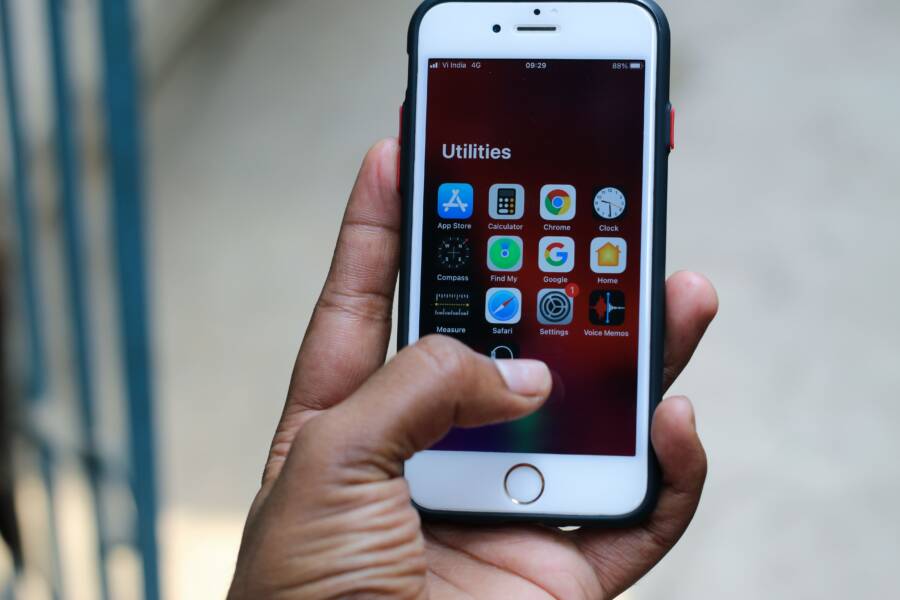
Hanging app updates on your smartphone typically occur because of a weak internet connection, insufficient storage space, or minor software glitches. You can usually resolve these problems with simple adjustments to your device settings rather than seeking professional repair.
Most of these errors stem from temporary communication issues between your device and the app store. By resetting your network or clearing specific cache data, you can often get your apps installing normally again without much effort.
Quick Checks to Fix Hanging App Updates
Hanging updates on your smartphone often result from basic network instability or temporary software conflicts. These issues frequently resolve when you confirm your connection status or clear out background memory. Before you attempt complex troubleshooting, try these fundamental diagnostic steps to restore normal update functionality.
Testing Your Network Connection
Apps require a stable, consistent data stream to download and install updates. If your smartphone has a weak cellular signal or the network suffers from high latency, the update process will hang because the device cannot maintain a steady handshake with the app server. A common mistake is assuming that a “full bar” signal icon translates to high download speeds. Obstructions like thick walls or heavy local network traffic can cause packet loss, which effectively stops an update in its tracks.
Sometimes, router settings restrict the specific ports required by the Google Play Store or Apple App Store. This is common on public networks, office Wi-Fi, or guest connections that prioritize basic web browsing over large file transfers. You should verify your connection health with these steps:
Perform a quick speed test using a reliable browser tool to check your actual download throughput.
Toggle your Wi-Fi off and back on to force a fresh connection to the local access point.
Switch from Wi-Fi to cellular data, or vice versa, to see if the network itself is the bottleneck.
If the update moves forward immediately after switching networks, you know the issue resides with your original router configuration. If you notice persistent issues across all networks, the problem is likely internal to your device.
The Power of a Quick Restart
A simple restart is the most effective way to clear the temporary cache memory on your smartphone. When your device runs for long periods without a reboot, background processes sometimes experience memory leaks or stall due to outdated cache data. These stale processes can create a traffic jam, preventing the application store from accessing the resources it needs to manage installation queues.
Restarting the device clears this volatile memory and forces every background service to initiate a fresh session. This process stops any hidden tasks that might be locked in a loop or conflicting with your update attempts.
Power off your smartphone completely and wait about 30 seconds before turning it back on.
This brief delay allows hardware capacitors to discharge fully, ensuring the system memory wipes clean.
Once the device reboots, the operating system refreshes the state of all installed services and clears out temporary files that could cause the app store to hang.
Most users find that a fresh start restores normal functionality instantly. If the progress bar remains stuck after the reboot, you can move on to clearing the app store cache directly.
Managing Storage and Cache for Smoother Downloads
Stuck app updates often point to internal congestion on your smartphone. When your device reaches capacity, the operating system struggles to allocate the temporary space required to unpack and install new data. Managing your available storage and clearing stale cache files is a quick way to resolve these persistent download hangups.
Checking Available Space on Your Device
Updates require more than just the size of the app itself to finish installation. During the process, your smartphone needs buffer space to decompress files and replace existing code. If you have less than 1 or 2 gigabytes of free room, the system may pause the download to prevent a complete storage failure.
You can verify your current capacity by following these steps:
Open the Settings app on your device.
Select the Storage or General Management menu.
Review the breakdown of your used and available space.
If the indicator shows that you are near your limit, delete unused apps, clear large video files, or offload photos to a cloud service. Keeping at least 10 percent of your total storage empty is a good rule of thumb. This buffer provides the necessary breathing room for your smartphone to handle background updates without triggering errors.
Clearing App Store Cache and Data
The store app itself acts as a gateway for your updates, and its local cache can become corrupted over time. If this cache holds onto outdated information or broken links, it will cause your updates to hang indefinitely. Clearing the data resets the connection between your smartphone and the store servers, which forces the app to build a clean index of your update requirements.
Follow these steps to clear the cache for your application store:
Navigate to your device settings and open the Apps or Applications menu.
Locate the Google Play Store or App Store in the list.
Tap on Storage or Storage and Cache.
Select the option to Clear Cache first.
If the issue persists, select Clear Data or Clear Storage to reset the app settings.
Performing this action will not delete your installed apps or your personal files. It simply forces the store to re-authenticate with the server. Once the cache is clear, restart your smartphone and open the store again to resume your pending updates. This sequence resolves most communication stalls between your device and the update server.
Advanced Troubleshooting for Persistent Update Issues
When standard fixes like clearing the cache or checking your internet connection fail to resolve hanging updates, your smartphone may require a deeper intervention. Persistent errors often stem from a misalignment between your device’s stored account credentials and the verification servers. Addressing these deeper software communication paths can often force your device to bypass the cycle of failed attempts.
Removing and Re-adding Your Account
Your account serves as the primary authentication key for your smartphone and the app store. Sometimes, the token used to verify your identity expires or becomes corrupted without triggering a visible error message. By removing and re-adding this account, you force the device to discard the faulty session data and establish a fresh connection to the server.
Follow these steps to refresh your credentials on an Android device:
Open your device Settings and tap on Passwords and Accounts or Users and Accounts.
Select your Google account from the list.
Tap Remove Account to delete it from the device, then confirm the action.
Restart your smartphone to clear any residual temporary data.
Return to the same menu and select Add Account to sign back in with your credentials.
For iOS users, navigating to Settings, tapping your name at the top, and selecting Sign Out accomplishes a similar result. After you sign out, wait for the device to finish its cleanup process before signing in again. This re-authentication prompts the app store to re-sync your library, which often clears the pending status of stuck apps. Once you sign back in, your purchase history and update status should populate correctly, allowing the download queue to proceed.
Updating the Operating System
An outdated operating system frequently creates compatibility gaps that prevent modern apps from installing properly. Developers constantly update their software to utilize the latest features and security protocols built into newer system versions. If your smartphone runs an older build of its OS, the app store might struggle to verify the installation requirements for recent app versions.
Many users ignore system updates because they assume the changes are minor or purely aesthetic. However, these updates often include core improvements to the system package installer. This background service handles the actual writing of data to your device’s storage, and if it becomes buggy, it cannot process incoming updates regardless of your connection strength.
Check your system status with these steps:
Open Settings on your smartphone.
Navigate to System or General and tap Software Update.
Allow the device to scan for the latest available firmware.
If an update is pending, download and install it immediately.
Applying these updates provides your device with the most recent libraries required to communicate with app store servers. Beyond just fixing errors, keeping your OS current ensures that your device handles file encryption and background permissions correctly. A fully updated system provides the most stable environment for your applications, and it often resolves persistent update hangups that seem impossible to fix otherwise.
Knowing When It Is Time for a Factory Reset
A factory reset is the final option to resolve software issues on your smartphone. Because this process wipes all your personal data, you should only consider it after you exhaust all other troubleshooting steps. If you have tried clearing the app store cache, removing your accounts, and updating your system without success, a deeper software corruption might be the cause of your hanging updates.
Identifying Unresolvable System Conflicts
Software conflicts often manifest as random application crashes, unresponsive menus, or persistent update failures that survive a basic reboot. When your smartphone behaves erratically across different applications, the operating system kernel or the primary partition may hold corrupted files that standard maintenance cannot reach. If you notice that your device settings fail to save or that basic system apps also crash, a factory reset is often necessary to restore the operating environment.
You should consider this step if your device displays these specific signs of deep system corruption:
Multiple apps fail to update or install despite having ample free storage space.
System settings reset themselves unexpectedly or refuse to toggle.
The device restarts on its own or remains frozen on the logo screen during startup.
Security patches or major system updates consistently fail to install even with a perfect internet connection.
Preparing for a Full Device Reset
Before you initiate a reset, you must secure your information. A factory reset erases everything, including your photos, messages, and contact lists stored locally on the internal memory. Backing up your data ensures you do not lose critical files during the restoration process. Use your cloud account to sync your documents, enable photo backups in your gallery settings, and confirm that your contacts are associated with your email account.
Once your data is safe, follow these steps to reset your device:
Connect your smartphone to a charger to ensure it has enough power for the entire process.
Navigate to the System or General Management menu in your device settings.
Select the Reset or Erase All Data option.
Confirm your identity with your passcode when prompted.
Wait for the device to perform the erase and restart as if it were a brand-new unit.
After the reset finishes, sign in with your primary account to allow the device to download your apps again. If the updates still hang after a clean install, the issue could stem from a hardware malfunction or a specific app that is incompatible with your current firmware version. You can then contact the manufacturer support team with confirmation that you have already performed a factory reset, which helps them narrow down the cause of your problem.
Conclusion
Most app installation hangs on your smartphone originate from minor network instability or temporary software conflicts. You can solve the majority of these problems by verifying your internet connection, checking your available storage space, and clearing the cache of your application store.
These diagnostic steps fix most common hangups without losing your personal data. Only turn to more significant actions, like removing accounts or performing a factory reset, if basic maintenance fails to restore normal update functionality.