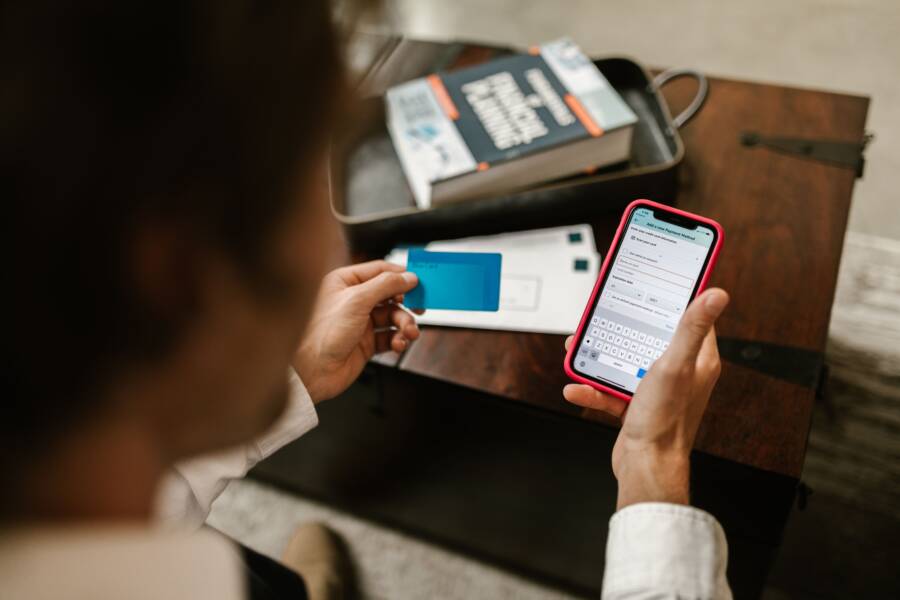
If your wallet app constantly demands verification, you are likely dealing with a triggered security protocol or a software glitch. This annoyance often stems from outdated system settings, corrupted app cache, or biometric sensors that struggle to recognize your credentials.
While your smartphone uses these frequent prompts as a protective measure to block unauthorized payments, constant interruptions suggest a failure in how your device confirms your identity. You do not need to settle for this experience every time you head to a checkout counter.
The following sections will guide you through the specific settings you must adjust to stop these repetitive authentication requests.
Quick Fixes for Constant Wallet Verification Prompts
Frequent verification prompts often occur because your phone security settings are working against your convenience. When an application cannot confirm your identity through standard channels, it defaults to extra authentication steps to protect your sensitive data. You can usually resolve these interruptions by addressing outdated software or recalibrating how your smartphone interacts with your biometric data.
Update Your Operating System and Wallet App
Running outdated software is a common reason for repetitive security prompts. Developers frequently issue updates to fix bugs that interfere with how your device authenticates identity. If your system or wallet app relies on an older version, it might struggle to communicate with the secure hardware responsible for storing your credentials. This breakdown often forces the app to request manual verification to avoid potential security risks.
To check for updates on an iPhone, open the Settings app, tap General, and select Software Update. If a new version of iOS is available, install it to keep your smartphone secure. You should also visit the App Store, tap your profile icon, and scroll down to see if your wallet app has a pending update.
For Android users, navigate to Settings, find the System or Software Update menu, and download any available patches. You can check your app version by opening the Google Play Store, tapping your profile icon, and selecting Manage apps and device. Updates are important because they patch vulnerabilities and refine the interaction between the app and the biometric hardware on your phone.
Refresh Your Biometric Security Data
Your phone uses biometric data like fingerprints or facial recognition to provide secure, fast access. If your device fails to recognize these markers, it will immediately pivot to a passcode request as a fallback measure. This often happens if the sensor on your smartphone is dirty, or if your physical traits have changed slightly since you first registered the data.
Re-registering your biometric information often restores accuracy and stops unnecessary verification prompts. Follow these steps to reset your data:
Open your device settings and locate the section labeled Face ID & Passcode or Fingerprint/Biometrics.
Delete the currently saved profiles to clear any potentially corrupted data.
Restart your smartphone to ensure the system cache clears out old credentials.
Add your fingerprint or face data again, ensuring you are in a well-lit area without obstructions like heavy glasses or masks.
Once you re-register your data, the app will have a clean reference point to confirm your identity. A fresh scan usually resolves recognition errors, allowing you to breeze through checkouts without being slowed down by recurring password demands. If the issue persists after a fresh registration, check that your screen protector or camera housing is clean, as smudges often interfere with reliable biometric scanning.
Adjusting Advanced Settings to Stop Persistent Prompts
Your smartphone is designed to keep your financial information private, but sometimes those security protocols become overzealous. If you notice your wallet app asking for verification during every single transaction, the root cause might be a simple mismatch in your system configuration rather than a genuine security threat. Correcting these advanced settings often stabilizes your experience and allows you to move through checkout lanes with confidence.
Check Your Default Payment Method and Region Settings
Payment apps require high precision when validating your location and account details. If your smartphone is set to a region that conflicts with your actual location, the bank issuing your card may flag the activity as suspicious. This mismatch forces your wallet to request extra verification steps to protect you against potential fraud. Similarly, an expired card or a card with an active billing issue will trigger these prompts, as the system tries to confirm you still have authorization to use the payment method.
To verify your configuration, follow these steps:
Open the wallet app and select your primary payment card.
Review the billing address and ensure it matches the records held by your bank.
Check your device settings under Language & Region to ensure your current location aligns with where your cards were issued.
If you recently moved or updated your banking information, remove the card from the wallet and add it again to refresh the tokenization process.
Using a card that has been recently replaced or reported as lost can also cause these persistent errors. If your bank sent you a new chip card, the old digital entry in your phone likely has a mismatch with the new banking records. Always keep your payment methods updated to ensure the verification handshake happens behind the scenes.
Reviewing App Permissions and Background Security Tasks
Wallet apps depend on specific background permissions to confirm your identity without manual input. If you have restricted these permissions to save battery or data, your smartphone might struggle to complete the automated checks required for a quick transaction. When the app cannot reach the necessary security services in the background, it defaults to a manual prompt to verify that you are indeed the person holding the device.
Pay attention to the following settings to stop these unnecessary interruptions:
Location Services: Many payment apps require precise location access to confirm you are physically present at the merchant. If this permission is set to Never or While Using with high-accuracy mode disabled, the app may trigger a verification request as a fallback.
Background App Refresh: This setting allows the app to communicate with your bank’s servers even when you are not actively looking at the screen. Turning this off forces the app to wake up and perform a full authentication check from scratch every time you open it.
Biometric Integration: Ensure the app has explicit permission to use Face ID, Touch ID, or other fingerprint scanners. If you revoked this access for privacy reasons, the app loses its fastest path to authorization and will frequently ask for your device passcode instead.
Adjusting these permissions creates a direct line of communication between your bank and your smartphone. When the hardware and software work in harmony, you avoid the friction of constant re-verification. If you still encounter prompts after these adjustments, consider resetting your network settings to clear out any connectivity issues that might be blocking the silent authentication process.
When to Contact Your Bank or Payment Provider
Sometimes your smartphone software is not the source of your constant verification prompts. If you have updated your apps, verified your region settings, and cleared your biometric data, the issue might reside with the financial institution that issued your card. Banks maintain their own fraud detection algorithms that trigger independently of your phone settings. When these systems flag your account activity or require a manual update to your digital wallet token, you must reach out to them directly.
Identifying Potential Banking Blocks
Your bank occasionally places a temporary hold on your digital token for security reasons. This happens if they detect unusual spending patterns or if your card reaches its expiration date. While the app on your phone manages the interface, the bank manages the authorization. If you see specific error codes in your wallet app, such as “Contact Issuer” or “Card Not Authorized,” the bank has blocked the connection.
These situations often require a quick call or a message through your banking app:
The card on file is nearing its expiration date and requires a new token.
Your bank recently upgraded its security protocols and requires all users to re-verify their identity.
The system flagged a transaction as suspicious because your location did not match the merchant profile.
You attempted to add the same card to multiple devices too quickly, triggering a fraud alert.
Preparing for Your Conversation with Support
When you contact your bank, be ready to provide specific details to help the representative locate the issue. Do not assume the bank knows which digital wallet you use or why your phone is sending prompts. Clearly state that your smartphone app is repeatedly requesting identity verification despite your settings appearing correct.
Ask the representative to check the status of your digital token, not just your physical card. A physical card can remain active while the digital token associated with your wallet becomes corrupted or de-synced from their server. If the representative confirms the token is valid, ask them to push a refresh command to your account. This action often clears persistent verification loops that you cannot resolve from the user interface on your device.
If the bank confirms their side is clear, ask if they have a specific requirement for the verification process. Some institutions require you to verify your identity through their official banking app before they allow a third-party wallet to store or use your card information. Completing this step inside the bank app creates a secure bridge that stops the wallet app from repeatedly asking for manual authentication.
Common Questions About Wallet App Security
Users often worry about whether frequent verification prompts signal a compromise of their financial information. Rest assured, these checks are usually signs of a smartphone functioning as intended rather than evidence of a security breach. Understanding how your device handles sensitive data helps you distinguish between normal defensive behavior and genuine problems.
Are constant verification prompts a sign of a compromised account?
Frequent requests for your passcode or biometric scan rarely mean your account is hacked. Most of the time, your smartphone is simply unable to verify your identity through its preferred method. When the app detects a potential ambiguity, such as an unrecognized network connection or a sensor error, it asks for manual input to protect your funds. You can think of this as a locked door requiring a physical key when the electronic lock fails to respond correctly.
Why does my phone ask for a password when my biometrics are enabled?
Your smartphone prioritizes security over convenience. If your device detects an unusual number of failed scan attempts or if you reboot your phone, it will automatically require your passcode. This is a deliberate design choice that prevents unauthorized users from forcing their way into your wallet app. You might also trigger these prompts if you change your security settings or if the biometric sensor on your smartphone is blocked by debris.
Is it safe to store credit card data in a wallet app?
Storing card data in a reputable wallet app is safer than carrying physical cards. These apps use a process called tokenization, which replaces your actual card number with a unique digital code. Even if a third party intercepts the data during a transaction, the information is useless to them. Because the app requires biometric or passcode authentication on your smartphone before authorizing a payment, your financial data remains secure even if you lose your physical device.
Can I reduce the number of times my wallet asks for authentication?
You cannot completely disable security prompts because they are a fundamental part of the transaction process. However, you can make them less frequent by keeping your device software updated and ensuring your biometric profiles are accurate. If your smartphone has an easy time confirming your identity, it will not need to request additional verification. Maintaining clean sensors and ensuring your payment information is up to date with your bank will prevent the system from falling back to manual password entry.
Conclusion
You can stop constant verification prompts by keeping your smartphone software updated and ensuring your biometric data is accurate. These steps help your device confirm your identity quickly without triggering extra security layers.
If the problem persists, check your bank settings or reach out to your financial institution. A well-configured smartphone should work for you, not against you, when you need to make a purchase.