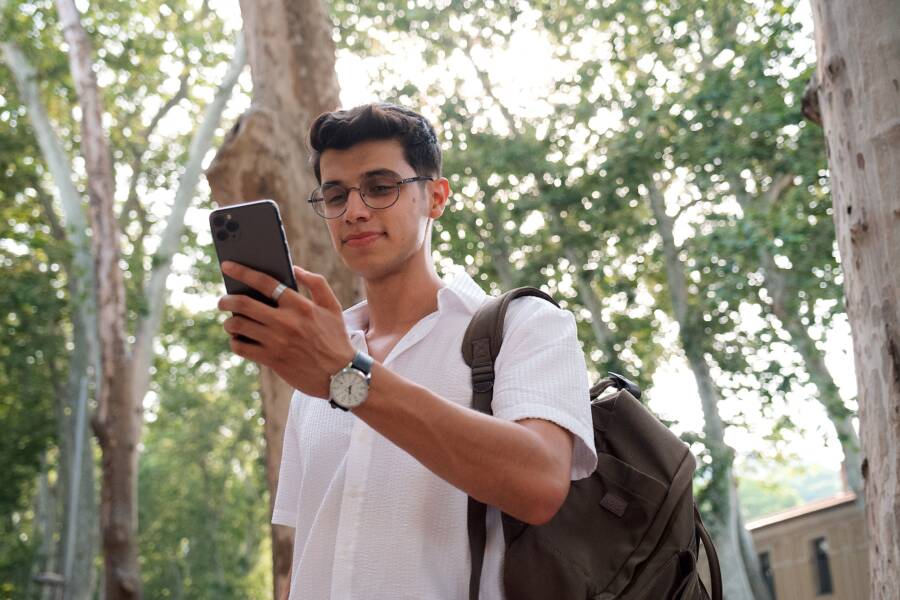
If your phone’s face unlock fails whenever you wear glasses, clean the front camera and your lenses first, improve the lighting, and remove anything blocking the face sensor. If that doesn’t help, delete your saved face data and enroll it again while wearing the glasses you use most.
Some phones recognize glasses reliably, while others use weaker 2D face recognition or don’t offer a glasses-specific setting. Reflections, tinted lenses, a loose fit, or poor sensor visibility can also prevent the camera from matching your face correctly.
The steps below cover camera and sensor checks, face data enrollment, software settings, privacy limits, and backup unlock methods. Start with the physical checks before changing security settings on your smartphone.
Why Face Unlock Fails When You Wear Glasses
Face unlock can fail with glasses because the phone may see your eyes and surrounding facial features differently. Reflections, tinted lenses, a changed frame position, or a blocked sensor can reduce the quality of the face scan. The problem usually involves recognition accuracy, not damaged glasses or a faulty phone.
Reflections Can Distort the Face Scan
Bright light often reflects off eyeglass lenses and creates white spots across the eye area. Those reflections can hide the eyes, eyebrows, or upper cheeks that the phone uses to compare your face with its saved profile.
The issue becomes more noticeable under direct sunlight, office lighting, or when a lamp sits behind the phone. Tilting your head slightly or moving to softer, even lighting may help. Cleaning both the lenses and the front camera also removes smudges that can make glare worse.
Tinted and Specialty Lenses May Block Important Details
Clear prescription lenses usually cause few problems, but sunglasses and heavily tinted lenses can prevent the camera from seeing your eyes clearly. Some photochromic lenses also darken outdoors, which can change the appearance of your face between unlock attempts.
Certain face recognition systems use infrared sensors instead of relying only on the visible-light camera. Even then, very dark lenses, reflective coatings, or unusual lens materials may interfere with the infrared image. Compatibility varies by phone model and eyewear, so a smartphone may recognize you indoors but fail when your lenses darken outside.
Face unlock often works best when the phone can see the same facial features it captured during enrollment.
Frames Can Cover Sensors or Change Your Face Shape
Large frames, thick rims, and high nose bridges can cover part of the front camera or nearby face sensors. On phones with a sensor array near the earpiece or display cutout, even partial obstruction can affect scanning.
Your frames may also sit differently from day to day. If they slide down your nose, the phone sees a different angle around your eyes and cheeks. A loose fit, raised frames, or a different pair of glasses can make the saved face profile less reliable.
Your Saved Face Profile May Not Include Your Glasses
Many phones enroll your face while you’re not wearing glasses. The device then compares your current appearance with a profile that lacks the frame shape, lens reflections, and altered eye visibility caused by your eyewear.
Some phones offer an option such as “Add an alternate appearance” or support a second face profile. Other models require you to delete the existing face data and enroll again while wearing your usual glasses. If you regularly switch between clear glasses and sunglasses, the phone may still struggle because the two pairs change your appearance in different ways.
2D and 3D Face Unlock Handle Glasses Differently
Not every face unlock system uses the same hardware. Basic Android face unlock may rely mainly on the front-facing camera, while systems such as Apple’s Face ID use infrared depth-sensing components to map facial features.
A 2D system has fewer details to compare, so glasses, shadows, and poor lighting can cause more failures. A depth-based system is generally more consistent, but it can still reject a scan when the lenses reflect infrared light, the frames block a sensor, or the phone cannot confirm enough of your face. This is why two phones can behave differently with the same pair of glasses.
Fix a Phone That Cannot Keep Face Unlock From Failing With Glasses On
Start by testing face unlock in bright, even light while wearing your usual glasses. Clean the front camera and lenses, remove anything covering the sensor area, then re-enroll your face if the phone still rejects you. These steps fix most glasses-related recognition problems without changing your phone’s security settings.
Clean the Camera, Glasses, and Sensor Area
A small smudge can soften the camera image enough to cause repeated failures. Use a clean microfiber cloth on your glasses, then wipe the front camera and nearby sensors gently. Avoid spraying cleaner directly onto the smartphone.
Check the area around the display cutout, earpiece, or camera notch. A thick screen protector, privacy filter, or poorly fitted case can partially cover the camera or infrared sensors. Remove the case or screen protector temporarily and test face unlock again.
Also inspect the glasses themselves. Fingerprints, oily lens coatings, and heavy reflections can hide your eyes from the phone’s camera. If the phone unlocks after cleaning, the recognition system is working correctly.
Improve Your Position and Lighting
Face recognition needs a clear view of your facial features. Hold the phone at eye level, keep it roughly 10 to 20 inches from your face, and look directly at the screen. Avoid covering your mouth or turning your head sharply during the scan.
Move away from strong backlighting, direct sunlight, and bright lamps positioned behind the phone. These conditions can create glare on your lenses or leave your face in shadow. Soft light in front of you usually produces a clearer scan.
Try these adjustments during a test:
Remove sunglasses, tinted lenses, or a hat.
Face a window or another soft light source.
Keep your head still and hold the phone upright.
Test with your glasses sitting in their normal position.
Repeat the test indoors and outdoors to identify when the failure occurs.
If clear prescription glasses work indoors but sunglasses fail outside, the lenses are likely blocking or reflecting details needed for recognition.
Re-Register Your Face While Wearing Glasses
A saved face profile may work poorly when it was created without eyewear. Delete the existing profile and register your face again while wearing the glasses you use most often. Follow the on-screen instructions slowly, keep your full face visible, and use neutral lighting.
The exact menu name varies by manufacturer. Look under Settings > Security, Settings > Biometrics, or Settings > Face Recognition. Apple devices may show Face ID & Passcode, while Samsung Galaxy phones commonly place the option under Security and privacy or Biometrics and security, depending on the software version.
Some phones offer Add an alternate appearance instead of requiring you to remove the original profile. Use that option when available, especially if you often switch between wearing glasses and going without them. If your phone supports only one face profile, enroll the appearance you use most often.
Re-registering your face can improve recognition, but it cannot make every phone reliably identify heavily tinted or reflective lenses.
After enrollment, lock the phone and test it several times in the conditions that usually cause failure. If recognition remains inconsistent, update the phone’s operating system and check for a face unlock setting that allows glasses or improves recognition. Keep a PIN, password, or fingerprint enabled as a backup because face unlock can still fail in darkness, with sunglasses, or when the sensor is obstructed.
Check Whether the Problem Comes From Software, Hardware, or Your Glasses
Before changing more settings, isolate the source of the failure. Test face unlock with and without your glasses, under the same lighting and at the same distance. If the smartphone recognizes you without glasses but fails with one specific pair, the lenses or frame are the likely cause. If it fails in every condition, check the phone’s software and hardware.
Test the Phone Without Glasses
Remove your glasses and try face unlock several times. Keep the phone at eye level and use the same position for each attempt. This simple comparison shows whether eyewear is affecting recognition or whether the phone has a broader problem.
The results can point you in the right direction:
Works without glasses, fails with one pair: The frame, lens tint, coating, or fit may be interfering with the scan.
Fails with and without glasses: The problem may involve face data, a blocked sensor, a software error, or damaged hardware.
Works indoors, fails outdoors: Bright light, lens reflections, or darkened photochromic lenses may be affecting recognition.
Works with clear lenses, fails with sunglasses: The tinted or reflective lenses may hide details that the face sensor needs.
Test a second pair of glasses if you have one. A different frame shape can reveal whether the issue comes from the eyewear rather than your face profile.
Look for Software-Related Problems
Software is a likely cause when face unlock stopped working after an operating system update, security change, or failed enrollment. Open the phone’s security settings and confirm that face unlock remains enabled. Also check whether an option such as Require attention, Face unlock, or Improve recognition changes how the scan works.
Restart the phone before deleting face data. Then install any available system update and test again. If the problem began immediately after an update, check the manufacturer’s support page for model-specific guidance. Avoid installing third-party face unlock apps, since they may not have access to the phone’s secure biometric hardware.
Check for Hardware or Sensor Damage
Hardware may be responsible when the front camera shows a blurry image, the face enrollment screen freezes, or face unlock fails after a drop or screen repair. Inspect the camera cutout, earpiece area, and display for cracks, heavy scratches, or a screen protector that covers the sensor array.
A phone with 3D face recognition may also show a specific warning when its infrared components cannot operate. If face enrollment will not start even with your glasses removed, the issue is less likely to be your eyewear. At that point, use a PIN or fingerprint and contact the manufacturer or a qualified repair provider. Never disable the phone’s main security method just to make face unlock work.
Choose a Reliable Backup When Face Recognition Still Does Not Work
Face unlock should be convenient, but it shouldn’t be your only way into a smartphone. If glasses, lighting, or a sensor problem keeps causing failures, set up a backup method that works without the front camera. A strong PIN, password, or fingerprint gives you dependable access while you troubleshoot the face recognition issue.
Use a Strong PIN or Password
A PIN is usually the most practical backup because you can enter it even when the camera is blocked or your face looks different. Choose at least six digits if your phone allows it, and avoid details that others could guess, such as your birthday, address, or repeated numbers.
A password can provide stronger protection, but it takes longer to enter on a small screen. Use one if your phone contains sensitive work, financial, or personal information and you don’t mind the extra step.
Follow these security rules when creating your backup:
Choose a unique PIN or password that you don’t use for another account.
Avoid patterns based on a straight line or an obvious shape.
Don’t share the code with other people or store it where someone can see it.
Enter it privately when you’re in a public place.
Your phone may request the PIN or password after a restart, after a security timeout, or when biometric authentication has failed several times. Those prompts are normal security behavior, not proof that face unlock has stopped working permanently.
Add a Fingerprint When Your Phone Supports It
A fingerprint sensor is often a useful companion to face unlock. It can work when you’re wearing sunglasses, standing in poor lighting, or covering the front camera. On some phones, the sensor is under the display; others place it on the power button or rear panel.
Register the same finger from slightly different angles, and keep the sensor and your finger clean and dry. A damaged fingertip, wet skin, gloves, or a thick screen protector can reduce accuracy. If the phone supports multiple fingerprints, add another finger you can use comfortably with either hand.
Keep at least one non-biometric backup, because fingerprint and face authentication can both become unavailable after certain security events.
Test the backup while the phone is unlocked, then lock it and use it again. You should know the PIN, password, or fingerprint works before face recognition fails at an inconvenient time.
Common Questions About Face Unlock and Glasses
Most phones can recognize you while you wear clear prescription glasses, but results depend on the camera system, lens type, lighting, and frame design. The answers below address the questions people ask most often when face unlock fails with glasses.
Can Face Unlock Work With Prescription Glasses?
Yes, face unlock usually works with clear prescription glasses when the lenses are clean and the frame doesn’t cover the camera or sensors. Re-registering your face while wearing your everyday glasses can also improve matching.
However, face recognition may become less reliable if your glasses slide down, create strong reflections, or have thick rims around the eyes. Test the smartphone with and without your glasses in the same lighting to identify whether the eyewear is causing the problem.
Why Does Face Unlock Fail With Sunglasses?
Sunglasses can block the eye details that a phone uses for recognition. Dark lenses, mirrored coatings, and some polarized lenses may also interfere with visible-light or infrared sensors.
Some phones recognize certain sunglasses but reject others. If face unlock works with clear lenses but fails with sunglasses, use a fingerprint or PIN when wearing that pair. You can also try enrolling an alternate appearance if your phone offers that setting, although it may not solve problems caused by very dark lenses.
Should I Enroll My Face With or Without Glasses?
Enroll your face in the appearance you use most often. If you wear prescription glasses throughout the day, registering your face with those glasses can produce more consistent results.
When your phone supports Add an alternate appearance, use it for a second look, such as wearing glasses or going without them. Avoid enrolling several dramatically different appearances if the device allows only limited face profiles. Extra profiles can reduce security or make recognition less predictable, depending on the phone’s design.
Are Glasses Safe to Wear With Face Unlock?
Clear prescription glasses generally don’t create a security problem. Face unlock still depends on the phone’s authentication system, but security varies between models. Some devices use basic 2D camera matching, while others use depth or infrared sensors.
For stronger protection, keep a secure PIN or password enabled even when face unlock works. Use that backup whenever the phone displays a security prompt, fails repeatedly, or cannot confirm your face through tinted lenses. A smartphone should never rely on face recognition as your only way to access important data.
Conclusion
A phone that fails face unlock with glasses often improves after you clean the lenses and sensors, improve the lighting, remove obstructions, and test different distances and angles. Update the smartphone, then re-enroll your face while wearing the glasses you use most.
Use this short checklist:
Clean the lenses, camera, and sensor area.
Improve lighting and remove glare.
Test different distances and head angles.
Install system updates and re-enroll your face.
Use a secure PIN or fingerprint as a backup.
Tinted lenses, camera-only recognition, and hardware limits can prevent a perfect fix. If face unlock fails under every condition, keep using your backup method and contact an authorized repair provider for inspection.