Ever forgotten an important appointment because a calendar event vanished from your phone, and you felt that sinking panic? This happens to iPhone and Android users alike, often caused by simple sync glitches or setting hiccups. You don’t need to overhaul your device to fix it; you just need clear, step by step fixes that work fast.
This quick guide explains what usually causes events to disappear and how to spot the real culprit. You’ll learn common signs of sync trouble, from faulty account connections to misconfigured calendar options. By the end you’ll know exactly where to look first and what to change to protect your schedule.
First, check your iPhone for easy wins you can apply right now. Make sure your calendars are turned on in settings, verify the default calendar, and refresh your accounts. If you still see gaps, try removing and re-adding the calendar account or resetting calendar sync to resolve stubborn issues.
Next, tackle Android with the same calm approach. Confirm calendar permissions are enabled, review which calendar is syncing, and verify that your device date and time are accurate. Clear the calendar app cache if needed and re-sync the account to pull in missing events. A quick reboot can seal the fix in many cases.
Finally, put simple habits in place to prevent future gaps. Use a single trusted calendar for critical events, enable notifications early, and regularly verify upcoming items. If you share calendars, confirm permissions and keep everyone on the same page. Following these steps makes it far less likely that events disappear again, and you can rely on your phone for a solid, dependable schedule. Stay with me and follow along.
Spot the Common Causes of Missing Calendar Events
Missing events can disrupt your day more than you expect. In this section, we break down two practical areas to inspect first. You’ll quickly zero in on what’s preventing events from showing up and what to change to restore your schedule. Think of it as a quick diagnostic you can run in a few minutes, before you dive into deeper fixes.
Check Sync Settings for iCloud or Google Accounts
When calendars don’t sync properly, events may vanish or fail to appear across devices. Start by confirming that calendar syncing is enabled for your main accounts. On an iPhone, open Settings, tap your name, then iCloud, and ensure Calendar is turned on. If you rely on Google on Android, head to Settings > Accounts > Google > Sync Calendar. If these toggles are off, your calendar data won’t flow to devices or apps, which explains why events disappear or stay hidden. Enabling sync ensures changes on one device reflect everywhere. If you’ve recently updated your OS or apps, re-check the status since some updates reset permissions. For additional guidance, you can review Apple’s troubleshooting steps here: https://www.apple.com/support/article/102543
- If the switch is already on, try toggling it off, waiting 10 seconds, then turning it back on. This can refresh the connection.
- On Android, ensure you’re syncing the correct Google account and that Calendar is selected in the app’s sync settings.
- If you use multiple calendars, verify that the default calendar is the one where new events are saved. A mismatch can make it look like events are missing when they’re simply stored in a different calendar.
When sync is off or misconfigured, you’ll see gaps, outdated entries, or events that appear only on one device. Keeping this setting active and consistent across devices reduces the chances of future disappearances.
Look for Hidden Calendars or Shared Event Changes
Sometimes events aren’t truly missing; they’re tucked away in a calendar you don’t routinely view. In the iPhone Calendar app, tap Calendars at the bottom to view all calendars and ensure the ones you care about are checked. On Android, open the calendar app, go to Menu, and choose Show more to reveal all calendars. Hidden calendars can hide their events from your main view, making it seem like entries vanished. Another common pitfall: shared events. If the person who created or shared the event removes it from their calendar, it can disappear from everyone’s view depending on permissions and sync behavior. If you rely on a shared calendar for important dates, confirm that sharers have not inadvertently deleted entries.
- Regularly review all active calendars to confirm you’re looking at the right one for your events.
- If a shared calendar changes permissions, ask the owner to re-share or re-invite you to ensure continued visibility.
- Keep in mind that updates to iOS or Android can affect how shared events sync, so re-check briefly after major updates.
If events vanish after a device or app update, it may be tied to the calendar system itself. In discussions about Apple’s native Calendar, users often report missing events after updates, underscoring the importance of verifying calendar visibility and permissions after major releases. For more context on common hidden calendar issues and how others handle them, you can refer to discussions and guides like the Apple Community thread: https://discussions.apple.com/thread/256081249
- In case a specific calendar is no longer syncing, remove and re-add the account to force a fresh connection.
- If a particular event repeatedly disappears, consider exporting or backing up important dates so you can restore them if needed.
By keeping all calendars visible and ensuring shared permissions stay intact, you minimize the chance of missing events caused by hidden calendars or changes in shared access.
Quick iPhone Fixes to Restore Your Calendar Events
When a calendar event disappears, it can feel like a small alarm bell going off in your day. The good news is many disappearances are due to quick, non-destructive fixes you can try right away. This section focuses on fast, practical steps you can take on your iPhone to pull missing events back into view and keep your schedule intact.
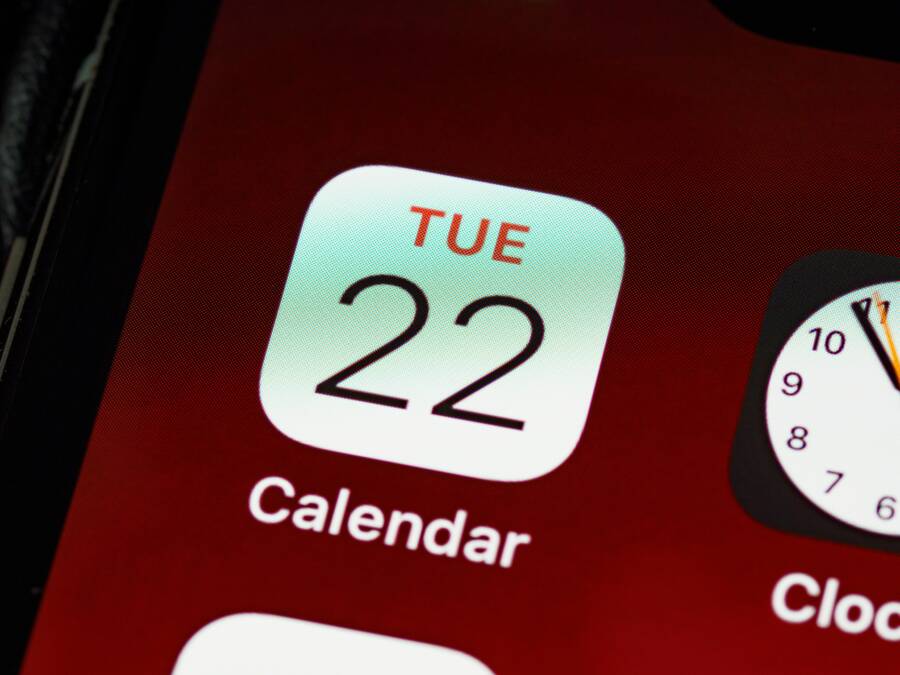
 Photo by Brett Jordan
Restart and Force Quit the Calendar App
Sometimes a tiny glitch sticks around because the app didn’t shut down cleanly. A quick restart can clear that up. Start by opening the app switcher and swiping away the Calendar app to force quit. This stops any background hiccups from interfering with syncing. Then restart your iPhone by holding the power button and either of the volume buttons until the slider appears, drag to power off, wait a moment, and turn it back on. When you relaunch Calendar, give it a moment to refresh and pull in any synced events from the cloud.
Why this works: it clears temporary glitches that can block calendar data from syncing smoothly across devices. A fresh launch gives Calendar a clean slate to fetch updates. If you still see gaps after the restart, try one more step: force quit the Calendar app again and reopen it. For many users, this simple cycle restores visibility quickly and avoids more involved fixes. If you want extra guidance, Apple’s support articles cover basic sync checks and steps to take if your calendars aren’t appearing across devices: https://www.apple.com/support/article/102543
- If the calendar still looks off, check the Calendar view settings to ensure you’re showing the right calendars and dates.
- Consider a short reboot of the entire iPhone if the device has been on for a long period.
- Keep in mind that this approach is especially effective when events disappeared after a minor app update or a momentary network issue.
Toggle iCloud Calendar Sync and Date Settings
Sync settings are the nervous system of your calendar. A misconfigured toggle can hide or misplace events across devices. First, verify iCloud Calendar is enabled for your primary account. On iPhone, go to Settings > [your name] > iCloud and confirm Calendar is turned on. If you rely on Google or another calendar service, you’ll want to check Settings > Calendar > Sync and choose All Events. After toggling, wait a few minutes to see if events reappear as the data re-syncs.
Next, lock in the date and time accuracy. Head to Settings > General > Date & Time and enable Set Automatically. This ensures the system clock aligns with the service that provides your calendar data, which helps prevent events from showing up on the wrong day or not showing up at all. If you’ve recently updated iOS or switched accounts, recheck these toggles because updates can reset permissions or sync options. For more details on common syncing pitfalls, you can review this Apple support article: https://support.apple.com/en-us/102543
If you have multiple calendars, confirm your default calendar is the one where you typically add new events. A mismatch can make it look like events are missing when they’re saved elsewhere. If you’re sharing calendars, confirm others haven’t inadvertently changed sharing settings, which can impact visibility. When sync is off or misconfigured, you’ll see gaps or outdated entries across devices, so keep these toggles consistent.
- Try turning Sync off, wait 10 seconds, then turn it back on to refresh the connection.
- On Android, you’d confirm the correct Google account is syncing Calendar in the account settings; on iPhone, you’ll confirm iCloud is active for Calendar.
- If events still don’t show, try viewing all calendars to ensure nothing is hidden by default. A quick glance at the Calendars view can reveal missing layers you forgot to enable.
For a broader view on how shared calendars work and what to check after updates, this community discussion can help you compare experiences: https://discussions.apple.com/thread/256081249
Look for Hidden Calendars or Shared Event Changes
Events can seem missing when they’re tucked away in a calendar you don’t routinely view or when a shared event is altered. On the iPhone Calendar app, tap Calendars at the bottom to see all calendars and verify that the ones you care about are checked. On many Android calendar apps, open the calendar, go to Menu, and choose Show more to reveal all calendars. Ensuring each calendar you rely on is visible prevents a simple oversight from becoming a mystery.
Shared events add another layer of complexity. If the event creator or a collaborator changes or deletes the entry, it can disappear from all participants depending on permissions. If you rely on a shared calendar for critical dates, confirm sharers haven’t changed permissions or removed you from the calendar. After major OS updates, review calendar visibility again, as new permissions or display settings can appear.
- Regularly review all active calendars to confirm you’re looking at the right one.
- If you rely on a shared calendar, ask the owner to re-share or re-invite you if visibility slips.
- Keep in mind that updates to iOS or Android can affect how shared events sync, so re-check briefly after major releases.
If a specific calendar stops syncing, removing and re-adding the account can force a fresh connection. And if a single event keeps disappearing, consider exporting or backing up key dates so you can restore them quickly if needed. For more context, see how other users handle missing events after updates in discussions like this Apple Community thread: https://discussions.apple.com/thread/256081249
- Regular visibility checks are a simple habit that pays off in the long run.
Images and visual checks can also save you time. A quick glance at your calendar from the Today view can confirm if an event is truly missing or just hidden in another calendar. If you’ve been sharing calendars with others, you’ll want to confirm everyone’s permissions periodically to avoid last minute surprises.
Images:
Photo by Brett Jordan
Update iOS and Reset Calendar Settings
If none of the quick fixes works, a broader update check can help. Start by ensuring your device runs the latest iOS version because bug fixes and calendar improvements ship with updates. Go to Settings > General > Software Update and install any available updates. If your calendar issues persist, you can try removing and re-adding your iCloud account. This can reset the connection between your device and the cloud without erasing your data.
As a last resort, you can reset all settings. This returns system settings to their defaults but does not erase personal data like photos or messages. It can clear problematic configurations that affect calendar sync. After a reset, you’ll need to reconfigure Wi-Fi networks, Bluetooth devices, and preferred system settings, but your calendar data remains intact in iCloud or your chosen cloud service. If you’re unsure about performing a reset, review Apple’s guidance on resets and backup before proceeding: https://support.apple.com/en-us/HT204136
- Before resetting, back up important calendar data just in case.
- After updating or resetting, re-check that Calendar sync is enabled for the correct accounts.
- If you use a third-party calendar app, verify its permissions and syncing options after the iOS update.
If you notice missing events after a software update, it may be tied to the calendar system itself. Apple users sometimes report calendar issues post-update, so re-check visibility and permissions as soon as you complete the update. For more context on calendar problems and practical restoration steps, you can explore community discussions like this one: https://discussions.apple.com/thread/256081249
Images: (Optional image insertion if it fits naturally) Photo by Brett Jordan
By keeping both calendar visibility and account syncing in good shape, you minimize the chances of events slipping away. If you follow these steps, most disappearances resolve quickly, and you’ll return to a reliable, steady schedule.
Easy Android Fixes to Bring Back Vanished Events
If you’ve ever opened your calendar and found missing events on an Android phone, you’re not alone. These gaps are usually easy to fix with a few targeted checks. The goal is to restore visibility quickly without risking your data. Below are practical, step-by-step fixes that work across a wide range of devices. Think of your smartphone as a calendar relay, where a small misstep in sync or permissions can pull events out of view. With the right tweaks, you’ll have your schedule back in sync in no time.
Clear Cache and Restart Your Phone
A quick cache clean can shed light on hidden data glitches that cloud your calendar. On most Android devices, go to Settings > Apps > Calendar > Storage > Clear Cache, then restart your phone. This clears out corrupted data that can block events from appearing. After rebooting, open Calendar and give it a moment to re-fetch events from the cloud. If gaps persist, a second restart can help in stubborn cases, especially after a software update. For additional context on cache-related calendar issues, you can review community insights like this thread: https://us.community.samsung.com/t5/Galaxy-S21/Recent-update-erased-Calendar-events-reminders/td-p/3286090
- If the issue remains, clear the calendar app’s data in the same menu and sign back in to refresh the account.
- After clearing cache, confirm you’re viewing the correct calendars in the Calendar app’s settings.
- A brief reboot is often enough to seal the fix and get events showing again.
Key takeaway: a fresh cache and a clean reboot resolve many transient sync hiccups that hide events from view.
Verify Google Account Sync and Permissions
Calendar data relies on solid sync across your Google account. Start by ensuring Calendar sync is enabled for the right account. On Android, Settings > Accounts > Google > turn on Calendar sync. Then check the calendar app’s permissions by navigating to Settings > Apps > Calendar > Permissions and grant all requested access. After adjusting, open Calendar and perform a manual sync or refresh within the app. If you use more than one calendar, verify that the default calendar is the one you rely on for new events. Misplaced events often look missing when they’re saved to a different calendar.
If you’re still spotting missing entries, consider removing and re-adding your Google account to force a fresh connection. Sometimes a simple re-authorization is all you need. For a deeper look at common Google Calendar sync issues and fixes, this Google support guide is a solid reference: https://support.google.com/calendar/answer/6261951?hl=en&co=GENIE.Platform%3DAndroid
- Check that the Google account you’re syncing actually owns the events you expect.
- Ensure the Calendar app is allowed to access the calendar data in device permissions.
- After re-adding, give it a few minutes to re-sync across devices.
Smartphone users often overlook permission prompts that appear after system updates. If you’ve updated Android recently, re-check calendar permissions to be sure nothing got blocked during the update.
Update Apps and System Software
Keeping the calendar app and the OS current reduces the odds of missing events. Start with Play Store updates for the Calendar app to pull in the latest bug fixes and improvements. After updating the app, also run a system check by going to Settings > System > System Update to install the latest Android security patches and fixes. If you notice continued issues after updates, a clean reinstall of the calendar app can help. This approach resets the app to its default state and re-establishes a fresh connection to your calendar service.
If the problem persists, ensure you’re using the right calendar service and that it’s fully compatible with your device. Some issues stem from specific device models or firmware versions. For a broader look at how to approach Google Calendar syncing problems, you can review this guide: https://support.google.com/calendar/answer/6261951?hl=en&co=GENIE.Platform%3DAndroid
- After updates, re-check calendar visibility in the app’s settings to ensure all calendars are shown.
- If you reinstall, sign back into the same account to restore your events quickly.
- Consider a device reboot after updates to ensure all services start cleanly.
Pro tip: if you rely on a third-party calendar app, verify its permissions and syncing options after any major update. Compatibility gaps between apps can create fresh disappearing events.
External reference on Google’s official guidance can help you troubleshoot sync problems across devices: https://support.google.com/calendar/answer/6261951?hl=en&co=GENIE.Platform%3DAndroid
In short, keeping apps updated and permissions intact is a simple, effective way to prevent disappearing events. A well-tuned setup means you can trust your smartphone to reflect the correct schedule without manual tinkering.
Images and visual checks can also help you quickly confirm what’s visible and what isn’t. If you’re sharing calendars or coordinating with teammates, periodic permission reviews keep everyone on the same page and cut down on last minute surprises. For a community discussion about similar issues and fixes, see this thread: https://us.community.samsung.com/t5/Galaxy-S21/Recent-update-erased-Calendar-events-reminders/td-p/3286090
Stay mindful of how updates affect your tools. After a major Android or calendar app update, re-check sync settings and visible calendars. A quick round of checks now saves you from chasing gaps later. If you’d like, I can tailor this section to match your readers’ most common devices or carrier brands.
Prevent Calendar Events from Disappearing Again
Even when you fix the immediate disappearances, the question remains: how do you keep events from vanishing in the first place? This section provides proactive habits and concrete checks you can apply to both iPhone and Android calendars. Think of it as a shield for your schedule, built from reliable syncing, clear visibility, and careful sharing practices. A little discipline now goes a long way toward a rock solid calendar you can trust on any smartphone.
Establish a single trusted calendar source for critical events
Having multiple calendars can create confusion about where new events are saved. Pick one primary calendar service for essential items and keep others for reference or read-only view. If you rely on iCloud for personal dates and Google Calendar for work tasks, set clear rules about which one you use for adding deadlines. This reduces the risk that an event exists somewhere you aren’t viewing at the moment.
- Create a habit of saving top priorities in your main calendar and set that calendar as the default for new entries.
- Regularly verify that important events appear in the primary calendar across both devices and apps.
If you need extra reliability, consider exporting key dates periodically. A simple backup gives you a restoration option without relying on one service alone.
Keep visibility simple and consistent
Hidden calendars are a frequent culprit when events disappear or seem to vanish. Make it a routine to review which calendars are visible in the app you use most. On iPhone, tap Calendars to confirm the right ones are checked. On Android, open the calendar app and Show more to reveal all calendars. When you keep visibility consistent, you’ll spot gaps quickly rather than chasing them later.
- Schedule a weekly quick review of visible calendars.
- If you share calendars, confirm that everyone has the same visibility settings.
- After platform or app updates, re-check visibility as defaults can shift.
For reference on how visibility changes can affect syncing, see Apple’s guidance on syncing across devices: https://support.apple.com/en-us/102543
Lock in reliable syncing by checking permissions and accounts
Sync failures often trace back to permissions or account misconfigurations. Set up a routine to confirm that calendar syncing is enabled for the correct accounts and that the calendar app has the necessary permissions. On iPhone, ensure iCloud Calendar is enabled and that you’re signed in with the right Apple ID. On Android, verify Google Calendar sync and app permissions. If you notice a drift, a quick toggle off and back on can reestablish the link.
- Schedule a quarterly audit of accounts and sync settings.
- If you use multiple calendars, check that the default matches where you add new events.
- Re-authorize access after OS or app updates to prevent silent permission blocks.
Guidance from Google’s support covers how to fix sync problems with Google Calendar on Android and is useful if you rely on that service: https://support.google.com/calendar/answer/6261951?hl=en
Regular backups and quick restore options
Backups are your safety net when things go wrong. Periodically export important dates or create a system backup of your calendar data. If an event disappears, you can retrieve it from the backup instead of re-creating it from memory. This is especially valuable for life-critical items like family plans, work milestones, or project deadlines.
- Create a simple one-click export of your key calendars every month.
- Store backup files in a safe location you can access from either platform.
- Revisit backups after major OS updates to ensure you can recover lost items.
If you’re curious about broader restoration strategies, Apple’s community discussions offer practical advice and user experiences. See a detailed thread about calendar behavior after updates: https://discussions.apple.com/thread/256081249
Prepare for updates with a quick post-update checklist
Software updates can tweak how calendars sync or display. Before you update, note critical events and ensure they’re visible in all calendars you use. After updating, re-check sync settings, calendar visibility, and shared permissions. If something looks off, a quick restart or re-adding a calendar account often restores proper syncing.
- Before updating, back up calendar data that you can’t easily replace.
- After updating, confirm all calendars are visible and syncing as expected.
- If issues persist, review both Apple and Google support resources for update-specific guidance.
For iOS users, Apple provides clear steps on syncing after updates and how to reset sync data if needed: https://support.apple.com/en-us/102543
Build simple routines that reduce friction
Small, repeatable habits beat large overhauls. Create a short routine you perform weekly or monthly that keeps calendars healthy:
- Check that one primary calendar handles most entries.
- Verify visibility of all calendars you rely on.
- Confirm events in the primary calendar still show across devices after any change.
- Re-sync or re-authorize accounts after major updates.
If you manage shared calendars, schedule a monthly permission check with collaborators to confirm everyone can view and edit what’s needed. Shared calendars work best when access stays consistent.
Quick reference checklist
- Use a single trusted calendar for critical items
- Keep calendars visible and unhidden
- Confirm correct accounts and permissions every few weeks
- Back up key dates regularly
- Re-check after OS or calendar app updates
- Re-add accounts if a calendar stops syncing
Incorporating these practices makes disappearing events far less likely. With clear ownership, steady visibility, and reliable syncing, your smartphone calendar becomes a dependable ally rather than a source of daily confusion. If you’d like, I can tailor these tips to your readers’ most common devices or apps to maximize relevance.
Conclusion
If calendar events keep disappearing, start with the simplest fix and work your way through platform specifics. The core step is to check sync settings first, then verify visible calendars and permissions on your smartphone. Most disappearances clear up within minutes once the right toggle is refreshed or a quick reauthorization is completed.
On iPhone, confirm iCloud or Google calendar syncing is enabled and the correct default calendar is active. On Android, verify the right Google account has Calendar sync and that app permissions are granted. If needed, re-add the account to force a clean connection. A quick reboot or app restart often seals the fix.
Keep visibility constant across both platforms. Regularly review which calendars are shown in your calendar app and ensure shared calendars stay accessible to all collaborators. Backups add a safety net, so export key dates or create a small restore plan in case something goes wrong.
Try one fix now and see how fast your schedule stabilizes. If you have a moment, share your experience in the comments or subscribe for more smartphone tips. A steady, well maintained calendar saves time and reduces stress, making your smartphone a more reliable tool for daily planning.