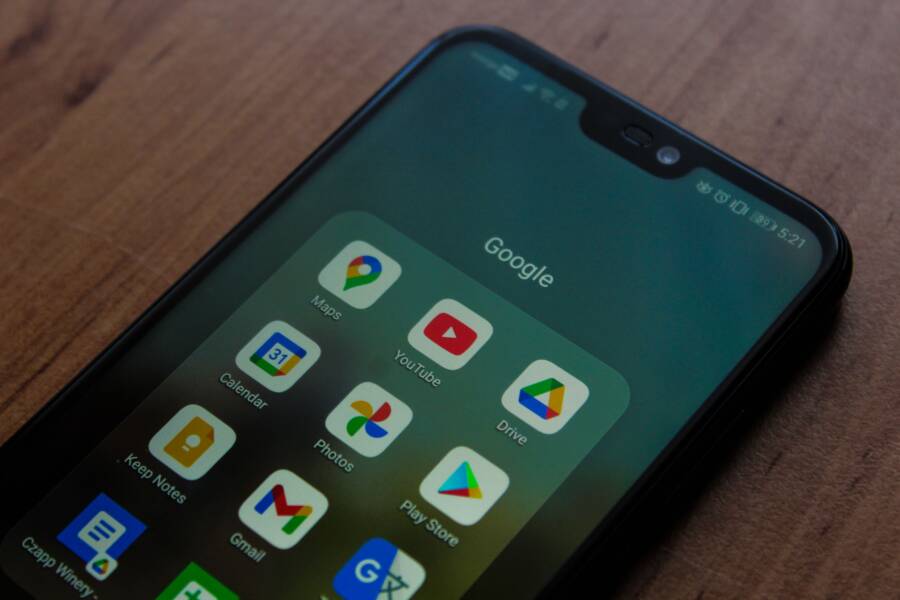
It is frustrating when you tap a link or download a file, only for your smartphone to open it in an app you never intended to use. This issue usually occurs because your device assigned a default handler to that specific file type, and it needs a quick manual update to correct the behavior.
You can fix this problem by adjusting the settings in your app preferences. We will walk through the steps to clear these defaults and restore control over your downloads on both Android and iOS devices.
Understanding How Your Phone Manages Default Apps
Your smartphone functions by assigning specific tasks to designated software. When you tap a link, open a photo, or download a file, the operating system looks for the app you previously told it to use for that file type. If you never set a preference, the phone might prompt you to choose one or pick the most logical candidate based on its current list of installed programs. Problems arise when these assignments conflict with your current goals or get reset without your direct input.
Why File Associations Get Tangled
Associations often break because your phone tries to anticipate your needs but misses the mark. If you install several apps that handle the same file format, such as three different PDF readers, the system may get confused about which one you prefer. You might have accidentally tapped a link and selected the “Always” option instead of “Just Once” during a prompt. Once you select “Always,” the operating system locks that app as the primary handler for that specific file type until you manually intervene.
System updates also cause these preferences to shift. Sometimes a manufacturer update wipes out user-defined defaults to ensure compatibility with new software versions. Other times, an app update might register itself as a new candidate for specific file types, pushing your previous choice aside. If you notice a file suddenly opening in a browser instead of your intended app, it often means the original app’s link registration failed or was replaced by a more aggressive program installation.
The Difference Between Android and iOS Handling
Android provides a highly transparent method for managing these associations. You can visit your app settings to view a list of all installed programs and see which defaults each one currently claims. If you want to change how a file opens, you can clear the defaults for a specific app within its info page. This action forces the smartphone to ask you for a preference the next time you interact with that file type, putting you back in control.
Apple manages these tasks differently on iOS by prioritizing a more restricted environment. You have less freedom to change every file association compared to Android, but the system handles most standard tasks automatically. When you want to change a default browser or email client, you navigate to the settings menu for that specific app rather than a centralized list of file extensions. While this approach offers fewer options for customization, it keeps the user experience predictable by preventing rogue apps from hijacking your file associations. Whether you use an Android or an iPhone, recognizing these differences helps you locate the correct menu to restore your desired app behavior.
Simple Steps to Fix Default App Mismatches on Android
If your smartphone consistently opens files or links in the wrong application, you don’t have to live with the inconvenience. Android provides a straightforward way to reset these associations, allowing you to regain control over how your device manages specific tasks. By isolating the app currently causing the issue, you can strip its default permissions and force the system to ask for your input again.
Clearing Defaults for Specific Applications
You can manage these settings directly through your system preferences. First, open your phone’s Settings menu and select the Apps or Application Manager option. Locate the specific app that currently opens your files against your wishes. Tap on it to open the App Info page.
Look for a menu item labeled “Set as default” or “Open by default.” Depending on your specific phone model, you might need to scroll down slightly to find this section. Once you enter this menu, you will see a list of supported links or file types the app claims to handle. Select the “Clear defaults” button to remove the app’s priority status. This action effectively resets the handshake between that file type and the application, clearing the way for you to choose a new preferred handler.
Re-assigning the Correct App for Future Downloads
Once you clear the default settings, your smartphone resets its memory for that particular file or link type. You don’t need to manually hunt for a replacement app immediately. Instead, the next time you tap a download or a web link, the system will trigger a pop-up menu.
This menu asks you to select an app to complete the action. You will typically see two options: “Just once” and “Always.” If you want to test the app to see if it handles the file correctly, choose “Just once.” If you are confident that this is the application you want to use for all future downloads of this type, select “Always.” The system records this new choice as your primary preference, and your downloads will open in the correct app from that point forward. If you ever change your mind again, you can simply repeat the clearing process to reset the selection.
How to Correct File Handling Settings on iOS
iOS manages file associations differently than other operating systems. Apple emphasizes a controlled environment where the system manages how documents open based on app compatibility and internal metadata. While you cannot manually reset file associations for every specific format in a central menu, you can influence these settings by adjusting how specific apps interact with your files.
Managing File Associations through the Files App
The Files app acts as the primary hub for your documents on a smartphone. It provides a visual interface for managing storage, cloud services, and external drives connected to your device. When you tap a file in the Files app, the operating system reads the extension and attempts to open it in a compatible application.
If your smartphone consistently opens a file in the wrong app, you can often override this by using the Share sheet. Follow these steps to force a change in how a file is handled:
-
Open the Files app and locate the file causing the issue.
-
Long-press the file icon to reveal a context menu.
-
Select the Share option from the list.
-
Look for an app in the share menu that you prefer to use for this file type.
-
If the app appears, tap it to open the file.
-
If the app does not appear, tap Options to see if the file can be moved or copied into that specific application.
The iOS system tracks these interactions to prioritize your preferred apps for specific file extensions. When you repeatedly open a PDF in a specific reader, the operating system learns that this is your current preference.
Sometimes, an application might hold onto a file association because it was the last one installed that registered interest in that file type. You can resolve this by removing the misbehaving app and reinstalling it, which forces iOS to re-evaluate the file associations during the next import. If you have two apps that both claim to handle the same file type, prioritize keeping the one you use most frequently. If you stop using an application, uninstalling it is the most effective way to clear its influence on your file handling preferences.
This behavior is common when you install a new cloud storage or document viewer app. The new app often overrides previous settings to establish itself as the primary handler. By paying attention to which apps you grant permissions to during setup, you can prevent these unintended changes before they happen.
Troubleshooting Persistent Download Issues
If your files keep opening in the wrong program even after you reset your default app settings, you likely have residual data causing a conflict. Your smartphone stores temporary files, known as cache, to help apps load faster and remember your preferences. Sometimes, these cache files become corrupted or retain outdated information that overrides your new settings. When this happens, the operating system ignores your current preferences and relies on the old, stored data to decide which app handles your files. Clearing the cache provides a clean slate for the app, forcing it to re-examine its internal configuration and discard any conflicting instructions regarding file associations.
When to Clear Your App Cache
You should consider clearing your app cache whenever you notice consistent misbehavior in how your smartphone handles specific file formats. If you have already reset your app defaults but the device continues to redirect your downloads, the cache is the most probable culprit. This process is also useful if an app feels sluggish or if it fails to recognize file types it should support. By removing these temporary files, you force the system to perform a fresh check of your current default associations without the interference of stale data.
To clear the cache effectively, you need to access the settings for the specific app causing the problem. Follow these steps to resolve the conflict:
-
Open the Settings menu on your smartphone.
-
Select the Apps or Application Manager option to view all installed software.
-
Locate and tap on the app that is incorrectly opening your downloads.
-
Select the Storage or Storage and Cache menu within the app details page.
-
Tap the Clear Cache button to remove the temporary files.
Keep in mind that clearing the cache is different from clearing the app data or storage. Clearing the cache only removes temporary files, so you will not lose your personal information, saved logins, or downloaded content. Once you clear the cache, your smartphone re-evaluates the file associations the next time you attempt to open a relevant document. If the issue persists, you might need to restart your device to ensure all system processes recognize the change. This simple maintenance task often corrects persistent errors that standard setting changes cannot fix on their own.
Conclusion
Correcting how your smartphone handles file associations is a quick process that restores your preferred workflow. By clearing the default app settings or refreshing your cache, you reclaim control over which applications open your downloads.
These settings exist to save you time by automating repetitive tasks. When they no longer serve your needs, you can easily reset them to match your current preferences. Feel confident managing these device settings whenever a link or file opens in the wrong place.