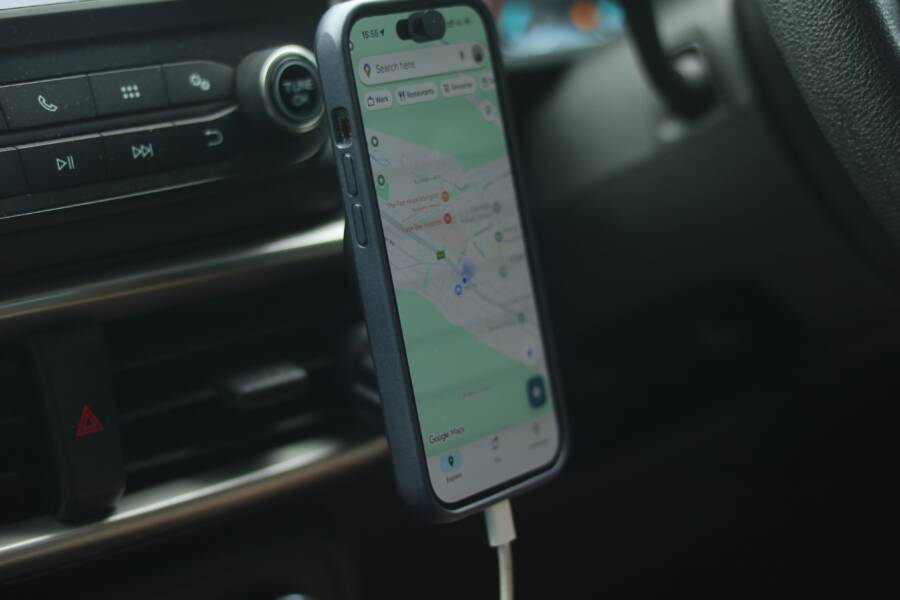
When your car fails to download your phonebook, it usually stems from restricted permission settings on your smartphone or a minor cache error within the car infotainment system. These connection hiccups prevent the vehicle from accessing your saved contacts even when audio streaming works fine.
You can often resolve this problem by toggling specific Bluetooth settings or performing a clean reset of the connection. This guide helps you identify the exact cause and restores your contact list access quickly.
Why Your Smartphone Contacts Are Not Appearing in Your Car
When you pair your device, the car infotainment system often asks for permission to access your data. If you accidentally hit deny or if the prompt timed out, your contact list remains invisible on the car screen. Most sync failures originate from these missed handshake agreements between the hardware.
Permissions and Privacy Settings
Modern operating systems prioritize privacy, which often means they restrict third-party access to your personal information by default. When you first connect your smartphone to the vehicle, a notification pops up on your mobile screen. This message specifically asks for permission to share your contacts and call history.
If you did not grant this access during the initial setup, the car receives your audio stream but cannot pull your saved names or numbers. You can fix this by navigating to your Bluetooth settings, finding your car in the list of paired devices, and checking if the Contact Sharing toggle is turned on. Once you enable this, the car usually needs a few seconds to refresh its database before your list appears.
Incompatible Data Formats
Sometimes the issue is not a missing permission but a data formatting error. Vehicle software is often less flexible than a modern smartphone when it comes to reading contact files. If a contact name contains special characters, emojis, or unusual symbols, the infotainment system might struggle to index that entry.
Large contact lists can also overwhelm older vehicle systems. If you have thousands of entries synced to your cloud account, the car might time out before it finishes loading the entire database. You can test this by checking if the system displays only the first few letters of the alphabet or no contacts at all. Reducing the number of synced contacts or removing complex characters from name fields often solves this unexpected glitch.
Cached Connection Conflicts
Bluetooth systems keep a record of past connections to make future pairing faster. If your smartphone has recently received a software update, these saved cache files might contain outdated instructions that conflict with the new system behavior. This old data blocks the current request to sync your phonebook.
Performing a clean reset is the most effective way to clear these lingering errors. Follow these steps to restore a fresh connection:
- Delete your car from the Bluetooth list on your smartphone.
- Remove your phone from the saved devices list inside the car settings.
- Turn off Bluetooth on your phone and restart both the device and the vehicle.
- Enable Bluetooth again and initiate a brand new pairing request.
This process forces the car to request permission again, which usually resets the connection and allows the contact list to download successfully. Checking for updates on your car infotainment system can also prevent these cache conflicts from happening in the future.
Essential Permission Checks on Your Smartphone
When your car refuses to display contacts, the root cause is often a simple settings conflict. Your smartphone acts as the gatekeeper for this data, and it will block access unless explicitly granted permission. Fixing this involves verifying that the connection settings allow for contact sharing.
Troubleshooting iOS Contact Sync Settings
iPhone users often face sync errors if the initial connection failed to register the authorization request. You must re-establish the link to trigger the system prompt again. Start by navigating to the Settings app on your iPhone and selecting Bluetooth. Find your vehicle in the list of my devices, tap the blue information icon, and choose Forget This Device.
Next, remove the iPhone from the pairing list within your vehicle infotainment settings. Turn Bluetooth off on your phone and cycle the power for both the phone and the car. When you initiate a fresh pairing process, your smartphone will likely display a notification asking for permission to access your contacts and call history. Make sure you tap Allow when this message appears. If you ignore or miss this prompt, your car will stream audio but fail to pull your address book data. You can verify the status at any time by returning to the Bluetooth settings, tapping the icon next to your car name, and toggling the Sync Contacts switch to the on position.
Managing Android Bluetooth Permissions
Android devices categorize permissions by specific data types, so you might have granted audio access while leaving contact sharing disabled. Open your Settings menu and locate the Bluetooth section to view your paired devices. Tap the gear icon next to your car connection to see a list of available permissions. Ensure the toggle for Contact Sharing or Phonebook Access is enabled.
If the settings appear correct yet the sync still fails, clear the Bluetooth system cache. This action removes corrupted temporary files that block current data requests. Follow these steps to perform the clear:
- Open your phone Settings and navigate to Apps or Application Manager.
- Tap the menu icon in the corner and select Show System Processes.
- Find Bluetooth in the list and select Storage.
- Tap Clear Cache and Clear Data.
- Restart your smartphone to finalize the process.
Once the system resets, your car will treat the connection as a new device. It will prompt for permission once more, allowing you to grant access and restore your contact list functionality. If the sync remains stuck, check that your default contact app is set to sync with your primary account rather than just local storage.
How to Reset and Refresh the Connection
Resetting the Bluetooth link between your smartphone and car infotainment system clears temporary errors that prevent contact syncing. When the software handshake fails, the vehicle often retains bad data or incorrect permission settings. A full refresh forces both devices to communicate from a blank slate. This process usually restores access to your phonebook immediately.
Performing a Clean Bluetooth Reset
To perform a clean reset, you must remove the connection from both the car and the smartphone. Simply turning Bluetooth off and on does not delete the cached data causing the sync error. Follow these specific steps to ensure a total reset of the hardware relationship.
- Open your phone Bluetooth settings and select your car from the list.
- Tap “Forget This Device” or “Unpair” to remove the connection.
- Access your car infotainment system and navigate to the Bluetooth or device manager menu.
- Delete the smartphone profile from the car list.
- Turn off Bluetooth on the smartphone and power down the infotainment unit if possible.
- Restart both the phone and the vehicle, then initiate a new pairing process from scratch.
When the car discovers the smartphone again, it will trigger the initial permission requests. Ensure you look closely at your mobile screen for a notification asking for access to contacts or address book data. You must confirm this prompt to allow the car to pull the information successfully.
Clearing System Cache and Memory
If you still face issues after a standard reset, the problem might reside in the temporary app files. Smartphones keep a cache for Bluetooth services to manage connections faster. Over time, these files can become corrupted or outdated. Clearing this data forces the smartphone to rebuild its Bluetooth configuration, which frequently resolves persistent syncing failures.
On Android devices, you should look for the system Bluetooth app within your application settings. You might need to select “Show System Processes” to make it visible. Clearing the cache and storage for this specific app restores the service to its factory state. On newer iOS devices, resetting the network settings is the primary way to clear similar temporary data. Be aware that resetting network settings will remove your saved Wi-Fi passwords as well. Once the system finishes the reset, you can pair the device again. The car will now treat the smartphone as a completely new connection, free from the old data bugs that blocked your phonebook earlier.
Troubleshooting Advanced Infotainment and Firmware Glitches
Infotainment systems are essentially small computers running inside your vehicle dashboard. Like any smartphone or laptop, these systems rely on software to manage connections and data transfers. When this software contains bugs or becomes outdated, your car may struggle to communicate with your current device. You often experience missing contact lists, delayed audio, or frequent connection drops when your vehicle firmware lags behind the requirements of your modern mobile device.
Updating Your Car Infotainment Firmware
Software updates for vehicles often include patches that improve Bluetooth compatibility with newer hardware. Manufacturers frequently release these updates to address known glitches that prevent your smartphone from syncing correctly. If your vehicle software is several years old, it likely lacks the specific protocols needed to handle the data formats used by current mobile operating systems.
You can check your current software version through the settings menu of your infotainment screen. Look for headings labeled System Info, Software Version, or Updates. Once you note your current version, visit the official manufacturer website for your vehicle. Most car brands maintain a support portal where you can enter your Vehicle Identification Number (VIN) to see if a download is available for your specific model.
Some modern vehicles handle this process automatically through a built-in cellular connection or a home Wi-Fi link. Check your owner manual to see if your system supports over-the-air updates. If your car requires a manual update, you might need to download the installation files onto a formatted USB drive. After you plug the drive into the vehicle, the system usually prompts you to begin the installation. Always keep the engine running or the ignition in a steady state to avoid a power loss during the process. An interrupted update can damage your infotainment hardware.
When to Perform a Master Reset
A master reset returns your infotainment system to its original factory settings. This action wipes all saved data, including paired phones, custom radio presets, and saved navigation destinations. You should treat this as a final step because it removes every configuration you have personalized since you bought the vehicle.
Performing this reset is useful if you have tried every other troubleshooting method without success. Corrupted system files often hide deep within the car memory, and a clean slate is the only way to remove them. Before you initiate a reset, make sure you write down any important data you want to keep. You will need to manually re-enter your favorite radio stations and link your accounts again after the process finishes.
To perform a master reset, navigate to your system settings menu and look for the option labeled Factory Reset, System Initialization, or Restore Defaults. The system will typically show a confirmation screen warning you that all data will be deleted. Once you confirm, the screen will go dark or reboot. After the system comes back online, it acts as if it just left the factory. You can then pair your smartphone again as if it were a brand new connection. This fresh start resolves most deep-seated sync errors that standard troubleshooting cannot fix.
Conclusion
Most contact synchronization problems are simply the result of missed permission prompts on your smartphone. You can usually restore your address book by toggling your Bluetooth settings or performing a clean unpairing of both devices.
Follow this checklist to confirm your fix:
- Verify the “Sync Contacts” or “Phonebook Access” toggle is active within your mobile Bluetooth menu.
- Delete the pairing history on both your car and your device to clear cache conflicts.
- Grant access to your address book when the prompt appears during the new pairing process.
Test your connection immediately after applying these changes to ensure the car database refreshes correctly. A fresh pair often clears persistent errors and restores full functionality to your vehicle infotainment system.