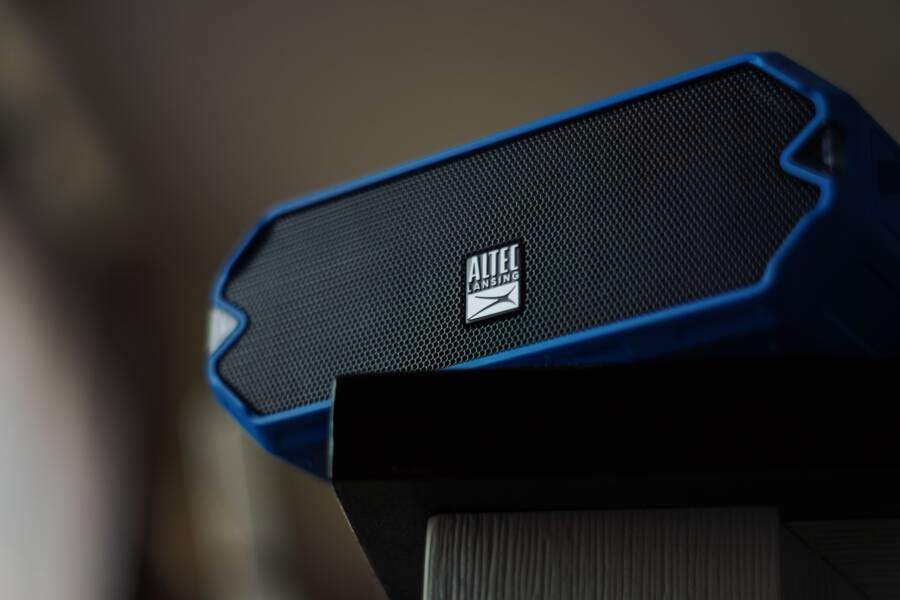
When your Bluetooth device shows as connected but remains silent, a software glitch is usually the culprit. You rarely face actual hardware failure in these situations.
This issue affects both Android and iOS smartphones. You can typically restore your audio by resetting the connection or adjusting the sound output settings.
The following steps help you identify the conflict and fix your audio playback quickly.
Quick Checks to Restore Your Bluetooth Audio
You can resolve most silent Bluetooth connections by clearing out temporary system glitches. These conflicts often happen when your smartphone or peripheral device gets stuck in a background state. A simple refresh usually forces the hardware to re-establish a stable communication link. If your smartphone shows a successful connection but lacks sound, follow these quick diagnostic steps.
Toggle Bluetooth and Power Cycle Devices
Turning your Bluetooth radio off and on resets the handshake protocol between devices. This action often clears minor cache errors that prevent audio packets from flowing correctly. You should first disable Bluetooth in your settings menu, wait ten seconds, and then turn it back on. If silence persists, a full power cycle is the next logical step.
Restarting your hardware helps clear active memory and resets temporary software states that cause audio bugs. Follow this order to reset the connection effectively:
- Power off both the smartphone and your Bluetooth accessory completely.
- Wait at least 30 seconds to allow the internal components to fully discharge.
- Turn on the smartphone first, followed by the speaker or headphones.
- Allow the devices to re-pair automatically, then test the audio output.
This process forces the smartphone to reload the Bluetooth driver and re-initialize the audio pipeline. Most connection mismatches resolve after these devices perform a fresh handshake.
Check Your Smartphone Media Volume Levels
Many users confuse their phone ringer volume with media playback volume. Your smartphone handles these signals independently to prevent loud notifications from interrupting your listening experience. If your media volume is set to zero, your Bluetooth device will remain silent even with a perfect connection.
Modern operating systems often feature separate sliders for various sound channels. You should verify these levels while the device is actively connected:
- Media Volume: This slider controls music, video, and streaming apps. Always adjust this while your audio is actively playing to ensure you are modifying the correct channel.
- Bluetooth Absolute Volume: Some manufacturers link the smartphone volume directly to the accessory. If your device has its own physical buttons, try increasing the volume directly on the headphones or speaker.
- System Settings: Look into your sound settings menu to confirm that no app or system profile is muting the media channel.
Some applications also have internal volume controls that override global system settings. If you notice sound in one app but not another, open the specific app settings to confirm the volume isn’t turned down inside that program. Check your output device selection within the app as well, as some smartphones allow you to route audio to different sources simultaneously.
Troubleshooting Advanced Connection and Pairing Issues
When basic power cycles fail to restore your audio, the problem often resides in the stored link between your devices. Your smartphone retains specific data about every Bluetooth accessory it remembers. If that data becomes corrupted or outdated, your phone may report a connection while the actual data stream remains blocked. Addressing these stubborn failures requires a clean start to ensure both devices agree on the communication protocol.
Forget and Re-pair Your Bluetooth Accessory
Forcing your phone to delete the existing profile is the most effective way to clear hidden software conflicts. By removing the device from your saved list, you eliminate any cached connection settings that might be preventing audio playback.
Follow these steps to reset the pairing link:
- Open your smartphone settings and navigate to the Bluetooth menu.
- Locate your accessory in the list of paired or saved devices.
- Tap the information icon or the gear symbol next to the device name.
- Select the option labeled Forget Device, Unpair, or Remove.
- Confirm the choice when the prompt appears on your screen.
- Power off your Bluetooth accessory for ten seconds to clear its local memory.
- Activate the pairing mode on your accessory according to the manufacturer instructions.
- Refresh the Bluetooth list on your smartphone and select the device to initiate a fresh connection.
This process forces the smartphone to negotiate a new security handshake with the accessory. It often resolves issues where the phone connects to a device for calls but refuses to route media audio.
Verify Audio Output Source Settings
Sometimes the smartphone connects to a Bluetooth device but keeps the audio routed to internal hardware. This happens because modern mobile operating systems manage multiple audio paths simultaneously. If your phone mistakenly directs sound to its built-in speakers or a different accessory, your Bluetooth headphones will remain quiet despite a signal showing as active.
You can verify the active audio path through your control center or media player interface. Swipe down from the top of your screen to access the notification shade or control panel. Look for a media output button, which usually appears near the music playback controls.
When you tap this icon, the device displays a list of available audio outputs. Ensure your specific Bluetooth accessory is selected with a checkmark. If the phone lists your internal speakers or another device as the active path, manually switch it to your Bluetooth accessory. Some applications also have internal output selectors that operate independently of the system settings. If you still hear no sound, check the playback menu within the specific app you use to confirm it is pushing audio to the correct peripheral.
Digging Deeper into Software and Protocol Conflicts
Sometimes, your Bluetooth connection remains active but fails to pass audio because of deeper software conflicts. These issues often occur when the communication language between your smartphone and the accessory becomes mismatched or corrupted. Modern hardware relies on specific profiles to handle data, and when those profiles fail, the audio channel remains silent.
Updating Firmware and Software Versions
A common reason for audio silence is a mismatch between your smartphone operating system and the firmware on your headphones or speaker. When you update your phone, it may adopt newer Bluetooth protocols that older accessory firmware cannot support correctly. Conversely, manufacturers occasionally release patches to fix known audio streaming bugs. If your accessory runs outdated code, the connection might show as established while the actual stream stops halfway.
You should verify your software status by following these steps:
- Check for system updates in your smartphone settings to ensure the Bluetooth stack is current.
- Download the official app for your audio device, as these apps frequently trigger firmware updates.
- Review the support page on the manufacturer website to see if your specific device model requires a manual firmware patch.
Running the latest software version on both ends of the connection helps prevent handshake errors. If your smartphone and your audio device are out of sync, the communication bridge will often fail to transmit sound properly.
Disabling Conflicting Background Apps
Your smartphone manages audio through various channels, and background applications can sometimes hijack these paths. If you have multiple apps running that request audio focus, they may unintentionally block your Bluetooth device from receiving data. This conflict happens because the operating system prioritizes one app over another, sometimes leaving your Bluetooth accessory in a muted or suspended state.
You can narrow down the cause by monitoring your active processes:
- Close all unnecessary applications, specifically those that use audio, video, or voice recording features.
- Check if a background service, such as a voice assistant or a navigation app, is holding the audio focus hostage.
- Restart your phone in safe mode to see if third-party apps are the source of the silence.
If you suspect a specific application is the cause, try updating it or clearing its cache through your application manager. Sometimes, simply force-stopping a rogue app allows the audio stream to resume on your Bluetooth device immediately. Consistent control over your background environment prevents these software overlaps from interrupting your listening experience.
When to Consider Hardware Limitations or Damage
Most Bluetooth issues stem from software, but physical damage or hardware incompatibility occasionally causes audio failure. You should evaluate your physical gear once you exhaust all software resets. Hardware problems often present as intermittent signals, physical deformation, or complete silence across multiple devices.
Identifying Physical Damage
Inspect your smartphone and Bluetooth accessory for signs of physical wear. Small cracks, dents, or debris inside the charging and audio ports often interfere with internal circuits. If your headphones suffered a recent drop or liquid exposure, the internal Bluetooth antenna may be disconnected or damaged.
Look for these specific indicators of physical failure:
- Debris or dust buildup inside the headphone jack or USB-C port can cause short circuits that confuse your audio routing.
- Visible cracks on the outer casing of a speaker or headphone set might hide broken internal ribbon cables.
- Battery swelling in a portable Bluetooth speaker often puts pressure on sensitive components, which can cause erratic connectivity.
- Fraying wires on wired-Bluetooth hybrid models often lead to intermittent signal drops.
Test your Bluetooth accessory with a different device to confirm the fault location. If your headphones remain silent when paired with a secondary smartphone or tablet, the accessory itself likely contains damaged hardware. If the headphones work perfectly with another unit, your primary smartphone may have a faulty Bluetooth module.
Understanding Compatibility and Range Limits
Sometimes your hardware is functional but lacks the necessary technology to handle modern audio streams. Bluetooth versions evolve rapidly, and older devices occasionally struggle to maintain a stable link with new smartphones. If your headphones use an obsolete codec, your smartphone may struggle to encode the audio data correctly.
Range also plays a major role in signal stability. Bluetooth signals weaken significantly when they pass through walls, metal surfaces, or human bodies. If you experience choppy audio that eventually cuts out, move closer to your smartphone to determine if range limits are causing the silence.
Consider these factors regarding hardware specs:
- Older Bluetooth hardware often lacks support for high-bitrate codecs, causing silent connections if the smartphone forces a modern format.
- Significant physical interference from routers or microwaves can overwhelm low-power Bluetooth antennas.
- Battery levels below ten percent sometimes trigger low-power modes that disable audio streaming to save energy.
If your device stays silent only at specific distances or near certain electronics, you are likely dealing with environmental interference rather than broken hardware. Replacing a damaged antenna or battery in a compact Bluetooth accessory is often impossible for the average user, so professional repair or replacement is usually the final path.
Conclusion
Most Bluetooth audio issues on your smartphone stem from minor software glitches rather than permanent hardware damage. A quick power cycle often refreshes the system state, which resolves silent connections without further effort.
If the problem persists, use the forget device feature to clear corrupted cache data from your connection history. This step forces your smartphone to establish a clean and stable handshake with your peripheral.
If these steps fail to restore sound, consult the manufacturer support pages for your specific device. Firmware updates or specific compatibility requirements are sometimes necessary to bridge the communication gap between your smartphone and the accessory.