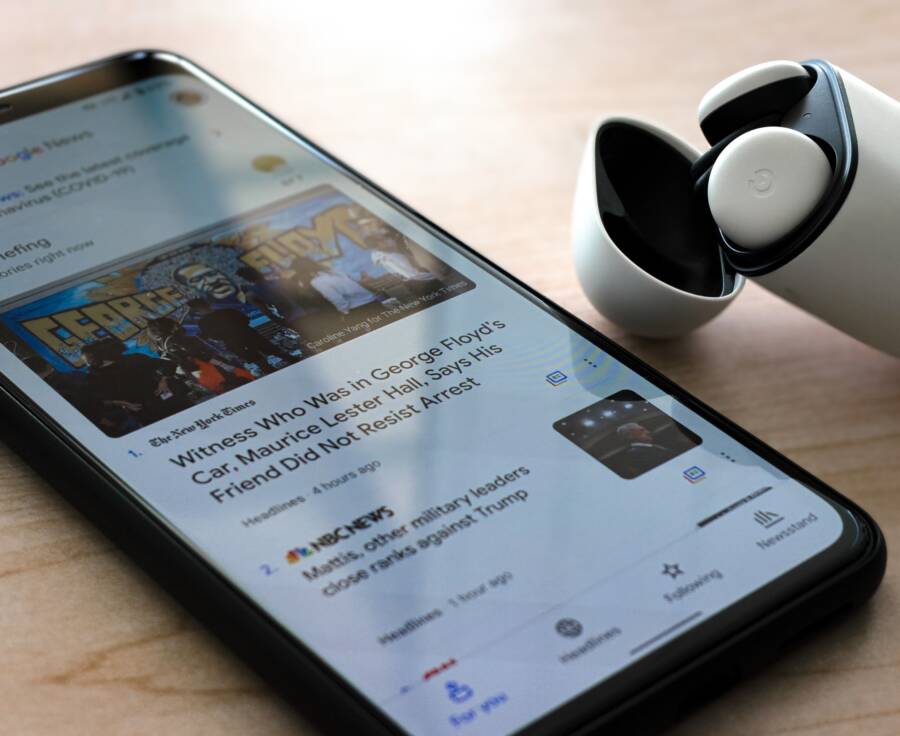
When your earbuds fail to charge inside their case, the problem is almost always a physical connection issue rather than a setting on your smartphone. You do not need to worry about complex software bugs or broken hardware just yet. Most of these charging failures stem from simple debris buildup or poor contact between the earbud pins and the case terminals.
You can fix this problem at home with basic maintenance and a few simple cleaning steps. By removing dirt and ensuring a solid electrical connection, you will likely get your audio gear working again in minutes. Follow this guide to troubleshoot and resolve your charging issues efficiently.
Why Your Earbuds Are Not Charging in the Case
Earbuds often fail to charge because of physical obstructions or misalignments inside the charging case. When the internal metal pins do not make perfect contact with the charging points on the earbuds, power transfer stops immediately. You can usually identify this by observing the status lights on your case when you insert the earbuds. If the lights do not blink or change color, the buds are not receiving electricity from your smartphone accessory.
Accumulation of Debris and Dust
Dirt, lint, and earwax are the most frequent culprits behind charging failures. Over time, these particles enter the case and settle on the gold-plated contact pins. Even a thin layer of grime acts as an insulator, which prevents the electrical current from passing through to the battery.
You should inspect the bottom of the earbud stems and the interior of the case for any visible buildup. If you see dark specks or sticky residue, the charging circuit is likely blocked. Use a soft, dry cloth or a clean cotton swab to wipe these areas carefully. Do not use liquids, as moisture can damage the internal electronics of your smartphone gear.
Misalignment and Magnetic Interference
The magnets inside the case pull the earbuds into a specific position to ensure the pins touch correctly. If these magnets gather magnetic dust or metallic filings, they may lose their strength or pull the earbuds slightly off-center. When the earbuds sit at a tilted angle, the charging terminals no longer align with the case pins.
Try these quick checks to resolve alignment issues:
- Remove the earbuds and check the case cavity for debris.
- Insert each earbud one at a time and press down firmly to ensure they click into place.
- Observe if the charging indicator light responds to a slight adjustment or pressure on the earbud.
Oxidized or Damaged Contact Pins
Metal components can develop oxidation when exposed to humidity or sweat over long periods. This corrosion creates a dull, gray, or green film that blocks electricity. While standard cleaning clears dust, oxidation often requires a more thorough approach.
If gentle wiping does not work, you can dip a cotton swab in a tiny amount of isopropyl alcohol to clean the pins. Ensure the alcohol evaporates completely before you place the earbuds back into the case. If the physical pins in the case look bent or stuck in a depressed position, the hardware may require professional repair.
Battery Depletion of the Case
Sometimes the issue is not with the earbuds, but with the case itself. If the internal battery of your charging case is completely drained, it cannot provide a charge to the earbuds even if the connection is perfect. Plug your case into a power source for at least 30 minutes. Once the case has enough power, verify if the LED indicators start to show activity. This simple check ensures that your smartphone charging ecosystem remains functional.
Simple Steps to Clean Your Charging Contacts
Cleaning the contact points is the most effective way to restore power flow between your earbuds and your smartphone case. Accumulation of oils, lint, and metallic dust often blocks these tiny connection points. You can resolve most charging failures by performing a careful, manual cleaning at home.
Tools You Need for Safe Cleaning
You only need a few household items to clear debris from your charging case. Always prioritize materials that do not leave behind fibers or cause physical scratches. Gather these supplies before you begin the process.
- A soft, lint-free microfiber cloth for wiping exterior surfaces.
- Standard cotton swabs or Q-tips to reach deep into the charging cradles.
- 70 percent isopropyl alcohol to dissolve stubborn grime and disinfect the metal.
Avoid using metal tools like needles, tweezers, or paperclips during this process. These items are conductive and prone to scratching the delicate gold-plated finish on the pins. Any deep gouge on the contact surface permanently ruins the connection point, which forces a complete replacement of your case. Always treat these interior components with extreme care to protect the longevity of your smartphone accessories.
Correct Techniques to Avoid Damage
The pins inside your charging case are spring-loaded and highly sensitive to pressure. You must avoid aggressive scrubbing or forceful movements that might bend or displace these pins. Use a light touch to ensure you remove dirt without compromising the structural integrity of the charging mechanism.
Start by dampening your cotton swab with a small amount of isopropyl alcohol. Do not soak the swab, as excess liquid can leak into the case electronics. Gently rotate the swab against the metal pins in a circular motion. This action lifts away grime without pushing debris further into the base of the spring.
After cleaning the pins, repeat the process on the charging contacts located on the bottom of your earbuds. Wipe them clean with a dry microfiber cloth afterward to remove any remaining alcohol residue. Wait at least five minutes for all moisture to evaporate before you place the earbuds back into the case. This simple, gentle approach keeps your hardware functional and avoids unnecessary damage to your expensive smartphone audio gear.
Checking the Case Battery and Power Supply
Your smartphone earbuds rely on a steady flow of electricity from the charging case. If the case cannot hold a charge, it fails to power your earbuds even when the contact points are clean. Before you assume the internal electronics are broken, check your power supply components to ensure electricity moves through the system.
Troubleshooting Cable and Port Issues
External power failures are often the true cause of charging interruptions. If your cable is frayed or the wall brick is faulty, the case won’t receive the energy it needs. Start your diagnostic process by checking the power path from your wall outlet to the case itself.
Try these steps to rule out cable and adapter problems:
- Swap your current USB cable with one you know works with another device. Cables often break internally without showing visible damage on the exterior.
- Plug the case into a different wall brick or a different USB port on your computer. Some chargers stop providing power if they detect a minor short or voltage surge.
- Check the charging port on the case for physical debris. Use a bright light to look inside the port for lint or dust that might prevent the cable from seating fully.
- Ensure the cable clicks firmly into the port. A loose connection often stops charging intermittently as the case moves on your desk.
If you have tried multiple cables and power sources without success, the issue is likely within the case battery or the internal charging circuit. These components wear down after hundreds of cycles, which limits how much power they can store for your daily smartphone use.
Testing Case Battery Levels
The charging case uses internal LED indicators to signal its current status. These lights provide a quick way to verify if the hardware is receiving and holding power. You should observe these lights closely before you decide to troubleshoot the individual earbuds.
Most cases feature a multi-color LED system to show battery levels:
- Plug the case into a power source and watch for a light to turn on. A solid or blinking light confirms that the case is drawing current from your power brick.
- If the light fails to turn on after several minutes, the case battery may be completely drained or the charging port might be faulty.
- Once the case shows a green or white status light, insert your earbuds. The LED should blink or change color to indicate that the earbuds are now drawing power from the case battery.
If the case light turns on but your earbuds remain dead, the problem sits with the physical contact pins rather than the case battery. However, if the case shows no life at all while plugged in, it likely requires professional service or a replacement. Keep your case charged regularly to avoid deep discharge cycles, which often lead to battery failure over time.
Advanced Resets and Software Solutions
When physical maintenance fails to restore charging, you should look toward firmware and software resets. Modern earbuds often act as miniature computers. Sometimes, the internal software that manages power distribution gets stuck in a loop. A manual reset forces the hardware to clear its current state and re-establish a connection with your smartphone.
Performing a Factory Reset on Your Earbuds
A factory reset is the most effective way to resolve persistent software glitches. This process clears the pairing memory and recalibrates the internal battery management system. While the exact steps vary by manufacturer, the core concept remains consistent across most major brands.
Follow these steps to reset your device:
- Place both earbuds inside the charging case and leave the lid open.
- Locate the pairing or setup button on the case. Some models use the touch-sensitive areas on the earbuds instead of a physical button.
- Press and hold the button for 10 to 20 seconds. Watch the status LED for a specific pattern, such as a flashing amber or white light.
- Close the lid for 30 seconds to allow the internal circuits to stabilize.
- Reopen the case and attempt to pair the buds with your smartphone again.
After the reset, the earbuds will act as if they are brand new. This often resolves charging issues caused by internal errors that prevent the buds from acknowledging the case power source.
Updating Earbud Firmware via Smartphone Apps
Many manufacturers release firmware updates to fix known charging bugs. If your earbuds have outdated software, they might misinterpret the voltage coming from the case. You should use the official companion app on your smartphone to check for available updates.
Most companion apps display a notification if an update is ready. If you don’t see one, look in the settings menu under “Device Information” or “Software Update.” Ensure your earbuds stay inside the case and remain connected to your phone during the entire update process. A interrupted update can sometimes lead to further instability, so keep your battery levels above 50 percent before you start.
Managing Bluetooth Connectivity Interference
Sometimes, a stuck Bluetooth connection keeps the earbuds “awake” even when they are inside the case. If the buds never fully power down, they continue to drain their own battery while failing to accept a charge from the case pins. Turning off Bluetooth on your smartphone temporarily can break this connection loop.
Try these simple diagnostic steps to force a disconnect:
- Turn off Bluetooth on your smartphone and move the device to another room.
- Check if the charging case lights activate after the signal source is gone.
- If the lights activate, your earbuds were likely stuck in a constant search mode.
- Delete the earbud profile from your phone’s Bluetooth settings entirely.
- Perform a fresh pairing process once the charging cycle begins to function properly.
If you still face issues, look for a “hard reset” option in your device manual. Occasionally, the hardware requires a specific combination of button presses while plugged into a wall outlet to bypass a severe software lock. Once you clear these digital hurdles, the physical charging system usually resumes normal operations without further intervention.
When to Contact Support for Hardware Repairs
You should contact official support when basic troubleshooting fails to resolve your charging issues. While many problems involve simple debris or connection errors, some hardware failures require specialized tools or replacement parts that you cannot access at home. If you have exhausted all self-service options, professional repair is the correct next step for your smartphone audio gear.
Signs of Internal Component Failure
Internal damage often manifests as symptoms that do not improve with cleaning or resetting. If the charging pins appear physically stuck in the down position or show visible bending, the internal spring mechanism is likely broken. You cannot repair these micro-components without specialized equipment and the risk of voiding your warranty.
Listen for unusual behavior from your smartphone accessories as well. If the case emits a burning smell or feels excessively hot to the touch while plugged in, stop using it immediately. These signs indicate a short circuit or a failing battery cell that poses a safety risk. You should report these specific hardware malfunctions to the manufacturer as soon as you notice them.
Evaluating Your Warranty Status
Check your purchase date and warranty status before you pay for repairs. Most major manufacturers provide a limited one-year warranty that covers defects in the charging case or earbud electronics. If your device is still under coverage, you might qualify for a free replacement or a professional fix at an authorized service center.
Keep the following details ready when you reach out to customer support:
- The serial number of your case and both earbuds, which you can usually find printed inside the lid or within your smartphone app settings.
- The original proof of purchase or receipt that shows the date and location of the transaction.
- A brief summary of the troubleshooting steps you already performed, such as cleaning the pins and resetting the firmware.
Providing this information upfront helps the support agent process your claim quickly. If your warranty expired, ask the manufacturer about out-of-warranty service costs. Sometimes, buying a refurbished charging case is cheaper than paying for a labor-intensive repair on your existing hardware.
Professional Repair vs Replacement
Deciding whether to repair or replace your gear depends on the total cost of the service. Many repair shops charge a diagnostic fee that nearly equals the price of a new case. If the case is out of warranty and requires internal soldering or battery replacement, the repair cost rarely makes financial sense for budget-friendly earbuds.
Compare your options by using this quick guide:
Professional repair remains the safest choice if your device is a high-end model or if you are uncomfortable handling electronics. If the costs seem too high, a new unit often provides better value and comes with a fresh warranty period. Reach out to the manufacturer via their official website or app to explore these options further.
Conclusion
Most charging failures happen because of small debris or misaligned pins inside your case. A routine cleaning habit fixes these physical connection errors quickly and prevents them from returning.
Keep your charging case free of dust, lint, and earwax to ensure your earbuds always receive power. Regular maintenance keeps your audio gear ready to use whenever you pair it with your smartphone.