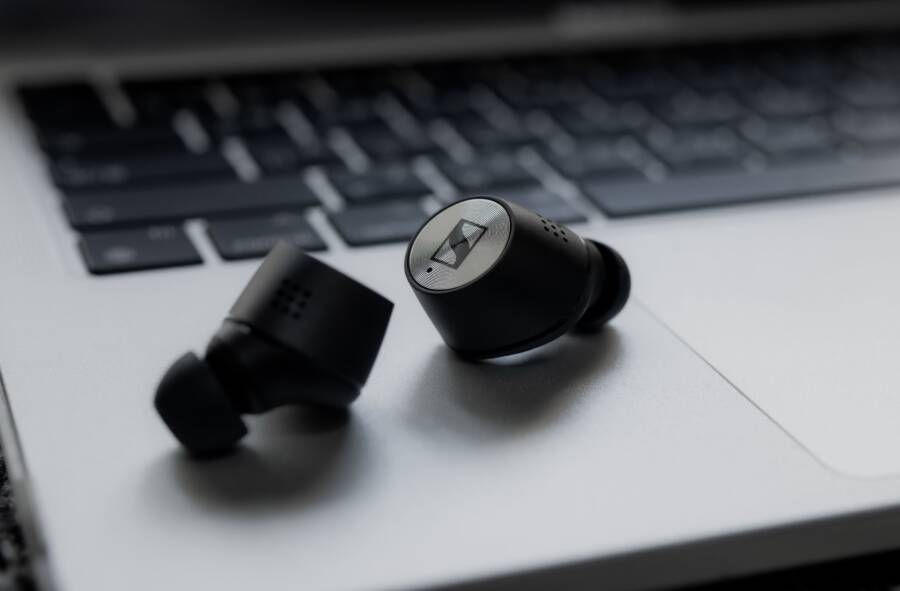
When your earbuds drop their connection to only one device, the problem is almost always a software glitch rather than a hardware failure. You can usually fix this by resetting your Bluetooth settings, clearing cache files, or updating your firmware.
This common frustration often occurs because your smartphone struggles to manage the signal handshake between devices. A small conflict in the wireless profile often causes the audio to stutter or cut out entirely while you try to listen.
The following steps will help you isolate the cause and restore a stable connection to your smartphone. You should start by checking your device settings before moving on to more advanced troubleshooting techniques.
Quick Fixes for Bluetooth Connection Glitches
When your earbuds refuse to hold a steady link to your smartphone, the issue often stems from corrupted pairing data. Your devices store specific encryption keys to verify each other, but these files sometimes become outdated or buggy. Refreshing this communication link clears away these errors and forces the hardware to establish a fresh connection from scratch.
The Power of Forgetting and Re-pairing
The most effective way to start fresh is to perform a complete “forget” operation within your smartphone settings. This action wipes the existing handshake protocols that may be causing intermittent signal drops. When you remove the device, the phone stops trying to use the old, flawed connection profile.
Follow these steps to reset the connection:
- Open the Bluetooth menu on your smartphone.
- Locate your earbuds in the list of paired devices.
- Tap the settings icon or the device name, then select “Forget This Device” or “Unpair.”
- Turn off Bluetooth on your smartphone for ten seconds to clear any residual cache.
- Put your earbuds back into their charging case.
- Trigger the pairing mode on your earbuds according to your user manual.
- Turn your Bluetooth back on and select the earbuds from the available devices list to start a brand new handshake.
By completing this process, you force the hardware to negotiate a new connection method. This often eliminates the minor software inconsistencies that lead to frequent disconnections.
Clearing Out Potential Software Conflicts
Your smartphone manages multiple connections at once, which sometimes creates a tug-of-war for the Bluetooth signal. If your earbuds share space with a smartwatch, a tablet, or an old car audio system, those devices might periodically try to hijack the signal. This interference is a common cause for sudden audio drops or unexpected pairing failures.
To stop these conflicts, check which devices currently share a connection with your smartphone. You should turn off Bluetooth on nearby tablets or laptops that might be competing for the signal. If you find your earbuds are still struggling, disconnect these other accessories temporarily.
This approach creates a dedicated, clean path for the signal between your smartphone and your audio hardware. Focus on these adjustments to maintain signal integrity:
- Turn off Bluetooth on any secondary devices within range to ensure they don’t jump in.
- Check if your smartphone has too many saved profiles and remove the ones you no longer use.
- Avoid keeping multiple high-bandwidth devices active at the same time if your connection remains unstable.
By isolating your earbuds as the primary connected device, you reduce the processing burden on the phone. This simple change allows the smartphone to dedicate its full radio resources to maintaining a stable, uninterrupted stream of audio to your ears.
Managing Settings on Your Smartphone
Your smartphone settings act as the foundation for every wireless connection you establish. If these internal configurations contain errors or run on outdated protocols, your earbuds will struggle to maintain a consistent link. Adjusting these settings helps your hardware communicate without interruptions.
Updating Firmware and Software Versions
Smartphone manufacturers frequently release updates that modify how the device handles Bluetooth signals. These updates often include patches for newer audio codecs, which improve data transmission stability between your phone and your earbuds. If your phone software is outdated, it may fail to support the specific handshake requirements of modern wireless earbuds.
You can verify your current status by checking the system settings on your smartphone. Follow these steps to find available patches:
- Open the Settings app on your device.
- Select the General or System menu.
- Tap on Software Update.
- If an update is ready, download and install it immediately.
Always check for earbud firmware updates as well. Many manufacturers provide a dedicated app to manage their hardware. Installing these updates ensures your earbuds and phone use the same current communication standards.
Adjusting Advanced Bluetooth Developer Options
Some connection issues stem from how your smartphone selects and manages audio codecs. If the default settings cause signal instability, you might find relief by accessing the hidden developer menu.
You must act with caution when changing these values, as incorrect settings can disrupt other wireless functions. To begin, you typically need to enable Developer Options by tapping your Build Number in the About Phone menu seven times. Once active, locate the Bluetooth Audio Codec section within the developer menu.
Changing the default codec to a more stable option, such as SBC, often fixes intermittent drops if your current high-fidelity codec struggles with interference. Only adjust these settings if basic troubleshooting fails. Resetting your network settings is a safer alternative if you feel uncomfortable navigating advanced menus, as it clears potential configuration conflicts without requiring deep system modifications.
Dealing with External Signal Interference
Bluetooth signals operate on the 2.4GHz frequency band, which is the same range used by many household devices. When your earbuds struggle to stay connected to your smartphone, the environment is often the primary culprit. Physical obstacles and radio frequency congestion can scramble the data packets traveling through the air.
Identifying Sources of Radio Noise
Your smartphone communicates with your earbuds using short-range radio waves. Other electronic hardware in your home or office can create a noisy environment that interrupts this stream. If you notice your connection drops more frequently in specific rooms or near certain appliances, environmental interference is likely the issue.
Common devices that generate Bluetooth-disrupting interference include:
- Microwave ovens that operate near the same frequency band when active.
- Wireless routers or mesh network nodes placed too close to your listening area.
- Baby monitors or wireless security cameras that send constant data streams.
- Cordless landline phones that use older wireless technology.
You should move away from these devices to see if the connection stabilizes. If the dropouts stop once you leave the room, you have confirmed that environmental radio congestion is the root cause.
Reducing Physical Obstructions
Bluetooth signals perform best when there is a clear line of sight between your smartphone and your earbuds. Your body acts as a significant barrier because it contains high levels of water, which absorbs radio frequency energy. If you keep your phone in a back pocket or a dense bag, the signal must penetrate your body to reach your ears.
Try keeping your smartphone in a front pocket, a shirt pocket, or a bag on the same side of your body as the primary earbud. This reduces the amount of physical material the signal must pass through. If you walk behind thick walls or large metal objects, expect the connection to flicker occasionally. Metal surfaces are particularly problematic because they reflect radio waves, which creates signal dead zones in your immediate area. By maintaining a more direct path for the signal, you help the hardware maintain a consistent, high-quality audio link.
Knowing When to Seek Professional Support
Sometimes hardware failure is the true cause of your connection trouble. You should consider professional support if you perform all software fixes and still experience regular audio drops. Persistent issues often indicate an internal component defect, such as a damaged Bluetooth antenna or a failing battery, that simple resets cannot resolve.
Recognizing Persistent Hardware Defects
You can usually identify physical damage by observing how your earbuds react during normal use. If the connection fails only when you touch the earbud housing or move your head in a specific direction, a loose internal wire is likely the culprit. You should also check the charging case and the metal contact points on the earbuds. Dirty or corroded pins often prevent the device from charging or entering pairing mode correctly.
If your smartphone shows that the earbuds are connected but no sound comes through, verify the volume levels within your device settings first. If you still hear nothing after testing with a second phone, the internal audio driver inside your earbud might be broken. Hardware failures typically show specific patterns:
- The earbuds won’t hold a charge even after leaving them in the case for several hours.
- One earbud remains completely silent while the other functions normally.
- The device creates static or crackling noises regardless of your physical location or signal strength.
Evaluating Warranty and Repair Options
Check your purchase date before you attempt any physical repairs on your own. Most manufacturers provide a limited warranty that covers factory defects for a set period. Opening the earbud casing often voids this coverage, so you should contact the manufacturer or the retailer before you take further action.
When you reach out for help, have your proof of purchase and the device serial number ready. Most companies request these details to verify your eligibility for a replacement or a professional repair. You can find the serial number on the original packaging, the inside of the charging case, or within the settings menu of the companion app on your smartphone.
If your warranty period has expired, look for authorized service centers in your area. Avoid low-cost, third-party repair shops that lack experience with small wireless audio hardware. These devices contain tiny, sensitive components that require specialized tools for safe disassembly. Investing in a professional repair is often safer than risking permanent damage through DIY attempts that might leave your equipment non-functional.
Conclusion
Most connection drops occur because of minor software bugs in the communication protocol between your earbuds and your smartphone. A clean reset of your Bluetooth pairing usually restores stability when one device acts up.
You should test your earbuds on a different smartphone if these steps fail to fix the issue. This simple trial confirms if the problem resides within your specific device settings or the hardware itself.
Patience remains your best tool when you troubleshoot audio gear. Consistent testing and systematic adjustments ensure your connection stays reliable for your daily listening needs.