
He Was Drowning in Bills and Burnout Until a Simple Daily Ritual Rewired His Brain for Wealth in Less Than a Week
>>> Start Your Shift Today <<<

Picture this: you unbox new wireless headphones, excited to blast your playlist. You open the companion app, tap to pair, and nothing happens. The device blinks but stays silent. Frustration builds as standard Bluetooth pairing skips right past the app step.
App-dependent Bluetooth gear, like smart lights, fitness trackers, or car adapters, adds layers of trouble. They demand app permissions, stable internet for initial setup, and special pairing modes that differ from basic Bluetooth. One wrong setting blocks the whole process. Unlike simple earbuds, these rely on the app to handle secure links and features.
This guide walks you through fixes in order, from quick checks to deeper resets. It covers Android and iPhone steps that work for most setups. Follow along, and you’ll reconnect fast. No tech degree needed; just patience and these steps.
Check Your Phone’s Basic Settings First
Most pairing fails start here. Basic oversights like disabled Bluetooth or location services trip up app connections. Apps scan for devices using location data, even indoors. Skip airplane mode too; it kills wireless signals.
There Is a Frequency That the Wealthiest Families Have Used for Generations and Most People Will Never Know It Exists
>>> Open the Door <<<

Fix these first to rule out simple blocks.
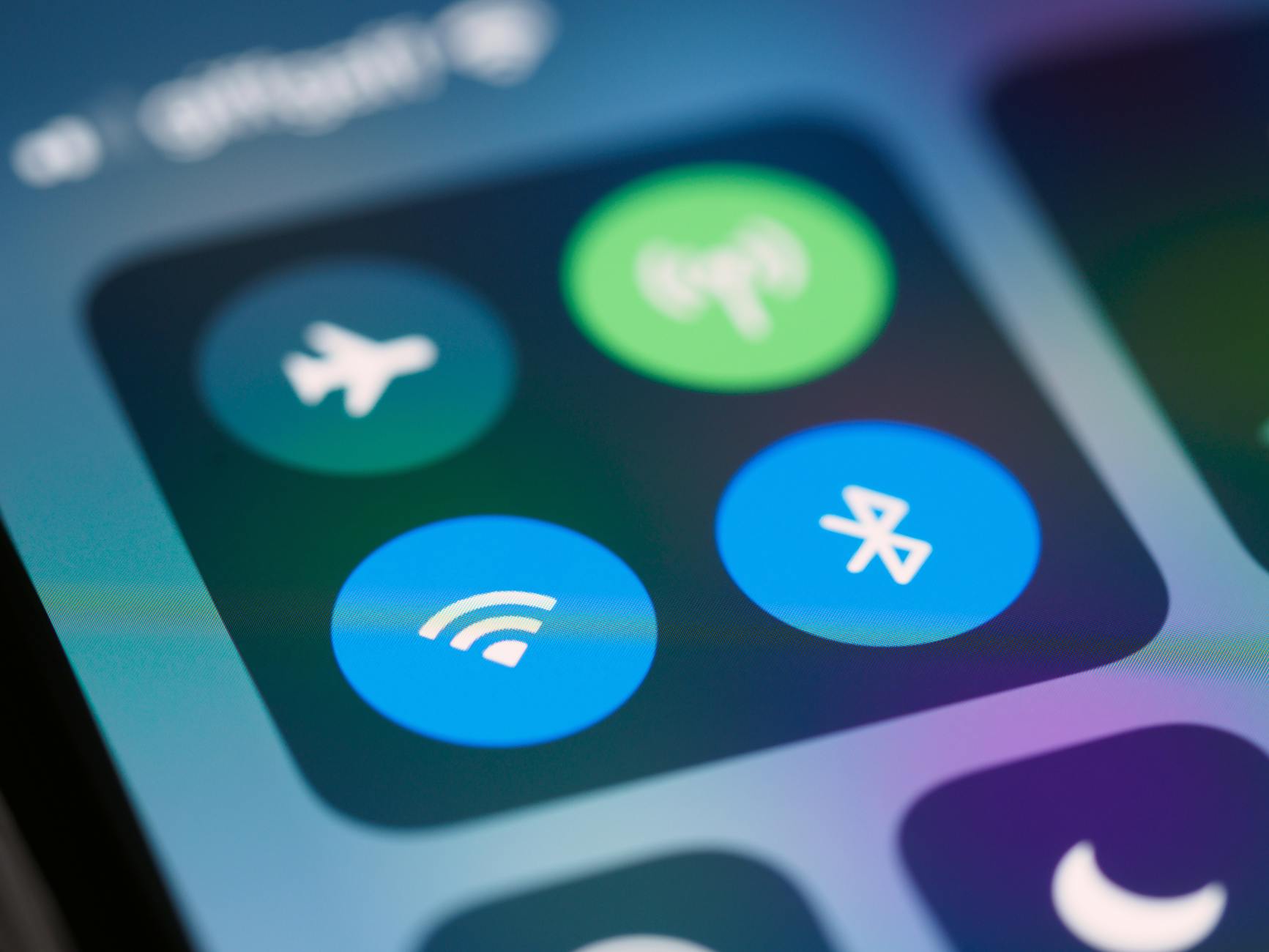
Photo by Brett Jordan
Enable Bluetooth and Location on Your Smartphone
Start with quick toggles. On Android, swipe down twice from the top screen for quick settings. Tap the Bluetooth icon to turn it on. Do the same for location; it’s often next to it.
On iPhone, open Settings, then tap Bluetooth and flip the switch. For location, go to Settings, Privacy & Security, Location Services, and enable it. Some apps need precise location too; allow that.
Put your Bluetooth device in pairing mode now. Check its manual; usually hold the power button five to ten seconds until it flashes. Apps often require internet for first scans, so connect to Wi-Fi. Test the connection. These steps fix half the issues right away.
Grant Full Permissions to the App
Apps can’t find devices without access. On Android, go to Settings, Apps, select your app, then Permissions. Enable Bluetooth, location, and nearby devices. Toggle them off, wait ten seconds, then back on.
iPhone users head to Settings, scroll to the app, and tap it. Under Allow While Using App, turn on Bluetooth, Local Network, and Location. Microphone might show for speakers; enable if needed.
Revoke and re-grant clears stuck states. Restart the app after. Permissions matter because apps use them to detect and link devices securely.
Update Apps, Restart Devices, and Clear Interference
Outdated code causes mismatches. Restarting clears memory glitches. Crowded signals from Wi-Fi routers or microwaves jam Bluetooth too.
There Is a Frequency That the Wealthiest Families Have Used for Generations and Most People Will Never Know It Exists
>>> Open the Door <<<
Tackle updates first, then reboots, and test in open space.
Hunt for Software Updates
Old apps fail pairings often. Open Google Play Store on Android, tap your profile icon, Manage apps & device, Updates available. Update the Bluetooth app and any system prompts.
On iPhone, launch App Store, profile icon, Upcoming Automatic Updates, or search the app and hit Update. Check phone OS too: Android via Settings, System, System update. iPhone: Settings, General, Software Update.
Skip beta versions; they add bugs. If updates stall, delete and reinstall the app from the store. Log in fresh. Updates patch connection bugs in 70% of cases.
Restart Your Phone and the Bluetooth Device
Power cycles fix temporary hangs. Hold your phone’s power button (with volume down on some Androids) until restart option appears. Choose it. For iPhone, hold side button and volume down till slider shows; slide to power off, wait 30 seconds, turn on.
For the device, press and hold power five to ten seconds till it shuts off, then power on. Put it back in pairing mode. Bluetooth stacks refresh, clearing corrupted links. Do this after updates.
Move to a clear spot away from Wi-Fi hubs or metal objects. Test again. Interference drops signals fast.
She Pressed Play on a Strange Audio Track and Within Days Her Financial Reality Started Shifting in Ways She Could Not Explain
>>> See How It Works <<<

Reset Connections and App Data for a Fresh Start
Stuck pairings need wipes. Forget the device in phone settings, then clear app storage. This mimics first-time setup without full device reset.
Caution: backups matter for app data.
Forget and Re-Pair the Device
In phone Bluetooth settings, find the device (even unpaired). Tap it, select Forget or Remove This Device. Confirm.
Open the app, follow prompts to add device. Put it in pairing mode. The app handles secure link now.
Common for headphones or dash cams. On Android: Settings, Connected devices, Bluetooth, gear icon next to device. iPhone: Settings, Bluetooth, info (i) icon, Forget This Device. Re-pair via app scans fresh.
Clear the App’s Cache and Data
Android clogs fill cache. Go Settings, Apps, your app, Storage & cache. Tap Clear cache first, test. If no luck, Clear storage (data erases logins).
iPhone lacks direct cache clear. Delete app: long-press icon, Remove App, Delete App. Reinstall from App Store, log in.
Your smartphone restarts clean links. Data loss hits saved profiles; note logins first. Pair again; glitches vanish.
Factory reset device only as last step. Hold buttons per manual (often power plus reset pin). It erases all settings; use sparingly.
Handle Compatibility and Hardware Problems
Software fixes fail? Check matches. Visit maker’s site, enter model numbers. Confirm your phone OS version works.
Test on another phone. Borrow one; if it pairs, your smartphone has the issue.
Inspect hardware. Charge device fully; low battery mimics fails. Look for damage like bent pins or water marks.
Bluetooth versions clash too: device 5.0 needs phone support. Update phone if possible.
No luck? Contact support with error logs from app. Or return within warranty. Quick checklist:
- Compatibility: Models listed on site?
- Battery: Over 50% charge?
- Damage: Visible issues?
- Test swap: Works on other phone?
These steps spot rare hardware snags.
Conclusion
You now hold fixes for app-based Bluetooth woes. Start with basics: enable Bluetooth, location, permissions. Update software, restart everything, clear space. Reset connections next, then check hardware.
Try steps in order; they solve 90% of problems without support calls. Prevent issues by updating apps weekly and closing unused ones during pairing.
Got a tricky device? Share your story or fix in comments below. What tripped you up? Your tips help others.
Keep connections smooth and enjoy seamless audio or controls. Thanks for reading.
(Word count: 1487)
She Pressed Play on a Strange Audio Track and Within Days Her Financial Reality Started Shifting in Ways She Could Not Explain
>>> See How It Works <<<