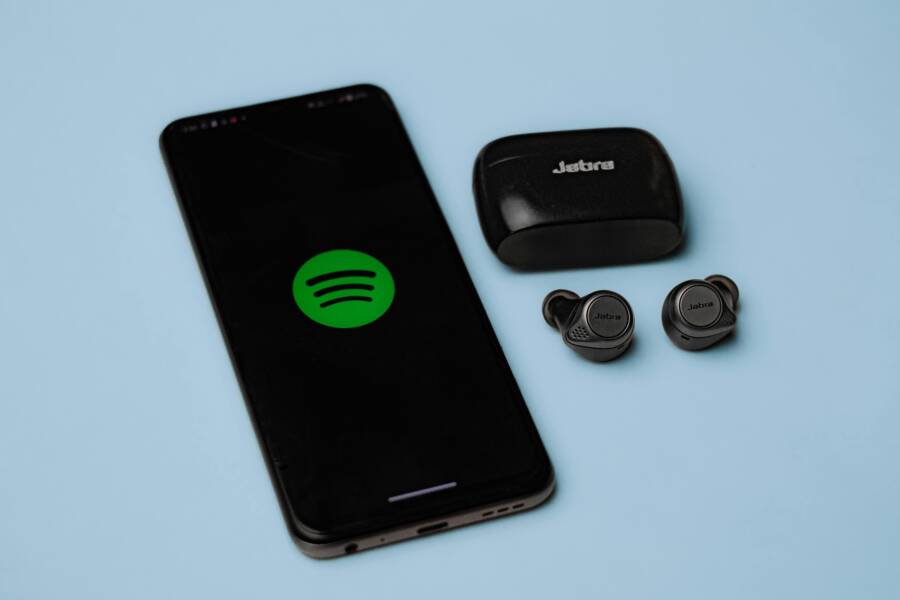
If your music stops the moment you tap the camera, you’re not imagining it. Many smartphones pause or mute streaming audio when the camera app comes to the foreground. It can be frustrating, especially when you’re trying to capture a moment and listen at the same time. The good news is you can fix most of these issues with a structured approach. This guide walks you through practical steps for both Android and iOS devices, with clear actions you can take today.
Opening a camera app should feel effortless, not jarring. By understanding why the problem happens and applying targeted fixes, you can keep your audio playing while you shoot. The steps below avoid jargon and focus on actions that deliver real results. You’ll learn how to manage audio focus, adjust battery and app settings, and identify when a deeper fix is needed.
Common causes you can sort out quickly
- Audio focus conflicts: The system hands audio control to the camera app when it opens, which can interrupt playback from your audio app.
- Background activity restrictions: Battery saver or app restrictions can pause background audio when another app demands foreground activity.
- Permissions and app behavior: Some apps don’t gracefully handle audio focus changes or dependency on microphone and camera services.
- Hardware routing: If your device switches to a different audio output (like Bluetooth or a headset) when the camera starts, playback may pause or divert unexpectedly.
- Software glitches: A bug in the OS, camera app, or audio app can trigger odd behavior after an update.
What to try first if you’re in a rush
- Restart the phone. A quick reboot clears small glitches and resets audio routing.
- Close other apps. Shut down background apps that might grab audio focus.
- Check Do Not Disturb and sound settings. A rule or mute setting can interfere with playback when the camera opens.
- Test with another audio app. If one app misbehaves, the issue may be app specific rather than system wide.
- Try a simple camera test. Open the camera while playing a local audio file to see if the issue is with streaming services or all playback.
Android users: fix steps you can apply
- Update the software and the apps
- System updates fix known conflicts that cause audio to drop when foreground apps change. Update the OS and all audio and camera apps to the latest versions.
- Clear cache and data for the audio app
- Go to Settings > Apps > [Your Audio App] > Storage and tap Clear Cache. If problems persist, you can also try Clear Data, but note this will reset the app to its original state.
- Reset app preferences
- This option often fixes misbehaving permissions or disabled components. On Android, go to Settings > System > Reset options > Reset app preferences. This won’t erase your data but will re-enable disabled apps and permissions.
- Exclude the audio app from battery optimization
- Battery optimizations can pause background activity. Find the audio app under Settings > Battery > Battery optimization and set it to Don’t optimize.
- Check notification and background activity settings
- Some phones restrict background work to save power. Ensure the audio app is allowed to run in the background and show notifications for playback controls.
- Test in Safe Mode
- Safe Mode disables third party apps. If audio stays playing while the camera opens in Safe Mode, a third party app is the culprit. Uninstall recently installed apps and test again.
- Review camera and microphone permissions
- Although you aren’t using the microphone for playback, some apps rely on microphone access for focus handling. Check Permissions for the camera and the audio app to ensure nothing is blocked unexpectedly.
- Reset network and routing if needed
- Occasionally an audio route switch causes a hiccup. Toggle Bluetooth off then on, or switch from Bluetooth to speaker and back to Bluetooth to confirm routing isn’t at fault.
iPhone users: fixes that fit the iOS design
- Update iOS and apps
- Keep iPhone software and all apps current to avoid known conflicts between camera capture and audio playback.
- Force close overlapping apps
- Double press the Home button or swipe up from the bottom to reveal the app switcher. Swipe away the audio app and the camera app, then reopen the audio app and film again.
- Check Background App Refresh and cellular data
- Open Settings > General > Background App Refresh and ensure it’s enabled for the audio app. Disable while you’re testing if needed. Also verify that the app has permission to use cellular data if you rely on streaming.
- Focus, Do Not Disturb and audio routing
- If Focus or Do Not Disturb rules are active, they can suppress audio interruptions or alter routing. Review Focus settings and turn off any rules that could affect playback when the camera is in use.
- Reset all settings as a lightweight reset
- On iOS, Settings > General > Transfer or Reset iPhone > Reset > Reset All Settings. This resets preferences but keeps your data. It can clear glitches without a full factory reset.
- Reinstall the problematic apps
- Remove and reinstall the audio app. This often clears corrupted caches or misconfigured permissions that survive an update.
- Check audio output routing
- Make sure the audio is playing through the intended speaker or headphones. On iPhone, you can switch output in Control Center during playback to prevent unexpected routing when the camera opens.
- Test with the built-in apps
- Use the stock Music or Podcasts app to verify whether the issue is app specific or system wide. If the problem appears only with a single app, reach out to the developer with your findings.
Advanced checks that cover unusual cases
- Try a different camera app Sometimes the issue is caused by a particular camera app. Install a different camera app and test playback while using it. If the problem disappears, the original camera app is the likely source.
- Test hardware and connections If you use wired headphones or external speakers, test with different outputs. A faulty jack or USB-C/Lightning adapter can cause audio to drop when the camera is active.
- Look for OS bugs in public reports Occasionally, a known OS bug affects audio focus when the camera is opened. A quick web search can confirm whether other users report the same issue after a recent update. If so, waiting for the fix from the manufacturer or rolling back to a stable version might be necessary.
- Try a clean boot or factory reset as a last resort If every other approach fails, a factory reset can clear deep software conflicts. Back up data first. This is a last resort because it wipes apps and settings.
Preventive practices to reduce future interruptions
- Keep software up to date Regular updates fix a range of audio and camera conflicts. Turn on automatic updates where possible and routinely check for new versions.
- Manage data and app permissions wisely Grant only the permissions you need and review them after updates. A misconfigured permission can cause unexpected behavior when an app moves to the foreground.
- Use a single audio source for testing When diagnosing, run one audio source at a time. If you switch between streaming and downloaded files, you can better identify whether the problem is consistent or depends on content type.
- Optimize battery and performance settings Avoid aggressive battery saving on critical apps. Allow certain apps to run in the background and disable aggressive limits on background processes.
- Keep a simple test routine Create a quick checklist you can repeat after updates: restart, close background apps, test playback with camera open, test again with a second audio app. A routine helps you spot changes quickly.
Examples to visualize how these fixes apply
- Scenario A: You’re listening to a podcast and you switch to the camera to take a quick shot. After a recent Android update, the podcast pauses. You follow the steps: update both apps, disable battery optimization for the podcast, and force close the camera. The podcast continues playing as you take photos.
- Scenario B: An iPhone user notices the same issue with a streaming music app after installing a new camera app. They refresh the music app, ensure Background App Refresh is enabled, and then reset all settings if needed. Playback remains uninterrupted when the camera opens.
- Scenario C: A user tests with a different audio app to confirm the problem is not hardware. The new app behaves normally, pointing to a software conflict in the original audio app. Reinstalling or updating that app resolves the issue.
Key takeaways to keep in mind
- Audio focus management is at the heart of this problem. When the camera starts, the system may hand control away from the audio app.
- A mix of OS, app, and hardware factors can create unpredictable behavior. Systematic testing helps isolate the cause.
- Simple steps often solve the issue. Updates, clearing caches, and allowing background activity address most cases without a deep reset.
When to seek expert help
- If the issue persists after all standard fixes, contact the device manufacturer support. Provide details about your device model, OS version, affected apps, and a step by step of what you tested. You can also reach out to the audio app’s support team with your findings. In rare cases, a hardware issue could contribute to abnormal audio routing when the camera app is active.
Conclusion
A phone should handle both audio playback and camera use without forcing you to choose one. By identifying the root cause and applying a focused set of actions, you can restore smooth operation. Start with quick checks, then move through device specific fixes for Android and iOS. If the problem continues, there are solid paths forward through reinstallations, settings resets, or expert guidance.
Take control of your listening experience and keep your smartphone ready for both photos and sounds. With patient, methodical steps, you’ll often find a clean, lasting solution that makes future camera sessions a seamless part of your day.
If you’ve found a particularly effective trick that isn’t covered here, share it in the comments. Your tip could help someone else save time and frustration.