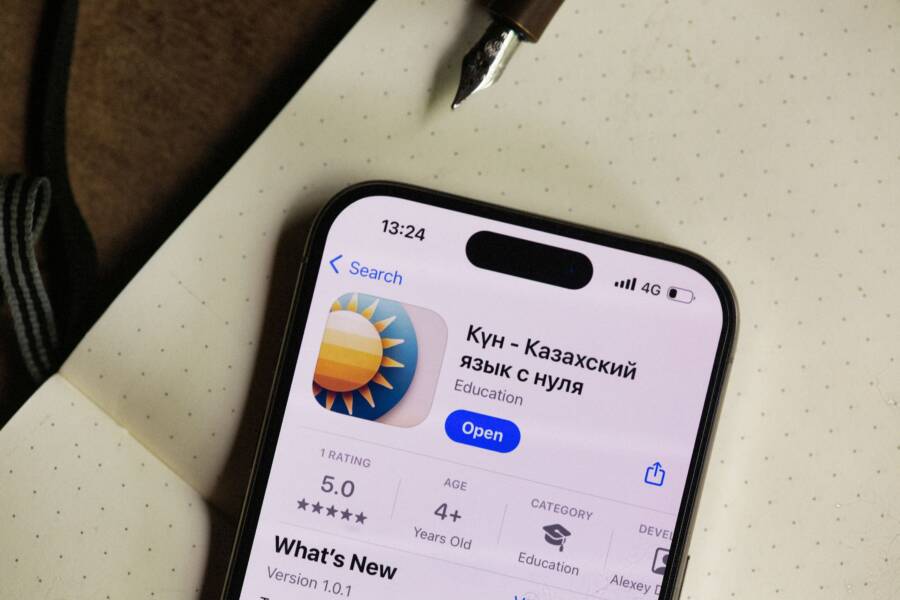
You cannot sign in to the App Store because of a mismatch between your account credentials, network settings, or a temporary software error on your smartphone. This issue often causes frustration, yet it is usually a simple problem to fix. You do not need technical expertise to restore your access.
Most users resolve these sign-in failures by verifying their internet connection or updating their account status. You will likely find your solution by clearing out common software glitches through a few quick adjustments. We will walk through the steps to get your device back on track.
Check Your Internet Connection First
A failed App Store sign-in often points to a simple network disruption rather than a complex account error. Your smartphone relies on a steady data stream to verify credentials with remote servers. If the signal remains weak or blocked, the authentication process times out. Start your troubleshooting by confirming your device has an active path to the internet. Open your web browser and load a new webpage to test the current connection speed and stability.
Switching Between Wi-Fi and Mobile Data
If your current connection seems sluggish or fails to load pages, toggle your network source. Your smartphone typically prioritizes saved Wi-Fi networks even when the signal remains poor or lacks true internet access. You can disable Wi-Fi in the Settings menu to force the device to use cellular data instead. Conversely, if you reside in an area with poor cellular reception, move to a known Wi-Fi hotspot to see if the sign-in succeeds.
Network failures often occur due to restrictions on specific connections:
Public Wi-Fi networks in airports or cafes often have firewalls that block ports required by the App Store.
Cellular data plans may have active roaming blocks or data limits that restrict background services.
Some Wi-Fi routers include security settings that treat login requests as unauthorized traffic.
Switching sources helps you identify if the issue stays with the local network or your account. If the App Store works on cellular data but fails on home Wi-Fi, your router settings are likely the culprit. You might need to restart your modem or check for network-level blocks.
Toggling Airplane Mode to Reset Connections
Sometimes the internal modem on your smartphone hangs during a handshake with a cell tower. Airplane mode acts as a quick reset switch for all wireless radios. Enabling this mode cuts power to Wi-Fi, Bluetooth, and cellular antennas simultaneously. It forces the hardware to clear its current state and prepare for a fresh request.
Follow these steps to perform a soft reset of your connection:
Open the Quick Settings panel or the main Settings app on your smartphone.
Locate the Airplane Mode icon and tap it to turn it on.
Wait about ten seconds to allow the internal modem to cycle its power.
Tap the icon again to disable Airplane Mode and restore all wireless functions.
Once the signal bars reappear, wait for the network to re-authenticate with the nearest tower. This process creates a clean communication channel between your device and the server. Attempt to sign in to the App Store again after the network status returns to normal. This simple pause often clears out temporary bugs that prevent a successful connection.
Verify Your Credentials and Apple ID or Google Settings
If your internet connection functions properly but you still encounter errors, your account authentication is the likely culprit. App stores often rely on stored security tokens that expire or become corrupted over time. Updating your credentials forces your smartphone to perform a fresh handshake with the server. This simple process resolves most persistent login blocks.
Signing Out and Back Into Your Account
Signing out removes the current session data that may be causing a conflict. Once you sign out, your smartphone clears the local authentication tokens and prepares a clean slate for your next login attempt.
Follow these steps to refresh your account access:
Open the Settings app on your device.
Locate the section for your account profile or App Store settings.
Select the option to sign out of your Apple ID or Google account.
Restart your smartphone to ensure all background processes refresh.
Return to the App Store or the settings menu to sign back in with your credentials.
Entering your password again confirms your identity directly with the server. This step often resolves issues where the phone holds onto outdated security certificates. If your password was recently changed elsewhere, this action also updates the necessary handshake information on your local device.
Checking Payment Methods and Region Settings
Your App Store access depends on valid billing information and correct regional data. If your credit card expires or the bank flags a transaction, the store often restricts your ability to download or update apps. Similarly, your account region must match your actual location for services to operate without interruption.
You can verify these details by reviewing your account profile:
Check the payment method section to ensure your credit card is active and not expired.
Confirm that your billing address matches the region associated with your store account.
Verify that your store location settings reflect the country where you currently use your smartphone.
A mismatch between your physical location and your account region often triggers security flags. For example, using an account set to one country while your network IP address originates from another can block authentication. Update your payment details or address settings if you have recently moved or replaced a card. These simple adjustments satisfy the requirements for your smartphone to access store services reliably again.
Software Updates and System Cache
Outdated software and corrupted temporary files often block your smartphone from communicating with store servers. When system processes hang, they keep stale data in the memory that prevents new login requests from completing. Keeping your OS current and periodically clearing temporary storage ensures your device handles authentication protocols without friction.
Restarting Your Device to Clear Temporary Glitches
A system restart serves as the most effective method to stop background processes that have frozen or entered an infinite loop. Your smartphone maintains various temporary files in its system cache to load apps and services faster. Occasionally, these files become corrupted or conflict with recent updates, which leads to sign-in errors.
A soft restart refers to the standard power cycle where you turn the device off and on again using the software menu. This action gracefully closes active applications and clears the volatile memory. You should choose this method first because it preserves all your data and settings while flushing out minor hiccups.
A hard restart, or force restart, acts as a more aggressive intervention for your smartphone. You perform this when the operating system becomes unresponsive or the screen stops reacting to touch. It bypasses the standard shutdown routine to cut power directly to the processor, forcing the hardware to stop all current tasks immediately.
Follow these steps to refresh your device:
Save any work in progress, then open your device power menu.
Select the option to restart the device.
If the screen is frozen, press and hold the physical power button and volume key combination specific to your model for 10 to 15 seconds.
Wait for the manufacturer logo to appear before releasing the buttons.
Once the phone boots back to the home screen, wait an additional minute for background services to initialize. Attempt the App Store login again after this period. This simple action often provides the clean state required to re-establish a secure connection with the servers.
Troubleshooting Persistent Store Errors
Sometimes the difficulty with your smartphone stems from external server outages rather than your personal settings. When major services experience downtime, even correct credentials and a stable connection will not grant you access to the store. Checking these platforms saves you time before you attempt complex diagnostic steps on your own device.
How to Check Official Service Status Pages
Companies maintain public dashboards to report outages in real time. If the service is down for everyone, the best course of action is to wait until their engineers resolve the internal error. You can visit these specific pages to verify if the issue exists on their side of the connection.
Apple System Status: Visit the official Apple System Status page at apple.com/support/systemstatus. Look for the App Store icon and verify the indicator is green, which denotes that the service is currently operational.
Google Workspace Status Dashboard: Check the Google Service Health page at google.com/appsstatus. This dashboard shows the current status of the Play Store and other related account services.
These pages provide the most accurate information regarding server-wide problems. If you see a yellow or red icon next to the store service, the provider is already aware of the situation. You do not need to perform any further troubleshooting on your smartphone because the fix must come from the company.
Sometimes, the status page may report that the system is functioning, yet you still experience issues. In these instances, the problem is likely specific to your regional server or a localized data center. Check social media channels or community forums to see if other users in your immediate area report similar login failures. If many people confirm the same behavior, wait a few hours and try your request again. Most temporary server synchronization problems resolve automatically without any intervention on your part.
Conclusion
Fixing your smartphone app store connection usually requires only a few targeted adjustments. Start by confirming your internet connection, refreshing your account credentials, and performing a system restart to clear temporary software conflicts. These steps handle most common authentication failures without the need for advanced technical skills.
If you still cannot sign in after following these methods, contact your device manufacturer or the official support channel for your app store. They can check your account for specific restrictions or persistent server-side issues. You will soon be back to downloading and updating your favorite apps once you resolve these minor connectivity barriers.