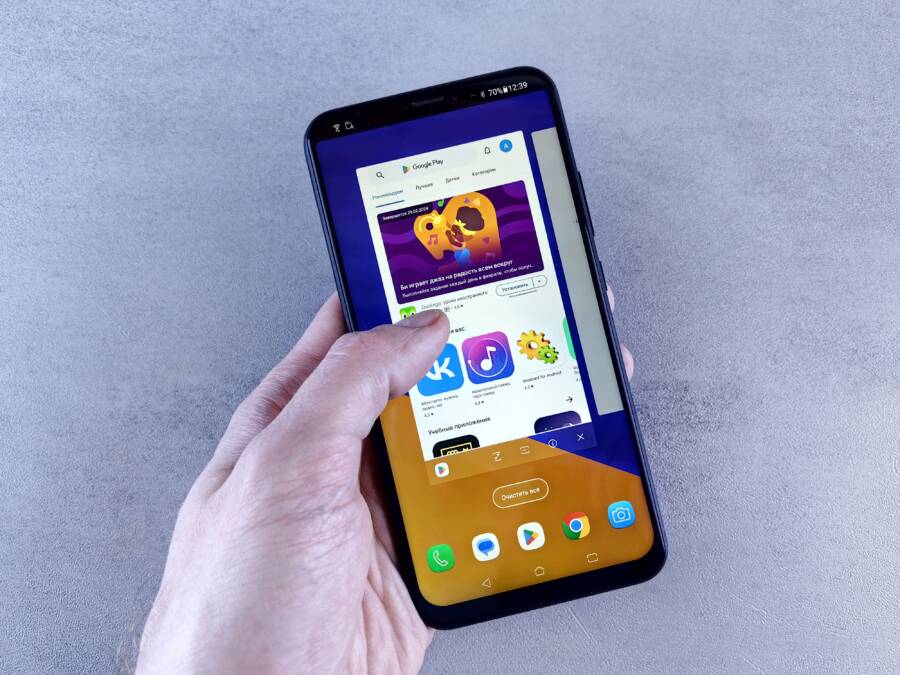
When your smartphone stops downloading new apps, you usually face a simple technical glitch rather than a broken device. Most issues stem from a weak internet connection, insufficient storage space, or an outdated operating system.
You can often fix these errors in minutes by checking your network settings or clearing your cache. This guide shows you how to troubleshoot the problem and get your apps running again.
Quick Connection Checks for Your Smartphone
A faulty internet link is the most frequent cause for app download failures. If your smartphone cannot reach the app store servers, the download process will stall, throw an error message, or sit at pending status indefinitely. You should verify your connection status before adjusting advanced system settings.
Fixing Wi-Fi and Cellular Data Glitches
Small errors in your network configuration often stop data flow. Resetting your network settings clears saved Wi-Fi passwords, Bluetooth pairings, and cellular configurations, which forces the smartphone to establish a fresh connection.
Follow these steps to refresh your network state:
Open the Settings app on your device.
Search for or navigate to the System or General Management menu.
Select the option for Reset or Transfer/Reset.
Tap Reset Network Settings and confirm your choice.
Your device will restart after this process. You must reconnect to your Wi-Fi network manually afterward.
Keep in mind that Wi-Fi and cellular data operate under different rules. Many app stores restrict large downloads to Wi-Fi to protect your mobile data allowance. If you are trying to install a large game or a high-definition app while away from home, the store will likely pause the download. Check your store settings to allow downloads over mobile data if you have an unlimited plan or sufficient high-speed data remaining.
Testing Your Network Speed
A weak or unstable connection causes time-outs during large file transfers. Even if you see a signal icon on your screen, the actual data throughput might fall below the threshold required to maintain a secure download link. High latency or frequent packet loss will interrupt the handshake between your smartphone and the server.
You can verify your performance by visiting an online speed test site in your mobile browser. A stable connection for app installations typically requires at least 5 Mbps for small files or 25 Mbps for larger applications. If your test shows very low speeds or high ping times, move closer to your router or toggle your airplane mode on and off to cycle your radio. If speeds remain poor, contact your service provider to see if there is a regional outage or if your data has been throttled due to monthly usage limits.
Managing Storage Space and Device Performance
A lack of storage is a primary reason your smartphone fails to install new applications. When you download software, the device requires a temporary buffer of free memory to unpack compressed files and run installation scripts. If your storage is nearly full, the system cannot create these temporary files. You often see errors or stalled progress bars because the hardware lacks the breathing room to complete the task.
How to Free Up Internal Memory
You can regain space by identifying and removing large, unused files. Your smartphone settings menu provides a breakdown of what occupies your memory. Look for a section labeled Storage or Device Care to see a visual chart of your usage.
Video files, high-resolution photos, and cached media from streaming apps frequently consume the most space. Consider these steps to clean your device:
Open your device settings and navigate to the storage overview menu.
Review the list of apps sorted by size to identify software you rarely use.
Uninstall games or utility apps that occupy hundreds of megabytes without providing daily value.
Back up your photos to a cloud service like Google Photos or iCloud and then delete the local copies.
Clear your temporary files or trash folders, which often hold deleted items for thirty days.
Clearing space is not just about deleting apps. Old downloaded files in your browser or attachments in messaging apps frequently hide in subfolders. Removing these redundant files creates the necessary workspace for the operating system to process new installations successfully. Aim to keep at least 10 percent of your total storage capacity empty to ensure the smartphone runs smoothly.
Clearing App Store Cache
Sometimes the issue is not your physical storage but corrupted communication data. The app store uses a cache to store images, icons, and text from previous sessions to load faster. If this data becomes outdated or corrupted, the store might fail to connect to the server, making it look like your device has no storage.
Clearing the cache forces your smartphone to download fresh data from the server. Follow this process to reset the application status:
For Android users, go to Settings, tap Apps, find the Google Play Store, and select Storage. Tap Clear Cache and Clear Data.
For iPhone users, the App Store does not have a manual cache clear button, but you can force a refresh by tapping the Updates tab icon repeatedly. Alternatively, restarting your smartphone often flushes temporary system caches that interfere with store connectivity.
After clearing the cache, restart your device before attempting your download again. This simple reset clears out digital clutter and allows the app store to communicate with servers without interference from old, broken files. If the download still fails after clearing the cache, check if your system software requires an update.
Resolving Software and Account Issues
Sometimes your smartphone functions perfectly, yet it still refuses to install new software. These issues often relate to internal authentication errors or outdated system files that block communication with the app store. Resolving these concerns usually requires a fresh look at your account credentials and system integrity.
Updating Your Smartphone Operating System
Old software versions often conflict with modern security requirements set by app stores. When your smartphone runs an outdated operating system, it may lack the updated digital certificates needed to verify secure connections to the server. This prevents the store from validating your request to download or update apps, leading to recurring error messages.
Manufacturers frequently release patches that fix bugs within the installation engine itself. If you ignore these notifications, your device stays prone to compatibility gaps. Keeping your system current is the most effective way to ensure all store services run with the latest security protocols.
Follow these steps to check for pending software updates:
Open the Settings app on your device.
Select the System, General, or Software Update menu.
Tap Check for Updates or Download and Install if a new version is waiting.
Allow the smartphone to restart and complete the installation process.
Once the device reboots, the system will re-establish its handshake with the app store. Many users find that this simple refresh solves persistent download failures that seemed related to account settings.
Troubleshooting Account Login Problems
If your system is fully updated but downloads still fail, your store account session might be corrupted. An expired session prevents the store from verifying your permissions to download apps, often leaving your requests in a pending state without explanation. This commonly happens if you changed your password recently or if the server had a temporary sync error.
You can often fix these issues by clearing your active session and signing back into the service. This forces the app store to request fresh authentication tokens from the server, which resets your download permissions.
To refresh your account connection, perform these steps in order:
Navigate to your device Settings and find the Passwords or Accounts menu.
Locate your specific app store account and select Sign Out or Remove Account.
Power down your smartphone completely and wait for thirty seconds.
Turn the device back on and return to the store app.
Enter your credentials again to sign in and re-establish the link.
Restarting the device between signing out and signing back in is important because it clears any residual data from your device memory. After logging in, verify that your payment methods are current, as invalid billing information can also block the start of a new download. Once the account session is fresh, your device should process new installations normally.
Advanced Steps and When to Seek Help
If standard troubleshooting fails to resolve your app download issues, your smartphone might require deeper system intervention. These advanced methods address underlying software conflicts that typical menu settings cannot fix. When these steps also prove ineffective, you should contact professional support to prevent further data loss or hardware damage.
Performing a Safe Restart
A simple reboot clears temporary memory and terminates frozen background processes that prevent new app installations. This action acts as a reset for your operating system, ensuring that services responsible for network communication and file management start from a clean state.
You have two primary ways to initiate a restart, depending on your needs. A soft restart is the standard power-down procedure. You turn the phone off normally, wait a few seconds, and power it back on. This allows the system to close all active tasks gracefully and save your current state.
If your device is unresponsive, a forced restart is necessary. This method cuts power to the processor instantly, bypassing the normal shutdown sequence. It is useful when your screen is frozen or the system refuses to respond to touch input.
To perform a forced restart on most modern smartphones, follow these patterns:
For recent iPhones, press and quickly release the volume up button, press and quickly release the volume down button, then press and hold the side power button until the Apple logo appears.
For most Android devices, press and hold the power button and the volume down button simultaneously for about 10 to 15 seconds.
Once the screen goes dark, release the buttons and wait for the device to reboot to the home screen.
Always try the soft restart first, as it is safer for your file system. Use the forced restart only when the phone is completely locked up. If your device still refuses to download applications after a forced reboot, consider that an internal hardware issue or a deeper software corruption is at play.
When to Contact Professional Support
Sometimes, you reach a point where self-repair poses a risk to your data. If your smartphone continues to fail at downloading apps after you have updated the software, reset the network, and verified your account, the problem might be hardware-related or linked to a deeper system registry error.
Contact technical support or visit a service center under these conditions:
Your device shows signs of physical damage, such as a swelling battery, a cracked screen that affects touch responsiveness, or port damage that interferes with charging and data transfer.
You have already performed a factory reset and the app store still fails to connect or complete installations.
The phone exhibits erratic behavior, such as random shutdowns or persistent overheating, while attempting to process even small downloads.
You receive specific error codes during the download process that indicate a corrupted system partition or a hardware failure.
Support technicians can run diagnostic tools that check internal components for failure. They also have the authority to re-flash the operating system if the firmware is corrupted. Back up your photos, contacts, and important documents to a cloud service before handing your device to a technician. A professional repair ensures your smartphone returns to a working state without you risking the loss of your personal information.
Conclusion
Most app installation issues stem from simple connectivity, storage, or synchronization errors. You can usually resolve these problems by testing your internet speed, clearing excess data, or updating your operating system. Consistent maintenance of your smartphone prevents these glitches from returning.
A healthy device requires periodic clearing of temporary files and regular software updates. These habits ensure your apps download and function as expected. If you still face errors after trying these fixes, reach out to professional support for help.