You can make your smartphone much easier to use by choosing a simple layout with large icons. A clean home screen reduces frustration, prevents accidental taps, and keeps essential tools within reach.
Most people struggle with modern devices because the default settings prioritize small, cluttered icons. Adjusting these settings helps you regain control and confidence every time you pick up your phone.
Follow these steps to simplify your device and create a stress-free experience for your daily needs.
Why a Simplified Home Screen Matters for Seniors
A cluttered home screen creates unnecessary barriers for many older adults. When a screen displays dozens of small icons, finding a specific app becomes a guessing game. By reducing the number of visible items, you minimize cognitive load and help the user focus on the task at hand. This approach turns a complex smartphone into a helpful tool rather than a source of stress.
Reducing Cognitive Overload
Modern interfaces pack too much information into a tiny space. This density makes it hard for users to distinguish between vital apps and background system processes. A simplified screen removes unused icons, folders, and widgets that often confuse casual users. When you prioritize only the most necessary functions, you prevent the panic that occurs when someone accidentally taps the wrong button.
Preventing Accidental Actions
Small icons increase the likelihood of missing your target. This leads to opening the wrong application or changing settings without meaning to. Large, clear icons on a sparse screen provide a generous hit target that is easier to navigate with decreased dexterity. Users feel more confident when they know exactly where to tap to make a call or open their photos.
Building User Confidence
Mastery of a device starts with predictability. When the phone layout remains static, the user builds muscle memory for locating their most used contacts and apps. A chaotic layout changes constantly as new updates or notifications appear, which ruins that sense of familiarity. Providing a fixed, clear structure allows the user to feel capable and independent while operating their smartphone.
Benefits of a Minimalist Layout
A clear, simplified screen layout offers measurable advantages for everyday comfort. You can see how these adjustments affect the user experience below.
Focusing on these key areas ensures the device serves the user instead of demanding constant attention. A simple setup removes the friction that often stops people from enjoying their technology. By making these small adjustments, you create a device that feels personal, accessible, and easy to manage throughout the day.
Essential Steps to Configure Your Android Smartphone
Configuring a smartphone requires a methodical approach to ensure the interface stays predictable and accessible. Most modern devices provide hidden settings designed to simplify navigation for users who prefer fewer distractions. By adjusting these basic parameters, you transform a generic interface into a personalized tool that supports daily independence.
Enabling Built-in Easy Modes
Many smartphone manufacturers include a dedicated setting to simplify the user interface automatically. Samsung devices, for example, feature a setting specifically named Easy Mode. This function scales up text, increases icon sizes, and adds a slight delay to touch interactions to prevent accidental inputs.
To activate this feature on a Samsung device, open the Settings app and select Display. From there, look for the Easy Mode option. Once you toggle the switch to on, the phone updates the home screen layout and increases the font size throughout the system. This mode also adds a high-contrast keyboard, which improves visibility for those who struggle with standard color schemes.
Other Android manufacturers offer similar accessibility features under different names. You might find them labeled as Simple Mode, Senior Mode, or Basic Interface. Regardless of the brand, these settings perform the same fundamental tasks:
- They increase the scale of all UI elements.
- They remove non-essential buttons and notifications.
- They simplify the navigation bar at the bottom of the screen.
If your specific model does not include a native easy mode, you can still achieve a similar effect by manually adjusting system settings. Increasing the display zoom and font size in the Accessibility menu creates a larger, more legible interface that mimics the benefits of built-in easy modes.
Customizing App Icons and Grids
The home screen grid determines how many icons fit on your screen at once. A dense grid often results in tiny icons that feel cramped and difficult to select. Changing this setting to a wider, more sparse layout provides breathing room for every app shortcut.
You can modify the grid size by long-pressing on any empty space on your home screen. Select the Home screen settings icon that appears in the menu. Choose the Home screen grid option to pick a layout with fewer rows and columns. A 4×4 or 4×5 grid usually provides the best balance between icon size and usability for an elder-friendly setup.
If the stock interface remains too complex or lacks the specific customization you need, consider using a third-party launcher. Applications like Nova Launcher or Niagara Launcher offer granular control over every aspect of the display. They allow you to:
- Hide apps that the user never touches to reduce clutter.
- Rename app icons to use simpler, more descriptive text.
- Lock the home screen layout to prevent accidental moves or deletions.
Using a launcher effectively locks the interface into a static, reliable state. Once you finish the setup, the user can count on finding their messages, phone app, and photos in the exact same spot every time. This consistency minimizes errors and builds long-term confidence with the smartphone.
Optimizing Your iPhone for Better Readability
Improving how a smartphone looks is the most effective way to help older users feel comfortable with their device. When text appears blurry or too small, it creates unnecessary strain and leads to frustration. Fortunately, iOS provides built-in tools that allow you to modify the visual display to match individual vision needs. These adjustments make navigation faster and reduce the likelihood of making mistakes.
Adjusting Display Zoom and Text Size
Apple includes specific accessibility settings that scale the entire interface. You can make icons larger, text bolder, and menus easier to read within a few minutes. These changes apply to most built-in apps and system menus on the smartphone.
- Open the Settings app on the device.
- Scroll down to select the Accessibility menu.
- Tap on Display & Text Size to see available options.
- Toggle the Bold Text switch to make letters darker and more distinct.
- Select Larger Text and drag the slider to your preferred size.
- Return to the main Accessibility menu and tap Display Zoom.
- Choose the Zoomed option to increase the size of icons and interface elements across the home screen.
If the user still struggles to read specific areas, you can enable the Zoom feature in the Accessibility menu. This tool allows the user to magnify any part of the screen with a simple gesture. It provides a helpful way to view small details on websites or images without changing the layout of the entire smartphone.
Removing Unnecessary Home Screen Clutter
A clean home screen is vital for ease of use. If the screen is crowded with dozens of apps, the user may feel overwhelmed or tap the wrong icon by accident. Removing unused icons keeps the most important tools in clear view and prevents accidental app launches.
You can hide apps that the user doesn’t need for daily tasks. Instead of deleting them, move them to the App Library to keep them accessible if they are needed later.
- Find the app icon on your home screen.
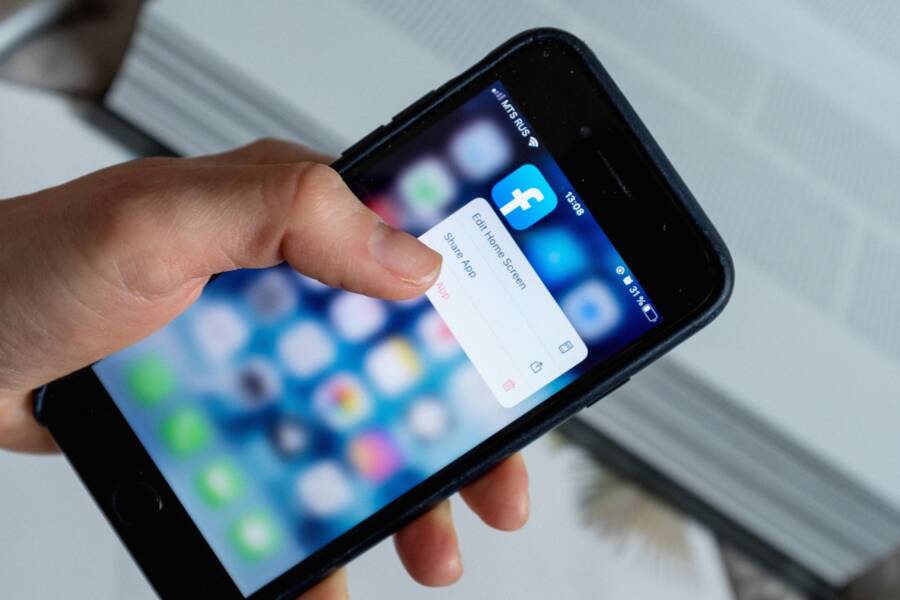
- Press and hold the icon until a menu appears.
- Select Remove App.
- Choose Remove from Home Screen to send the app to the App Library.
After clearing the extra icons, arrange the essential apps in a single location. Keep items like the Phone, Messages, and Photos apps on the first page of the home screen. This consistency helps the user build muscle memory, as they will always know exactly where to tap to start a conversation or view their memories. A sparse home screen layout simplifies the smartphone experience and removes the confusion of searching through multiple pages.
Choosing the Best Launcher Apps for Elders
A launcher app replaces the standard home screen on an Android smartphone. These tools change how the interface looks and functions to make the device more intuitive. When the factory layout feels too complicated, a custom launcher offers a clean, reliable alternative for daily tasks.
Why Third-Party Launchers Help
Most phone manufacturers pack the home screen with folders, widgets, and tiny icons that clutter your view. A dedicated senior launcher strips these extras away to highlight only what matters. You gain a screen with massive buttons, high-contrast labels, and a locked layout. This prevents common mistakes like moving an app by accident or deleting a contact shortcut. Because the buttons stay in the same place, the user builds confidence and muscle memory quickly.
Top Options for Simplified Navigation
Several apps exist to turn a complex interface into a simple, big-button experience. Each has unique features, so you should test one to see if it fits the user preferences.
- BIG Launcher provides a high-contrast interface with large, colorful buttons for every basic function. It is a popular choice because it supports custom text sizes and full screen layouts that are easy to see.
- BaldPhone is an open-source project that focuses on simplicity without hidden costs. It creates a vertical list of large icons that the user can scroll through easily. This design is helpful for those who prefer a linear, predictable path.
- Simple Mode apps often come bundled with accessibility kits. These tools remove the app drawer entirely to ensure the user only interacts with a few approved icons on the home screen.
How to Select the Right App
You should look for a launcher that locks the settings after you finish the initial setup. This feature is vital because it stops the user from accidentally changing the grid or hiding icons they need. Test the phone with the launcher for a full day to ensure every primary app remains accessible. If the user finds the menu too limited, you can usually add extra slots for secondary apps later. A good launcher makes the smartphone feel like a dedicated tool for communication rather than a complicated computer.
Prioritize apps that offer a simple emergency button or a direct call shortcut on the main page. This gives the user quick access to help and peace of mind during their daily routine. Once you install the best option for their needs, the device becomes much easier to manage.
Frequently Asked Questions About Senior Smartphone Settings
Adjusting a smartphone to fit individual needs often brings up common concerns. Users frequently ask about how these changes affect battery life, app performance, or system updates. Understanding these basics helps you manage the device without unnecessary worry.
Will changing icon sizes affect my battery life?
Changing the visual size of icons on your smartphone does not drain the battery faster. These settings merely alter how the software displays pre-existing graphics on the screen. The processor carries out the same amount of work regardless of whether an icon appears small or large. If you notice faster battery drain, check for apps running in the background or high screen brightness instead.
Can I accidentally delete system apps while simplifying the home screen?
Most modern mobile operating systems prevent you from deleting core system apps. When you choose to remove an icon from your home screen, you are simply creating a shortcut or moving it to a hidden storage area like the App Library. The actual program remains installed on the device. You can restore any missing icon by visiting your app list or search menu at any time.
How do I handle system updates after customizing my layout?
System updates usually preserve your home screen settings. Occasionally, a major update might reset certain visual preferences or add new default app icons to your home screen. If this happens, you can easily rearrange your icons or toggle your accessibility settings back to your preferred state. These updates provide security patches that keep your smartphone functioning reliably, so it is best to install them when prompted.
Is it possible to lock the home screen to prevent accidental changes?
Yes, most smartphones offer ways to prevent items from moving. Android users can often enable a “Lock Home Screen” setting within the home screen menu. This feature keeps every icon and widget fixed in its current position until you decide to unlock it. If you use a third-party launcher, this option is typically a standard part of the configuration menu. This setting is useful for maintaining a consistent layout that builds user confidence over time.
Does increasing the font size affect how websites look?
Increasing the system font size helps with text in menus, messages, and emails. However, it does not always change the text size on every website you visit. Many web browsers adjust text based on the site’s own design. To fix small text on websites, you can use the zoom feature inside your mobile browser app. This allows you to scale the page content independently of your system-wide font settings.
Conclusion
A simplified home screen does more than just clean up a display. It restores a sense of independence and control for the user. When a smartphone is easy to navigate, it stops being a source of confusion and becomes a reliable tool for daily life.
These adjustments ensure that technology works for the user, not the other way around. Once you lock in a clean, predictable layout, the device remains a helpful assistant rather than a constant hurdle. Take the time to set up these preferences, and enjoy a more relaxed, confident experience with your mobile device.