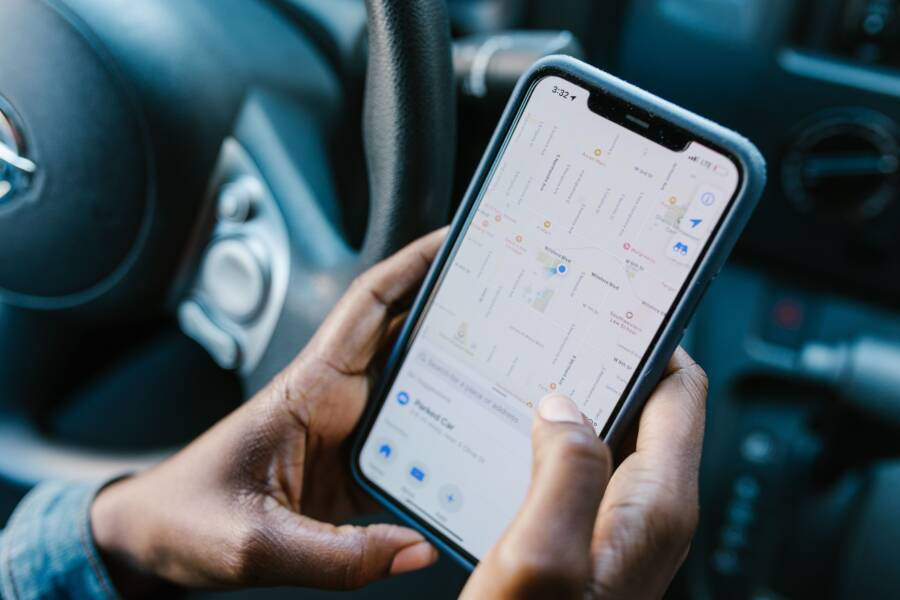
You can create a custom home screen on your smartphone to keep essential tools within reach while you drive. A dedicated setup allows you to access maps, music, and phone calls without digging through folders or searching for icons.
Fumbling for apps while behind the wheel creates unnecessary distractions. By grouping your most important navigation and media controls on a single page, you focus on the road instead of your device.
Building this interface requires only a few minutes of configuration. Follow these steps to set up your vehicle-friendly display for safer travel.
Why You Should Create a Dedicated Driving Home Screen
A custom home screen on your smartphone turns your device into a reliable tool for the road. By organizing your screen specifically for driving, you reduce the time spent looking away from the windshield. You no longer need to swipe through multiple pages or search for buried icons while your vehicle is in motion. This specialized setup acts as a command center, putting your most frequent travel apps exactly where your fingers naturally rest.
Minimizing Distractions Behind the Wheel
Road safety depends on keeping your attention directed forward. Every second you spend searching for a navigation app or a music control, your eyes leave the road. A dedicated driving home screen solves this by using high-contrast, large icons that are easy to spot at a glance. When you limit your display to only the apps you need for the journey, you remove the clutter that usually causes hesitation or error.
Muscle memory also plays a major role in how you interact with your smartphone. By placing icons in consistent locations, your brain learns exactly where to reach without requiring you to stare at the screen. You can tap your target application through peripheral vision alone. Because the device serves as your primary hub for navigation, this predictability makes every interaction quicker. You spend less time guessing where a button sits and more time monitoring traffic patterns.
Personalizing Your Most Important Driving Tools
The effectiveness of a driving screen depends on selecting the right tools for your specific routine. You should prioritize applications that handle navigation, audio playback, and communication. Placing these items in an accessible grid ensures you have everything needed for a trip without extra steps. Start by choosing a primary navigation app like Waze or Google Maps, as this is the centerpiece of most driving setups.
Next, add your preferred music or podcast player. Services like Spotify or Apple Music work best when you have shortcuts to your main playlist or library, allowing you to change tracks with a single tap. Finally, include contact shortcuts for your most frequent calls. Having a direct button to reach a family member or a workplace contact saves time compared to opening a full contact list. Arrange these icons on a single, clean page to keep your workspace simple. You gain a safer, more efficient experience when your smartphone only presents the tools that matter while you drive.
Step by Step Guide to Setting Up Your Driving Layout
Creating a dedicated screen for driving on your smartphone helps you maintain focus while you are behind the wheel. You can transform your device into a safer interface by isolating essential navigation and media tools on a single, clutter-free page. Follow these steps to organize your screen for better accessibility during your trips.
Organizing Your Smartphone Home Screen for Easy Access
The first step is to create a fresh, empty page on your home screen. On most models, you can add a new page by dragging an existing app icon to the far right edge of your current home screen until a new blank canvas appears. Once you have this space, you can customize it to fit your driving needs.
Begin by identifying the apps you use every time you start the car. Most users rely on a navigation app like Google Maps or Waze and a music streaming service such as Spotify or Apple Music. Move these icons to this new screen by holding down on each app icon and dragging it into position. Arrange these icons in a grid pattern near the bottom half of the screen. This placement makes it easier for your hand to reach them quickly without blocking your view of the upper display area. If you use a voice assistant, place its trigger icon or widget in a prominent location so you can initiate hands-free commands with a single tap.
Using Folders and Large Widgets Effectively
Folders and widgets allow you to pack more functionality into your driving layout without causing clutter. You should reserve space for secondary apps by grouping them into a folder. For instance, you can group parking payment apps, weather checkers, or fuel finder tools into a single folder named Road Helpers. This keeps your interface clean while keeping these auxiliary tools only two taps away.
Large widgets offer a better way to monitor information than standard icons. A map widget provides a live view of your route, while a music widget shows your current track and playback controls. Follow these steps to maximize their utility:
- Long press on an empty area of your driving screen to open the widget menu.
- Select the widget size that fits your screen layout best.
- Place the large navigation or music widget at the top of the screen where it stays visible at a glance.
- Arrange your most used secondary apps in a folder placed near the bottom corner.
By using these elements, you limit your time interacting with the screen. You gain a highly functional dashboard that keeps your smartphone useful yet safe during your time on the road. Check your layout once to ensure every button is reachable while your device is mounted in its stand.
Best Apps and Features for Your Car Page
Your smartphone setup performs best when you choose tools designed for the unique environment of a moving vehicle. Selecting the right software reduces the cognitive load on the driver. You need applications that prioritize large targets, clear audio feedback, and high-contrast visuals. These features allow your eyes to spend more time on the road rather than the screen.
Top Navigation and Music Apps for Drivers
Navigation and audio apps are the pillars of a functional car screen. You should choose these apps because their interfaces minimize interaction time. Google Maps and Apple Maps remain standard choices for navigation because they offer clear, turn-by-turn guidance. These apps use high-contrast graphics that stay visible even in direct sunlight. Waze is another strong option for drivers who prioritize real-time traffic alerts and hazard reporting.
Music apps such as Spotify, Apple Music, and YouTube Music provide specific car-friendly modes. These versions replace tiny menus with large buttons for play, pause, and track skipping. This design is safer because you can control your audio with quick taps. Many of these apps also integrate with your vehicle speakers to provide better sound quality and volume control.
- Google Maps provides predictive traffic data for your daily commute.
- Apple Music allows for deep integration with your device library.
- Waze identifies road hazards and police presence through user reports.
- Spotify offers quick access to recent playlists and personalized discovery mixes.
You should test these applications in your driveway before hitting the road. Ensure your chosen apps stay active in the background without closing unexpectedly. This preparation makes your smartphone a more reliable partner during travel.
Leveraging Voice Commands and Automation
Voice assistants remove the need to touch your smartphone entirely. Siri and Google Assistant provide hands-free control over almost every essential function. You can ask your assistant to start navigation, place calls, or read incoming messages without looking away from the windshield. Using these features reduces physical distractions while keeping you connected to what matters.
You can set up automation sequences to prepare your device when you enter the car. For example, your smartphone can detect the Bluetooth connection to your vehicle and automatically launch your navigation app or set the screen brightness to a readable level. These background tasks save time and remove the need to interact with the device manually.
- Enable the “Hey Siri” or “Hey Google” listening feature in your device settings.
- Pair your device with your car Bluetooth system to trigger automatic routines.
- Use simple commands like “Call home” or “Navigate to work” to test the system responsiveness.
- Practice these commands while parked to build comfort and confidence before driving.
Voice technology works best when you keep your commands short and direct. If the assistant misinterprets a request, try using a clearer, slower pace. This keeps your focus on the road and helps the software learn your speech patterns. Automation transforms your smartphone into a silent, capable co-pilot that manages the minor details of your trip.
Common Questions About Driving Home Screens
Users often have questions about how to best organize a smartphone for safer vehicle use. Addressing these concerns helps you get the most out of your custom interface without technical frustration.
Will custom home screens drain my battery faster?
A custom home screen setup rarely affects your battery life on its own. Most battery drain during drives comes from active navigation, high screen brightness, and background music streaming. Using a dedicated page keeps your display clean, but it doesn’t force apps to work harder. You can manage power consumption by keeping your device plugged into a car charger or using a mount with wireless charging features. Keeping the screen brightness set to automatic also helps you save energy while you drive.
Can I use these settings on any smartphone?
Most modern devices support these customization features regardless of the brand. You can create new home screen pages and move icons on both Android and iOS systems easily. The specific steps for adding widgets or folders might vary slightly between manufacturers. If you cannot find the settings to add a new home screen page, try checking your device manual or searching for the screen layout settings in your main menu. These tools are standard features on almost every contemporary smartphone sold today.
Does this setup work if I use Apple CarPlay or Android Auto?
These specialized car interfaces often override your custom smartphone screen when you plug in your device. If you prefer your own layout, you might choose to mount your phone separately and disable the automatic projection mode in your settings. This allows you to use your preferred widgets and icon arrangements instead of the simplified car interface. Many users prefer this manual method because it provides more control over which apps remain visible. You should weigh the convenience of a built-in car system against the flexibility of a personalized home screen to see which option fits your habits better.
How do I stop my screen from turning off while driving?
Keeping the display active is helpful when you need constant visual updates from a navigation app. You can adjust the auto-lock or screen timeout settings in your display menu to prevent the screen from going dark. Some navigation apps also include an internal setting to keep the screen awake during active guidance. Be aware that keeping your screen on for long periods can increase heat and battery consumption. If you notice your device getting warm, consider mounting it near an air vent to provide cooling airflow.
Conclusion
You now have a customized home screen that transforms your device into a safer, more efficient driving tool. By keeping your primary navigation and media controls on one page, you significantly reduce the time your eyes spend away from the road. This setup relies on simple placement and voice commands to keep your focus exactly where it belongs.
Take a few minutes to test your new layout while your vehicle is parked in your driveway. Try opening your navigation app, starting a playlist, and triggering voice commands to see if the buttons are easy to reach. Adjust your icon grid or widget size if you find any part of the interface awkward to use. This practical testing ensures your smartphone is ready to assist you safely before you start your engine for your next trip.