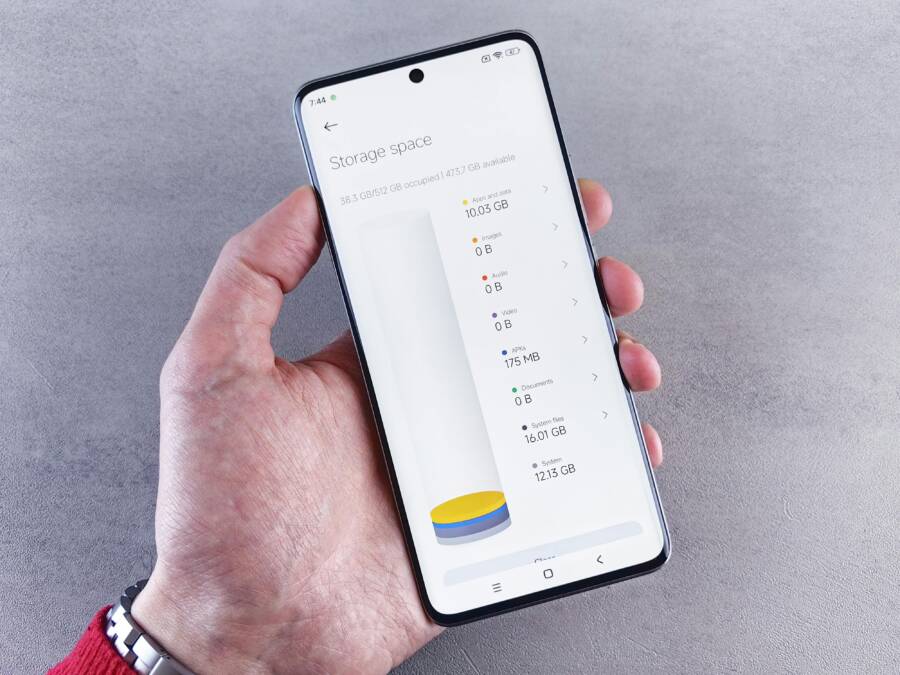
Are you noticing your phone fills up faster than you expect and slows down as a result? This guide shows how to clear storage on your phone without losing the stuff that matters, whether you use Android or iPhone. You’ll learn a simple plan for safe deletion, smart cleanup, and habits that keep space usable over time.
First, we’ll cover the basics you can do right away. You’ll discover quick wins to free up space without removing important files, apps that you actually use, and how to offload photos and videos safely. A quick cloud backup makes a big difference, so you won’t worry about losing precious memories or work files.
Then we’ll map out a practical, repeatable approach. You’ll get rules for safe deletion, a simple backup routine, and tips to keep storage healthy in the long run. By the end, you’ll have a clear path to maintain space with minimal effort and maximum confidence, no matter which device you own.
Quick reference checklist: enable cloud backup, review large files, offload photos and videos, uninstall unused apps, and set a regular cleanup cadence.
Understand what to keep and what to offload without losing important stuff
Clearing space without tossing something you’ll regret takes a simple, repeatable approach. This section helps you identify what truly matters, what you can safely remove, and how to build a backup habit that protects your memories and work. Whether you’re using Android, iPhone, or both, these rules keep your device lean and your data safe.
Identify essential data and safe deletion rules
- Define essentials up front
- Essential items typically include family photos and videos, important documents (tax forms, contracts, receipts), and work files you can’t recreate easily. If you rely on cloud access for documents, you can often reduce local copies but keep a quick-access version on your device for offline work.
- Examples: irreplaceable photos from last year’s trip, scanned documents, financial records, password vaults, and signed contracts.
- Separate duplicates and temporary files
- Keep a master copy and delete redundant duplicates. Use your Photos app or file manager to find near-duplicates and trim until you’re confident you’re keeping the best version.
- Temporary and cache files can usually be removed. Apps create caches to speed things up, but they rebuild quickly.
- Set simple retention guidelines
- If you’re unsure whether you’ll need something, keep it for 6–12 months. After backup confirmation, delete if not accessed.
- For items with periodic value, create a quarterly review to decide. If something is purely sentimental but not urgent, back it up and keep a smaller local selection.
- Prioritize privacy and backup
- Before deleting, ensure you have a recent backup. Prefer at least two locations: cloud and local (external drive or computer).
- Privacy note: remove sensitive data from devices you don’t control, like shared phones or work devices, after backing up. Use strong passwords and enable device encryption.
- Quick checklist:
- Back up first
- Identify essentials (photos, documents)
- Remove duplicates and caches
- Delete nonessential items after backup confirmation
Photo by Andrey Matveev
 Photo by https://www.pexels.com/@zeleboba
How to quickly spot the biggest space hogs
Most of the heavy space users sit in a handful of places: photos and videos, large apps or games, and cached data. The trick is to identify them quickly and decide which to offload or remove. Modern devices offer built-in ways to see what takes up space, and the steps are similar across Android and iPhone.
- Built-in views to identify hogs
- On iPhone: open Settings > General > iPhone Storage. You’ll see a color-coded breakdown by app and category, with recommendations to optimize space. Tap any app to see its specific data usage and options to offload or delete.
- On Android: Settings > Storage. You’ll often see categories like Apps, Images, Videos, Audio, and Cached data. Tap “Apps” to view per-app size and clear cache or uninstall apps you no longer use.
- Practical cleanup steps after spotting hogs
- Move photos and videos to the cloud. Services like Google Photos or iCloud can store originals while keeping a smaller device copy.
- Delete large videos you rarely watch. If a video is important, back it up first, then remove it from local storage.
- Remove unused downloads and stale files. Check your Downloads folder for files you no longer need.
- Review apps you haven’t opened in months. Offload or uninstall those that don’t add real value to your daily routine.
- Short next steps after identifying hogs
- Set a recurring cleanup window, such as once a month, to review new space hogs.
- Confirm backups before removing any item and keep at least two backups if possible.
- Consider a routine: back up to cloud first, then prune locally, then revisit in a few weeks.
Photo by https://www.pexels.com/@zeleboba
Photo by Andrey Matveev
Credit: Photo by Andrey Matveev on Pexels
- Quick links for deeper dives
- Learn how to check storage on iPhone and iPad: How to check the storage on your iPhone and iPad
- Free up space on Android: Free up space – Android Help
- See which Android apps use the most space: How to See Which Android Apps Are Taking Up the Most Space
- Backup best practices: Security recommendations for backups – Android Developers
Photo by Andrey Matveev
Photo by https://www.pexels.com/@zeleboba
- Quick wins to apply today
- Enable automatic cloud backups for photos and documents.
- Clear cached data in apps you trust after backing up.
- Move large media to cloud storage and keep a small offline cache for quick access.
Suggested reading: If you want a structured plan for backups, see the Android and iOS backup guides linked above. For privacy-minded storage habits, the data safety resources from the EFF offer helpful context.
Photo by Andrey Matveev
Photo by https://www.pexels.com/@zeleboba
- Example scenario A user discovers a 64 GB phone labeled with apps and media that no longer get used. They back up photos to the cloud, delete old videos, offload large apps they rarely open, and remove duplicate files. After a 15-minute cleanup, the device has 25 GB more free space, with essential files safely stored in two locations.
- Quick tip If you rely on your phone for work, set a quarterly backup and prune rhythm. It protects important data while preventing space from creeping back.
Learn more about keeping data safe while backing up
Photo by Andrey Matveev
Photo by https://www.pexels.com/@zeleboba
End of this section, you’ll have a practical framework to decide what to keep and what to offload without losing important stuff. The combination of smart categorization, reliable backups, and a consistent cleanup cadence keeps your phone tidy and ready for the tasks that matter.
Backups that protect memories across cloud and offline storage
Protecting memories means more than just freeing space. It means a reliable plan that keeps your photos, documents, and precious files safe whether you’re online or off. In this section, you’ll find practical cloud options that fit budgets, solid offline storage ideas, and simple automation to keep everything organized with minimal effort. You’ll also get quick tips on two factor authentication and password safety to guard your backups across devices.
Cloud backups that fit your budget and needs
Cloud storage is the easiest way to ensure memories are safe even if your device fails. Start with simple options and scale up as your needs grow. Here are straightforward paths that work for most people.
- Choose a primary cloud service based on usage. If you primarily back up photos, iCloud and Google Photos are common choices for iPhone and Android users, respectively. For a broader file set, services like Google Drive, iCloud, and other tiered plans give you a predictable price and cross-device access. For a quick read on how these options compare, see practical comparisons here: Google Photos vs iCloud and related guides.
- Link: https://tomsguide.com/computing/cloud-storage/google-photos-vs-icloud-which-should-you-use-for-your-photos
- Understand high quality vs original quality for photos. Most cloud options offer two modes: storing full resolution originals or a high quality (compressed) version that saves space. If you expect to print or need ultra detail, keep originals; for casual viewing, high quality is usually fine and saves storage. Many services let you switch after upload, so you can back up once and adjust later.
- Enable automatic uploads. Turn on automatic backups for photos and documents right after you install the app. This reduces the chance you’ll forget to back up new memories. It also keeps your device tidy since new files won’t pile up locally.
- Two factor authentication (2FA) and password safety. Add an extra layer of protection with 2FA. Use a dedicated authenticator app and a strong password for your cloud account. A password manager helps generate and store unique passwords you don’t have to remember. For trusted 2FA options, compare apps like Proton Authenticator, 2FAS, and other reputable managers.
- Link: https://proton.me/authenticator
- Cross-device access matters. When you back up to the cloud, you should be able to reach your files from any device. This reduces friction if your phone is full or unavailable. Make sure the cloud service supports file access from web browsers and has reliable apps for both iOS and Android.
- Two quick setup tips.
- Turn on auto-upload for photos and videos, and enable “optimize device storage” if offered by the service.
- Add a password manager and 2FA as a baseline; this keeps access consistent across devices and protects your backups.
Practical links to help you compare options and set up backups quickly:
- How cloud storage services compare and which fits your photo backup needs: https://tomsguide.com/computing/cloud-storage/google-photos-vs-icloud-which-should-you-use-for-your-photos
- A broad view of cloud storage apps to consider: https://zapier.com/blog/best-cloud-storage-apps/
- Best cloud storage for photos in 2025: https://www.tomsguide.com/buying-guide/best-cloud-storage-for-photos
- A general guide to transferring files between devices and cloud backups: https://support.apple.com/guide/iphone/transfer-files-iphone-a-storage-device-server-iphe9aff429a/ios
Tips to stay secure and organized
- Keep your primary cloud account separate from work or personal accounts to limit risk exposure.
- Use a unique, long password for your cloud account and save it in a password manager.
- Review connected devices periodically to ensure no unknown access exists.
- If you ever need to share a memory, use links with expiration when possible to protect privacy.
Local backups and offline storage options
Local backups are your safety net when internet access is slow or unreliable. They also give you direct control over your data. Here are practical offline storage options and how to use them effectively.
- USB drives and portable SSDs. A compact USB drive is great for quick, transportable backups. For larger libraries, a portable SSD offers faster transfers and more durable storage. Keep at least one backup on a separate drive from your main device.
- SD cards (where supported). Some phones and cameras support SD cards, making it easy to move memories to a dedicated card. If your device supports it, consider using a high-capacity, high-speed card for quicker backups.
- Computer backups. Regularly copy key files to your desktop or laptop. External hard drives connected to your computer can store full backups, photos, and documents. This is especially useful for archival purposes.
- Organizing local backups. Create a dedicated folder structure that mirrors your cloud organization. For example, have folders by year, event, or project. Consistent naming helps you locate files quickly later.
- Verification steps. After creating a local backup, verify files by opening several representative items from different folders. Check file integrity and confirm that no files are corrupted.
- Why separate backups from the device to reduce risk. If your phone gets lost or damaged, a local backup on a separate device remains accessible. Ideally, have at least two backups in different locations.
Simple steps to create a local backup
- Connect your storage device (USB drive or portable SSD) to your computer.
- Copy your photos, documents, and other important files to a dedicated backup folder.
- Eject the drive safely and store it in a separate location, such as a safety box or a different room.
- Periodically add new backups to keep the local copy up to date.
- Take a quick test file from the backup to ensure you can restore if needed.
To back up remotely and locally, use a hybrid approach: cloud for continuous protection and a local drive for fast restores and privacy. For many readers, this blend offers both convenience and peace of mind.
Useful resources for offline backups
- How to back up iPhone to external hard drive: https://www.mobikin.com/idevice/backup-iphone-to-external-drive.html
- How to back up Android phones to PCs: https://www.acronis.com/en/blog/posts/how-to-backup-android-phone-to-pc/
- How to back up and sync your Android phone to an external drive: https://howtogeek.com/back-up-and-sync-android-phone-to-external-hard-drive
- How to transfer files from Android to a computer: https://www.youtube.com/watch?v=-Cw5Ya57Mro
Key safety practices
- Maintain off-device copies on two different media types when possible (for example, cloud plus a separate external drive).
- Keep your offline drive encrypted with a strong password or encryption tool.
- Periodically check the integrity of backups by performing a mock restore of a few files.
Automate backups to stay organized
Automation takes the heavy lifting out of memory protection. A small setup now prevents big headaches later. Here are actionable, low-effort automation options you can enable in minutes.
- Automatic cloud sync with minimal setup. Most cloud apps offer one-tap automation to back up photos and documents as soon as they’re created. Turn this on and let the system handle the routine.
- Cross-device synchronization. If you use multiple devices, enable sync so new files appear across all devices automatically. That keeps everything aligned without manual transfers.
- Periodic reminders and cadence. Set a quarterly or monthly reminder to review backups. This ensures you haven’t missed new memories or important documents.
- Simple schedules that fit busy lives. If you’re juggling work and school, a weekly backup for new files and a monthly full backup can balance speed and safety. Don’t overcomplicate it; keep the process simple and repeatable.
One practical approach you can start today
- Turn on automatic photo backups to cloud storage on both your phone and tablet.
- Schedule a weekly reminder to review backups and remove duplicate or nonessential files.
- Set a monthly check to verify that a local backup exists and is recent.
Helpful resources for automation
- A guide to automating Android backups and cross-device syncing: https://www.syncgene.com/sync-android-with-icloud
- How to back up your phone and keep it organized: https://discussions.apple.com/thread/255123801
- Tips for backing up Android to external drives and maintaining sync: https://www.howtogeek.com/back-up-and-sync-android-phone-to-external-hard-drive
Takeaway: automation reduces the chance of human error. It keeps your backups up to date and your memory library organized without requiring daily effort. Combine automation with a regular verification routine and you’ve built a robust, future-proof backup system.
End of this section, you’ll have a practical framework to decide what to keep and what to offload without losing important stuff. The combination of smart categorization, reliable backups, and a consistent cleanup cadence keeps your phone tidy and ready for the tasks that matter.
Safe in phone cleanup steps that free space
Clearing space on your phone doesn’t have to mean losing important stuff. With careful, safe steps, you can reclaim storage while keeping your memories, documents, and widely used apps intact. This section lays out practical, platform-specific actions you can take today. It also highlights how to verify backups and maintain a clean storage footprint over time.
Clear caches and temporary files safely
Caches and temporary files help apps run faster, but they can accumulate and eat into storage. Clearing them thoughtfully frees space without touching your core data.
- For Android
- Clear app caches without uninstalling apps. Go to Settings > Apps, select an app, then tap Storage and Clear Cache. If you see Clear Data as an option, skip it unless you understand you’ll lose in-app settings. Use the in-built cache control as a first pass to free space without affecting important files.
- Clear browser caches and site data. Open the browser, go to Settings > Privacy > Clear Browsing Data, and choose cached images and files. This speeds up the browser and frees space without touching your saved passwords or bookmarks.
- System caches can accumulate after updates. If you notice sluggish behavior after a major update, a general cache partition wipe may help on some devices, but do not perform system-level wipes unless you’re comfortable with the steps specific to your model.
- Useful tip: some devices offer a one-tap optimization feature that targets cached data and residual files. Running it can give you quick headroom without risking personal data.
- For iPhone
- Clear app caches by offloading or re-installing apps. Offloading removes the app but preserves its documents and data, while reinstalling restores the app with the same data. This is especially helpful for apps that store large caches.
- Clear Safari cache and website data. Go to Settings > Safari > Clear History and Website Data to reclaim space while preserving your bookmarks and saved passwords.
- Review system storage in Settings. Settings > General > iPhone Storage shows a breakdown and recommendations. Tapping any app reveals data usage and options to Offload App or Delete App, helping you trim space safely.
- Remember that clearing caches does not remove core data like photos, documents, or message history unless you choose to delete those items.
- Best practices to keep it safe
- Always back up first. A quick cloud backup plus a local copy means you can remove caches and temporary files with confidence.
- Don’t clear data you can’t replace easily. If you rely on specific app data, consider re-enabling data sync after a cache clean.
- Do small, focused clears rather than broad resets. Target the largest caches first, then verify free space before continuing.
External references for deeper guidance on Android cache and iPhone storage tips provide concrete, device-specific steps you can use as a quick reference:
- How to clear cache on Android: https://www.android.com/articles/clear-cache-and-cookies/
- Clear app data and cache on Galaxy devices: https://samsung.com/us/support/answer/ANS10001372/
Manage downloads and media
Downloads and media quickly pile up, especially if you save very large files for offline use. A focused approach helps you keep what you need and move the rest to cloud backups or off-device storage.
- Locate large files easily
- Android: Use the Files by Google app to Find large files. Open Files, choose the “Clean” tab or the Large Files card, and select items to remove after confirming they’re backed up.
- iOS: Use the Files app or the Photos app to identify large videos and documents. In Files, sort by Size to locate big items; in Photos, use the Albums tab to review large videos and delete or offload them as needed.
- Safe deletion workflow
- Back up before deleting. Ensure originals are in cloud storage or on a local backup drive.
- Delete unneeded media first. Start with videos you rarely watch, then prune duplicate screenshots and junk media.
- Keep essential media locally in a lean cache. Store a lightweight offline version for quick access and rely on cloud for full-resolution access.
- Quick before-and-after check
- Note current available space, perform a cleanup pass, then recheck available space to quantify gains. This keeps you motivated and ensures you didn’t remove anything you still need.
- Practical steps to free space today
- On Android: Open Files by Google > Clean > Delete large files or Downloaded files you no longer need. Move what you want to keep to cloud storage first.
- On iPhone: In Photos, delete unneeded videos, and in Files, remove large downloaded documents you no longer access. Then confirm backups are complete.
Helpful, ready-to-use resources
- Delete large files in Files by Google: https://support.google.com/files/answer/10434652?hl=en-gb
- Delete downloaded files in Files by Google: https://support.google.com/files/answer/9764708?hl=en
- Find and delete files on Android: https://support.google.com/android/answer/9110661?hl=en-GB
- How to use Files by Google: https://support.google.com/files/answer/9848742?hl=en
- A quick note on media management
- For photos and videos, a strong rule is to back up to the cloud first, then trim local copies. If you need offline access, keep the smallest viable local cache and rely on cloud originals for full fidelity.
Offload unused apps while preserving data
Offloading is a smart way to reclaim space without losing the work you’ve put into using an app. Both iOS and Android offer similar options, with a focus on preserving app data so you can pick up right where you left off.
- How offloading works on iOS
- Offload App removes the app itself but keeps its documents and data. When you re-download the app, your data reappears, letting you resume without starting over.
- Steps:
- Open Settings > General > iPhone Storage.
- Tap an app you don’t use often and choose Offload App.
- To restore, tap the app again from the Home screen and reinstall.
- This is particularly useful for large apps you don’t need daily but want ready for later.
- Similar options on Android
- Android lets you Free Up Space by removing apps while keeping data, or you can clear cache separately. Some devices support a similar offload-like feature for apps with data preserved, while others require manual backups of app data to ensure quick restoration.
- Steps (typical workflow):
- Open Settings > Apps & notifications > See all apps.
- Choose an app you rarely use.
- Tap Storage and look for options to Clear Cache or Uninstall. If available, use a feature labeled similar to Offload or Keep Data.
- Reinstall the app later to restore data from cloud backups if needed.
- Re-downloading apps and restoring data
- When you’re ready, simply reinstall the app from the Play Store or App Store. Your data is typically restored if the app uses cloud-backed accounts or local backups were kept prior to offloading.
- If you rely on local backups, keep a structured backup plan that covers critical apps. This makes restoration quick and painless.
- Practical guidance to use today
- Identify apps you don’t use often but may need later. Offload them when possible to reclaim space, knowing you can reinstall without losing progress.
- Pair offloading with a backup routine. If you’re backing up on cloud, the app data may be preserved there, too.
- Maintain a small, curated list of essential apps. This keeps your device lean and your daily workflow streamlined.
External references for official guidance and best practices
- Manage storage on iPhone (Apple Support): https://support.apple.com/guide/iphone/iph47c931112/ios
- Offloading apps on iOS and related discussions: https://discussions.apple.com/thread/254464190
- Offload apps on Android and related tips: https://www.wired.com/story/offload-and-archive-apps-to-save-space-on-your-phone/
- How to offload unused apps on iOS and Android (Popular science): https://www.popsci.com/diy/offload-unused-apps/
- Quick tip about backups and offloading
- When you offload, your data is still accessible through your cloud account if the app uses cloud storage. If not, rely on a separate backup for the essential data before you offload.
End-of-section takeaway
By clearing caches, pruning downloads, and offloading unused apps while preserving data, you free meaningful space without losing what you actually need. A disciplined approach—back up first, trim with care, and verify results—keeps your phone ready for the tasks you rely on every day. For smartphone users who juggle multiple devices, a consistent routine makes storage management second nature.
External links for quick reference
- Android cache and cookies guide: https://www.android.com/articles/clear-cache-and-cookies/
- Clear app data on Galaxy devices: https://samsung.com/us/support/answer/ANS10001372/
If you’d like, I can tailor these subsections to reflect device-specific models you know your audience uses most, or expand the offloading section with model-by-model step-by-step screenshots.