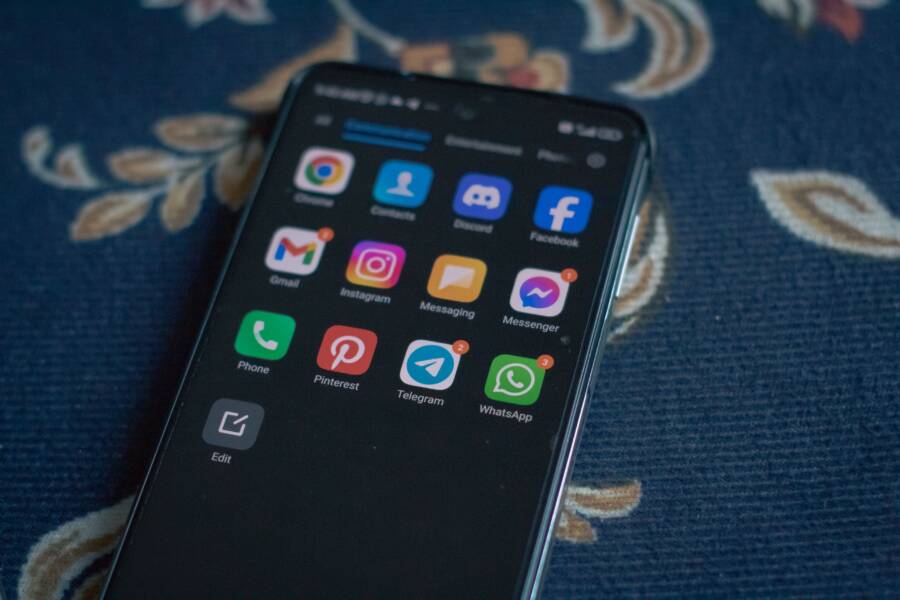
You can stop recurring charges on your smartphone by accessing your account settings within the App Store or the Google Play Store. These platforms handle all billing for apps downloaded to your device, making them the central hub for managing your memberships.
Keeping track of these payments is necessary for your financial health. Many apps offer free trials that transition into paid subscriptions without notice, which leads to unexpected costs each month. Regularly reviewing your active services helps you identify apps you no longer use and prevents unwanted drains on your bank account.
The following steps explain how to locate and cancel these subscriptions on your specific device.
Why You Should Regularly Audit Your Smartphone App Subscriptions
Managing your finances on a smartphone often starts with keeping track of recurring charges. Many users unknowingly lose money every month because they forget about forgotten subscriptions. Setting aside time to check your active memberships helps you keep more money in your pocket.
Avoiding Unwanted Financial Leaks
Many apps offer free trials to attract new users. You sign up, enjoy the premium features, and then forget to cancel before the trial ends. This cycle leads to automatic charges hitting your credit card or phone bill without your active consent. Regular audits stop these small, recurring fees from accumulating into larger losses over the year.
Most people underestimate how many paid services they use simultaneously. You might have several streaming platforms, productivity tools, or fitness apps running in the background. When you add these costs together, the total often exceeds your expectations. Reviewing your active list brings these hidden expenses to the surface immediately.
Simplifying Your Digital Life
Digital clutter affects your device performance and your peace of mind. Keeping subscriptions you no longer use creates unnecessary digital noise on your smartphone. When you remove inactive apps and their associated payments, you organize your accounts and simplify your personal finances.
Auditing your account provides a clear picture of what you truly value. Ask yourself if you use an app at least once a week. If the answer is no, you likely do not need the premium membership. Removing these services gives you a cleaner, more efficient experience across your device.
Protecting Your Budget
Unexpected charges often arrive when you least expect them. A forgotten subscription might renew at an inconvenient time for your personal budget. By checking your account status, you stay in control of your money rather than letting app developers dictate your spending.
This habit also helps you identify price increases or plan changes that might have occurred without your notice. Keeping a close watch on your billing history prevents surprise bank statements. Taking fifteen minutes every few months to scan your subscription list keeps your bank account healthy and your device usage intentional.
How to Cancel Subscriptions on Your iPhone or iPad
Managing your recurring digital charges happens directly through your Apple ID settings. You do not need to hunt for individual app settings or contact developer support to stop a payment. By using the centralized interface on your smartphone, you maintain full control over your billing cycle.
Navigating the Apple ID Subscription Menu
You access your active memberships by opening the Settings app on your iPhone or iPad. Tap your name at the very top of the menu to view your Apple ID profile. From there, select the Subscriptions option to see a comprehensive list of all services tied to your account.
The menu displays two distinct categories to help you keep track of your status:
- Active: These subscriptions are currently set to renew. You see the price and the next billing date clearly listed for each service.
- Expired: This list shows services you previously canceled. Apple keeps them here for a period so you can quickly reactivate them if you change your mind.
If you have many apps, the list might look long. Look for the specific app name by scrolling through the active section. Each entry shows the plan details, including whether you are on a monthly or annual billing cycle. If you cannot find a specific service, verify you are signed into the correct Apple ID associated with that purchase.
Confirming Your Cancellation to Avoid Further Billing
Once you identify the service you want to remove, tap on it to view the specific subscription details. You will see a red button labeled Cancel Subscription or Cancel Free Trial at the bottom of the screen. Tap this button to trigger a prompt confirming your decision.
After you confirm, the status of that subscription changes. Apple updates the screen to show that the service is now set to end on a specific date rather than renew automatically. You should see a message confirming the expiration date, which indicates that no further charges will occur.
Most apps allow you to continue using the premium features until the final day of your current billing period. This means you do not lose access immediately after hitting the cancel button. You effectively pre-paid for that time, so you retain full functionality until the subscription officially lapses. Verify that the renewal date disappears from your view, as this acts as your final proof that the auto-renew feature is disabled.
How to Turn Off Auto-Renew on Your Android Device
You can manage recurring payments on your Android smartphone directly through the Google Play Store. Since your Google account links your apps to a central billing system, you do not need to visit individual websites to stop a subscription. This centralized approach gives you full visibility into which services currently charge your card.
Managing Subscriptions Directly Through Google Play
The Google Play Store contains a dedicated menu for your digital memberships. To access this list, open the Google Play Store app on your smartphone and tap your profile icon located in the top-right corner. From the pop-up menu, select Payments & subscriptions.
Inside this screen, you will see a section labeled Subscriptions. Tap this to open a complete list of your active and past services. Google organizes this page to show you every app currently tied to your payment method. You can see the name of the service, the next billing date, and the monthly or annual cost for each item. If you have multiple Google accounts on your smartphone, ensure you switch to the correct profile before checking your status. This prevents you from missing subscriptions hidden under a secondary email address.
Steps to Successfully Cancel Your Google Play Plan
Once you locate the specific subscription you want to stop, tap on it to view the full management details. The app will show you your plan type and current payment method at the top of the screen. Look for the Cancel subscription button, which typically sits near the bottom of this menu.
When you tap this button, Google may ask you for a reason for your departure. You can select one of the provided options, such as cost or lack of use, to proceed. After you confirm your choice, the system processes the request. The status for that app will immediately change to Canceled. This update means your current billing cycle is your final one.
You still retain access to the premium features of that app until the original end date. Google does not grant partial refunds for the remainder of your month, but it ensures that no future charges will occur. Always check that the expiration date appears clearly on the subscription page. If you see this date, you have successfully disabled the auto-renew feature on your smartphone.
Common Questions About App Cancellations
Most users run into a few recurring problems when they manage subscriptions on a smartphone. Understanding these common points helps you avoid service gaps and unnecessary billing cycles. Whether you worry about losing data or wonder if a refund is possible, these answers clarify your rights and options.
Do I lose access immediately after canceling?
Many users fear that canceling a subscription shuts off their features instantly. This is rarely the case. Most app developers allow you to finish the remainder of your current billing cycle. If you pay for a month of service on the first day and cancel on the tenth, you still hold access until the end of that 30-day period.
You can verify this status by checking your subscription list after you submit a cancellation. Your smartphone will typically display an expiration date instead of a renewal date. This date tells you exactly when the service will stop. You do not need to worry about losing your premium access the moment you press the button.
Can I get a refund for an unused subscription?
Apple and Google rarely provide automatic refunds for subscriptions you forgot to cancel. Once a payment hits your account, the transaction is usually final. However, you can request a refund if you believe a charge is incorrect or if the app failed to function as promised.
You must contact the respective support team for your device to start this process. Apple users visit the report a problem page, while Android users manage refund requests through their Google Play order history. Success depends on the specific policy of the developer and the terms of service for your smartphone platform. Always monitor your accounts closely to avoid the need for these requests.
What happens to my data if I cancel?
Your personal data often remains stored in the cloud even after a subscription ends. Most apps keep your account information, preferences, and saved files on their servers for a specific timeframe. You can usually reactivate your subscription later to pick up right where you left off.
Some apps delete inactive accounts after a long period of silence to save storage space. If you plan to leave a service for several months, check the developer support page regarding data retention. Most mainstream services protect your progress, but downloading your important files before canceling is a smart habit to adopt.
Why does a subscription still show up after I delete the app?
Deleting an app from your home screen does not stop the billing cycle. Your subscription lives in the billing account linked to your smartphone, not within the app itself. The developers have no way of knowing you removed the icon from your phone.
You must visit the subscription management menu in the App Store or Google Play Store to disable the service. If you only uninstall the software, the recurring charge will continue every month. Always visit your account settings to finalize the cancellation so your bank statement stays clean.
Conclusion
Taking control of your app subscriptions is a simple way to protect your budget and clear out digital clutter. By reviewing your accounts on your smartphone, you stop small, recurring fees from draining your bank account over time.
Check your App Store or Google Play settings today to identify services you no longer use. Set a recurring calendar reminder every three months to perform this quick audit. Staying intentional with your memberships keeps your finances healthy and your device organized.