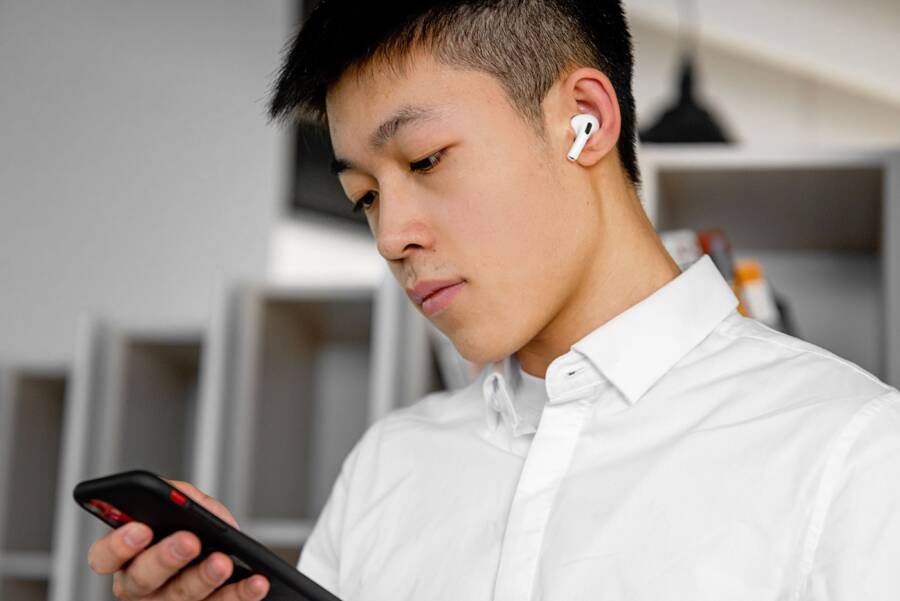
When your Bluetooth headphones fail to reconnect to your smartphone, the issue usually stems from a software handshake error between the two devices. This common glitch happens when the saved pairing cache becomes corrupted or the radio settings conflict. You can resolve this interference by refreshing the connection protocols, which often restores stability without needing external repairs.
Start by toggling the Bluetooth setting on your smartphone off and back on again, as this simple step often clears temporary sync errors. If the problem persists, removing the device from your saved list and performing a fresh pair will force a new handshake between the hardware. These adjustments typically stop the connection from dropping and allow for consistent automatic pairing in the future.
Why Your Bluetooth Headphones Keep Dropping the Connection
Frequent connection drops usually occur because of physical obstructions or interference from other wireless signals. Bluetooth transmits data on the 2.4 GHz frequency band, which is the same frequency used by many Wi-Fi routers, microwaves, and cordless phones. When multiple devices compete for space on this frequency, your smartphone struggles to maintain a consistent data stream to your headphones.
Interference from Competing Wireless Signals
Your smartphone often deals with signal congestion in crowded environments. If you are standing near a high-traffic Wi-Fi router or multiple active smart devices, the background noise interferes with the Bluetooth signal. This disruption causes the audio to skip or the connection to fail entirely. Moving a few feet away from major electronic appliances or busy routers often stabilizes the link.
Physical Barriers and Distance Limits
Bluetooth signals are line-of-sight technology that weakens significantly when passing through dense objects. While the theoretical range of Bluetooth is around 30 feet, walls, large pieces of furniture, and even your own body can block the signal path. If you keep your smartphone in a back pocket or a thick bag, the signal strength drops. Try keeping the device in an open pocket or closer to your body to see if the connection remains steady.
Low Battery Levels and Power Management
Power saving settings on your smartphone often interfere with stable Bluetooth performance. When your phone reaches a low battery percentage, the operating system might restrict power to the Bluetooth antenna to preserve energy. Additionally, some headphones reduce their signal output to extend playback time when their own internal battery is low. Keeping both devices charged above 20 percent typically prevents these power-related drops.
Outdated Software and Firmware Conflicts
Software mismatches between the operating system and your headphone firmware create communication gaps. A bug in your smartphone OS might not interpret the data packets from the headphones correctly, resulting in an immediate disconnect. Regularly checking for updates in the settings menu of your phone helps maintain compatibility. You should also check the companion app provided by your headphone manufacturer to see if a firmware update for the hardware is available.
Addressing these common factors usually resolves most connection stability issues. If your smartphone continues to lose the signal, verify that no other nearby devices are attempting to pair with your headphones simultaneously. Prioritizing a clear path between the hardware and keeping your software updated provides the most reliable user experience.
Practical Steps to Fix Your Bluetooth Pairing Issues
When your smartphone refuses to recognize your headphones, the problem is often a simple data conflict rather than a hardware failure. You can resolve most persistent connection errors by manually resetting the communication link between your devices. Removing old pairing data and clearing temporary system files creates a clean slate, which allows your phone to establish a fresh, stable connection with your audio gear.
Unpairing and Resetting Your Devices
The most effective way to start fresh is by removing the existing device profile from your phone. This process forces your smartphone to scan for the headphones as if they are brand new hardware.
To forget a device on an Android smartphone:
-
Open the Settings app and select Connected Devices or Bluetooth.
-
Find your headphones in the list of saved or paired devices.
-
Tap the gear icon or the “i” symbol next to the device name.
-
Select Forget or Unpair to remove the profile entirely.
For iPhone users, the steps are nearly identical:
-
Open Settings and tap Bluetooth.
-
Locate your headphones in the My Devices list.
-
Tap the blue “i” icon to the right of the name.
-
Select Forget This Device and confirm your choice.
Once you have removed the device from your smartphone, you must reset the headphones themselves to clear their internal memory. While every model is different, most headphones require you to hold the power or pairing button for 10 to 20 seconds while the device is turned off. Look for an LED light to flash in a specific color or pattern, which indicates the hardware has returned to its factory state. After the reset, place your headphones into pairing mode and attempt to connect them to your smartphone again from scratch.
Updating Software and Clearing Bluetooth Cache
If hardware resets do not solve your connection problems, the issue likely sits within the operating system files. An outdated smartphone operating system often contains bugs that struggle to maintain modern Bluetooth protocols. Check for system updates in your phone settings to ensure your software is current, as these patches frequently include improved drivers for wireless connectivity.
Persistent connection errors also stem from a bloated or corrupted Bluetooth cache. Your smartphone keeps temporary files to help devices pair faster, but these files sometimes store bad connection data that prevents new successful links.
To clear the Bluetooth cache on Android devices:
-
Open Settings and navigate to Apps or App Management.
-
Tap the menu icon to select Show System Apps.
-
Find Bluetooth in the list and select it.
-
Tap Storage, then select Clear Cache.
Note that iOS handles system files differently, so you cannot manually clear a specific Bluetooth cache on an iPhone. If you are using an Apple smartphone, the best way to achieve the same result is to perform a hard restart of the phone after forgetting the device. This action flushes the temporary memory and forces the system to rebuild its wireless handshake protocols during the next startup. Updating your software and refreshing these background files removes the digital clutter that typically blocks a clean connection.
Troubleshooting External Interference and Hardware Conflicts
Electronic noise often hides in plain sight, disrupting the invisible link between your smartphone and wireless audio gear. When your connection falters despite having full battery and updated firmware, the culprit is usually environmental static or conflicting hardware processes. Identifying these subtle triggers allows you to stabilize your audio output and avoid the frustration of sudden drops.
Minimizing Interference from Other Wireless Devices
Bluetooth signals share the 2.4 GHz frequency band with various household electronics, creating a crowded radio landscape. Because your smartphone communicates over this same frequency, high-traffic devices can easily drown out your headphone signal. Wi-Fi routers, cordless landline phones, and even microwave ovens contribute to this signal congestion. When these devices transmit data simultaneously, they create invisible traffic jams that prevent clean audio delivery.
You can reduce this clutter by adjusting your physical environment:
-
Move away from active 2.4 GHz Wi-Fi routers if your connection drops consistently in one specific room.
-
Power down nearby unused Bluetooth devices to prevent them from constantly scanning for connections.
-
Keep your smartphone away from active microwave ovens during operation, as they emit significant radio frequency noise.
If you frequently encounter issues in crowded areas like offices or public transit, the sheer number of active signals might be the problem. Try keeping your smartphone in a front pocket or holding it closer to your body. This reduces the distance the signal must travel, making it easier for the phone to maintain a robust connection even when the surrounding environment is noisy.
Checking Battery and Power Saving Modes
Smartphone operating systems include aggressive power management features designed to extend battery life. These systems often monitor background tasks to identify processes that consume energy, and they may treat Bluetooth connections as non-essential during periods of inactivity. When your battery level drops below a certain threshold, the phone might restrict power to the wireless antenna or kill the background process responsible for your audio stream.
These power-saving strategies often cause intermittent stutters or complete disconnects. To determine if these settings are affecting your audio, you should examine your phone configuration:
-
Open the battery settings menu on your smartphone.
-
Locate the power saving or battery optimization section.
-
Check if your headphone manufacturer app is set to be automatically optimized or restricted.
-
Add your audio app to the list of apps that are allowed to run in the background.
Some devices also have a dedicated performance mode that forces the phone to provide full power to all hardware components. Switching to this mode temporarily can help confirm if power throttling is the source of your connection drops. If the audio stabilizes while power saving is disabled, you have identified a software-driven limitation rather than a hardware failure. Keep in mind that running your smartphone in high-performance mode will drain the battery faster, so use this setting only when necessary.
When to Contact Support or Consider a Replacement
Most Bluetooth connection problems resolve through software resets or environmental changes. You should attempt the troubleshooting steps mentioned previously before seeking external help. If you have exhausted all configuration options and the connection remains unstable, you might face a hardware malfunction or a deeper incompatibility issue. Determining when to stop troubleshooting saves you time and prevents frustration.
Identifying Hardware Failure
You can determine if the issue is a hardware defect by testing your headphones with another device. If the headphones exhibit the same disconnection patterns on a tablet, laptop, or a different smartphone, the internal Bluetooth radio or antenna likely suffers from a physical fault. Hardware components fail due to internal moisture damage, impacts, or the natural degradation of components over time.
Listen for subtle cues that point toward a physical defect:
-
The headphones disconnect immediately upon touch or movement of the chassis.
-
One earbud loses connection consistently while the other stays stable.
-
The device fails to enter pairing mode regardless of how long you hold the reset buttons.
-
You notice significant battery drain or overheating during normal operation.
If you observe these behaviors across multiple source devices, the hardware requires professional repair or replacement. Attempting to pry open consumer headphones often destroys the casing and voids your warranty.
When to Contact Manufacturer Support
You should reach out to the manufacturer if your device is still under warranty. Provide them with a clear summary of the steps you have already taken, such as clearing the Bluetooth cache, resetting the pairing, and testing the unit with a secondary device. This information helps their support team skip basic troubleshooting scripts and move directly to a warranty claim or a technical fix.
Collect the following details before opening a support ticket:
-
The exact model name and serial number of your headphones.
-
The brand and model of your smartphone, along with the current operating system version.
-
A description of the connection error, including whether it happens in all locations or only specific environments.
-
Proof of purchase, which is mandatory for most warranty claims.
Support teams can often provide specific firmware files or developer tools that are not available to the public. If their recommended procedures also fail, they will guide you through the process of shipping the unit in for an inspection.
Evaluating the Cost of Replacement
Sometimes, the cost of repairing out-of-warranty headphones exceeds the price of a new pair. If your device is several years old, the battery capacity might also be significantly diminished, making a repair an ineffective use of funds. Compare the repair fees, including shipping costs, against current retail prices for similar or upgraded models.
Upgrade your hardware if you find yourself spending more time fixing connection settings than enjoying your music. Modern headphones often include upgraded Bluetooth versions that handle interference better than older hardware. If you frequently experience signal drops in your specific work or home environment, switching to a device with a more robust antenna design or a different frequency management profile provides a permanent solution.
Conclusion
Most Bluetooth headphone connection errors stem from temporary software glitches rather than permanent hardware damage. You can fix the vast majority of these issues by clearing the pairing cache, resetting your audio device, and ensuring your smartphone runs the latest system software.
Consistent maintenance helps keep your wireless connection stable. Frequently checking for firmware updates on both your audio hardware and your smartphone prevents communication gaps before they occur. If you follow these troubleshooting steps, you will restore your device to reliable working order without needing expensive repairs or a premature upgrade.