Are you shopping for the best phone with a stylus for note taking and quick sketches? This guide cuts through the noise to help you pick a device that makes handwriting feel natural, not clunky. You’ll learn which models stand out for writing accuracy, battery life, and helpful note taking features.
Stylus usability matters as much as hardware power. A great stylus delivers precise input, palm rejection, and smart apps that convert handwriting to text or turn sketches into clean diagrams. Whether you jot quick notes on a commute or draft ideas in a cafe, the right phone can replace paper without sacrificing convenience or speed.
As of November 2025, several phones shine in this space. For a top notch writing experience, you’ll find options with built in styluses, large high quality screens, and fluid performance that makes long note sessions feel natural. If you want a foldable solution with ample writing space, or a budget friendly option that still hits the mark, there are clear winners to consider.
In this post you’ll find practical tips to evaluate features like stylus latency, note taking apps, and handwriting recognition. We’ll highlight the standout models and map them to common needs, from students and professionals to casual doodlers. By the end you’ll know which phone best fits your note taking style and budget.
What makes a great stylus phone for note taking
A great stylus phone for note taking blends responsive input with software that makes handwriting feel natural. The best devices keep input smooth, support precise notes and sketches, and pair seamlessly with apps that unlock handwriting as a productivity tool. If you want to replace a pad of paper, look for a combination of fast response, smart rendering, and reliable writing software that keeps up with your ideas.
 Photo by Jakub Zerdzicki
Low latency and pressure sensitivity
For handwriting and drawing, latency is everything. A phone with low stylus latency makes strokes feel immediate, almost as if you are writing on paper. When the delay is noticeable, you have to pause and adjust your rhythm, which breaks your train of thought and slows your work. Top models aim for smooth input with ultra-low latency, so your pen glides across the screen without lag.
Pressure sensitivity adds nuance to every stroke. With higher pressure levels, you can create fine lines for shading, bold lines for headlines, and subtle variations for sketches. This level of control matters when you draft notes with emphasis, create technical diagrams, or sketch ideas quickly. In practice, a responsive stylus supports 12,000 to 16,000 levels of pressure on capable devices, which translates to more natural variation in your handwriting and drawings.
Choose a phone that clearly communicates pen pressure and tilt. This makes notebooks feel like they’re yours, not a generic scrawl. If you test devices in person, look for a smooth start to strokes, minimal tremor, and consistent responsiveness from first contact to long sessions. For reference, expert reviews consistently highlight models with very low latency and robust pressure curves as the standout choices for note taking and sketching. For deeper dives, check out expert overviews of stylus latency and pressure features. Pressure Sensitive Stylus for Android A Deep Dive
Software integration and note apps
A stylus phone shines when it plays well with your favorite note apps. Samsung Notes, Microsoft OneNote, and Google Keep are common anchors for writing habits, but the real magic appears when the device supports smooth handwriting recognition, sketch-to-image workflows, and cloud sync that keeps notes available across devices.
- Samsung Notes: This app sits at the center of the Samsung ecosystem, letting you combine handwriting with text, images, and voice notes. Its easy sharing and cross-device syncing are a big plus for students and professionals who switch between phones, tablets, and laptops.
- OneNote: Known for strong organizational features, OneNote handles handwritten notes alongside typed text. AI handwriting recognition can convert your notes into searchable text, making long notes easier to review later.
- Google Keep: Keep offers a simple, fast note-taking flow that works well for quick sketches and punchy reminders. It’s great for jotting ideas on the go and keeping them synced with your Google account.
Beyond these apps, many users rely on the broader ecosystem of note tools. For Android users, a wide range of apps exists that optimize for stylus input and low latency. If you’re exploring options, a few guides compile the best note apps for Android and consider how stylus support shapes your everyday workflow. For an overview of current favorites, see the roundup of best note-taking apps. The 8 best Android note-taking apps in 2025
When you adopt handwriting with a stylus, cloud sync becomes a silent ally. It lets you start a notebook on your phone, continue on a tablet, and share notes with colleagues without friction. Look for native handwriting-to-text features, robust export options, and cross-platform compatibility so your notes stay consistent from day one.
Display size and battery life
A larger display makes handwriting more comfortable. More space means you can write with natural spacing, use wider margins for diagrams, and fit more content on a single screen. That said, larger phones generally consume more power. Everyday note sessions can be comfortable on phones with big, high-contrast displays and a balanced power profile.
- Screen real estate: A bigger screen reduces the need to zoom and pan while you write, which speeds up your workflow. It also helps with detailed sketches, enabling finer lines and better overall readability.
- Battery endurance: Long note sessions demand all-day battery life. When you’re in class or in a meeting, you don’t want to hunt for a charger. A capable stylus phone pairs a generous battery with efficient display technology and software optimizations to maximize endurance.
- Weight and comfort: Heavier phones can be more tiring during extended writing. If you plan long sessions, consider ergonomics alongside battery life and display size.
A few credible sources compare the best stylus phones on display quality and power efficiency, which can help you balance size with stamina. For broader context on note-taking apps and stylus support, explore roundups and app guides that discuss how software choices affect battery life and usability. The best stylus phones of 2025: Expert tested and reviewed
Putting it all together, the ideal stylus phone for note taking is comfortable to hold, easy to write with for long periods, and capable of keeping your work synchronized across devices. It should offer a responsive input experience, a rich set of note apps that fit your workflow, and enough battery life to power long sessions without interruption. If you want to see how display size and battery life trade off in real world use, a few hands-on reviews break down exact screen sizes, weights, and endurance figures to help you compare options quickly. Samsung Notes and professional guides on note apps can help you map your preferred workflow to a specific device.
If you’re ready to dive deeper, you can look at how different apps support handwriting and sketches across ecosystems. A helpful resource outlines the current state of note-taking apps and how stylus support varies by platform and app. Best note taking apps in 2025
In summary, a strong stylus phone for note taking brings together fast input, expressive control, and reliable software that keeps your ideas organized and accessible. The best devices merge hardware precision with thoughtful software, letting you focus on your notes rather than on the tool you’re using.
Top pick for note taking: Samsung Galaxy S25 Ultra
If you want a single device that handles handwriting, sketches, and quick notes with minimal fuss, the Samsung Galaxy S25 Ultra deserves your attention. It combines a responsive S Pen with robust note taking software that feels natural from the first stroke. In this section, we cover why it stands out, who should consider it, how the S Pen and apps work together, and a quick snapshot of pros and cons to help you decide.
Why it shines for note taking
The built-in S Pen is the heart of the experience. With an ultra low latency and 4096 pressure levels, each stroke feels like writing on paper. The nib remains precise at small sizes, so I can draft tight diagrams or neat handwriting without jagged edges. The result is a natural flow from pen tip to screen, which keeps ideas moving rather than getting stuck in setup or lag.
Samsung Notes anchors the experience. It handles handwriting and typed input in one place, supports embedded images and voice notes, and syncs across Galaxy devices so your work follows you from phone to tablet to laptop. AI tools build on this foundation to recognize handwriting and convert it to searchable text, making review sessions faster and more efficient. If you want to take notes on the fly, you can even jot while the screen is off and wake to a ready-to-edit page. For those who value a fluid sketching workflow, the S Pen also supports sketch-to-image workflows that turn rough ideas into shareable visuals quickly. For more on how Samsung’s assistant features work, see the official notes and S Pen support pages. https://www.samsung.com/us/support/answer/ANS10004602/
The S Pen experience is enhanced by its software integration. Samsung Notes is built to maximize handwriting input, but the real win is how it blends with AI handwriting recognition. Your scrawls convert to text as you write, which speeds up the process of turning notes into searchable content. Sketching is equally capable, with smooth strokes and clear line weight that reliably translate into diagrams and concept maps. When you want broader app flexibility, the S Pen also works well with other tools in the ecosystem, including popular note apps that many students and professionals rely on. If you’re curious about how Samsung’s S Pens differ across models, the official support guide covers
Strong alternatives for different needs
Choosing the right phone with a stylus is about matching your note taking style with the device’s strengths. Below are four strong alternatives, each tailored to a different use case. Whether you want a big canvas for diagrams, a budget option that still nails everyday notes, or a premium tool for serious handwriting, you’ll find a solid fit here.
Foldable power with a big canvas: Galaxy Z Fold 6
If your handwriting a nd sketches benefit from a truly expansive workspace, the Galaxy Z Fold 6 delivers a large 7.6 inch screen when unfolded. The generous real estate makes long-form notes and detailed diagrams feel natural, not cramped. Pair it with the S Pen in a protective case and you gain a precise input method that works well for both handwriting and light drawing.
The trade offs are clear. The stylus is not built into the phone, so you’ll need to purchase the S Pen Fold Edition separately and a compatible case. This adds to the up-front cost, and the overall price can be high compared with traditional single-screen phones. Still, for writers who crave a big, flexible workspace in a single device, the Fold 6 offers a compelling balance of screen area and mobile productivity. For practical tips on getting the most from the S Pen on foldables, you can explore Samsung’s guidance on S Pen usage and productivity features. 8 tips for using the S Pen on Galaxy Z Fold6 for increased mobile productivity
If you plan to rely on the Fold 6 for note taking, consider a sturdy case that supports the stylus storage to avoid misplacing the pen during busy days. The large canvas shines for sketching workflows, concept maps, and meeting notes where you want to capture more detail without constant scrolling. For those prioritizing screen real estate and flexibility, this option stands out.
Budget friendly option with built in stylus: Moto G Stylus 2025
Not everyone needs a premium price tag to get solid handwriting and note taking. The Moto G Stylus 2025 brings a comfortable stylus experience at an approachable price. It offers decent latency for everyday notes, and the built-in stylus eliminates the extra step of pairing or hunting for a pen. If your goal is reliable note taking without breaking the bank, this model hits the mark.
Motorola has focused on improving the stylus latency in this generation, reducing the lag users noticed on older G Stylus models. The result is a noticeably smoother writing experience, whether you’re jotting quick reminders or drafting simple sketches. In daily use, the stylus is responsive enough for bulk note taking across classes or meetings, and the device remains affordable enough to keep a spare if you like to switch between phones for different tasks. For a thorough dive into the stylus performance, see reviews highlighting the real-world latency improvements. Moto G Stylus 2025 review: A worthy upgrade
In addition to the stylus, this option keeps things practical with strong battery life and a clean Android experience. If you value a straightforward device that handles handwriting well without steep learning curves, the Moto G Stylus 2025 is worth a look. It’s not a flashy flagship, but it delivers dependable note taking for students and professionals who want a reliable companion on a budget.
Premium alternative with strong notes: Galaxy S24 Ultra
For those who want a built-in stylus plus a premium experience, the Galaxy S24 Ultra stands out as a strong mid-stage option. It pairs a capable S Pen with robust software that handles handwriting, text conversion, and quick sketches with grace. Battery life remains solid, keeping you productive through long sessions of note taking, brainstorming, or diagramming.
The S24 Ultra remains a smart buy when you want top-tier handwriting features at a price below the newer S25 Ultra. You still get excellent latency, high pressure sensitivity, and a polished software suite that makes handwriting feel natural. The built-in stylus integration simplifies your workflow, letting you capture thoughts quickly without carrying extra accessories. For official guidance on S Pen features across Galaxy devices, Samsung provides detailed support and setup information. Samsung Galaxy Note: S Pen support and notes
If your workflow relies heavily on cross-device syncing and cloud access, the S24 Ultra’s ecosystem makes it easy to move notes between phone, tablet, and laptop. The combination of strong hardware, solid battery life, and useful note apps can justify the premium, especially for professionals who depend on quick capture and seamless organization throughout the day.
Large screen premium option with strong stylus support: Honor Magic V3
The Honor Magic V3 offers a foldable design with a large, premium display and strong stylus capabilities. The big screen makes handwriting on the go feel less cramped and more like writing on a notebook. In practice, the Magic V3 provides solid stylus performance that handles both handwriting and sketches well, while keeping software integration more limited than Samsung’s ecosystem.
If you prioritize screen real estate and the comfort of a foldable form, the Magic V3 is a compelling alternative. It gives you ample room for notes and diagrams, and the stylus input remains responsive enough for daily use. The trade-off is a lighter software integration with popular note apps, which means you may rely more on the core note-taking experience and fewer integrated features from the broader ecosystem. This can be a win for readers who want a straightforward workflow without deeply nested app expectations.
In summary, these four options cover a range of needs from big-screen productivity to budget-friendly handwriting and premium performance. If you want to compare them side by side, focus on the key trade-offs: space versus price, ecosystem depth, and how much you value built-in stylus convenience versus optional accessories. For a quick reference, see the related reviews and guides on stylus input and note apps that help map your workflow to the right device. The best stylus phones of 2025: Expert tested and reviewed
How to choose your stylus phone for note taking
Picking a phone with a stylus for note taking isn’t just about the pen. The right combination of latency, pressure sensitivity, app support, display size, battery life, and ecosystem can turn handwriting into a fast, effortless habit. Use this section as a practical checklist to match your daily workflow with the device that fits your budget and preferences. As you read, consider how you balance comfort with performance, and how important cross-device syncing and app choice are to your routine. A good smartphone should feel invisible in use — its technology should disappear into your notes.
Budget and use case
Your budget should steer the decision as much as your handwriting habit. If you write or draw every day for class, meetings, or creative work, you’ll likely value higher fidelity input and longer battery life more than every last feature. On the other hand, if you only jot quick reminders on the go, a more affordable option can still deliver solid handwriting and reliable note apps.
- How often you write or sketch: Daily long-form notes? Go for a device with low latency and robust pressure sensitivity. Infrequent jotting? A midrange model with decent latency will feel responsive without the premium price.
- Portability versus screen real estate: Do you want a compact phone you can carry easily, or a bigger canvas for diagrams and sketches? Larger screens improve handwriting comfort but often come with heavier devices and shorter battery life in some models. If you travel often, lighter phones with strong stamina can win.
- Ecosystem needs: If you already rely on a specific note app or cloud workflow, pick a phone that plays well with that ecosystem. For instance, Samsung Notes shines on Galaxy devices, while OneNote and Google Keep offer broad cross-platform compatibility.
When evaluating options, map your budget to your top three needs: input quality, display size, and software integration. A practical approach is to pick a device that hits your primary requirement (low latency or built-in stylus), then verify the second and third priorities (app compatibility and battery life) through in-store testing or hands-on reviews. For context on current budget-friendly stylus options, see reviews of budget models with built-in styluses. Moto G Stylus 2025 review
Latency, pressure, and app support
Latency, pressure sensitivity, and app support are the trio that determines how natural handwriting and sketching feel on a phone.
- Latency: Look for ultra-low latency that makes strokes feel immediate. A delay disrupts your rhythm and breaks the train of thought. In top models, latency hovers around a few milliseconds, which translates to a very responsive writing experience.
- Pressure sensitivity: Higher levels of pressure yield richer lines for shading and emphasis. A broad pressure range lets you vary line width and tone as you write and sketch.
- App support: The real value appears when your stylus input integrates with your preferred apps. Samsung Notes, OneNote, and Google Keep are common anchors, but the best devices shine when handwriting recognition, sketch-to-image workflows, and cloud sync work smoothly. This matters most if you want to convert handwriting to text or move diagrams between devices.
To get the most from latency and pressure, read real-world reviews and look for the exact numbers the manufacturer shares. A few credible sources compare latency and pressure features across major models, helping you separate hype from real performance. For example, current benchmarks and expert reviews frequently highlight Samsung’s S Pen as a leading option for precise input and reliable pressure response. If you want deeper dives into latency and pressure, see expert overviews and device-specific guides. The best stylus phones of 2025: Expert tested and reviewed
App compatibility is the key to turning raw input into productive work. If you rely on Samsung Notes, OneNote, or Google Keep, confirm that your chosen device handles handwriting and text conversion well within those apps. For Android users, a broad ecosystem of note apps can optimize stylus input and efficiency. If you’re exploring options, look for guides that compare the best note-taking apps for Android and how they work with stylus input. The 8 best Android note-taking apps in 2025
Size, comfort, and battery
Your hand comfort and daily endurance depend on display size, device weight, and battery capacity. Handwriting for long sessions benefits from a roomy, high-contrast display and ergonomic grip. At the same time, you want a phone that lasts through the day without frequent charging.
- Display size: A larger screen reduces the need to zoom and pan as you write. It also improves the readability of diagrams and math notes. On the flip side, bigger screens can feel less portable and may weigh more.
- Comfort: Test how the phone feels in your hand. Consider grip texture, button placement, and weight. If you write for extended periods, a comfortable device reduces fatigue and improves accuracy.
- Battery life: A focused note-taking session can drain battery, especially with bright displays and background syncing. Look for a long-lasting battery and efficient software that preserves power during stylus use.
Real-world testing matters here. Some devices pair large displays with efficient processors and AI that minimizes background drain, delivering usable all-day stamina. Hands-on reviews often break down screen size, weight, and endurance so you can compare quickly. For example, credible reviews discuss how display size and power efficiency trade off in everyday use. The best stylus phones of 2025: Expert tested and reviewed
If you already own a tablet or laptop in the same ecosystem, compatibility becomes a big plus. A phone that syncs notes with your tablet or laptop saves time and keeps projects coherent across devices. Check for native handwriting-to-text features and cross-device syncing that match your workflow.
Accessories and ecosystem
The right accessories and ecosystem can turn a stylus phone into a seamless workflow tool. Consider cases, screen protectors, and how the stylus fits with your current devices.
- Cases and stylus storage: Some foldable devices or phones with built-in stylus support rely on cases that carry the stylus. A secure slot prevents loss during busy days and travel.
- Screen protectors: A good screen protector preserves the feel of the pen tip and reduces wear on the display. Look for matte or micro-textured finishes if you prefer a more paper-like feel.
- Workflow integration: If you already use a single ecosystem across phone, tablet, and laptop, staying within that family simplifies syncing and app availability. For example, Samsung’s ecosystem emphasizes seamless notes across devices, while other ecosystems rely on cloud-based note apps and cross-platform support.
- Stylus fit with other devices: If you own a stylus-enabled tablet or laptop, verify cross-compatibility. Some styluses work across multiple devices and offer consistent pressure curves and palm rejection.
Accessories and ecosystem support can push a good device from solid to exceptional. When evaluating, ask yourself how you will carry and use the pen alongside other gear. If you want practical guidance on cases and screen protectors, several guides compare popular accessories for stylus phones. Stylus pen and accessories for mobile devices
Putting it all into practice, your ideal choice balances input performance with daily practicality. A phone that feels effortless to write on and fits naturally into your routine will see you reach for your notes more often, not more gadgets.
External references and guides can help you map your workflow to the best device. For example, official support resources for S Pen features across Galaxy devices provide useful setup tips and productivity ideas. Samsung Galaxy Note: S Pen support and notes
If you want a broader view of how stylus input affects note-taking workflows, consider reading practical roundups that compare latency, pressure, and software integration across multiple models. The best stylus phones of 2025: Expert tested and reviewed
Overall, the right stylus phone for note taking blends fast input with a robust software suite and a comfortable, long-lasting design. It should feel natural in your hand, support your preferred apps, and keep your notes synchronized across devices so you can pick up where you left off anytime, anywhere.
Tips for note taking on a stylus phone
If you want handwriting and quick sketches on a phone to feel natural, you need a thoughtful mix of apps, workflows, and security. This section covers practical approaches you can apply today. It focuses on choosing the right tools, organizing notes, deciding when to write by hand versus typing, and keeping your data safe across devices.
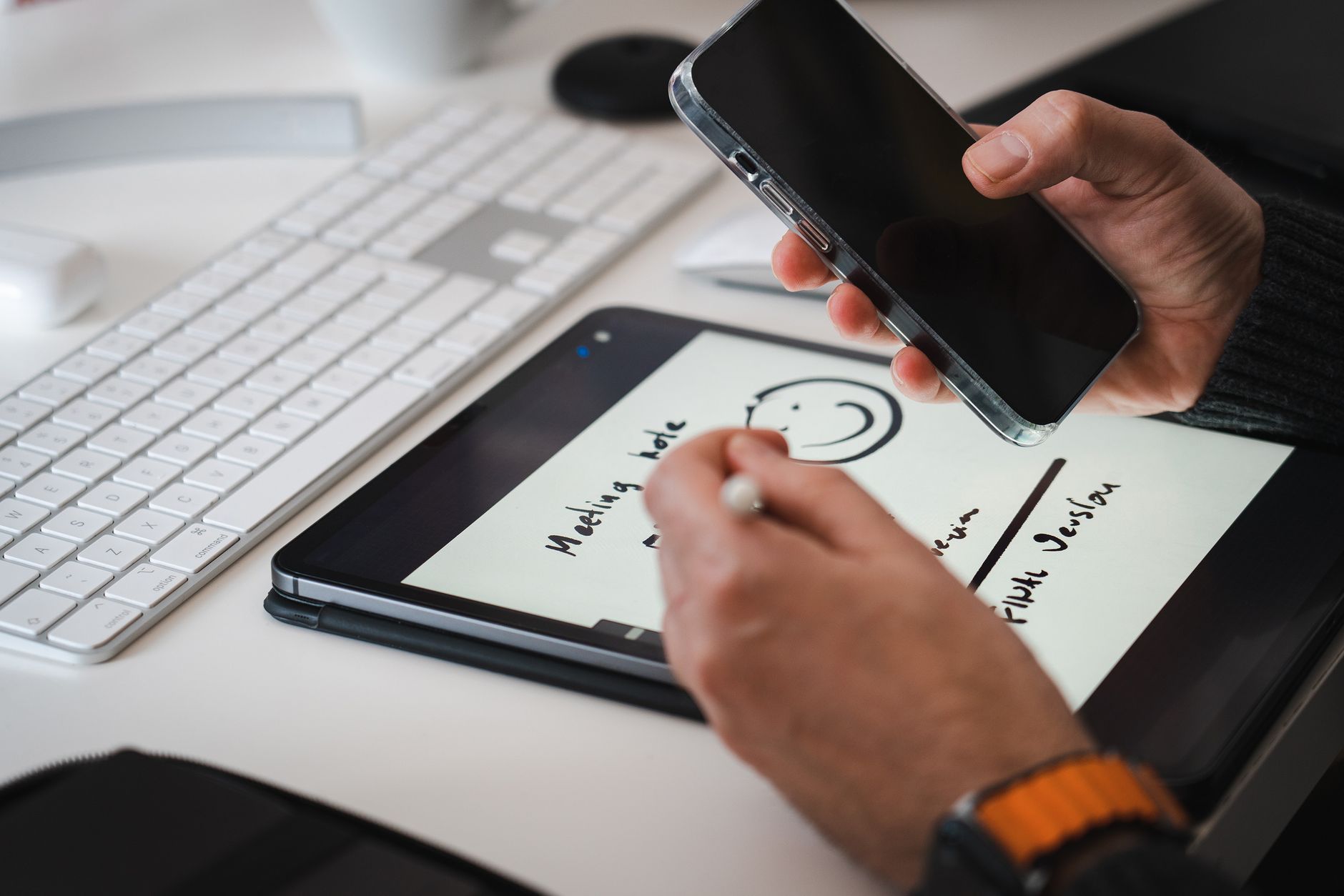 Photo by Jakub Zerdzicki
Best apps and workflows
Choosing the right apps can make handwriting feel like second nature. Start with core note apps that support smooth handwriting, robust palm rejection, and easy export. Then add a simple workflow that keeps ideas flowing.
- Samsung Notes for Galaxy users: Write, draw, and convert handwriting to text in one place. It syncs across Galaxy devices, so your notes follow you from phone to tablet and laptop. For testing tips, see Samsung’s notes and S Pen support pages.
- OneNote for cross-platform use: Great for organizing notebooks, mixing handwriting with typed text, and sharing with colleagues. It’s particularly helpful when you want to search handwritten content later.
- Google Keep for quick capture: Fast sketches and reminders that stay synced with your Google account. Use Keep when you need speed over depth.
- Notability-like options on Android: If you’re exploring alternatives, look for apps that emphasize stylus support, handwriting-to-text, and PDF annotation.
Simple workflows to try now:
- Quick capture flow: Open your preferred app, jot a note with the stylus, then save to a single labeled notebook or folder. At the end of the session, export a summary as a PDF or image for sharing.
- Sketch-to-diagram flow: Start with rough sketches in a note, then use built-in shapes and connectors to convert ideas into diagrams. Save with a clear title and tag it by project.
- Handwriting to text flow: Write freely, then use built-in handwriting recognition to convert sections to searchable text. Clean up any errors later, but keep the original handwriting for reference.
To deepen your workflow, review roundups that compare note apps and how stylus support varies by platform. For example, a recent roundup highlights top Android note-taking apps and how they work with stylus input. The 8 best Android note-taking apps in 2025
Organizing notes and syncing
Consistency wins when you want notes to survive device changes. A stable structure and reliable cloud syncing keep your ideas accessible where you work.
- Structure your notebooks: Use a clear hierarchy such as Project X, Meeting Notes, and Personal. Within each, create dated entries to track progression.
- Use tags strategically: Tags like “idea”, “sketch”, or “action item” make it easier to locate notes fast, especially across devices.
- Cloud syncing as a backbone: Prefer apps with cross-device sync so a note started on your phone is ready on your tablet or laptop. Native handwriting features often pair best with their ecosystem.
- Export options: Choose apps that can export as PDF, image, or text. This helps when you need to share ideas with others or archive work.
In practice, you can test how well syncing works by creating a short note on your phone, then opening the same notebook on a tablet to confirm it appears instantly. If you rely on a specific ecosystem, such as Samsung Notes, expect a tighter integration across devices. For broader cross-platform strategies, explore guides that compare cross-device note workflows. The best stylus phones of 2025: Expert tested and reviewed
If you want a broader view of syncing across apps, a recent write-up surveys popular note apps and their cloud workflows. Best note taking apps in 2025
Handwriting vs typing: when to use each
The right mix of handwriting and typing can boost memory and speed. Use handwriting for ideas, sketches, and quick captures; switch to typing when you need precision, searchability, or long-form notes.
- When to handwrite: Capturing fleeting ideas on the fly, doodling concepts, and diagramming flows. Handwriting slows you down enough to think, which can improve retention.
- When to type: Long notes, detailed outlines, and content you plan to share or search later. Typing speeds through dense content and makes persistence and editing easier.
- Hybrid approach: Start with handwriting to capture raw thoughts, then skim and convert important sections to text. Many apps support mixed content in a single note.
A practical tip is to enable handwriting-to-text on the device you use most. That way, you can keep a sketchy, natural flow and later convert key parts into searchable text. If you’re exploring the topic further, you’ll find studies and editorials comparing handwriting versus typing, with practical guidance for students and professionals. For an overview of how handwriting can boost memory, see related discussions and guides. Handwritten notes vs digital handwriting vs typing notes
Protecting notes and data
Security and privacy matter as you store sensitive ideas, outlines, and diagrams on a smartphone. Build a simple, strong layer of protection around your notes.
- Backups matter: Regular backups prevent data loss. Use a cloud backup option or export notes to a computer or external drive.
- Cloud security: Enable multi-factor authentication for the cloud account that hosts your notes. Review permission settings and keep devices signed out when not in use.
- Local storage options: For sensitive information, prefer apps that offer local storage with optional cloud sync. This reduces exposure while you work on confidential projects.
- Device security basics: Keep your phone updated, use a strong screen lock, and install security patches promptly.
Practical backup tips include exporting notes to a portable format you control. If you want more on securing smartphones, see guides on securing Android devices and protecting personal data. How to Secure Your Phone: Mobile Security Apps & Tips
Beyond device safety, it helps to review best practices for backing up and protecting notes across ecosystems. A concise guide outlines several reliable methods to keep notes safe while remaining accessible. The 9 Best Ways to Keep Your Smartphone Secure
To round out protection strategies, consider exploring general Android backup approaches that cover both app data and system settings. The Complete Guide to Effortless Android Backup
In practice, combine automatic cloud backups with periodic local exports. This gives you a quick restore path if a device is lost or replaced, and it keeps your workflow uninterrupted.
External resources can widen
Conclusion
The top choice for note taking is the Samsung Galaxy S25 Ultra, thanks to its built-in S Pen, ultra low latency, and strong note apps that make handwriting feel natural. For a large flexible workspace, the Galaxy Z Fold 6 shines with its expansive display and multitasking capabilities, though you’ll want the S Pen Fold Edition in a protective case. If you’re on a budget, the Moto G Stylus 2025 offers dependable handwriting with a built-in stylus at a practical price. Other strong options include the Galaxy S24 Ultra for solid performance at a potential discount, and the Honor Magic V3 for a foldable alternative with stylus support.
Try a simple note taking workflow on your preferred smartphone this week: jot quick ideas, sketch a quick diagram, and convert key handwriting to text in your chosen app. If you’re ready, map your needs to one of these picks and start testing latency, palm rejection, and app integration in store or during a trial period. Which phone will you test first to replace your paper notes with smooth, reliable handwriting?