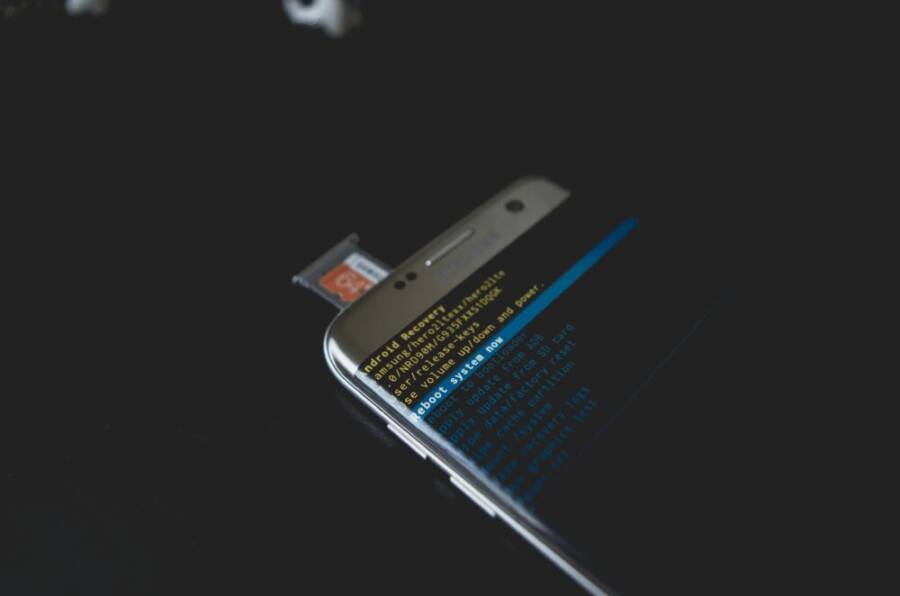
Starting with a simple Android phone can make your first steps with a smartphone feel approachable. If you’re new to this world, you want a device that’s easy to learn, affordable, and reliable enough to handle everyday tasks like messaging, photos, and quick web searches. A beginner-friendly phone sets you up for smooth experiences from day one.
In this guide you’ll learn how to pick an Android phone that fits a beginner’s needs, what features matter most, and which models stand out in 2025. We’ll focus on easy setup, helpful software, good battery life, and solid updates so you don’t have to worry about surprises. The goal is to help you feel confident choosing and using your first smartphone.
You’ll also see practical tips to compare phones without the overwhelm. Expect clear checks for performance, camera simplicity, and ease of use, plus setup tips that save time. By the end, you’ll know which device offers the right balance of value and reliability for a smooth start with your very first smartphone.
Why a beginner friendly Android phone matters
Choosing a beginner friendly Android phone sets the tone for your first experience with a smartphone. It reduces confusion, speeds up learning, and lowers the chance you’ll abandon the device out of frustration. A simple phone helps you build confidence quickly, so you stay motivated to explore more features without feeling overwhelmed.
Easy interface and clear menus
A clean launcher makes everything feel predictable from the moment you unlock the device. Large, legible icons reduce the guesswork of where to tap, while a straightforward home screen keeps your most-used apps within easy reach. When settings are intuitive, you don’t need a manual to change basic things like brightness or Wi-Fi. A simple setup helps you form good habits early, so you can focus on what you want to do rather than how to do it.
- Predictable app placement speeds up learning. You’ll know where to find messaging, photos, and maps without hunting.
- A legible font and high-contrast icons aid readability in different lighting.
- A launcher with easy-to-understand labels minimizes surprises, especially for new users.
For those who want to dig a little deeper later, the path remains clear. You can upgrade to more advanced customization when you’re ready, but you won’t be overwhelmed at the start. A well-chosen launcher and clean default layout are the backbone of a positive first experience. If you’re curious about how to begin building a simple user interface, see guidance from Android developers on designing clean, easily navigable interfaces: https://developer.android.com/training/basics/ui/first-app/building-ui
A simple interface also aligns with the idea of Stock Android, which often delivers a clean experience with minimal clutter. Stock Android tends to receive updates faster, which matters for beginners who want steady, predictable behavior from their phone. Learn more about the benefits of stock Android here: https://epistic.net/blogs/stock-android-vs-custom-ui/
Images can help illustrate a clean home screen. Photo by Kelvin Valerio on Pexels can visually convey a simple, approachable Android setup.
Photo by Kelvin Valerio
Long battery life and reliable performance
A phone that lasts a full day or more reduces stress for beginners. You won’t worry about hunting for a charger every evening or losing access to essential apps while you’re out. Good battery life translates to smoother, more confident use during daily tasks like messaging, browsing, and streaming a quick video.
- Real-world endurance matters more than a single spec. Look for devices with battery life that comfortably covers a full day with typical use.
- Consistent performance helps you move between apps without hesitating, which makes learning feel natural rather than frustrating.
- A dependable phone means fewer interruptions, so you can focus on messages, photos, and quick online searches.
Smooth navigation on everyday tasks makes a big difference. When you can tap a message, open a browser, or snap a photo without thinking twice, you’re more likely to stick with your new device. For a deeper look into how long-lasting batteries reduce smartphone stress, check this overview: https://www.androidpolice.com/long-lasting-batteries-reduce-smartphone-stress/
If you want practical tips on evaluating battery life before buying, you can also review how different usage patterns affect drain. This resource explains common factors and how to estimate real-world endurance: https://www.productscience.ai/blog/battery-consumption-in-smartphones
Software updates and security for beginners
Regular software updates matter for safety and smooth operation. Updates bring essential security patches that protect your data from new threats, along with bug fixes and performance improvements. For a beginner, this means fewer surprises and a more reliable experience.
- Updates deliver new features that are useful and easy to adopt, rather than waiting for a big jump later.
- Security patches close gaps that attackers might exploit, reducing risk for someone still learning how to use their phone safely.
- A device with timely updates feels more trustworthy and stable, which is comforting for new users.
Keeping your Android phone up to date is a straightforward habit. Manufacturers and carriers often handle these updates automatically, but you can also check manually in Settings. For a quick primer on why updates matter, see Android’s overview: https://www.android.com/articles/why-are-android-updates-important/
A beginner-friendly phone should also benefit from a clean software environment with minimal bloatware. Stock Android devices often ship with fewer preloaded apps, helping you focus on what you actually use. Learn more about Stock Android and why it can be preferable for new users: https://epistic.net/blogs/stock-android-vs-custom-ui/
Images can reinforce the message of simple, reliable software. If you choose to include an image here, use a photo that conveys a calm, uncluttered home screen and calm user experience.
Photo by Kelvin Valerio
Best Android phones for first-time users in 2025
If you’re new to smartphones, choosing a device that’s easy to learn, affordable, and reliable matters more than having the latest specs. The right Android phone helps you master everyday tasks quickly, from messaging to photos to browsing. Below are three strong picks for first-time users, each offering a friendly setup, solid updates, and thoughtful features that reduce friction as you get comfortable with a smartphone.
 Photo by Kelvin Valerio
Google Pixel 9a
The Pixel 9a stands out for value and user-friendly software. It delivers a clean, straightforward Android experience with helpful assistant features and simple navigation that new users will appreciate. The combination of a reliable camera, long software support, and a friendly price makes it a practical first smartphone choice. You’ll get meaningful updates over time, which keeps the device performing smoothly without surprising behavior.
- Value and simplicity: A well-balanced price with a fluid, uncluttered interface reduces the learning curve.
- Simple UI with practical features: Clear menus and intuitive gestures help you pick up basic tasks quickly, from messaging to photo captures.
- Long software updates: Regular security patches and feature improvements extend the phone’s lifespan and feel secure.
- Capable camera for everyday use: A dependable camera that fits social sharing and family moments without fuss.
- Reliable support ecosystem: Clear guidance from Google and partners makes troubleshooting straightforward.
For readers who want to compare models, Google’s Pixel 9a site highlights the blend of camera prowess and easy software. Learn more here: https://store.google.com/product/pixel_9a?hl=en-US
If you’d like a quick third-party perspective, PCMag’s Pixel 9a review covers performance, battery life, and software polish in a concise package: https://www.pcmag.com/reviews/google-pixel-9a
For a broader take on how Pixel delivers a smooth, stable software experience, TechRadar offers a comprehensive overview: https://www.techradar.com/phones/google-pixel-phones/google-pixel-9a-review
Samsung Galaxy A14 5G
The Galaxy A14 5G offers a big screen and a beginner-friendly Android experience at a budget price. It’s easy to read, easy to navigate, and has enough modern features to feel current without overwhelming a first-time user. Battery life is solid, so you can go through a full day without constantly searching for a charger. The device unlocks quickly, supporting simple authentication methods that new users often appreciate.
- Large, comfortable display: A big screen makes reading messages, browsing, and watching quick videos more pleasant.
- Beginner-friendly interface: Samsung’s One UI keeps key actions in obvious places, reducing setup friction.
- Strong battery life: Long-lasting capacity means fewer charging stops and more confidence in daily use.
- Fast unlock and modern features: Easy-to-use biometrics and updated connectivity keep things simple.
- Budget-friendly yet capable: You get practical, up-to-date features without paying a premium.
If you want to see the official product page, Samsung lists the Galaxy A14 5G (64GB) unlocked here: https://www.samsung.com/us/mobile/phones/galaxy-a/galaxy-a14-5g-64gb-unlocked-sm-a146uzkdxaa/
For a well-rounded review that covers performance and value, CNET’s take on the A14 5G is a good resource: https://www.cnet.com/tech/mobile/samsung-galaxy-a14-5g-review-200-phone-hits-every-essential/
The A14 5G also earns praise for durability and everyday reliability in PCMag’s evaluation: https://www.pcmag.com/reviews/samsung-galaxy-a14-5g
Motorola Moto G Power (2025)
If you want a phone that emphasizes value and straightforward operation, the Moto G Power (2025) is worth a close look. Its standout feature is multi-day battery life, which means you can go several days between charges under typical use. The Android experience remains uncomplicated, so learning the basics is quick and smooth. The inclusion of a headphone jack and expandable storage adds practical convenience for beginners who want simple, familiar ways to manage media and apps.
- Multi-day battery life: Real-world endurance lets you focus on tasks rather than daily charging.
- Straightforward Android experience: A clean, near-stock feel reduces confusion and speeds up learning.
- Headphone jack: A familiar, no-fuss option for listening to music or calls without adapters.
- Expandable storage: Easy to add more space for photos, apps, and media as you grow into smartphone use.
For a detailed look at how the Moto G Power handles battery life and usability, check out the official Motorola page: https://www.motorola.com/us/smartphones-moto-g-power
If you’re curious about how Android’s default experience compares with more feature-rich skins, Android Police provides practical, beginner-focused guidance on choosing a simple phone setup: https://www.androidpolice.com/long-lasting-batteries-reduce-smartphone-stress/
Images can help illustrate a straightforward home screen and simple navigation. If you choose to include one, a calm, uncluttered setup aligns with the message of a beginner-friendly device. Photo by Kelvin Valerio
This section should help you quickly identify which Android phone best fits a first-time user’s needs. Each option keeps the focus on ease of use, dependable performance, and practical features that help you get comfortable with daily smartphone tasks without a steep learning curve. For more guides on choosing the right entry-level phone, explore the linked resources and reflect on what matters most to you in a beginner-friendly device.
Key features to look for when choosing
Choosing a phone as a first-time smartphone user means prioritizing simplicity, reliability, and predictable performance. This section breaks down the features that make a new Android phone easy to learn and easy to live with. Each point helps you compare models quickly so you can pick a device you won’t outgrow in a few weeks.
User friendly skin and app experience
The skin on a phone changes how you interact with every tap and swipe. A simple, clean skin with a straightforward launcher helps you find messages, photos, and apps without confusion. Look for:
- A predictable home screen layout with large icons and clear labels. This reduces the time you spend hunting for apps.
- A near-stock Android feel, which generally means fewer preloaded apps and smoother updates. Stock experiences tend to be more intuitive for beginners and can lead to quicker learning.
- Easy access to essential settings like Wi-Fi, brightness, and volume, without digging through nested menus.
If you want a reference point, Pixel UI is often noted for its clean, easy-to-navigate design while still offering useful features. It’s built on stock Android, which many new users find approachable. For a quick overview, you can explore the official Pixel 9a page: https://store.google.com/product/pixel_9a?hl=en-US
Beyond that, most beginner-friendly skins keep the focus on practical use rather than an abundance of options. A UI that doesn’t overwhelm allows you to learn core tasks—messaging, camera use, and web browsing—without cognitive overload. If you’re curious about how different skins impact usability, Android Authority provides a broad look at how major skins compare: https://www.androidauthority.com/android-skins-ranked-3456185/
- Practical tip: start with a launcher that uses simple, descriptive labels. You can switch to more customization later when you feel confident.
Battery life and charging options
A full day of use matters more than a high number on a spec sheet. For beginners, reliable battery life means fewer interruptions and less anxiety about finding a charger. Key considerations:
- Real-world endurance: choose devices that consistently last through a typical day of messaging, light browsing, and occasional video. Battery life that covers a full day is a practical baseline.
- Charging speed and habits: consider phones with support for fast charging or at least quick top-ups. A morning boost can get you from low to a comfortable charge in 15 to 30 minutes.
- Charging options: wired charging is standard, but check for wireless charging if you value convenience. A device with easily accessible charging setups reduces setup friction.
If you want a benchmark, look at phones known for solid endurance and reasonable charging speeds. For example, articles comparing battery life across popular models can help you gauge what “all-day” looks like in real use: https://www.tomsguide.com/us/smartphones-best-battery-life,review-2857.html
- Practical consideration: a phone that holds charge through your commute, work, or school day helps you stay focused on what you’re doing instead of chasing a charger.
Software updates and security
Staying up to date matters for safety and a smooth daily experience. Regular updates bring security patches and bug fixes that protect your data and keep features working as intended. For beginners, a predictable update cadence reduces surprises.
- Update cadence: some brands push monthly security patches and annual OS upgrades; others are slower. A phone with a clear, reliable update plan reduces risk and keeps apps compatible.
- How to check for updates: in Settings, look for System or Software Update. You’ll typically see whether updates are available and when they’ll install. Turn on automatic updates if you prefer not to manage this manually.
- Why it matters: current software reduces exposure to threats and can fix issues you encounter, making daily use safer and more stable.
For a practical snapshot of current policies, Pixel devices are known for timely updates. You can review how Google handles updates on Pixel devices here: https://www.android.com/articles/why-are-android-updates-important/
If you want a broader take on update policies across brands, Android Authority provides a useful overview: https://www.androidauthority.com/phone-update-policies-1658633/
Storage, RAM and expandability
How much storage you need depends on how you use the phone, but beginners typically benefit from a comfortable onboard capacity plus flexible options to grow later.
- Onboard storage: aim for at least 64GB if you plan to store a lot of photos, videos, or offline apps. More storage reduces the need to manage space constantly.
- RAM and multitasking: devices with 4GB or more of RAM handle everyday tasks smoothly. For casual use, this is enough to switch between messaging, web, and camera without noticeable lag.
- Expandability: microSD card support is a big plus for beginners who want to store photos and media without worrying about hitting storage limits. It also helps keep the upfront cost lower if you start with less internal storage.
If you’re shopping on a budget, you’ll find several capable phones that offer expandable storage and solid performance at a friendly price. For context on expandable storage options, Android Central highlights several budget-friendly choices with microSD slots: https://www.androidcentral.com/best-android-phones-expandable-storage
- Quick tip: consider a model with a practical mix of 64GB–128GB onboard storage and 3–4GB RAM for smooth day-to-day tasks. If you anticipate lots of media or offline maps, a microSD slot becomes especially valuable.
Putting it all together, the right phone for a first-time user balances a simple, friendly software experience with dependable battery life, regular security updates, and sensible storage. The combination reduces friction and helps you build confidence as you learn core smartphone tasks. For a broader take on beginner-friendly options and software experiences, you can explore conversations about skins and stock experiences here as you compare models: https://currently.att.yahoo.com/att/want-know-whats-favorite-android-213000227.html
If you want a quick reference on real-world battery life and update practices across popular phones, the following resources can help you compare outcomes and expectations:
- Battery life overview and testing results: https://www.tomsguide.com/us/smartphones-best-battery-life,review-2857.html
- Update policies and support timelines across brands: https://www.androidauthority.com/phone-update-policies-1658633/
- Best Android phones with expandable storage: https://www.androidcentral.com/best-android-phones-expandable-storage
This section equips you with a clear checklist to guide your choice. Each feature supports an easy, stress-free start with your first Android phone and makes it straightforward to grow into more advanced uses when you’re ready.
How to choose the right phone for you
Picking your first Android phone should feel empowering, not overwhelming. This section helps you weigh practical decisions that impact daily use, from how much you’re willing to spend to how much storage you’ll actually need. Each point is tailored to first-time users, focusing on simplicity, reliability, and a smooth learning curve. Keep in mind that the right device balances easy setup with room to grow as you get comfortable with features like photos, browsing, and messaging.
Set a realistic budget and storage needs
Your budget sets the baseline for which phones you can consider, so start with clear tiers and a sensible storage plan. For most beginners, three practical budget ranges work well:
- Budget tier (roughly $200–$350): Expect dependable basic phones with solid battery life and essential features. These models cover calls, messaging, social apps, and light photo use without stretching your wallet. Look for devices that still receive regular security updates and have decent support from the manufacturer.
- Midrange tier ($350–$500): This level usually brings a smoother software experience, better cameras for everyday photos, and longer support cycles. It’s a good balance between value and longevity, especially if you plan to keep the phone for a few years.
- Entry into premium-lite ($500–$700): You’ll get more robust performance, larger storage options, and faster charging. If you want features like a sharp display for media or better multitasking, this range can be worth the extra cost.
Storage matters because your phone stores photos, apps, and offline maps. For first-time users, a practical rule is:
- 64GB: Fine if you mainly use the phone for messaging, light browsing, and a modest photo library. You’ll want to manage space periodically.
- 128GB: A balanced choice for most beginners. It comfortably covers photos, a few offline apps, and music without frequent cleanup.
- 256GB or more: Best for users who store lots of video, apps, or offline maps, or who prefer not to manage space at all.
If you’re unsure, start with 128GB and rely on cloud backups and expandable storage if available. For a quick reference on typical storage needs, you can review guidance from Optimum that breaks down “64GB, 128GB, 256GB” options and who they’re best for: https://www.optimum.com/articles/mobile/choosing-phone-storage-amount-needs-guide
Expandable storage can also be a practical bridge. If you want to keep costs low while not worrying about space, look for models that offer microSD cards. Samsung’s overview on storage decisions explains how many people opt for 64GB or 128GB and when to choose higher capacities: https://www.samsung.com/us/explore/mobile/how-much-phone-memory-and-storage-do-I-need/
A quick takeaway: prioritize 128GB as a default starting point for most first-time users, with a microSD option if you expect media-heavy use. That setup minimizes the chance you’ll run into space conflicts in the first year while keeping costs reasonable.
Consider screen size, weight and ergonomics
The size and feel of a phone influence your daily experience just as much as the software does. A larger screen makes reading messages and browsing easier, but it can be harder to use with one hand or fit in a pocket. Here’s how to approach this decision:
- Screen size: A bigger display helps with readability and video watching. It’s great for reading emails, viewing photos, and following maps. If you primarily use the phone in one hand or carry it in a tight pocket, consider a slightly smaller model.
- Weight and grip: Heavier phones can be tiring after a long day, while lighter devices can feel flimsy if you’re not used to glass backs or metal frames. Check how the phone feels when held and how well you can reach the top and bottom edges with your thumb.
- Ergonomics in real life: The best way to know is to try the phone in a store. If stores allow, handle a few models for a minute each. You’ll quickly sense which size and weight feel natural.
A practical tip: aim for a phone you can comfortably use with one hand for most tasks, like messaging or navigating in a hurry. If you’re shopping online, you can still get a good sense of usability by watching hands-on videos that show how easier devices feel in real life.
To help you compare, remember that the Pixel line emphasizes a clean, easy-to-use interface and often features comfortable sizes for everyday tasks. You can explore the Pixel 9a page for official details: https://store.google.com/product/pixel_9a?hl=en-US
If you want a broader perspective on screen size and ergonomics across popular models, Android Authority’s guide on phone sizes offers helpful context: https://www.androidauthority.com/phone-size-guide-phones-oversized/
If you’re curious about how a big screen feels in daily use, a common option for first-time users is a phone with a 6.5-inch to 6.8-inch display. The Galaxy A14 5G sits in this comfortable range and pairs a friendly interface with easy navigation. Official product page: https://www.samsung.com/us/mobile/phones/galaxy-a/galaxy-a14-5g-64gb-unlocked-sm-a146uzkdxaa/
Camera basics and everyday usefulness
For most everyday moments, you don’t need a high-end camera with dozens of modes. Focus on what matters for daily photos and video calls:
- Photo quality that’s reliable in typical light: Look for natural color accuracy, good exposure in shadows and highlights, and steady performance for shots of family, friends, and food.
- Easy video calls: A camera that handles real-time video well in apps like messaging or video chat will save you from surprises during important calls.
- Simple photo controls: A straightforward camera app with one-tap portrait or standard photo mode reduces confusion. Avoid devices that force you into a long setup before you can snap a picture.
If you’re unsure about camera quality, read quick reviews that emphasize everyday photos and video calling. The Pixel 9a is a strong example of dependable, user-friendly camera performance in daily use. See the official Pixel page for more detail: https://store.google.com/product/pixel_9a?hl=en-US
For a practical take on camera performance in budget and midrange phones, consider PCMag’s reviews that focus on real-world usability rather than buzzwords: https://www.pcmag.com/reviews/google-pixel-9a
If you’d like a broader comparison, TechRadar’s camera roundups help highlight how everyday shooting stacks up across popular models: https://www.techradar.com/phones/google-pixel-phones/google-pixel-9a-review
In daily use, you’ll appreciate a camera that handles indoor lighting without too much fuss and a steady hand when you’re streaming video calls or sharing moments with friends. A simple, reliable camera setup makes smartphones feel approachable from day one.
This section gives you a concise framework to choose a phone that fits a beginner’s needs. Prioritize a clear, intuitive software experience, solid battery life, dependable updates, and practical storage. The right combination reduces friction and helps you grow more confident with smartphone tasks as you learn.
If you’re comparing models side by side, the linked resources offer quick benchmarks on updates and storage options to guide your decision. For a quick storage reference, see Optimum and Samsung’s guidance on storage needs: https://www.optimum.com/articles/mobile/choosing-phone-storage-amount-needs-guide and https://www.samsung.com/us/explore/mobile/how-much-phone-memory-and-storage-do-I-need/
By choosing with these factors in mind, you’ll land on a device that feels friendly from the start and remains reliable as your daily smartphone routine expands.
Getting started: setup tips and must have apps
Starting strong means a quick, simple setup and a curated set of apps that cover your everyday needs. This section lays out a straightforward path for first-time Android users and highlights the essential apps that keep you connected, organized, and safe. You’ll find a clear, distraction-free onboarding flow and practical install tips so you can get going without overwhelm.
 Photo by Andrey Matveev
Photo by Andrey Matveev
Photo by Andrey Matveev
First time setup that reduces confusion
A smooth first-time setup is the foundation of a confident smartphone experience. Here’s a concise path that minimizes steps and avoids optional features that might confuse you.
- Start with a clean slate: choose a single Google account or create one during setup. This account powers email, contacts, calendar, and app purchases.
- Connect to Wi-Fi: select your home or office network to speed up updates and app downloads. A stable connection avoids delays and partial installs.
- Set a screen lock: pick a simple pattern, PIN, or biometric option. This protects your data without demanding extra steps every time you unlock.
- Enable essential backups: turn on automatic backups for photos, apps, and settings. This helps recover your information if you switch devices.
- Check for updates right away: install any available Android and security updates. Fresh software keeps your phone secure and smooth.
- Install messaging and email apps: the default options work, but you can add a preferred app later if you like.
- Add essential services: sign into Maps, Calendar, and Drive to start syncing your plans and files.
- Keep initial clutter low: avoid downloading extra apps right away. You can add tools as you discover real needs.
- Create quick-access shortcuts: place the most-used apps on the home screen for easy tapping.
- Review privacy basics: adjust location, ad personalization, and app permissions to your comfort level.
If you want a quick reference on setup steps from trusted sources, a practical how-to guide is available here: https://www.wired.com/story/how-to-set-up-your-new-android-phone/
Another solid starter resource covers the Android Learning Center approach to setting up your device: https://support.google.com/android/answer/12761388?hl=en
Key takeaway: a minimal, predictable setup reduces anxiety and helps you build muscle memory for everyday tasks like messaging, maps, and email.
Starter apps for everyday use
Getting the right apps installed early sets you up for success. Focus on essential tools for messaging, email, maps, safety, and basic productivity. Here are the must-have picks and simple install tips.
- Messaging: Google Messages is usually preinstalled and supports RCS for richer chats. If you prefer another app, WhatsApp is widely used for cross-platform chats.
- Email: Gmail handles most Google accounts well; Outlook is a solid option if you have work or school mail.
- Maps and navigation: Google Maps is the go-to for directions and traffic, while Waze offers real-time driving alerts.
- Safety: Use the built-in Safety features on Pixel devices for check-ins and emergency SOS on most modern Android phones. Location sharing in Maps adds an extra layer of safety.
- Productivity: Google Calendar, Google Keep, Google Tasks, and Google Drive cover scheduling, notes, tasks, and cloud storage in one ecosystem.
Practical install tips:
- Install apps from the Google Play Store only. After you sign in, the store will show recommended apps and updates tailored to you.
- Pin essential apps to the home screen. Long-press an app icon, then choose “Add to home screen.”
- Allow only necessary permissions. You can adjust permissions later in Settings if an app asks for more than you’re comfortable with.
- Keep a light touch at first. Start with the core apps and add others as you finish a task and realize you need them.
For further guidance on current beginner-friendly app options, check out trusted roundups like The Best Android Apps for 2025: https://www.pcmag.com/picks/best-android-apps
If you want quick, practical productivity ideas, this overview covers strong starter tools: https://clean.email/best-android-productivity-apps
A quick reference to safety-focused apps and practices for new users can be found here: https://www.godaddy.com/resources/mindset/best-productivity-apps
To visualize everyday app usage, explore a practical beginner guide to essential Android apps: https://morningmate.com/blog/best-productivity-apps-android/
Images can help reinforce how streamlined these apps feel when used daily. If you include a photo, use a calm setup to illustrate a beginner-friendly environment.
Simple security practices for new users
Security is a core part of learning how to use a smartphone. These easy tips help you stay safe without adding complexity to your daily routine.
- Strong passwords and password management: use long, unique passwords for each account. A password manager, like Bitwarden, helps keep track of them securely.
- Two-factor authentication (2FA): enable 2FA wherever possible. This adds an extra layer of protection beyond just a password.
- Recognize scams: beware of phishing emails, suspicious links, and unexpected messages asking for personal information.
- Software updates: keep your device and apps up to date to protect against new threats.
- App permissions: review permissions during setup and periodically as you install new apps.
For a practical primer on timing and steps for updates and security, this Android-focused overview is helpful: https://www.android.com/articles/why-are-android-updates-important/
If you want broader guidance on how to manage strong passwords and 2FA, this guide is a solid start: https://tct.com.au/blog/guide-to-strong-passwords/
To learn about recognizing common scams, a straightforward safety guide is worth a read: https://it.arizona.edu/news/avoid-tricks-4-cyber-safety-tips-stay-secure
Keep security habits simple. Use a single, trusted password manager, enable 2FA on your key accounts, and stay cautious about unsolicited messages.
Images can illustrate security concepts or show a calm, organized home screen. If you include an image, consider one that conveys calm, controlled smartphone use.
This approach gives you a straightforward, beginner-friendly security baseline. With a few easy practices, you’ll protect your data while you grow more confident in using your phone for everyday tasks.
Links and quick references
- Android updates and security basics: https://www.android.com/articles/why-are-android-updates-important/
- Beginner-friendly app guidance: https://www.pcmag.com/picks/best-android-apps
- Productivity app ideas: https://clean.email/best-android-productivity-apps
- Safety and security basics: https://it.arizona.edu/news/avoid-tricks-4-cyber-safety-tips-stay-secure
This section gives you a practical blueprint to get started quickly. The goal is to minimize setup friction, choose dependable apps, and establish solid safety habits so you can focus on learning and enjoying your first Android smartphone.
Conclusion
For most first time Android users, the Pixel 9a is the best overall option thanks to its simple software, steady updates, and reliable daily performance. It blends easy setup with a capable camera and long software support, which helps you grow without hitting a learning wall. Remember to choose based on your daily needs, whether you value size, battery life, or price more than the latest specs. Start small by comparing a few models side by side and pick the one that fits your everyday tasks best, then grow from there. If you want to learn more, take a quick look at side-by-side comparisons and try hands-on demos to feel which phone suits you best, your smartphone journey begins with a confident, informed choice.