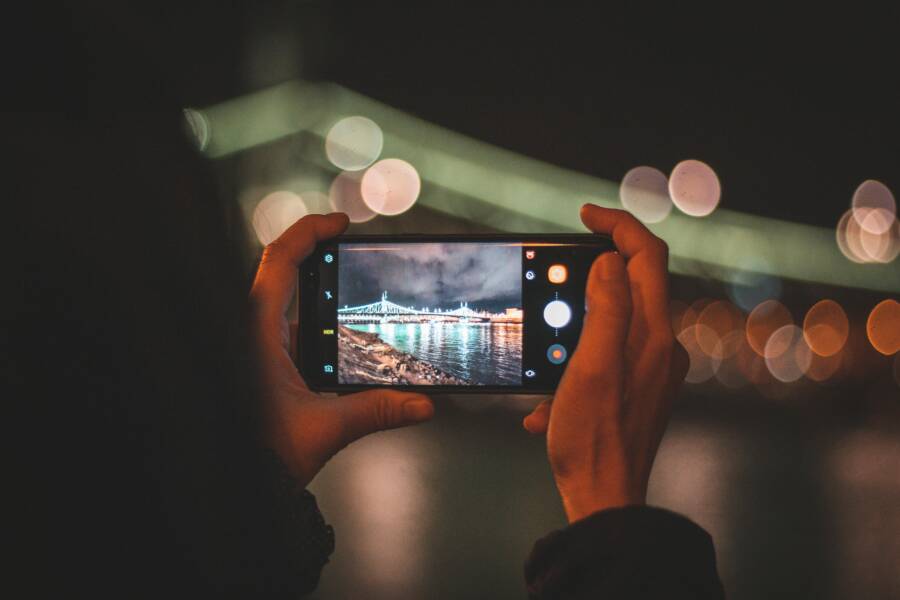
Yes, you can save and reuse photo edits on your smartphone to keep your images consistent. Modern mobile apps allow you to copy your adjustments and apply them to other photos in seconds.
Batch editing turns hours of tedious work into a quick, repeatable process. This approach is useful when you have a set of photos from the same event or location that require identical adjustments to lighting, color, or style. By mastering these tools, you will spend less time in menus and more time taking new pictures.
Follow these steps to learn how to move your favorite looks between photos on your device.
Why You Should Batch Edit Your Mobile Photos
Using a smartphone for photography often means dealing with dozens or hundreds of images at once. Manual editing for every single shot consumes hours of your day. Batch processing fixes this by applying a specific set of adjustments to a group of photos simultaneously. This workflow turns a tedious task into a quick, repeatable activity.
Consistency in Your Visual Style
Applying identical adjustments to a collection of images creates a professional look across your gallery or feed. If you frequently post photos on social media, this uniformity helps viewers recognize your work instantly. Think of your edits as a personal signature. When every image follows the same color palette, contrast levels, and lighting, you build a recognizable aesthetic that stands out.
A consistent style hides small differences in lighting from various shots. For example, if you photograph a series of indoor portraits, shadows might vary slightly based on where the subject stood. Applying a saved filter or light correction setting forces all those images into the same visual language. This removes the distraction of mismatched tones. You focus your energy on the subject matter while the software maintains the technical polish.
Saving Precious Time on Large Photo Batches
Editing one photo at a time is inefficient, especially when you have dozens of pictures from a single event. Batch editing lets you select an entire group and apply your saved adjustments in one motion. You finish in seconds what once required an hour of repetitive clicking. Your smartphone handles the heavy lifting, which leaves you free to focus on capturing new memories instead of hovering over a small screen.
This speed is helpful for managing high-volume situations. Consider these common scenarios where batch editing provides a massive advantage:
- Event photography: After a birthday or family gathering, you likely have fifty similar shots to share.
- Travel highlights: A sunset series often requires the same exposure tweaks for every frame.
- Daily documentation: Applying a standard preset to photos taken in the same lighting makes your entire feed look intentional.
You simply adjust one primary image until it looks perfect. Once that is done, you save those settings as a preset or copy the edit parameters. You then select the remaining images and paste the adjustments to the entire batch. This process keeps your workflow moving and prevents the burnout that comes from editing long series of photos by hand.
How to Copy and Paste Edits on iPhone
You can quickly replicate your photo adjustments across multiple images using the tools already on your smartphone. Apple includes a native feature that transfers every change from one picture to another. This works for simple lighting corrections, filters, and crop settings on any device running recent software versions.
Using the Built-in iOS Photos Tools
The native Photos app provides a simple workflow to copy your adjustments. First, open the photo where you have already applied the edits you like. Tap the Edit button in the top right corner. Once inside the edit interface, tap the three dots icon located in the top menu. A small pop-up menu appears, showing the option to Copy Edits.
After copying those settings, navigate back to your main gallery view. Select the other photos you want to update with this style. You can tap the Select button at the top to choose multiple images at once. Once they are highlighted, tap the three dots icon again. This time, choose Paste Edits from the list. Your smartphone applies every change to the selected images instantly.
This process works best for photos taken in similar conditions. If you used your smartphone to capture a series of shots in the same room, the lighting and color balance often match perfectly. Applying one set of adjustments saves you from modifying each file individually. It also keeps your visual style uniform across your entire library.
Managing Your Edits for Future Use
While the copy and paste function is helpful for immediate batch tasks, the iOS system does not include a permanent library for your saved edit sets. You cannot save a collection of adjustments as a named preset to open later. Once you move on to a different project or close the app, your previous edit settings are not stored for future retrieval.
If you frequently need to use the exact same adjustments, you must keep at least one reference photo saved in your gallery. This image acts as a template for your style. Whenever you need that look again, you open the template, copy its edits, and apply them to your new photos.
This limitation means you should keep your reference images organized in a specific folder. You might label an album as “Presets” to store your favorite edits. While this is not a formal preset manager, it gives you a quick way to maintain your aesthetic over time. You avoid the guesswork by using these reference files as your personal guide.
Mastering Preset Workflows on Android
Most Android photo editing apps allow you to move beyond basic adjustments by creating custom presets. These tools turn your manual effort into a permanent asset. You can build a specific look, save those parameters, and apply them to any future image. This capability makes your smartphone a powerful tool for maintaining a consistent visual style without repeating individual slider adjustments.
Creating and Saving Custom Presets
Start by editing one photo until the lighting, color, and contrast look exactly how you want. Once you finish your adjustments, look for a button labeled Save Preset or Create Preset within the app menu. This action captures your current edits into a single file. You should name this preset something descriptive, such as “Morning Portrait” or “Street High Contrast,” so you can identify it later.
Many popular apps like Lightroom Mobile or Snapseed offer these features. To save your settings in these apps:
- Open the image you already adjusted.
- Select the menu options, typically represented by three dots or a square icon.
- Choose the option to Create Preset or Save Look.
- Name the preset and confirm the save.
The application stores this data in a local folder accessible through your library. You can create as many presets as your storage space allows. Organizing these into categories helps when you need to access specific styles for different photography environments.
Applying Saved Looks to New Captures
After you save a custom look, you can apply it to new images on your smartphone with just a few taps. Open the new photo you want to edit and navigate to the presets or filters section. Your saved presets usually appear in a dedicated tab or list labeled User Presets.
When you select a preset, the app automatically maps your stored adjustments onto the new image. If the lighting in your new photo differs from the original, you can still fine-tune the settings after the application finishes. For instance, you might need to adjust the exposure slider or white balance slightly to account for different shadows.
This workflow provides a jump-start for every edit. Instead of building your style from scratch, you rely on your saved foundation. Most users find that applying a preset covers eighty percent of the required work, leaving you only minor tweaks to finalize the image. This process ensures your smartphone gallery maintains a professional look across every folder.
Third-Party Apps That Simplify Your Workflow
Dedicated photo editing applications for your smartphone offer advanced features that go beyond basic stock tools. These programs provide precision controls, non-destructive editing, and professional-grade syncing options. By using specialized software, you gain access to powerful tools designed to manage large collections of images with high efficiency.
Lightroom Mobile for Pro-Level Control
Adobe Lightroom Mobile acts as a central hub for professional photography workflows on a smartphone. Its primary strength lies in its ability to synchronize settings across every device you own. When you adjust a single photo, you can save those specific parameters as a preset. This saved file includes your exposure, color grading, and texture adjustments.
Because Lightroom operates using a non-destructive engine, your original image file remains untouched while the app tracks your edits as a layer of data. You can apply these saved presets to entire folders with a single tap. If you decide the edits need fine-tuning, the app allows you to adjust individual sliders even after the preset is active. This flexibility helps you maintain a cohesive look across different shooting conditions without starting from scratch.
Snapseed for Quick and Simple Adjustments
Snapseed offers a different approach focused on speed and intuitive gesture-based editing. The View Edits menu serves as a record of every change you have applied to an image. This feature allows you to open a past project, select specific adjustments, and re-apply them to a new photo. It effectively tracks your history, so you can revert or tweak any step of your process at any time.
The Copy Edits function provides a fast path for processing groups of images. After you finish editing a photo, you simply access the menu to copy the current state of the image. When you open another photo in the app, you paste the previous look directly onto the new file. This tool is useful for applying quick color corrections to a series of shots taken in the same environment. By utilizing these tools, you reduce the time spent on repetitive tasks and keep your editing process fast and responsive.
Conclusion
You now have the tools to replicate your favorite photo adjustments across your entire library. Whether you use an iPhone or an Android smartphone, the ability to save and reuse edits turns a repetitive chore into a quick, organized process. Consistency is the secret to a professional gallery, and these methods keep your visual style uniform with minimal effort.
Try creating a few distinct presets this week. Test them on different photos to see which settings work best for your specific lighting conditions. Your future self will appreciate the saved time.