He Was Drowning in Bills and Burnout Until a Simple Daily Ritual Rewired His Brain for Wealth in Less Than a Week
>>> Start Your Shift Today <<<

Moving to a new Android phone should feel exciting, not stressful. If you’re wondering how to bring over contacts, photos, apps, and settings, you’re in the right place. This guide shows practical, reliable ways to move data quickly and safely.
You’ll learn the main transfer options you can use right away. Wireless transfers, cable connections, cloud backups, and brand specific tools each have their place. We’ll cover what works best in different situations so you can pick the simplest path for your setup.
Along the way, you’ll get easy steps you can follow, plus quick tips to avoid common problems. The goal is to get you up and running with minimal fuss, so you can start using your new Android phone the moment you finish.
Transfer methods at a glance: wireless, cable, and cloud backup
Moving data between Android devices can feel overwhelming, but three straightforward methods cover most scenarios: wireless transfer during setup, USB-C cable transfer, and Google Drive backup and restore. Each path has its own strengths, depending on how much data you’re moving and how you want to set up your new phone. Below, you’ll find clear, practical guidance so you can pick the method that fits your situation and get your new device ready faster.
What If the Only Thing Between You and the Life You Deserve Is a Hidden Wealth Code Waiting to Be Activated
>>> Open the Door <<<

Wireless transfer during setup
Wireless transfer is the easiest, no-cable option that kicks in right as you set up your new phone. It’s designed to copy a broad swath of data without fiddling with cables or adapters, letting you keep moving through setup while the data moves in the background.
- How it works: Both phones connect to the same Wi-Fi network. On the new device, you’ll be prompted to copy data from your old device. The process typically copies apps, settings, contacts, and media, along with other user data.
- What to expect: The transfer runs quietly in the background as you complete setup steps. It’s fast for most users and minimizes interruptions.
- Best-fit scenarios: When you want a quick, cable-free start and you’re comfortable keeping both devices on the same network during setup.
Tips to optimize wireless transfer:
- Confirm both devices are on the same network and have stable Wi-Fi performance.
- Keep both devices charged or connected to power during the transfer.
- Have a rough idea of what you want moved in case you need to pause and resume later.
For official guidance on wireless transfer during setup, see the Android support resources that walk you through the steps on the new device and the data options you can choose to copy. You can also review Google’s instructions for copying apps and data during the switch to a new Android device. These sources outline the process and what data typically moves over wirelessly. https://www.android.com/transfer-data-android-to-android/ https://support.google.com/android/answer/13761358?hl=en
When wireless transfer isn’t ideal, you still have solid alternatives. If you run into connectivity hiccups or the transfer stalls, you can fall back to other methods or try again after a quick network check. The goal is to get you up and running with the least friction possible while preserving important data like photos and contacts.
USB-C cable transfer
A cable-based transfer is often the fastest option, especially when you’re moving a large library of photos and videos. A direct connection between the old and new phones reduces the overhead that can slow wireless transfers and helps ensure a smoother, more predictable data move.
- How it works: You connect the two phones with a USB-C cable (or another compatible cable). The setup prompts you to copy data, and you start the transfer. You can monitor progress on the new device as the data moves.
- What to expect: Cable transfers are typically faster for heavy data like media libraries and large app sets. The process is straightforward: plug in the cable, confirm the transfer on the old phone, choose what to move, and watch the progress.
- Best-fit scenarios: When you have a lot of data to move, or you want a faster, more deterministic transfer without relying on Wi-Fi.
Setup outline:
- Connect the old phone to the new phone with a USB-C cable.
- On the new phone, select “Copy data” or a similar option.
- Confirm on the old phone and choose the data to transfer.
- Let the transfer complete, then finish any remaining setup steps on the new device.
If you want the fastest possible transfer for large data sets, a good cable matters. A higher-quality cable can improve reliability and speed, particularly when handling many photos and videos. After the cable transfer finishes, you may still need to complete some setup steps that depend on cloud data.
For reference on USB-C cable transfers and real-world how-to steps, check official guides and reputable how-to sources. https://www.androidcentral.com/how-transfer-data-your-old-android-phone-your-new-phone https://www.android.com/transfer-data-android-to-android/ https://support.google.com/android/answer/13761358?hl=en
Google Drive backup and restore
Cloud backup via Google Drive is a robust safety net. It’s especially handy if you’re migrating data without both devices present or you want to ensure your settings and apps are restored even if other methods fail.
- How it works: On the old phone, you back up data to your Google account. When you sign in on the new phone during setup, you choose to restore from that Google backup. The data then downloads and re-creates your settings, apps, contacts, and media.
- What to expect: The process is highly reliable, especially when you have a stable internet connection. It’s also useful for reusability if other transfer methods fail or data wasn’t moved with them.
- Best-fit scenarios: When you want a safety-first approach, need to preserve app data and settings across devices, or you’re moving data to a phone without immediate access to the old device.
Backup steps:
- On the old phone, open Settings and navigate to Google backup options.
- Tap Backup Now to push data to your Google account.
- On the new phone, during setup, sign in with the same Google account and choose to restore from the available backup.
If you prefer not to rely on the new device’s initial setup window, you can still perform the restore after setup by returning to Settings and using the Backup and Restore options. This approach ensures you can access a copy of your data even if the initial transfer encounters issues. Official guidance from Google outlines how to back up and restore data with Drive, and third-party guides can help you understand practical workflows. https://support.google.com/android/answer/2819582?hl=en https://guidebooks.google.com/android/getstarted/backuprestoredatawithgoogledrive?hl=en-us
Safety note: Google Drive backups are a dependable safety net. If a transfer doesn’t complete perfectly, you can restore from Drive and re-sync what’s missing. Keeping a local backup on a PC or external drive can add another layer of security for your precious files. If you run into issues, you can explore other sections of this guide for alternative transfer paths and troubleshooting steps.
In practice, you may choose one method or blend them. Wireless transfer is great for a quick start, cable transfer shines for large data moves, and Google Drive backup provides a strong safety net and flexibility. The right mix depends on your data size, time constraints, and network reliability. For more on backing up and restoring data with Google Drive, see Google’s official backup pages and community guides that explain the steps in everyday terms. https://support.google.com/android/answer/2819582?hl=en https://guidebooks.google.com/android/getstarted/backuprestoredatawithgoogledrive?hl=en-us
If you’re weighing options, start with wireless transfer for a quick first-pass, then connect a cable if you have a lot of data or want a faster, more predictable move. Use Google Drive as a safety net so nothing slips through the cracks. The combination gives you flexibility and confidence as you bring your new device to life.
External resources and official guides can provide step-by-step screens and troubleshooting tips tailored to your specific device brand. For example, you can explore transfer instructions from Google, Android, and major phone makers to see which steps align with your setup. Here are some well-regarded sources to consult as you plan your transfer: https://www.android.com/transfer-data-android-to-android/ https://support.google.com/android/answer/13761358?hl=en https://www.androidcentral.com/how-transfer-data-your-old-android-phone-your-new-phone
Brand specific tools for easy transfers
When you move to a new Android phone, brand specific tools can make the process smoother and more reliable. These tools are designed to handle the most common data types your phone holds—contacts, messages, photos, apps, and settings—so you can get back to using your device quickly. Below you’ll find two widely used options: Samsung Smart Switch for Galaxy devices and Google Pixel transfer with Google One backups. Each path has its own strengths, depending on your hardware and data size.
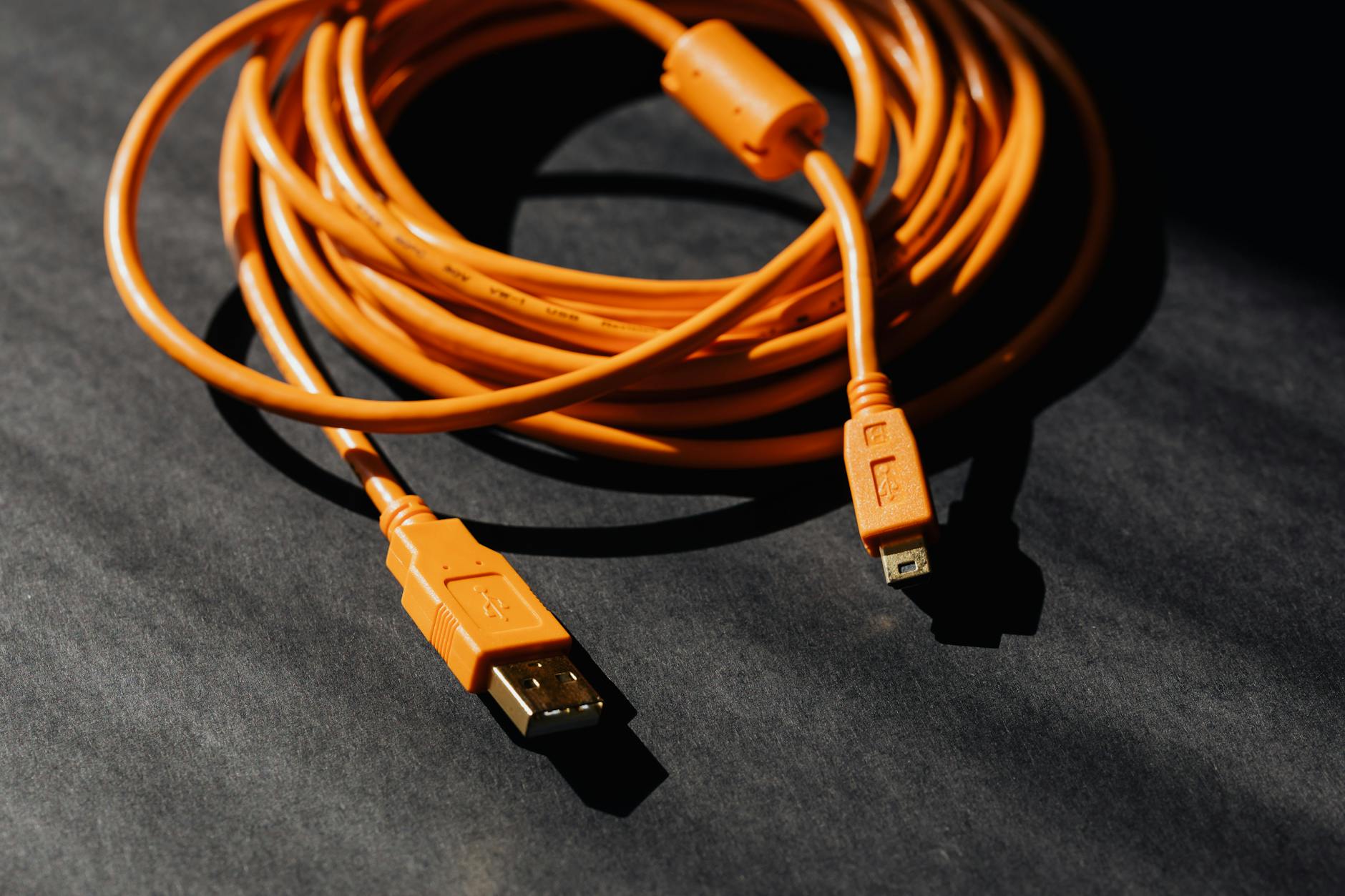 Photo by Karola G
Samsung Smart Switch
Samsung Smart Switch is the built-in bridge that helps you move data from Samsung devices or from many other Android phones to a Galaxy device. It covers a wide range of data types, including contacts, messages, photos, videos, music, notes, calendars, and app data in many cases. The goal is to transfer what you actually need without messing with files one by one.
- Basic flow you can expect:
- Install or open Smart Switch on both the old device and the new Galaxy device.
- Choose the transfer method. You typically have two options: wireless transfer or a wired connection using a USB cable.
- On the old device, select the data you want to copy. The new phone will show the selected items and monitor progress as the transfer runs.
- What makes it fast and reliable:
- For Samsung devices, using a USB-C cable is usually the fastest path. A direct, physical connection minimizes wireless interference and accelerates large transfers like photo libraries and video collections.
- The setup is straightforward, with clear prompts guiding you through each step, including whether to transfer apps, settings, and media.
- Best-fit scenarios:
- You own a Galaxy phone and want a simple, all-in-one transfer solution.
- You’re moving a large amount of data, such as photo and video libraries, and want predictable speeds.
- You prefer a setup that works even when Wi-Fi is unstable.
Official guidance helps you follow the exact steps for your model and situation. For a detailed walkthrough and brand-specific notes, see Samsung’s Smart Switch resources, which explain how to Bring data from an old device and how to complete the transfer on a Galaxy phone. You’ll find the steps cover both wireless and wired methods as well as backup options if needed.
- https://www.samsung.com/us/support/answer/ANS10001345/
- https://www.samsung.com/us/support/owners/app/smart-switch/
- https://www.samsung.com/us/support/answer/ANS10002458/
If you want practical tips straight away, here are a few to keep in mind:
- Use a high-quality USB-C cable for the fastest results, especially when moving large media libraries.
- Charge both devices before starting to avoid interruptions.
- If the transfer stalls, pause and retry on a different method (switch from wireless to wired or vice versa) to regain momentum.
For readers who prefer step-by-step visuals, Samsung’s official guides walk you through the exact screens you’ll see on both devices. They cover common questions like what data can be moved and how to handle apps that aren’t compatible across generations. For more context, you can review Samsung’s Smart Switch overview and related data transfer tips.
- Samsung Smart Switch overview: https://www.samsung.com/us/support/answer/ANS10001345/
- Smart Switch app page: https://www.samsung.com/us/support/owners/app/smart-switch/
- Data transfer and backup guidance: https://www.samsung.com/us/support/answer/ANS10002458/
Tip: If you’re coming from a non-Samsung Android phone, Smart Switch still works in many cases. However, some app data or system settings may not transfer perfectly due to app compatibility or OS differences. It’s a good idea to verify critical data after the transfer and re-download any apps that didn’t migrate.
Google Pixel transfer and Google One backup
Pixel devices emphasize a smooth handoff through Google’s cloud and built-in setup flows. Google One backups provide a robust safety net, while the built-in transfer options offer a practical path to move data during setup. This approach is particularly strong if you want a clean restoration of settings, apps, and content tied to your Google account.
- How Pixel users typically move data:
- Ensure a current backup on the old Pixel (or compatible Android device) using Google One backup. This creates a cloud copy of your accounts, settings, apps, and data.
- During the new Pixel setup, you’ll be prompted to restore data from that Google backup. The restore pulls in your Google account data and reconstructs your apps, preferences, and media.
- If you prefer to customize transfers, you can use the Customize or Express options to pick what gets copied.
- Why Google Drive backups matter:
- Google Drive backups act as a safety net if other transfer methods fail or miss certain items. They provide a reliable path to recover essential data like contacts, calendar events, and app data when needed.
- Best-fit scenarios:
- You want a reliable, cloud-based path that preserves settings and app data across devices.
- You’re moving to a Pixel device and want to minimize setup friction.
- You’re preparing for a future recovery if something goes wrong during the initial transfer.
Backup and restore steps you can follow:
- On the old device, open Settings and navigate to Google backup options. Tap Backup Now to push data to your Google account.
- On the new Pixel, sign in with the same Google account during setup and choose to restore from the available backup.
- If you skip the initial restore, you can still perform it later by going to Settings and using the Backup and Restore options.
Official guidance provides detailed steps for both backup and restore. Use these to confirm the exact prompts you’ll see on your device.
She Pressed Play on a Strange Audio Track and Within Days Her Financial Reality Started Shifting in Ways She Could Not Explain
>>> See How It Works <<<

- Back up or restore data on your Pixel device: https://support.google.com/pixelphone/answer/7179901?hl=en
- Transfer data from your previous device to a Pixel phone: https://support.google.com/pixelphone/answer/7129955?hl=en
- Backup and restore data with Google Drive: https://guidebooks.google.com/android/getstarted/backuprestoredatawithgoogledrive?hl=en-us
- Transfer data from a cloud backup – Pixel Phone Help: https://support.google.com/pixelphone/answer/15274034?hl=en
Why this path shines for many users:
- It minimizes cables and setup fuss, letting you re-create your environment on the new phone with familiar apps and accounts.
- If you’re moving between devices within the Google ecosystem, this method tends to preserve app data and preferences more consistently.
- Cloud backups provide a safety net that other methods alone cannot guarantee.
Advanced tip: If you want to avoid relying on the initial setup window, you can perform a restore after the phone is up and running. This ensures you can recover data even if the first transfer encounter issues. Google’s official backup pages offer practical guidance for this approach and illustrate how to handle any hiccups during restoration.
- Google Pixel backup and restore guidance: https://support.google.com/pixelphone/answer/7179901?hl=en
- Pixel data transfer options during setup: https://support.google.com/pixelphone/answer/7129955?hl=en
- Google Drive backup workflows: https://guidebooks.google.com/android/getstarted/backuprestoredatawithgoogledrive?hl=en-us
In practice, you may blend methods based on your data size and network conditions. Start with Google One backup for a solid safety net, then add a cable or wireless transfer for speed and completeness. The Pixel approach shines when you want a cohesive experience tied to your Google account, with easy access to your apps and settings across devices.
For quick reference, you can consult Google’s official Pixel transfer resources and the broader Android backup guidance to tailor the process to your exact setup.
- Pixel transfer and setup guidance: https://support.google.com/pixelphone/answer/7129955?hl=en
- Backup and restore data with Google Drive: https://guidebooks.google.com/android/getstarted/backuprestoredatawithgoogledrive?hl=en-us
External sources and official guides can provide step-by-step screens and troubleshooting tips tailored to your device. If you’re evaluating options, these brand-specific tools often offer the most straightforward paths for a clean transfer with minimal fuss.
Android Data Transfer: What data moves and what may not
Moving to a new Android phone should feel straightforward. Most users want to know exactly what data will come over automatically and what items might need a quick reconfiguration after the switch. In this section, we break down the data transfer realities into two practical categories. You’ll get a clear sense of what to expect, plus tips to minimize follow-up work. As you plan your move, think about how you use your smartphone in daily life and which items you want ready to go the moment your new device powers up.
Data that transfers automatically
When you start a transfer, a large portion of your essential data moves without extra steps. This automatic transfer includes the things you rely on daily and that are widely supported by Android’s built-in tools. Here’s what you can typically expect to arrive on your new phone:
- Contacts and calendar events. Your address book and scheduled reminders often sync through your Google account, so you don’t have to recreate them from scratch.
- Messages and call history. Text conversations, MMS, and recent call logs migrate, so you can pick up conversations where you left off.
- Photos and videos. Your camera roll usually follows through a standard backup and restoration process or direct device-to-device transfer, ensuring your memories stay intact.
- Apps and app data (where compatible). Most apps and their data migrate, especially those that store data in the cloud or tie to your Google account.
- System settings and preferences. Key configurations like language, display options, and some accessibility features often carry over to the new device.
- Wi-Fi networks and passwords. In many cases, your known networks and saved credentials transfer to keep you connected right away.
If you’re unsure exactly what data to expect, start with a wireless transfer during setup. This method is designed to copy a broad set of data without cables, letting you keep moving through the setup process while data moves in the background. For more details on the process, Google’s support resources outline how to copy apps and data during the switch to a new Android device. See also Google’s official guidance on transferring data between Android devices. https://www.android.com/transfer-data-android-to-android/ https://support.google.com/android/answer/13761358?hl=en
In practice, most readers find that a wireless pass during setup covers the majority of needs and saves time. If you like a visual reference, brand guides from major manufacturers also walk you through what data you’ll see migrate and what to expect on the new screen. For example, you can explore brand-specific transfer paths to understand the exact items commonly moved during setup. See Samsung Smart Switch and Google Pixel transfer resources for practical examples.
- Samsung Smart Switch overview and steps: https://www.samsung.com/us/support/answer/ANS10001345/
- Samsung Smart Switch app and data transfer notes: https://www.samsung.com/us/support/owners/app/smart-switch/
- Pixel transfer and setup guidance: https://support.google.com/pixelphone/answer/7129955?hl=en
A quick reminder: even with automatic transfer, you should verify critical data after the move. Bank apps, password managers, and messaging apps may need re-authentication or re-linking to your accounts. If you rely on a large photo library, consider keeping a local copy or a cloud backup as a safety net.
Data that may require extra setup
Not everything transfers in one go. Some items require a quick reconfiguration on the new device or even a separate setup step after initial transfer. Expect these items to need your attention so you don’t lose access or miss important features:
- App logins and authentication. Even when apps move, you’ll often need to sign back into banking, productivity, or social apps to re-authenticate securely.
- App-specific data stored locally. Some apps keep data only on the device and may not migrate in full. You might need to re-download content or re-create preferences.
- Custom ringtones and notification sounds. Personal tones don’t always carry over. You’ll likely need to reselect or copy files to your new device.
- Wallpapers and home screen layouts. Your exact wallpaper or widget arrangement may not be preserved; you can restore or re-create your preferred setup.
- Certain account settings and preferences. Theme choices, accessibility toggles, and other nuanced settings might reset and require a quick re-tune.
- Enterprise or school credentials. If you use work or school accounts with mobile management, those setups can require re-enrollment or additional verification steps.
To minimize hassle, plan a brief post-move check for each important app. Test key apps first—your bank, email, messaging, and productivity tools—then confirm your backup recovery is intact. If you’re curious about how to manage these items, a number of official and third-party guides walk through typical post-transfer steps. For instance, Google’s backup and restore guidance explains how to handle account data and app re-authentication after a switch. You can also explore Pixel-specific workflows to tailor the experience to your device.
- Google support on copying apps and data during Android setup: https://support.google.com/android/answer/13761358?hl=en
- Google Pixel data transfer options during setup: https://support.google.com/pixelphone/answer/7129955?hl=en
- Pixel backup and restore guidance: https://support.google.com/pixelphone/answer/7179901?hl=en
If you’re moving between brands or models, some app data might not migrate perfectly due to compatibility differences. It’s smart to review critical apps right after the transfer and re-download any that didn’t migrate. In many cases, you’ll still recover most content through cloud backups or subsequent restores, but a quick pass saves time. Samsung and Google both provide clear post-transfer checklists you can use as a reference.
- Samsung reliability notes and tips: https://www.samsung.com/us/support/answer/ANS10002458/
- Google Drive backup workflows and guidance: https://guidebooks.google.com/android/getstarted/backuprestoredatawithgoogledrive?hl=en-us
Why this approach works well
What If the Only Thing Between You and the Life You Deserve Is a Hidden Wealth Code Waiting to Be Activated
>>> Open the Door <<<
- It minimizes surprises by clearly separating what comes over automatically from what may need extra setup.
- It helps you plan a smoother switch, especially if you rely on multiple apps for banking, work, or study.
- It gives you confidence that your essential data arrives on day one, with a simple path to re-enable anything that didn’t migrate perfectly.
External resources and official guides can provide step-by-step screens and troubleshooting tips tailored to your device. If you’re evaluating options, these brand-specific tools often offer the most straightforward paths for a clean transfer with minimal fuss. For more on the subject, explore the transfer instructions from Google, Android, and major phone makers to see which steps align with your setup.
- Android transfer to Android: https://www.android.com/transfer-data-android-to-android/
- Google support on copying apps and data: https://support.google.com/android/answer/13761358?hl=en
- Android Central practical how-tos: https://www.androidcentral.com/how-transfer-data-your-old-android-phone-your-new-phone
Note: This section focuses on practical outcomes you can expect during a typical smartphone upgrade. If you run into unusual data gaps, many readers find it helpful to pair transfer methods. For example, start with a wireless setup to move most items, then use a cable transfer for larger media libraries, and finally rely on Google Drive backups as a safety net. This blended approach keeps you covered and reduces the risk of missing something important.
Tips for a smooth transfer and common issues
Moving data from an old Android phone to a new one should feel straightforward. With the right steps you can minimize friction and keep your important information intact. This section focuses on practical tips to set up quickly and handles the most common problems so you can keep moving without anxiety.
Quick setup tips
Use this short checklist to guide your setup and get your new device ready fast.
- Charge both devices fully. A powered transfer prevents interruptions and avoids mid-session shutdowns that can corrupt data.
- Keep both phones on the same Wi-Fi network when you choose wireless transfer. A stable connection makes the transfer go smoother.
- Decide what to copy before you start. If you’re unsure, start with essential items like contacts, messages, and photos, then add more later.
- Let large transfers run in the background. Don’t touch the devices unless prompted; interruptions can stall progress and require a restart.
- Use a cable for big libraries. If you have a lot of photos and videos, USB-C transfer is typically faster and more predictable.
- Have a backup plan. If something goes wrong, switch to a cloud backup or another method to ensure nothing is lost.
When you’re ready, consult official guides for your chosen path. For wireless transfers during setup, Android’s instructions walk you through the steps on the new device and data options to copy. If you want a quick reference, Google’s guidance on copying apps and data during the switch is worth a look. https://www.android.com/transfer-data-android-to-android/ https://support.google.com/android/answer/13761358?hl=en
If the wireless route stalls, you have solid alternatives. Recheck power levels, verify both devices are connected to a solid network, and consider a switch to a wired method or cloud backup to complete the move. For many readers, this blend keeps data safe while keeping setup simple.
Photo: Close up of a smartphone showing setup screens (Credit: Kelvin Valerio)
Photo by Kelvin Valerio
Troubleshooting common problems
Even with careful planning, you might hit a snag. Here are the most frequent issues and simple fixes to get you back on track quickly.
- Transfer stops or stalls
- Recheck power on both devices and ensure cables are firmly connected if you’re using a wired method.
- Restart the devices and try again. A quick reboot often clears hiccups in the transfer path.
- If wireless, switch to a more stable network or pause and resume once the connection stabilizes.
- Weak or unstable connections
- Move closer to the Wi-Fi router or switch to a different network band if possible.
- Try a cable transfer for large data sets to reduce reliance on wireless stability.
- Backup not found or not showing up
- Verify you’re signed into the same Google account on both phones.
- Make sure the backup was completed on the old device before starting the restore.
- If needed, perform a fresh backup and then retry the restore on the new device.
- Apps not transferring or data gaps
- Some apps store data locally and may not migrate perfectly; re-authenticate or re-download as needed.
- Use Google Drive backups as a safety net to recover missed data after the initial transfer.
- Cables or adapters not working
- Inspect the cable for wear and try a different cable or port.
- Clean ports gently and ensure your device is in data transfer mode when prompted.
If you still encounter issues, consult brand specific guidance. For many users, Samsung Smart Switch and Google Pixel transfer resources provide reliable, step-by-step troubleshooting tailored to each device. See the following official sources for reference:
- Samsung Smart Switch overview and setup: https://www.samsung.com/us/support/answer/ANS10001345/
- Smart Switch app and data transfer notes: https://www.samsung.com/us/support/owners/app/smart-switch/
- Pixel transfer and setup guidance: https://support.google.com/pixelphone/answer/7129955?hl=en
In addition, Google’s support on copying apps and data offers actionable tips if you hit roadblocks during setup: https://support.google.com/android/answer/13761358?hl=en. If you’re looking for quick fixes for file transfer issues, you can also explore common problems and fixes on Android-specific help pages: https://support.google.com/android/answer/13769784?hl=en
Pro tip: keep an eye on the transfer progress but don’t obsess over every pixel. If a particular app doesn’t migrate perfectly, re-download it on the new phone and sign back in. Most critical data arrives with minimal effort, and cloud backups provide a safety net for anything that slips through. For a broader walkthrough, consider Samsung and Google’s official guides, which include common questions and visual step-by-step paths.
- Samsung reliability notes and tips: https://www.samsung.com/us/support/answer/ANS10002458/
- Google Drive backup workflows and guidance: https://guidebooks.google.com/android/getstarted/backuprestoredatawithgoogledrive?hl=en-us
If you’re balancing multiple paths, start with wireless transfer to get your essentials moving, then add a cable transfer for speed, and use Google Drive backups as your safety net. This approach keeps you covered and reduces the risk of missing important items.
External resources that can help you troubleshoot and plan ahead include Android and brand-specific setup guides. These resources often provide step-by-step screens that match what you’ll see on your devices.
- Android transfer to Android: https://www.android.com/transfer-data-android-to-android/
- Google support on copying apps and data: https://support.google.com/android/answer/13761358?hl=en
- Android Central practical how-tos: https://www.androidcentral.com/how-transfer-data-your-old-android-phone-your-new-phone
Note: If you discover data gaps, pairing methods can help. Start with wireless for a broad first pass, use a cable for large media libraries, and rely on Google Drive backups to fill in the gaps. This blended approach minimizes surprises and keeps you in control of your data.
Conclusion
Transferring data from an old Android phone to a new one comes down to choosing the right method for your data size and brand. Wireless setup is quick for most essentials, while a USB-C cable speeds up large photo and video libraries, and Google Drive backups keep a safety net in case something slips through. Brand specific tools like Samsung Smart Switch or Pixel transfer can simplify the process further, especially when you rely on a consistent ecosystem. Always back up first, verify key apps and accounts after the move, and keep a local or cloud backup as a safety net. By using these approaches, your new smartphone will be ready to use with all your stuff intact.
Thousands of People Were Struggling With Money Until They Discovered This One Ancient Secret Hidden in Sound
>>> Unlock It Now <<<
