Will smartphones replace laptops for most people? The short answer is no, but phones are taking on more work than ever. This post breaks down where phones shine and where laptops still win, so you can decide what to carry in your bag.
Smartphones are getting faster, with bigger screens and more versatile apps that cover most daily tasks. For students, remote workers, and travelers, a phone can handle notes, photography, quick edits, and on the go research. Yet when it comes to long writing sessions, large spreadsheets, or complex software, a laptop still feels essential. The gap is narrowing, but not closing.
This guide explains the current reality, what it would take for phones to replace laptops, and what a practical setup looks like today. You’ll learn how to balance portability with productivity, and how to choose a device strategy that fits your needs. By the end, you’ll have a clear sense of when to reach for a phone, when to grab a laptop, and how to stay productive on the move.
Today’s reality: Which device leads in productivity
Smartphones have evolved from communication tools to compact workstations. They power daily tasks, quick collaborations, and on-the-go creativity. But as you plan a practical device strategy, it helps to separate what phones handle well from what laptops still do best. This section breaks down the current landscape and offers a practical lens for students, remote workers, and busy professionals.
What smartphones can do right now
Today’s smartphones handle a solid slate of productivity tasks. For starters, email and messaging are streamlined with reliable apps that sync across devices, letting you read, draft, and respond quickly. Notes apps are more capable than ever, letting you capture ideas with text, sketches, and checklists. When you’re on the move, you can draft documents, collaborate on cloud-based files, and make real-time edits using light workloads.
Video calls and asynchronous video messaging are a regular part of many workflows. You can join meetings, share screens, and record notes without hunting for a computer. For light media work, phones can manage quick photo and video edits, trim clips, apply basic color corrections, and publish drafts to a team or client. If your work involves content creation, you’ll find mobile editing options adequate for short, high-impact projects or rough cuts before handing off to a desktop.
Accessories matter more than you might expect. A Bluetooth keyboard can turn your phone into a more comfortable typing surface, especially for emails or outlines. A portable monitor or a docking option expands your screen real estate when you’re in a café or hotel room. Some docks support charging, USB peripherals, and external displays, letting you work with a near-desktop setup while staying highly portable. For students, campus life often centers on quick research, note-taking, and citation management, all of which a phone can handle if you pair it with the right accessories. Remote workers gain flexibility when traveling or moving between locations, because a phone with a small but capable kit can cover day-to-day tasks without lugging a laptop.
Concrete scenarios help illustrate the fit. A student can record lecture notes, scan and annotate PDFs, and draft a paper on a commute. A remote worker can respond to emails, assemble a slide deck, and join a team stand-up while waiting for a flight. For fieldwork, a phone serves as a capable hub for photography, notes, and cloud-based documentation. The key is to align apps with tasks and carry only what you need for the day.
To support these points, here are practical resources you can explore for apps and mobile workflows:
- The Best Productivity Apps We’ve Tested for 2025, with picks across automation, communication, and work management. https://www.pcmag.com/picks/best-productivity-apps
- 19 Best Note Taking Apps for Boosting Productivity in 2025, to keep your ideas organized on the go. https://thedigitalprojectmanager.com/tools/best-note-taking-apps/
- The 3 Best To-Do List Apps of 2025, for streamlined task management on mobile. https://www.nytimes.com/wirecutter/reviews/best-to-do-list-app/
- Best Productivity Apps to Help You Accomplish More in 2025, including tools that pair well with smartphones. https://clean.email/best-productivity-apps
With the right approach, a phone becomes a solid on-ramp to productivity, especially when you value speed, connectivity, and the ability to capture ideas wherever you are. It’s not about replacing a laptop in all cases; it’s about knowing when a phone can do the job well enough to keep you moving and when to switch to a larger screen and a full keyboard. For many people, that answer depends on workload, environment, and how you structure your day.
To help you visualize the current state, consider how real-world workflows map to device choice. For quick drafting and rapid feedback loops, a phone excels. For heavy drafting, data crunching, or design work that benefits from a large canvas, a laptop remains the smarter option. The balance shifts with each new generation of software and hardware, but the core idea holds: phones handle portability and speed; laptops handle depth and power.
Now let’s look at where laptops still have the edge, so you can plan a practical setup that matches your needs.
Where laptops still have the edge
Laptops remain the stronger choice for heavier tasks, and the reasons are clear when you compare day-to-day work requirements with a device’s capabilities. First, screen size matters. A larger display reduces eye strain and makes it easier to view long documents, thick spreadsheets, and multiple code files side by side. The ability to run two full-scale apps side by side often feels natural on a laptop, whereas mobile multitasking can feel clunky and constrained by screen real estate.
Power is the second big factor. Laptops can run more demanding software, manage larger data sets, and stay responsive under sustained workloads. This matters for activities like coding in integrated development environments, performing data analysis with heavy spreadsheets, or rendering video timelines. In practice, a laptop’s processing headroom translates to faster compile times, smoother edits, and fewer workarounds.
True multitasking completes the picture. On a laptop, you can resize windows, drag and drop between apps, and maintain several tasks without constantly switching contexts. This makes complex projects feel more natural and less error prone. Access to specialized software is another advantage. Many professional tools—such as full-featured IDEs, advanced data visualization packages, or high-end video editing suites—are either desktop-first or offer feature-rich desktop versions that are not yet matched by mobile counterparts.
These differences show up in concrete use cases. For coding, developers benefit from a keyboard-centric workflow, familiar terminal environments, and the ability to run multiple toolchains concurrently. Data analysis and large spreadsheets gain from faster processing and larger formulas, which are easier to manage on a full-size screen. Video editing, color grading, and motion graphics demand scalable hardware acceleration and precise timeline editing that mobile apps struggle to match. Even routine tasks like document formatting and presenting slide decks can become tedious on small screens when you need precise alignment and large canvases.
To support these observations with practical resources, consider these references on laptop versus mobile productivity and how real users navigate the choice:
- Can Your Smartphone Really Replace Your Laptop? A deep dive into on-the-go workflows and where phones fall short. https://medium.com/@the.millennial.report.31/can-your-smartphone-really-replace-your-laptop-a-deep-dive-into-mobile-productivity-5b30fe4bfaa4
- Mobile vs Desktop Usage Statistics for 2026, highlighting reliability and performance gaps. https://research.com/software/guides/mobile-vs-desktop-usage
- Why Smartphones Can’t Replace Computers: An In-Depth Look at the limits of mobile productivity. https://oluboba.com/smartphones-vs-computers/
- Where Samsung mobile devices can match and outperform your laptop, a perspective from late 2025. https://insights.samsung.com/2025/11/14/where-samsung-mobile-devices-can-match-and-outperform-your-laptop/
In practice, most professionals keep a hybrid setup. A phone handles quick tasks and on-the-go work, while a laptop anchors deep work sessions, large-scale editing, and software that demands a desktop-class environment. Accessories continue to bridge the gap. A compact dock or a portable monitor can extend a phone into a more versatile workstation, combining mobility with a larger canvas when you need it. This approach gives you the best of both worlds: the ease of carrying less and the ability to scale your setup when the job requires it.
If you want a sharper onboarding path for building this hybrid workflow, here are practical steps to implement a balanced setup:
- Identify your core tasks for the week and map them to device strengths.
- Invest in a lightweight keyboard and a portable display to expand your screen real estate on the go.
- Choose cloud-first apps that sync across devices, so your work remains continuous whether you’re on a phone or laptop.
- Test a few productivity suites side by side to see which tools you prefer on each device.
- Create a quick-start routine that uses your phone for capture and drafting, then shifts to your laptop for heavy editing and analysis.
For the reader planning a real-world setup, the goal is to maximize uptime and minimize friction. That means recognizing when a phone suffices for a task and when a laptop is worth pulling out of your bag. By combining purpose-built apps, smart accessories, and a practical workflow, you can stay productive whether you’re commuting, traveling, or stationed at a desk.
What would it take for phones to replace laptops for most people
Smartphones are now capable companions for a broad range of daily tasks, yet the leap to replacing laptops for most people still hasn’t happened. To decide if a phone-only setup could work for you, it helps to examine the current barriers in a practical way. This section looks at the core limits that keep phones from fully substituting laptops for productivity, and what would have to change for a broader shift.
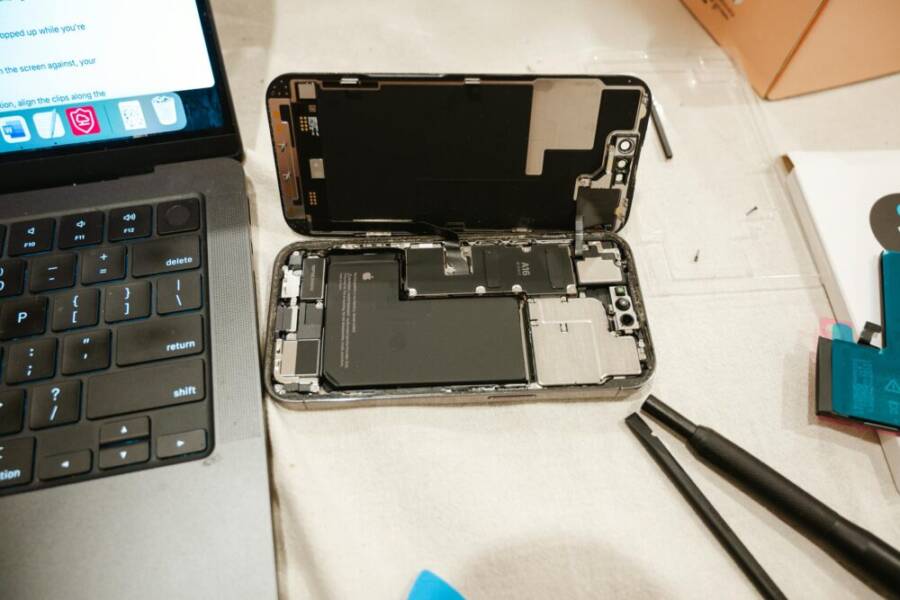
 Photo by Harry Tucker
Hardware and software limits today
Phones have made real gains in speed, display quality, and app breadth, but hardware still crowns the laptop for serious work. Screen size matters more than you might expect when you’re editing long documents, checking large spreadsheets, or toggling between several programs. A 6.5 to 6.8 inch screen can handle quick edits, but it becomes crowded when you need to view long PDFs or compare multiple files side by side.
RAM and processing power scale down on phones, limiting how many heavy tasks you can run at once. Even with sophisticated mobile CPUs, the available headroom drops quickly once you push into data-heavy workloads or multi-app workflows. This translates to longer wait times for rendering, compiling, or crunching large data sets. For many professionals, the difference shows up in faster response times and smoother workflows on a laptop with a dedicated GPU or more memory.
App availability and depth also shape the reality. Mobile operating systems host impressive suites for everyday work, but many advanced tools exist primarily as desktop apps or web-based counterparts with deeper capabilities. Complex design, data analysis, and code development tools often don’t offer feature parity on mobile, or they require workarounds that add friction. Practical guidance suggests pairing mobile tasks with desktop equivalents when a project demands depth and precision. For a closer read on this topic, see discussions comparing mobile and desktop capabilities and the practical gaps that remain. https://oluboba.com/smartphones-vs-computers/ https://www.computerhope.com/issues/ch001398.htm
A concrete example helps: if you’re drafting a research paper with citation management, you can draft on a phone and export later, but you’ll likely want a laptop for precise formatting, bibliography integration, and heavy word processing when the document grows long. The upshot is simple—phones win on portability and speed for quick tasks, but laptops win on depth, stability, and large-scale work.
To give you a practical sense of the landscape, here are internal takeaways you can apply:
- Track which tasks you routinely perform in a workweek and map them to device strength. If most tasks are quick notes, emails, and light editing, a phone may cover the majority of the load.
- Reserve laptops for heavy drafting, data work, software development, and content that requires precise layout.
- When you must choose one device for travel or a short project, test the core tasks first. If the phone handles them without constant app-switching, you’re likely good to stay mobile.
For readers who want external perspectives, these resources offer deeper dives into where phones fall short on capability and why laptops maintain a strong position:
- Tablet vs Laptop: Which Device is Right for You? https://www.hp.com/us-en/shop/tech-takes/tablet-vs-laptop
- Can Your Smartphone Really Replace Your Laptop? https://medium.com/@the.millennial.report.31/can-your-smartphone-really-replace-your-laptop-a-deep-dive-into-mobile-productivity-5b30fe4bfaa4
Key takeaway: hardware constraints, software depth, and the need for a robust toolchain keep smartphones from fully replacing laptops for heavy productivity today. The gap shrinks when workloads stay light and environments favor mobility, but it remains core for power users.
Input, multitasking, and prolonged use
Typing on glass remains comfortable for short bursts, but long-form writing benefits from a real keyboard and a reliable trackpad. External keyboards, whether Bluetooth or USB-C connected, can dramatically improve typing speed and accuracy on a phone. A portable monitor or a compact dock expands your screen real estate and makes multi-app workflows feel more natural. When you add a second display, you’re quickly moving toward a laptop-like experience without the bulk.
Multitasking on a phone is improving, yet the experience often hinges on how you manage windows and apps. You can use split-screen or floating apps in many mobile OSes, but dragging, resizing, and maintaining several full-size windows can feel clumsy compared with a laptop. Cloud-based apps help by keeping documents and projects synced, but you still face limitations in arranging content across multiple displays or complex timelines.
Prolonged use introduces comfort challenges. A phone’s compact form can strain the hands, neck, and eyes over long sessions. External peripherals help, but they also add setup steps and weight. A laptop offers ergonomic advantages with a larger keyboard, stable stand, and a familiar gaze distance that reduces fatigue.
Practical tips to improve efficiency in a phone-heavy setup:
- Invest in a compact Bluetooth keyboard and a lightweight stand to position the screen at eye level.
- Use a portable display when you need an extended canvas. A single additional screen can cut down on window switching.
- Favor cloud-first workflows so files stay synchronized across devices and you can pick up where you left off on a laptop if needed.
- Create a consistent workflow: capture ideas on the phone, then move to a laptop for heavy editing and formatting.
- Turn off nonessential notifications during deep work to keep focus sharp and reduce interruptions.
If you’re curious about how real users balance input and multitasking across devices, these resources offer practical perspectives on mobile and desktop productivity:
- Tablet vs Laptop: Which Device is Right for You? https://www.hp.com/us-en/shop/tech-takes/tablet-vs-laptop
- Can Your Smartphone Really Replace Your Laptop? https://medium.com/@the.millennial.report.31/can-your-smartphone-really-replace-your-laptop-a-deep-dive-into-mobile-productivity-5b30fe4bfaa4
Image and accessories can be a game changer here. A good keyboard and a compact monitor turn a phone into a capable mobile workstation, especially for tasks like drafting, note-taking, or reviewing documents on the go. The right setup reduces friction and helps you maintain momentum through longer sessions.
Security, privacy, and reliability
Security should be a primary consideration when you rely on a phone for work. Phones benefit from strong built-in protections and rapid OS updates, but they operate in a highly connected ecosystem where apps, network activity, and cloud services all play a role in risk exposure. Regular OS updates close known gaps, while careful app management and controlled backups prevent data losses. The challenge is keeping data secure across devices without slowing you down.
Backups and offline work are essential. Relying solely on live cloud access can be risky if you lose connectivity. Ensure your important files have local copies or offline modes, and use encrypted storage where possible. A strong, unique password or biometric lock for the device plus app-level authentication helps prevent unauthorized access if a device is lost or stolen.
Data protection across devices becomes more manageable with a coordinated approach. Use cloud services that offer device-level encryption and meaningful permission controls. Periodically review app permissions, especially for productivity tools that access contacts, location, or sensitive documents. Consider a separate work profile or enterprise-focused security options if you handle confidential information.
Practical security tips for mobile work:
- Enable automatic OS updates and use strong, unique passwords for all critical apps.
- Turn on two-factor authentication for cloud services and email, and use a password manager.
- Encrypt sensitive files and use encrypted notes or password-protected documents for storage.
- Keep a local backup plan in case cloud access is interrupted, using a portable drive or offline storage when feasible.
- Regularly audit connected devices and active sessions to spot suspicious activity early.
For keeping data safe across devices, you can consult sources that summarize best practices for mobile data protection and device security:
- Smartphone Security: How to Protect Personal Data https://nsysgroup.com/blog/smartphone-security-how-to-protect-personal-data/
- Guidelines for Managing the Security of Mobile Devices in the Enterprise https://nvlpubs.nist.gov/nistpubs/SpecialPublications/NIST.SP.800-124r2.pdf
- How to Secure My Data: Complete Protection Guide https://www.hp.com/hk-en/shop/tech-takes/post/how-to-secure-my-data
Reliability depends on consistent access to power, apps, and cloud services. A phone can reliably handle a day of light to moderate work if you manage power well and keep essential tasks streamlined. However, for days with heavy workloads or critical deadlines, a laptop remains the safer bet for stability and predictable performance.
Key takeaway: even as mobile devices gain speed and capability, the combination of hardware limits, software depth, input ergonomics, and security considerations keeps laptops as the default for reliable, long-form productivity. A thoughtfully designed hybrid approach—phone for capture and quick tasks, laptop for deep work—offers a practical balance that suits most real-world needs.
Images and links within this section are chosen to complement the main ideas and provide concrete references. If you want to explore more technical guidance or case studies, the linked resources provide clear, actionable insights without overwhelming detail.
Future outlook: where the trend is headed
As devices continue to blend portability with capability, the road ahead isn’t about a single device replacing another. It’s about smarter pairing, where phones handle moment-to-moment tasks and laptops handle deep work. In this section, you’ll see how trends are shaping work setups, what industries stand to benefit the most, and which factors could tilt the balance in the coming years.
Smartphone growth and laptop role in business
Smartphones are becoming reliable on-the-go work hubs, especially for tasks that move with the user. In business environments, phones excel at capture, quick decision making, and lightweight collaboration. Yet for the heavier lifting—like long-form drafting, large data analyses, and complex software workflows—laptops still supply the needed power and stability. The practical takeaway is clear: a hybrid device strategy wins in most contexts.
- On the move: sales teams, field service, and remote customer support benefit from instant access to email, calendars, and CRM apps. Short tasks can be completed without the encumbrance of a laptop.
- In transit and in meetings: content review, note taking, and quick edits are natural fits for mobile devices, often aided by external keyboards and portable displays.
- In the office and studio: teams that require heavy editing, design work, data visualization, or software development keep laptops as the anchor.
Industries with the strongest affinity for this hybrid approach include sales, consulting, education, and media production. In manufacturing or logistics, phones enable quick scanning, checklists, and real-time updates while laptops manage planning, dashboards, and simulations. The trend is not to abandon laptops but to reduce their daily load by offloading suitable tasks to smartphones.
- Example: a field engineer uses a phone to log measurements and share snapshots with the team, then switches to a laptop for CAD viewing and report generation.
- Example: a campus researcher drafts notes on a phone during a lab break, uses cloud storage to sync, and formats the final paper on a laptop.
For further reading on how companies are balancing devices, see industry perspectives like the Samsung analysis on mobile devices matching some laptop tasks. Where Samsung mobile devices can match and outperform your laptop
Visual note: a compact device lineup can help you picture the mix. Phones for quick capture and messaging, a portable keyboard and display for expanded work sessions, and a laptop for when you need a full desktop-class toolchain.
(Image: A hand holding a smartphone with a laptop in the background can illustrate the hybrid idea.)
Photo by Morthy Jameson
What changes could tilt the balance
Several developments could shift more people toward phone-first workflows. When these elements improve, the daily balance tips in favor of smartphones for longer portions of the workday.
- More powerful mobile apps: key software makers are expanding desktop-level capabilities into mobile versions. Expect better word processing, data analysis, and creative tools that feel nearly native on a phone.
- Better external displays: affordable portable monitors and reliable docks make it easy to scale screen real estate without adding bulk.
- Improved keyboards and input: high-quality, comfortable mobile keyboards and trackpad accessories reduce fatigue during longer writing sessions.
- Stronger offline capabilities: robust offline editing, local storage options, and reliable synchronization minimize the need to stay connected at all times.
- Seamless multi-device ecosystems: smoother handoffs between phone and laptop, with unified app experiences and unified file access, reduce friction.
Concrete, relatable scenarios help ground these ideas. A consultant might draft a slide deck on a phone while in transit, then push a polished version to a laptop for final formatting. A journalist could capture audio notes, sketch outlines, and quickly assemble a draft on the phone, then perform heavy editing and fact-checking on a laptop with full tooling.
Useful references discussing these evolutions include insights into mobile-first productivity and the role of laptops for heavy tasks. For deeper context, explore perspectives like the Samsung data on how phones match laptop tasks and discussions about mobile versus desktop capabilities. Where Samsung mobile devices can match and outperform your laptop and Can Your Smartphone Really Replace Your Laptop? A Deep Dive
Pro tip: test your core workflows across devices before a deadline. If a phone can handle capture, quick edits, scheduling, and light document work without constant app-switching, you’re likely ready to lean more into mobile-first routines.
Practical indicators of a mobile-first shift
As you plan your own setup, watch for a few telltale signs that a shift is underway in your work life:
- Task fragmentation declines: you can complete a larger portion of your day with a phone plus a couple of well-chosen accessories.
- The cloud-first habit sticks: your files stay in sync, so switching devices is nearly invisible.
- Meetings and mobility stay central: you attend more meetings on the go, using a phone for live notes and quick decisions.
- The keyboard and display feel sufficient: a reliable portable display and a quality keyboard make longer sessions practical.
In the near term, these signals point toward a more versatile device strategy rather than a single device taking over. For many, the practical setup remains a phone for speed and a laptop for depth.
- Related reading: broader productivity trends and device usability insights at Mobile vs Desktop Usage Statistics for 2026.
Images and links within this section are chosen to complement the main ideas and provide concrete references. If you want to explore more technical guidance or case studies, the linked resources provide clear, actionable insights without overwhelming detail.
Photo: A phone and a laptop side by side on a desk, illustrating the hybrid workflow. Credit: Photo by [Morthy Jameson](https://www.pexels.com/@morthy-jameson-108384720)How to decide for you: should you switch now or stay hybrid
Choosing between a phone-first approach and a traditional laptop setup isn’t about picking one device for everything. It’s about mapping tasks to the right tool and building a workflow that keeps you productive on the move. This section breaks down a practical path to decide if you should switch now or stay hybrid, with simple decision criteria, clear examples, and actionable steps you can test this week.
Task mapping to devices
A simple method helps you see where a device shines and where it falls short. Start by listing your typical daily tasks, then assign a preferred device for each. This creates a practical, task-by-task map you can test in real life.
- Create a two-column task list
- Left column: daily activities (e.g., note-taking, email, drafting, research, spreadsheets, video editing, coding, design work, presentations).
- Right column: preferred device for each task (phone, laptop, or both as a hybrid). If a task could be done on either, note the conditions that favor one over the other (location, time, battery, network).
- Add real-world how-tos
- For notes and quick drafting, a phone with a Bluetooth keyboard can speed up capture. You can start a draft on the go and finish on a laptop when you’re at a desk.
- For research and citation work, a phone can handle quick reads and in-app annotation, while a laptop handles heavy formatting and reference management.
- For meetings, a phone can record, take live notes, and share highlights; a laptop can generate a fuller meeting memo later.
- Examples to illustrate the process
- Students: Map class tasks like note-taking during lectures, organizing references, drafting papers, and preparing slides. A phone covers capture and quick edits; a laptop handles long-form writing and complex formatting. If a campus day includes group projects and heavy editing, a portable monitor and a compact keyboard make the phone feel more like a mini workstation.
- Remote workers: Map daily routines such as email triage, project planning, and code reviews. Use the phone for quick status updates, chat, and review of documents while commuting. Switch to a laptop for deep work sessions, debugging, or large data tasks where you need to run multiple programs side by side.
- Refine with a one-week trial
- Do a quick trial each day. If most tasks can be completed with minimal app-switching and the phone remains comfortable, you’re leaning toward a hybrid-leaning mobile routine.
- If you hit bottlenecks during writing, data analysis, or design tasks, you’ll likely want to keep the laptop as your anchor.
Helpful resources worth a look as you map tasks to devices include a practical discussion about replacing laptops with smartphones and the realities of on-the-go work. For deeper context, see perspectives like “Can Your Smartphone Really Replace Your Laptop?” and related talks. https://medium.com/@the.millennial.report.31/can-your-smartphone-really-replace-your-laptop-a-deep-dive-into-mobile-productivity-5b30fe4bfaa4
Tips for a smooth transition
A smooth transition means setting up for momentum, not friction. Focus on organizing your files, choosing a reliable input setup, and testing how your software behaves across devices. These actionable steps help you move quickly from one mode to another without losing progress.
- Organize cloud storage and local backups
- Choose a cloud service that plays nicely with both devices and offers offline access when needed. Keep essential projects synchronized so you can pick up where you left off on either device.
- Maintain a small, local snapshot of critical files for offline work to avoid any disruption when internet access is spotty.
- Select a portable keyboard you actually enjoy typing on
- A compact Bluetooth keyboard can transform a phone into a capable typing surface for emails, outlines, and shorter documents. Look for good key travel and comfortable spacing to reduce fatigue during longer sessions.
- Test different display options
- A portable monitor or docking station can extend your screen real estate when you’re at a desk or in a hotel room. This helps you run multiple apps side by side with less window switching.
- If your budget is tight, a high-quality foldable or clip-on display can still make a big difference for longer drafting sessions.
- Evaluate after a defined trial period
- Give yourself 14 days to test the setup in real conditions. Track how often you reach for your phone versus your laptop, the time spent switching apps, and any bottlenecks in your workflow.
- Use a simple scoring rubric: speed, comfort, reliability, and ease of syncing. If the phone-first approach reaches a comfortable threshold in most tasks, you’ve got a viable hybrid path.
- Plan a fallback and upgrade path
- Start with a solid cloud plan and a dependable keyboard, then assess whether a larger portable monitor or a more powerful docking station is worth the investment.
- If you rely on resource-heavy apps, keep a strategy for quick access to a desktop or a more powerful laptop when needed.
- Prioritize security and privacy
- Use a password manager, enable two-factor authentication on critical services, and keep devices updated. A consistent security routine reduces risk as you switch between devices.
Extending your transition with practical gear can make a real difference. For example, a compact docking station or portable monitor can turn a phone into a near-desktop setup without adding much bulk. If you want a deeper look at devices that support a flexible hybrid workflow, check out guides on docking stations and portable displays from trusted tech outlets. https://www.laptopmag.com/articles/best-docking-station
Choosing the right gear for a hybrid setup
A well-balanced hybrid setup centers on a few core pieces that deliver strong value, compatibility, and ease of use. Focus on gear that scales with your needs, minimizes friction, and keeps your files accessible across devices.
- A capable phone
- Prioritize a phone with robust performance, long battery life, and a strong app ecosystem. The device should feel reliable under frequent app switching and cloud-based workflows.
- A lightweight laptop or tablet
- Choose something that can cover long writing sessions, complex editing, or data tasks when you need depth. A laptop with good keyboard feel and stable performance remains a strong anchor.
- A reliable keyboard
- A portable Bluetooth keyboard should feel comfortable in your hands and offer enough key travel for extended typing. It should pair quickly with your phone and stay connected through long sessions.
- A compact monitor or docking station
- A small external monitor or a compact dock expands your workspace, making multi-app workflows more natural. Look for compatibility with both your phone and laptop.
- A solid cloud plan
- Cloud storage and synced apps ensure you can move between devices without losing momentum. Look for cross-device support, offline access, and strong security features.
- Emphasize value, compatibility, and ease of use
- Choose gear that works with the apps you rely on and your preferred workflows. Prioritize gear that reduces friction, not adds it.
To see how others approach hybrid gear, you can explore practical recommendations on docking stations and portable displays from credible sources. https://www.zdnet.com/home-and-office/best-laptop-docking-station/
In a practical setup, you might pair a phone for quick captures and communication with a lightweight laptop for deep work, supported by a portable monitor and a compact keyboard. This combination keeps you agile while ensuring you can tackle complex tasks when needed.
- Practical kit example
- Phone: latest mid to high-end model with strong battery and solid app support
- Keyboard: slim Bluetooth model with comfortable travel
- Display: 12–14 inch portable monitor or a compact docking solution
- Laptop: thin and light with a reliable keyboard and sufficient RAM
- Cloud: two-factor protected storage with offline access
If you want to dig deeper into practical device pairings and how to build a balanced mini workstation, see guides on the best devices for working on the go and portable docking options. https://plugable.com/blogs/news/best-devices-for-working-at-home-or-on-the-go?srsltid=AfmBOoqIEuHm5ee-07Cr9r8cfoi3rt2pXl9I69k4SQswn3oKqDqaZMma
Key takeaways to guide your choice
- Start with a task-to-device map to avoid overpacking.
- Build a portable setup that scales up when you need a larger canvas.
- Keep cloud access seamless and secure across devices.
- Test for at least two weeks to reveal real friction points and adjust.
In the end, the goal is a setup that keeps you productive with minimal friction. A well-chosen mix of phone and laptop, plus a compact monitor or dock, can cover most work needs while preserving portability. If you want to explore more about cloud-first workflows and how to balance mobile and desktop apps, check out cloud storage and cross-device workflow guides. https://zapier.com/blog/best-cloud-storage-apps/
Conclusion
Phones will take on more tasks, but laptops remain essential for heavy workloads. The gap will continue to shrink, especially for on the go tasks, but deep writing, data crunching, and professional-grade software still demand a larger screen, faster hardware, and a proper keyboard. A hybrid setup offers the best of both worlds: capture ideas on a smartphone and switch to a laptop for focused, long-form work. Start with a task-by-task map, test a lightweight keyboard and portable monitor, and iterate over two weeks to see what fits your rhythm. If you stay curious and test different combinations, you will find a practical path that keeps you productive wherever you are.