There Is a Frequency That the Wealthiest Families Have Used for Generations and Most People Will Never Know It Exists
>>> Open the Door <<<

You rush out the door, grab your bag, and reach for your phone only to find it dead. It happens to a lot of people, and it’s a top complaint when tech is supposed to keep us moving. This post breaks down why your phone might not charge and, more important, how to fix it quickly.
Think of the most common causes, and you’ll see why charging issues pop up so often. A faulty cable or charger, a dusty or damaged charging port, or a simple software hiccup can stop a charge in its tracks. Wireless charging misalignment and compatibility quirks can also cause slow or no charging. Knowing these risks helps you act fast rather than guessing.
In this guide you’ll find clear, step-by-step fixes that work for most smartphones and brands. You’ll learn how to test chargers and cables, clean the port safely, and rule out software glitches with a quick restart. If wireless charging is your route, you’ll get tips for proper alignment and charger quality. These tips come from real tech support trends, so you can trust they’re practical and proven.
By the end, you’ll have a simple checklist you can use anytime your battery acts up. The goal is to get you back to full power in minutes, not hours. Most fixes take under 5 minutes and don’t require special tools or technical skills. This advice fits everyday life and a busy schedule, so you can keep moving without losing power.
Thousands of People Were Struggling With Money Until They Discovered This One Ancient Secret Hidden in Sound
>>> Unlock It Now <<<

Test Your Cable, Charger, and Power Source First
When your phone won’t charge, the first move is to test the most common culprits: the cable, the charger, and the power source. A quick check can save you a lot of frustration and a trip to the store. Start with the simplest swap and work your way up. Think of it like a mini diagnostic: if one part is failing, replacing it often resolves the issue without touching the phone itself.
Signs of a Bad Charging Cable and Easy Swap
A worn or damaged cable is the usual suspect behind erratic charging. Look for bent wires at the connector, fraying along the length, or a cable that only charges when you hold it at a certain angle. Intermittent charging is another red flag; the phone might flicker between charging and not charging as you move the cable.
If you notice any of these signs, try a known good cable first. If the phone charges reliably with a different cable, the original is the weak link. When shopping for a replacement, choose certified cables from reputable programs like USB-IF or MFi. These certifications ensure the cable meets safety and performance standards, reducing the risk of damage to your device. Poorly made cables can overheat, cause shorts, or wear out quickly, leading to more problems down the line. For guidance on finding certified options, see USB standards and product listings from trusted sources. For example, you can explore the official USB-IF resources and product search pages to confirm certification details.
- Use a different, certified cable to verify charging behavior.
- If charging improves, replace with a USB-IF or MFi certified cable to avoid future issues.
- Avoid bargain cables that skip certification; they often wear out faster and can harm your device.
Learn more about USB-IF certified cables
Faulty Charger Problems and What to Do
Charger health matters just as much as the cable. A charger can lose its oomph over time or fail entirely, especially if it runs hot or the charging indicator stays off. Start by plugging the charger into a different outlet to rule out a faulty wall socket. Then test with another charger that you know works. If the phone charges with the new setup, the problem was the original charger or the outlet.
There Is a Frequency That the Wealthiest Families Have Used for Generations and Most People Will Never Know It Exists
>>> Open the Door <<<
Be cautious with no-name brands or ultra cheap adapters. They often don’t meet safety standards and can damage the port or battery. Match the wattage and amperage to what your phone expects. A charger with too little power will cause slow charging, while a charger that’s too aggressive can heat up and degrade the battery over time. If you’re unsure, check your device’s charging specs or consult the manufacturer’s recommendations. For reference, trusted product databases and certification guides can help you confirm compatibility and safety.
- Try a charger with the same or higher wattage from a reputable brand.
- Test in a different outlet to rule out the power source.
- If charging works with a different charger, replace the suspect unit with a certified option.
- Avoid no-name chargers that lack safety certifications.
Explore USB-IF product certification and listings
Wrong Power Source Slowing You Down
Sometimes the issue isn’t the cable or charger but the power source itself. USB ports on TVs, car dashboards, or low-power hubs often deliver less than 10W, which slows charging significantly. In these cases, use a standard wall outlet or a power bank with a robust output. If you frequently charge on the go, a compact high-output power bank can be a lifesaver, but verify it has a rating that fits your device needs.
Test different sources to compare performance. A wall outlet should deliver consistent charging; a weak USB port may show a slower charge or none at all. When using wireless charging or car adapters, ensure the port can supply enough power and that the device sits properly on the charging pad or dock. To maximize reliability, prefer sources with clearly labeled output specs and real-world test results.
- Prioritize wall outlets or strong power banks over underpowered USB ports.
- If a port is marginal, test multiple outlets or adapters to confirm pattern.
- Use a source that matches your device’s recommended wattage for reliable charging.
Check power source guidance and testing tips
If you want a quick sanity check, grab a known-good charger and cable combination and test across a few outlets or power banks. If the device charges consistently with the verified setup, you’ve isolated the problem to the previous components. If not, you may be facing a port issue, software glitch, or battery health concern that requires a deeper look. For practical testing methods and step-by-step instructions, you can refer to trusted sources that break down the process in plain terms.
- Quick tip: a reliable setup often reduces charging time by a noticeable margin.
- When in doubt, replace with certified components to protect your device long term.
Further guidance on testing and certification
Clean and Inspect Your Charging Port
A clean charging port is often the simplest fix for a phone that won’t charge. Debris, lint, and dust can create a barrier between the charger and the port’s pins, leading to intermittent or weak charging. In this section, you’ll learn how to inspect safely, remove buildup without risking damage, and test the results so you know you’re on the right track. The goal is a quick, reliable connection that restores power without needing professional help.
Remove Lint and Dust from the Port Safely
Start with your phone powered off and a small amount of light to guide your inspection. Gently inspect the inside of the port with a flashlight to spot lint or debris clinging to the edges. Avoid metal tools; they can bend or poke the delicate contacts. Use a soft toothbrush or a wooden/plastic toothpick to lift and loosen particles. Gentle, deliberate motions work best here. If you have compressed air, give the port a few short bursts to dislodge particles. After you finish, test the charger by plugging in and watching for a solid connection. Pocket lint is a common culprit because it collects wherever the phone sits when you’re on the go. If the port looks clear and the phone still won’t charge, move to the next step or consider a professional cleaning. For practical guidance and safety considerations, see reliable sources on safe cleaning practices for charging ports.
https://www.marthastewart.com/how-to-clean-iphone-charging-port-11780735
Spot and Handle a Damaged Port
A wobbly cable or charging at odd angles is a telltale sign the port may be damaged or worn. Clean first to rule out debris, then assess the port’s condition. If you notice looseness, discoloration, burn smells, or bent pins, stop using the port and seek help. Avoid forcing a connector into a damaged port; continued pressure can worsen the issue. After cleaning, recheck with a known-good cable and charger. If charging behavior improves but the problem recurs, you likely have port wear or a loose socket that needs professional attention. In this case, a technician can replace the port or perform a deeper inspection without risking further damage. Regular inspections can catch signs early, saving you from sudden outages. For additional safety tips and recommendations, see trusted guides on safe port maintenance and certification standards.
https://www.avira.com/en/blog/how-to-safely-clean-your-phones-charging-port?srsltid=AfmBOopRaodNYWRrSQkyUWpi2MKHlFAZB_K_p8H9d2C1oKVE82xSe2G4
Restart for Software Glitches and Fix Heat or Cold
When your phone misbehaves, a quick restart often clears the most stubborn glitches. This section explains how to reboot correctly, apply essential updates, and use safe modes to isolate software issues. If your device still acts up after a restart, you’ll have a clear next step to try. The goal is to reset the software state without losing data or taking apart the hardware.
Quick Restart and Update to Beat Glitches
If you notice odd charging behavior or apps behaving oddly, start with a simple restart. Unplug any power source, reboot your phone, then plug back in. After the device powers up, check for available updates and install them. Software updates often include fixes for charging quirks and stability improvements that can resolve glitches left by older firmware. For Android devices, you can sometimes identify the cause by booting into Safe Mode, which disables third party apps and helps you see if an app is the culprit. On iPhone, perform a restore from iTunes or iCloud if the problem persists after updates. If you’re unsure, follow the manufacturer’s guidelines for a safe reset. Quick tests like trying a different cable or charger after a reboot can confirm whether the issue was software related or hardware tied.
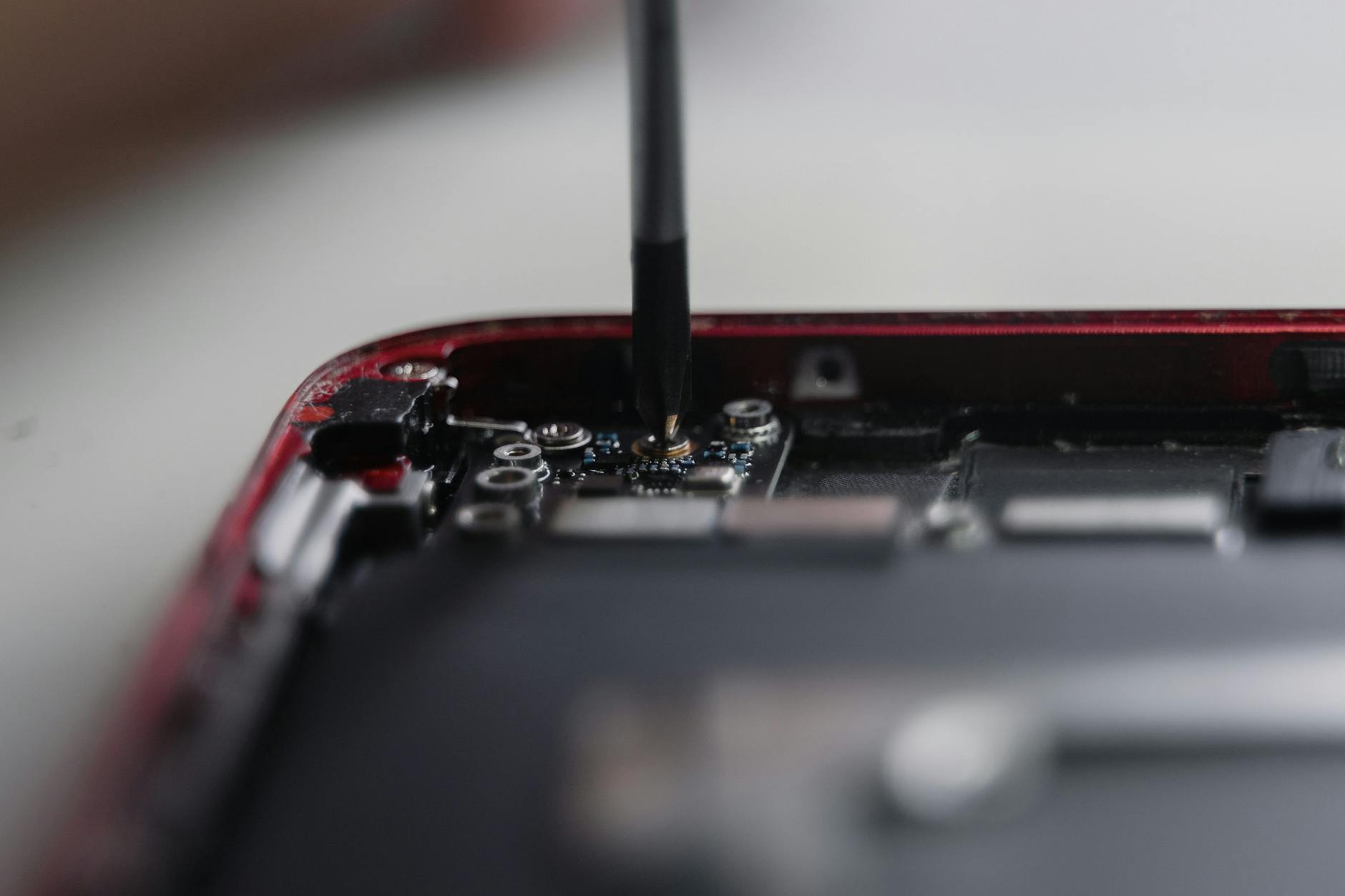 Photo by Tima Miroshnichenko
Cool Down or Warm Up Your Overheating Phone
Heat is a frequent enemy of reliable charging. If your device is hot while plugged in, unplug it and remove any case to improve airflow. Let it rest in a cool, shaded spot away from direct sun or heat sources. If the phone is freezing cold, warming it to room temperature helps it charge more consistently. Avoid using the phone while it’s charging if the temperature is high, and consider charging in a cooler environment for a while. Prolonged heat can degrade the battery, while extreme cold can temporarily slow chemical reactions inside the battery, reducing charging efficiency. For many users, simply waiting a few minutes and reattempting in a better ambient temperature makes a noticeable difference. If overheating continues despite these steps, check for background processes that spike CPU usage, and consider updating apps or performing a factory reset after backing up data.
- Maintain a comfortable room temperature during charging.
- Remove the phone from heat sources and avoid charging on soft surfaces that trap heat.
- If your device remains unusually hot, switch to a different power source or charger to rule out the issue.
Why Does My Phone Get Hot When Charging? (Anker guide)
Tackle Battery Drain and Slow Charging Woes
When your phone seems to sip power away or drags its feet before a full charge, you’re not imagining it. Battery drain and slow charging are often easy to misread as a single problem, but they usually come from a few practical culprits: bad cables, weak power sources, a dirty port, or a software hiccup. The good news is you can diagnose and fix most issues in minutes with a simple, step-by-step approach. Below, you’ll find two focused subsections that address the most common pain points and give you a clear path back to reliable power.
There Is a Frequency That the Wealthiest Families Have Used for Generations and Most People Will Never Know It Exists
>>> Open the Door <<<
Revive a Completely Dead Battery
A truly dead battery can be stubborn, but a careful, staged approach often brings it back to life. Begin with a good setup: use a known-working cable and charger that match your device’s power needs, then connect to a solid power source for 10 to 15 minutes. If there’s any sign of life—a flicker of the battery icon or a light on the charger—keep going with the same setup. If nothing happens, swap in a certified alternative. Certifications from USB-IF or MFi are a smart safeguard; they ensure safety and performance, reducing the risk of damage from subpar hardware. If a refreshed setup brings no sign of charging, consider a replacement power adapter or a higher-quality cable and retest. In many cases, a proven combo can recover a battery that seemed beyond hope. If the device still doesn’t respond after these steps, the issue may lie in the port, battery health, or a deeper software fault that requires further inspection. For more reliable guidance, explore USB-IF certified cables and listings to confirm compatibility.
- Use a different, certified cable to verify charging behavior.
- If charging improves, replace with a USB-IF or MFi certified cable to avoid future issues.
- Avoid no-name cables that lack safety certifications.
Learn more about USB-IF certified cables
Speed Up Slow Charging with Right Setup
Slow charging often hides in plain sight: a mismatch between watts, a dusty port, or background activity that drains power while you charge. Start by matching the charger’s wattage to what your phone expects. A charger that delivers too little power will drag the process out, while an overly aggressive charger can heat the device. Clean the charging port gently to remove lint and debris that block the connection; use a soft brush or a wooden pick and test with a known-good cable afterward. Airplane mode is a quick way to minimize background drain during charging, especially if you’re dealing with older software or apps that keep waking the device. If you’re still slow to wake, verify the power source—wall outlets are usually more reliable than low-watt USB hubs or car adapters. For further reliability, consider a high-quality charger from reputable brands and confirm the power rating matches your device.
- Match wattage: use a charger close to the device’s recommended output.
- Clean the port, then retest with a certified cable.
- Enable airplane mode during charging to reduce background activity.
- If problems persist, try a different power source to confirm consistency.
Explore USB-IF product certification and listings
When DIY Fails: Hardware Issues and Next Steps
Hardware problems can be stubborn. If you’ve already swapped cables, tested outlets, and cleaned the port without a reliable fix, it’s time to understand what might be lurking inside the device. This section covers the most common hardware culprits, how to verify them, and practical paths forward when your own repairs stall. You’ll walk away with a clear plan to protect your device and avoid wasted time and money.
Common hardware culprits behind charging trouble
Hardware issues show up in a few predictable ways. The charging port itself can wear out, especially if the device is old or you frequently bend the cable at the connector. Inside the port, bent contacts or loose sockets can prevent a steady connection, which feels like the phone is randomly charging or not charging at all. The battery is another frequent offender; over time, its ability to accept or hold a charge degrades, which can mimic other faults. A damaged charging port or a failing battery often requires a professional assessment to confirm.
Cables and chargers are still common suspects even when you think you’ve ruled them out. A nonstandard or low-quality adapter may fail to deliver a stable current, and some devices need specific power profiles to charge efficiently. Even tiny manufacturing defects can show up after months of use, especially if the device has been dropped or exposed to moisture. If you’ve exhausted quick DIY checks, it’s reasonable to pivot toward the more invasive hardware diagnosis rather than chasing every possible software fix. For reliable reference on port and cable standards, see USB-IF certified options and listings. These provide a useful baseline for what safe, compatible hardware should look like in practice.
- Port wear or damage: loose pins, discoloration, or a wobbly socket.
- Battery health decline: reduced capacity, swelling, or rapid drain even with a steady charger.
- Cable or charger mismatch: third-party parts not delivering consistent current.
- Moisture exposure: corrosion or shorts inside the port or inside the device.
When you notice any of these indicators, treat the symptoms as potential hardware failures rather than software quirks. A professional inspection can confirm the exact cause and prevent further damage.
What to do when DIY fixes stop helping
If you’ve tried multiple cables, tested several outlets, and cleaned the port without lasting improvement, take these concrete steps to avoid guesswork:
- Stop using the device until you can isolate the fault. Continued charging attempts can aggravate a damaged port or battery.
- Document symptoms with a quick photo or video. Note when the issue happens, such as only charging in a certain position or only with a specific cable. This history helps a technician diagnose faster.
- Gather original accessories and proof of purchase if available. Manufacturers often require proof of ownership for warranty or service.
- Seek a certified technician or an authorized service center. A professional can test the battery with specialized equipment and replace components safely.
- Consider the cost of repair versus replacement. If the battery or port replacement is close to the price of a new device, weigh the long-term value of staying with your current model.
If you’re weighing service options, reputable repair providers typically offer diagnostics at a reasonable rate and will quote the repair cost before any work begins. For readers who want a quick path to understanding repair options, many professionals publish a transparent breakdown of parts, labor, and turnaround time. For broad guidance on charging port repair and related services, reputable sources discuss signs you may need professional repair and typical price ranges.
- See credible guidance on signs a charging port is damaged and when to seek repair.
- Look for providers that publish clear diagnostic steps and upfront pricing.
5 tell-tale signs your charging port is damaged
How to approach a professional diagnosis
A proper diagnosis starts with proving the hardware issue and ruling out software causes. A technician will typically perform:
- Visual inspection of the port for debris, corrosion, or bent pins.
- Battery health tests to assess capacity, cycle count, and potential swelling.
- Port and cable testing with calibrated equipment to confirm current delivery and connection stability.
- Power-path tests to determine if the device’s charging circuitry is functioning correctly.
Ask for a written assessment that lists the suspected problem, recommended parts, and a cost estimate. If the device is still under warranty, confirm whether repair coverage applies to the detected fault. In most cases, a port replacement or battery service will restore full charging capability without risking further damage to the device. For insights on safe port maintenance and reliable certifications, consider reviewing standardized guidelines from trusted certification bodies and product databases.
- A transparent diagnostic report helps you compare quotes accurately.
- Certified components and skilled technicians reduce the risk of future issues.
- If you need a quick baseline, you can verify the recommended component with official certification listings.
Explore USB-IF product certification and listings
When to replace rather than repair
Not all charging problems justify a repair. If the device is several years old, a port replacement or new battery may push repair costs above the price of a comparable used or refurbished unit. In such cases, upgrading to a newer model can offer better long-term value, improved battery life, and improved charging technology. If you expect to hold onto the device for a while, prioritize reputable repair shops that use genuine parts and provide post-repair testing. If you decide on replacement, recycle the old device responsibly and verify data protection steps before handing it in. For readers weighing options, balance the immediate repair cost with potential longevity and performance gains of a newer model.
- Weigh the repair cost against the price of a replacement.
- Choose shops that guarantee parts and workmanship.
- Ensure data is safely wiped before handing devices to a repair service or resale channel.
If you want a quick, practical check on whether a professional repair is worth it, a simple rule of thumb is this: if the estimated repair pushes past 50–70% of the device’s current value, consider upgrading. This keeps your budget aligned with real-world device value and avoids sinking money into aging hardware.
Pro tips to protect hardware going forward
- Use certified accessories. Certified cables and chargers deliver consistent power and reduce risk to the port and battery.
- Avoid forcing connectors. If a cable doesn’t slide in smoothly, stop and reassess.
- Regular cleaning helps, but don’t brute-force the port. Gentle, infrequent cleanings are safer long term.
- Protect against moisture. Use a case with a splash-resistant design and avoid charging in damp environments.
- Monitor temperature during charging. If the device gets unusually hot, unplug and let it cool before trying again.
- Schedule periodic checks if you rely on a device for work. A quick diagnostic every 6–12 months can catch wear before it becomes a failure.
For readers who want a clear reference on proper charging setup and certification, trusted resources provide guidance on identifying safe, certified hardware.
Learn more about USB-IF certified cables
By understanding these hardware realities and knowing when to bring in help, you protect your device and avoid repeated frustration. If your DIY efforts stall, you’re not out of options—you’re just at the point where a professional assessment can save you time and money. And when you do get it fixed, you’ll have a stronger, longer lasting charging setup for your everyday needs. For additional perspectives on diagnosing and fixing charging port issues, you can review practical guides from reputable repair providers.
Android Charging Port Repair: Fix Your Phone’s Most Common Issue
Conclusion
If your phone won’t charge, you now have a clear, repeatable path to get back on track. Start with the simplest checks and work up to professional help if needed. The goal is to restore power quickly while protecting your device for the long run.
- Cable first. A worn or faulty cable can block a proper connection.
- Charger second. A weak or incompatible adapter can stall charging.
- Clean the port. Debris or lint can block the pins and slow or stop charging.
- Try a different outlet. The power source often hides the culprit.
- Restart the phone. Software quirks can imitate hardware problems.
- Wait a bit and test again. Some fixes require a short reset of the charging state.
- Check for updates. Firmware fixes can improve charging behavior.
- Mind the temperature. Overheating or extreme cold hurts charging efficiency.
- Use the right gear. Certified cables, adapters, and ports reduce risk.
- Seek pro help when needed. If a fix stalls, a technician can diagnose hardware issues safely.
These steps form a practical routine you can repeat anytime your device acts up. A quick, disciplined approach often prevents minor annoyances from turning into bigger costs. Keep a few trusted, certified accessories on hand and you’ll cut downtime dramatically, especially on a busy day. A clean port, a proper charger, and sensible charging habits matter more than you might think.
Prevention matters as much as fixes. Use good cables, clean ports occasionally, and avoid extreme temperatures during charging. If you try these tips and still hit a wall, share your experience in the comments so others can learn from your smartphone troubleshooting journey.
Thousands of People Were Struggling With Money Until They Discovered This One Ancient Secret Hidden in Sound
>>> Unlock It Now <<<