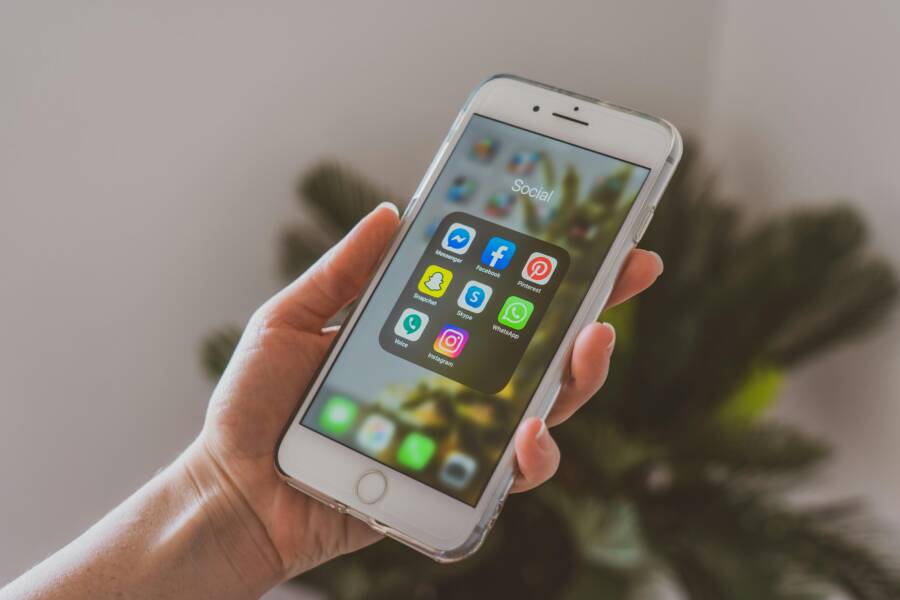
You tap Share and nothing happens. The video you spent hours editing is ready to go, yet the Reels upload stalls. The internet seems fine, apps are running, and you’re left wondering what went wrong. This guide breaks down practical steps to diagnose and fix a Reel that won’t upload, even when your connection looks solid.
Why Reels Won’t Upload Even When the Internet Works
Several factors can block a Reels upload without a visible network issue. Some are quick fixes, others require a bit more testing. Common causes include outdated apps, account restrictions, insufficient storage, and in-app permissions that aren’t granted. Sometimes the problem is temporary server side, which means waiting a short while can solve it. The goal is to rule out each possibility in a logical sequence so you can pinpoint the culprit and confirm the fix.
Update the App and Check Your Account Status
Outdated software is a frequent culprit. App stores push bug fixes and performance improvements, and those updates often include new upload optimizations for Reels. Start with these steps:
- Update Instagram to the latest version. If you’re on iOS, open the App Store; on Android, open Google Play. Look for an update and install it.
- Sign out and back in. This can refresh your session and clear minor glitches.
- Check for any account notices. If your account is restricted or temporarily limited, it can stop new Reels from uploading. Follow any prompts to resolve verification steps or policy alerts.
A quick win: try uploading a short, simple Reel after updating. If it works, the issue was likely a compatibility or session problem.
[Image for this section]
 Photo by Polina Zimmerman
Free Up Space and Improve Device Performance
Low storage or a busy background can sabotage uploads. Reels require space for the video, any effects you add, and cache data. When storage gets tight, apps struggle to process uploads.
- Check available storage on your device. If you’re close to full, delete unused apps, photos, or videos.
- Close unused apps to free up RAM. Background processes can steal resources needed for encoding and uploading.
- Restart your phone. A clean reboot clears temporary issues that can block the pipeline from camera to Reels.
If your device has a lot of apps and services running, you might notice faster, smoother uploads after a short clean-up. The aim is to give Instagram enough headroom to process your Reel.
Test Different Networks and Data Usage
A working internet icon does not guarantee a smooth upload. Different networks behave differently, and background data restrictions can also play a role.
- Try Wi-Fi if you’re on mobile data, and vice versa. A spare hotspot can help confirm if the network is the bottleneck.
- Check data saver or VPN settings. Some networks block large uploads or compress traffic in ways that interfere with video uploads.
- Disable any data restrictions for Instagram specifically. Some Android devices have per-app data control that could block large file transfers.
If the upload succeeds on a different network, you’ve isolated the issue to your original connection. If it still fails, the problem likely lies with the app or device settings rather than the network.
Review Reels-Specific Permissions and In-App Settings
Reels needs several permissions to access your camera, microphone, photos, and network. Without these, the app can fail to create or upload a reel.
- Confirm camera and microphone permissions are granted in your device settings.
- Ensure storage access is allowed so Instagram can save and upload video locally.
- In Instagram, recheck in-app permissions. Some settings can reset after updates, affecting uploads.
- Turn on auto save to Gallery or Camera Roll if you want a local copy, then attempt the upload again.
Also check inside the Instagram app:
- Go to your profile > Menu > Settings > Privacy or Security to ensure there are no unusual restrictions.
- In Settings, review connected apps and login methods. A misconfigured login can block certain actions.
Clear Cache and Reinstall the App
If the problem sticks around, a clean slate often helps. Clearing cache removes corrupt temporary data that can derail uploads.
- Clear cache (Android) or reinstall the app (iOS or Android). On Android, go to Settings > Apps > Instagram > Storage > Clear Cache. On iOS, you may need to delete and reinstall the app.
- After clearing, reopen Instagram and test uploading a new Reel.
- If issues persist, uninstall the app, reboot, and reinstall. This step can fix deeper data corruption.
The goal is to reset the app’s working data without losing your account content, followers, or saved drafts.
Platform Differences: iOS vs Android Nuances
iOS and Android handle app data differently, which can explain why a Reel uploads on one device but not another.
- iOS users often benefit from system updates that improve app performance. If you’re stuck, update both iOS and Instagram, then retry.
- Android users may face vendor-specific optimizations or battery saving features that throttle background tasks. Check battery optimization settings and exclude Instagram from aggressive background restrictions.
- On both platforms, ensure you’re not running an outdated OS version that Instagram no longer fully supports.
If you’ve tested across platforms and one works while the other doesn’t, you have a clear target for deeper investigation or official support.
Advanced Troubleshooting: Isolate the Problem
When basic checks fail, use a structured approach to isolate the issue.
- Try a different Reel format. Export a short clip from a different app or a different camera setting to rule out file compatibility problems.
- Create a Reel with a very simple edit first. If that uploads, a complex edit or heavy effects chain could be the bottleneck.
- Test with a different account. If another account uploads successfully, the original account may have a policy flag or a transient restriction.
- Check device logs if you’re comfortable. On Android, you can view system logs with developer options; on iOS, diagnostics can be accessed via the device management if you use a business profile.
Document each test. A simple table or notes can help you share precise steps with support if needed.
When to Seek Support
If you’ve run through all checks and still can’t upload, it’s time to contact support.
- Capture screenshots of error messages and the steps you took. A clear trail helps the support team reproduce the issue.
- Include your device model, OS version, Instagram app version, and network type used during the attempt.
- Mention any recent changes like a system update, new app permissions, or a new security app that could affect uploads.
Support teams can check for account-specific flags, server-side problems, or known issues with the Reels uploader. In many cases, a known outage is resolved within a few hours to a day.
Practical Tips to Prevent Future Upload Problems
A few habits can reduce the odds of future snags.
- Keep the app updated. Regular updates fix bugs and improve performance.
- Maintain ample storage on your device. A calm, uncluttered system runs smoother.
- Manage permissions with care. Only grant what the app truly needs and review periodically.
- Back up your Reels drafts. If your drafts are important, store copies in a local gallery or cloud backup.
If you adopt these habits, you’ll spend less time troubleshooting and more time creating engaging Reels.
Real-World Steps You Can Take Tonight
Here’s a concise action plan you can follow now:
- Update Instagram to the latest version.
- Clear app cache or reinstall if needed.
- Check storage and close unused apps.
- Switch networks to verify the issue isn’t network related.
- Review camera, microphone, and storage permissions inside the app.
- Attempt a simple Reel to confirm basic upload works.
- If it still fails, test with another account or contact support with a detailed report.
These steps cover most of the frequent causes and give you a reliable path to a resolution.
Conclusion
A Reel that won’t upload can be frustrating, but a methodical approach makes the problem solvable. Start with updates and permissions, then check storage and network behavior. If you still can’t upload, test across platforms or accounts and consider a reinstall. By isolating variables one by one, you’ll usually find the bottleneck and fix it quickly.
Want more practical guides like this? Subscribe for updates and join the conversation. If you’ve found a unique tip that helped you overcome a similar issue, share your experience in the comments so others can benefit. Remember, most upload problems boil down to a few clear causes and straightforward fixes.