
A USB drive that drops out every time you move your phone is more than a nuisance. It disrupts backups, photo transfers, and quick file access. The fix is usually simpler than it seems. With a few careful checks, you can identify the culprit and restore stable access to your files.
From the moment you plug in a USB drive to the moment you pull it out, a steady connection matters. Movement can shake loose connectors, expose worn cables, or cause power fluctuations that trip the drive offline. This guide lays out practical steps you can take, whether you’re using an Android phone or an iPhone, to stop disconnects and keep your data within reach.
What causes USB storage to disconnect when you move
Movement is a common enemy for USB connections. A few likely culprits:
- Loose or damaged connectors. A small wiggle can break contact with the port, especially on inexpensive adapters or cable ends.
- Faulty or poor quality cables. Tarnished pins, frayed insulation, or overly long cords increase the chance of a hiccup during motion.
- Inadequate power. Some drives draw power from the phone or adapter. If motion causes a temporary power dip, the device may disconnect.
- Port wear or debris. Dust or worn sockets reduce grip and contact quality when you move.
- Compatibility gaps. Some drives format uses that phones don’t handle well, or they require specific compatibility modes that aren’t always active.
- Background activity. File transfers or apps that access the drive while you move can trigger timeouts or app crashes.
- Intermittent hardware. A single bad port, bad adapter, or a flaky hub can cause repeated disconnects when the layout shifts.
A quick note on environments. If you’re out on location with a rugged or water resistant drive, the case can also add stiffness that makes small moves feel bigger. In most cases the problem is a poor connection or power limitation rather than a dead drive.
A practical test you can run right now
- Plug the drive directly into the phone or tablet using the simplest cable or adapter you have.
- Keep the setup on a stable surface and gently rotate the phone by small angles.
- If the disconnect stops, you’ve isolated movement as a factor and likely a cable or port issue.
A photo you can reference as you diagnose
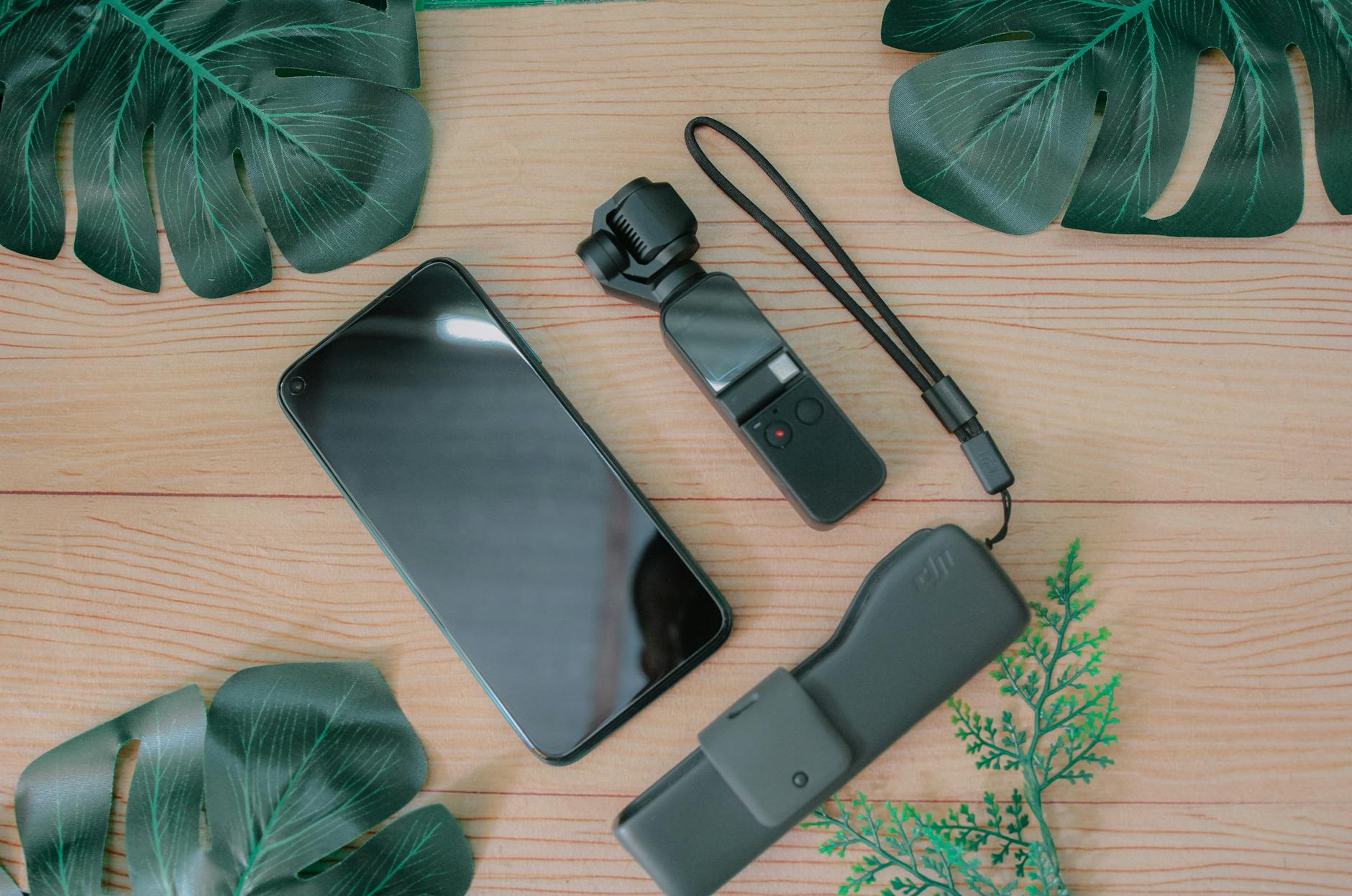
Photo by Pok Rie
Quick fixes you can try now
These steps aim to stabilize the connection fast. Start with the simplest changes and move to the more involved checks.
- Stabilize the setup. Place the phone on a flat surface and avoid walking or shaking the table during a transfer. A steady base reduces anchor stress on the port.
- Inspect the cable and connectors. Look for kinks, bent pins, or obvious wear. If you see issues, replace the cable or adapter with a known good one.
- Use shorter, high quality cables. Long cords add sway and friction that amplify movement. A shorter, well-made cable often solves the problem.
- Try a different port or adapter. If you’re using a USB-C to USB-A adapter, swap it for another identical unit or try a direct USB-C drive if possible.
- Remove hubs and extenders. A powered hub helps some drives but can introduce another point of failure. Go direct when you can.
- Reboot both devices. A fresh start clears transient software glitches that may cause the drive to vanish under movement.
- Update the OS. System updates often include improved USB handling and bug fixes that prevent disconnects.
- Check the file transfer mode. On Android, ensure the connection is set to File Transfer (MTP) rather than charging when you’re moving. On iOS, use the Files app to access external drives.
- Test with another drive. If a second drive behaves the same, the issue is likely the phone or the cable, not the drive itself.
Hardware checks that matter
If quick fixes don’t hold, a closer look at the hardware often reveals the cause.
- Test the drive on a computer. If the drive stays stable there, the problem likely involves the phone side or the adapter.
- Examine the USB connector on the drive itself. A loose or corroded plug can fail when there’s any movement.
- Assess the port on the phone. Wiggling the connector should not produce a disconnect. If you see loosening or wobble, the port may need service.
- Check the drive’s format and permissions. Some drives format as NTFS or HFS, which phones handle differently. ExFAT is widely compatible for mixed devices.
- Listen for unusual sounds. A grinding or clicking drive often signals internal damage that can fail with movement.
- Run a health check if available. Some drives include built in indicators or companion apps to assess health.
Power and charging considerations
Power delivery is a frequent source of disconnects, especially when the drive is bus powered through the phone.
- Use a powered USB hub for power hungry drives. This takes the load off the phone battery and reduces the chance of an offset power dip during motion.
- Consider a USB Y-cable designed to draw extra power. If your phone doesn’t supply enough current, this can stabilize operation.
- Check the drive’s power requirements. Very small drives draw minimal power, but larger or desktop class drives may require more juice than a phone can provide.
- Avoid combining high drain peripherals. If you have a gimbal or other accessory connected, the extra load can push the phone over its power limit during movement.
Software and settings that matter on Android and iPhone
Software handling can make or break a USB connection when you move.
- Android USB preferences. If you don’t see file transfer options, pull down the notification shade and look for USB preferences. Switch to File Transfer and retry the connection.
- iPhone and iPad behavior. When a USB drive is connected, the Files app should detect it automatically. If it doesn’t, try reconnecting and ensure the drive is formatted for compatibility.
- File system compatibility. ExFAT is the best bet for large files and multi device use. FAT32 is widely compatible but has a 4 GB file size limit. NTFS works for read only on many Android devices.
- Disable conflicting apps. Some file managers or backup apps won’t handle a moving connection well. If you notice odd behavior, close other apps that access the drive.
- Firmware and app updates. Check for updates to the drive’s firmware if the manufacturer offers one. Also update any companion apps that control the drive.
- Safe mode testing. On Android, boot into Safe Mode to see if a third party app was causing the disconnects. If the problem goes away, test which app is the culprit.
- Regular maintenance tips. Clean the phone’s USB port carefully with a soft brush. Remove lint or dust that might hinder a solid contact.
Advanced troubleshooting if the problem persists
When the basics don’t fix the issue, a deeper approach helps.
- Swap components one at a time. Change the cable first, then the adapter, and finally try another port on the phone. This isolates the weak link.
- Check for firmware updates. Both the drive and the phone firmware can include USB stack improvements. Install any available updates.
- Run a full backup before deeper fixes. A disconnection during a backup can corrupt data. Back up what you can before testing more.
- Consider professional evaluation. If the drive works on a computer but not with your phone, a service center may inspect the phone’s port and internal power regulation.
- Reset as a last resort. A factory reset is heavy handed. Use it only if you’ve exhausted all other options and the problem blocks essential use.
Guidance for choosing a robust USB setup
If you’re often transferring data with movement, investing in a reliable setup pays off.
- Pick high quality cables. Look for gold plated contacts and reinforced jackets. They resist wear and provide consistent contact over time.
- Choose a compact drive. Smaller drives with solid enclosures tolerate bumps better than larger desktop models.
- Favor simple adapters. Fewer parts mean fewer points of failure. When possible, go direct with a USB-C drive on a USB-C phone.
- Read reviews about real world use. Look for notes about movement resistance and power stability from users with similar devices.
Preventing future disconnects
A little foresight saves a lot of trouble later.
- Keep cables in good condition. Inspect cables every few weeks for frays or kinks.
- Use magnetic mounts or clips. They help guide the cable and reduce tug on the port when you move.
- Avoid over bending the cable near the connector. A gentle bend radius protects both the cable and the port.
- Store drives properly. When not in use, keep drives in a protective case to avoid damage to the plug and enclosure.
- Plan transfers in a stable environment. If possible, pause movement during critical backups or file transfers.
Conclusion
A USB storage disconnect during phone movement is almost always solvable with the right checks. Start with the simplest fixes, then move to hardware and software diagnostics. By stabilizing the connection, ensuring enough power, and choosing compatible formats, you can reclaim reliable access to your files on the go.
If you’ve found a fix that worked for you, share it with others in the comments. And if you’re facing a stubborn disconnect, take it one step at a time from hardware checks to software settings. Your data deserves smooth, dependable access, no matter how you move.
Images by Pok Rie are for reference and context. If you’d like to feature more visuals in your guide, I can tailor a set of images to align with each troubleshooting step.