He Was Drowning in Bills and Burnout Until a Simple Daily Ritual Rewired His Brain for Wealth in Less Than a Week
>>> Start Your Shift Today <<<

Copying files from a smartphone to an external drive or memory card should be simple. When the transfer goes wrong, though, you can end up with corrupted files, partial copies, or missing data. This guide walks you through practical, no-nonsense steps to stop corruption before it starts and to fix it when it happens. You’ll learn how to protect your photos, videos, and documents from wasted space and broken links.
If you’re juggling large media files or important work files, a reliable transfer process matters. The goal here is a smooth move from your phone to external storage with minimal risk of corruption. By following clear checks, safe methods, and practical fixes, you’ll save time and frustration.
What causes file corruption during transfer
Several common culprits can corrupt files while copying from a smartphone to external storage. Understanding why it happens helps you prevent it.
- Interrupted transfers. A sudden disconnection, a low battery, or a power drop can stop a copy mid‑stream, leaving incomplete data.
- Bad cables or adapters. A faulty USB cable or card reader can introduce errors mid transfer.
- Incompatible file systems. If the destination uses a format that can’t handle large files or certain metadata, copies may fail or corrupt.
- Insufficient space or fragmentation. Not enough room for a single file or an overly fragmented destination drive can ruin a copy.
- Background processes. Apps that write to storage or run backups at the same time can interfere with the copy.
- Heat and hardware wear. Overheated devices or worn SD cards increase the odds of data corruption.
- Faulty files or media. Sometimes the source files are already damaged; the copy simply reveals the flaw.
These problems aren’t rare. With a bit of preparation and careful steps, you can greatly reduce the chance of corruption during transfer.
Thousands of People Were Struggling With Money Until They Discovered This One Ancient Secret Hidden in Sound
>>> Unlock It Now <<<

Prep work before you copy
A few quick checks before you start can prevent many headaches. Think of this as getting the road ready for a long drive rather than rushing to the finish line.
- Free up space. Make sure there is room on the destination for the entire transfer plus a little extra for buffer space.
- Choose the right format. For large files, exFAT is a reliable choice on most modern devices. If you’re using a very old card, FAT32 may be required, but it has a 4 GB file size limit.
- Update firmware and OS. Keeping your phone and any card readers up to date reduces compatibility problems.
- Use quality hardware. A sturdy USB‑C or micro USB cable, and a dependable card reader, cut down on transfer glitches.
- Backup first. If possible, copy a small set of files to verify the connection, then back up important data to another location.
- Close unnecessary apps. When you copy, turn off apps that write to storage in the background. A busy phone can interrupt the transfer without you noticing.
- Check the file set. If you have thousands of tiny files, breaking the transfer into smaller batches can help identify a bad file quickly.
These steps may seem small, but they create a solid foundation for clean transfers and fewer surprises when you review the destination.
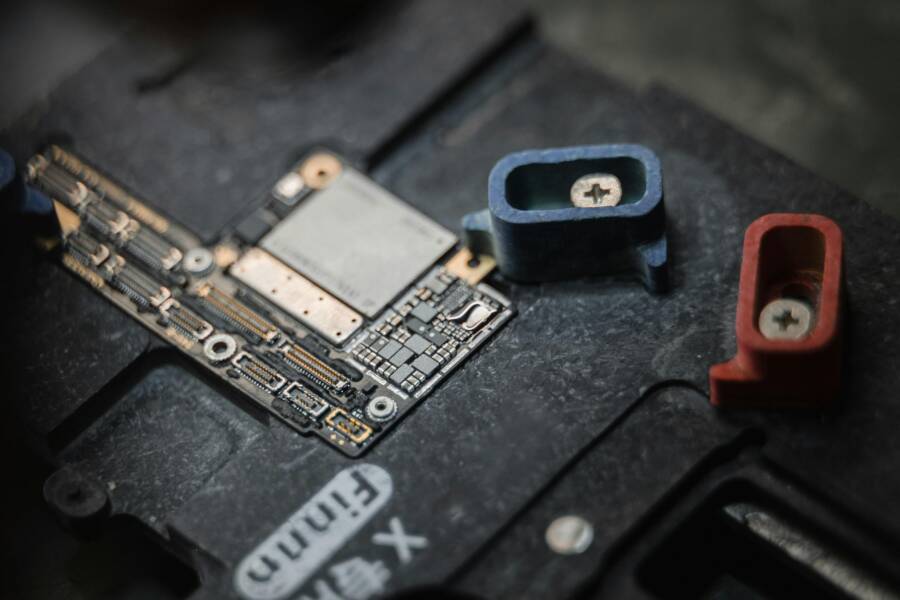
Visual aid: a practical setup

Photo by Eyüpcan Timur
This image shows a straightforward setup you might use when copying files to an external card reader. If you’re on the go, this kind of arrangement helps you stay organized and reduce the chance of a mid transfer interruption.
He Was Drowning in Bills and Burnout Until a Simple Daily Ritual Rewired His Brain for Wealth in Less Than a Week
>>> Start Your Shift Today <<<
Picking the transfer method that minimizes risk
There are a few reliable ways to move data from a phone to external storage. The method you choose can influence the likelihood of corruption.
- USB OTG with a card reader. This is a direct and stable option when your phone supports USB On The Go. A dedicated OTG adapter and a good reader keep data moving smoothly.
- Direct to a USB drive. Some drives work with phones that support USB mass storage or OTG. Ensure the drive uses a stable file system compatible with your device.
- Copy to a PC first. If you’re handling large folders or valuable media, copying to a computer first can give you a controlled environment. It also makes it easier to verify a file’s integrity after transfer.
- Cloud backup as a safety net. While not a direct transfer to external storage, syncing to cloud storage provides an additional copy and a quick way to recover files if a corruption slips through.
When you choose a method, think about reliability and your setup. A well-seated reader, a solid cable, and a device that stays cool all contribute to a smoother transfer.
How to transfer safely in practice
A careful, step by step approach reduces the chance of corruption. Treat the process like a small project with checkpoints.
- Start with a test file. Copy a single photo or a short video to confirm the connection works before moving larger batches.
- Copy in chunks. Instead of moving an entire folder at once, break it into smaller groups. This makes it easier to spot if a file corrupts.
- Verify as you go. If your destination supports checksums or hash verification, compare the source and the copy for equality.
- Use a dedicated reader when possible. A purpose built card reader keeps the data path clean and steady.
- Eject properly. Always use the “eject” or “safely remove hardware” option before unplugging. This helps prevent partial writes.
- Inspect the destination. Open the copied files and check a few that were transferred at random. If any look wrong, re copy those items immediately.
- Maintain backups. Keep a recent backup of your important files in another location. It minimizes risk and speed up recovery if something still goes wrong.
If you follow these steps, you’ll minimize the risk of corruption and be able to spot trouble early. The goal is to complete the copy with confidence, not to chase after problems later.
She Pressed Play on a Strange Audio Track and Within Days Her Financial Reality Started Shifting in Ways She Could Not Explain
>>> See How It Works <<<

What to do if you detect corruption
If a file arrives corrupted, act fast. A calm, methodical response saves data and time.
- Stop the transfer. If you notice a problem, pause and avoid overwriting the destination with new data until you’ve identified the issue.
- Try a second method. Copy the same file using a different cable or reader or through a PC. Some problems are tied to a single component.
- Recopy in small batches. If only a few files are affected, re copying those items can fix the entire transfer without redoing everything.
- Check file integrity. Use checksums when possible. A mismatch usually means the file or the copy is damaged.
- Open the file on the destination. Sometimes a corrupted file is missing only a tiny piece. A fresh copy may solve the problem without much effort.
- Restore from backup. If you have a recent backup, replace the corrupted file with the backup version.
- Consider file repair options. Some video and photo formats have repair tools. If the damage is severe, professional data recovery services may be needed.
You may not be able to recover all corrupted files, but you can keep the rest intact by taking careful steps and maintaining backups.
Preventing future corruption
Prevention beats cure when it comes to file transfers. A few steady habits go a long way.
- Use high quality storage. Choose reputable microSD cards and USB drives known for reliability. Cheaper options often fail earlier.
- Match the file system to your needs. exFAT handles large files well and works on most modern devices. If your device requires FAT32 for compatibility, plan for the 4 GB file size limit.
- Keep hardware cool. Avoid long transfers in hot environments. Heat can destabilize data during writes.
- Update firmware and apps. Regular updates reduce compatibility issues and fix bugs that could affect transfers.
- Enable write protection when possible. Some SD cards offer a physical or software write protection that helps prevent accidental corruption.
- Stop using failing hardware. If you see frequent errors, replace the card reader or card itself. Continuing to use faulty gear increases the risk of data loss.
- Maintain a clean file structure. Avoid mixing many small files with large ones in the same folder during transfer. It makes it easier to verify each item.
These practices don’t guarantee perfection, but they substantially reduce the odds of corruption over time.
Testing and diagnosing storage health
If corruption happens often or you rely on portable storage, testing the health of your cards or drives is wise.
- For Windows users. Run CHKDSK to search for bad sectors and fix logical errors. You can access this through a command prompt with administrative rights.
- For macOS users. Use Disk Utility to verify and repair drives. The First Aid tool helps locate and correct common issues.
- For Android users. Look for apps that verify storage integrity or run surface scans. Be sure to download reputable tools from trusted sources.
- For physical checks. Inspect the connector pins on card readers and readers’ shells for wear. Loose or bent pins can cause intermittent failures.
If tests show repeating errors, plan to replace the storage. Ongoing errors often point to hardware that is near the end of its life.
A practical transfer checklist you can use
- Confirm enough space on the destination and choose a compatible file system.
- Use a reliable cable and a solid card reader.
- Copy in small batches and verify a sample of files after each batch.
- Eject safely and recheck the destination before removing hardware.
- Keep a fresh backup somewhere else, ideally in the cloud or on another drive.
- If corruption crops up, try a different method and compare results.
This simple checklist makes transfers predictable and reduces the time you spend chasing problems.
When to replace storage and how to test
Storage devices wear out with use. If you notice frequent corruption, you should not push through with the same gear.
- Look for physical signs. Cards that feel unusually flexible, bend easily, or show visible wear should be replaced.
- Run long term tests. A few days of consistent testing with different files helps reveal reliability issues.
- Swap components one by one. Change one element at a time, such as the reader or the cable, to isolate the cause.
- Consider capacity and age. Older cards and drives are more prone to failure. If you see repeated problems, upgrade.
Replacement is cheaper in the long run than losing data.
Conclusion
Copying from a smartphone to external storage does not have to be risky. With the right preparation, method, and checks, you can prevent corruption and recover quickly if something goes wrong. Start with solid hardware, keep your files organized, and back up early and often. If you run into persistent issues, revisit the format and test each component of your setup. Your data deserves a steady, simple path from phone to storage, and following these steps will keep that path clear.
Have you found a transfer method that consistently works for you? Share your tips and experiences in the comments. And if you want, tell us what storage setup you rely on for your photo and video projects. Your insight can help others avoid the same headaches and keep their files safe.
What If the Only Thing Between You and the Life You Deserve Is a Hidden Wealth Code Waiting to Be Activated
>>> Open the Door <<<
