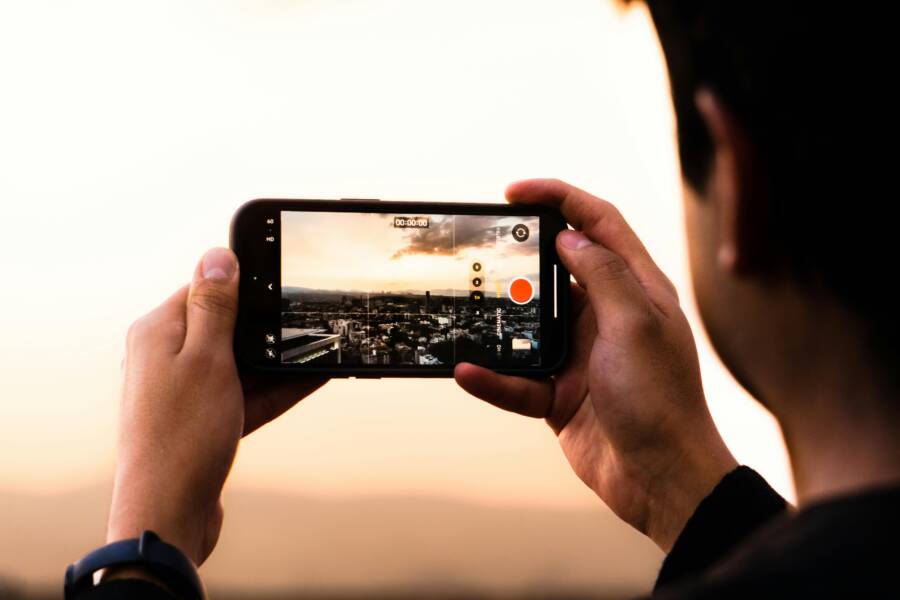
You can trim and export videos on your smartphone without losing quality by keeping the original encoding settings. The primary cause of pixelation or blurry clips is re-encoding, which happens when your editing app compresses the file again during the save process.
Most smartphone users lose video clarity because they use apps that automatically apply heavy compression to shorten export times. By selecting tools that perform a direct stream copy or maintain your source bitrate, you protect the visual integrity of your footage.
Follow these steps to ensure your edited clips look just as sharp as your raw recordings.
Why Video Quality Drops After You Hit Save
Video quality often suffers the moment you save your project on a smartphone. This drop occurs because the editing software must process and compress your raw footage again. When you trim, filter, or combine clips, the app encodes the data into a new file format. Every time this re-processing happens, the software applies a new layer of compression to manage file size, which inevitably strips away visual detail.
The Dangers of Re-encoding Your Files
Every save operation introduces generation loss. This term describes the cumulative degradation of a file as it moves through multiple rounds of encoding and compression. Think of it like making a photocopy of a photocopy; each iteration loses clarity, colors shift, and artifacts appear in the shadows. Your smartphone hardware is powerful, but it relies on efficient compression algorithms to keep storage use manageable.
When you edit a video, the app takes your original recording and converts it into a new stream of data. If you save the file multiple times or use heavy processing, that second-generation file will look worse than the first. To stop this, you should aim for a “one-pass” workflow. Edit your clips, apply necessary trims, and export the file exactly once. Avoiding multiple saves preserves the original clarity and prevents the buildup of blocky pixelation that ruins high-quality smartphone footage.
Understanding Bitrate and Resolution Settings
Bitrate controls the amount of data dedicated to each second of your video. Think of it as the information density of your file. A higher bitrate allows for more visual data, which means sharper details and smoother motion. However, increasing the bitrate indefinitely does not improve quality if the source material is already low resolution. It only creates a larger file size without adding any actual detail to the image.
The most effective approach is matching your export settings to the original recording specifications. If you shot your footage in 4K at 30 frames per second, set your export resolution to 4K and maintain a consistent frame rate. Using a bitrate that is significantly lower than your original source forces the software to discard data, leading to blurriness.
Check your recording specs before you begin your project to set the right target:
Keep these numbers in mind to prevent the app from over-compressing your work. By locking these settings to match your source, you tell the smartphone to keep the data integrity high while finalizing your edit. This method keeps your output clean and ensures that the finished product remains as sharp as the moment you hit the record button.
Trimming and Exporting Videos on iPhone Without Quality Loss
You can trim videos directly on your smartphone without sacrificing visual clarity. The native iOS interface uses a non-destructive editing method. This means the system stores your changes as instructions rather than permanently altering the original file data. As long as you use the built-in tools, your video metadata and original quality remain perfectly preserved.
Using the Built-in Photos Editor
The Photos app provides a simple way to clip your footage while keeping the source resolution intact. Because the process is non-destructive, the smartphone keeps the original file in the background. You can even revert your changes later if you change your mind.
Follow these steps to trim your clips accurately:
- Open the Photos app and select the video you want to edit.
- Tap the Edit button in the top right corner.
- Use your finger to drag the yellow handles at the bottom of the timeline to define your new start and end points.
- Preview your selection to ensure the timing is precise.
- Tap Done, then choose Save Video to finalize the clip.
Saving your edit this way does not force a massive re-compression of your data. The system updates the file header to reflect the new duration while keeping the rest of the stream untouched. This approach is the most effective way to maintain high fidelity on a smartphone.
Best Settings for Exporting High-Resolution Footage
Maintaining quality during export depends on how you move the file after you finish your edits. When you need to share or save your work, avoid apps that compress the video for easier uploading. These apps often strip away data to speed up transfer times.
Use these practices to keep your video looking sharp:
- Use AirDrop for transfers: This method sends the raw file directly to other devices without changing the container or applying new compression.
- Leverage cloud storage effectively: Upload your videos to platforms like iCloud Drive or Google Drive using the original file format. This prevents the cloud service from processing your video into a lower resolution.
- Check your frame rate: Always ensure the export matches your original recording settings. If your source is 60 frames per second, verify that your export target also remains at 60 frames per second.
- Avoid social media apps for storage: Messaging and social platforms automatically downsize files. Never use these as your primary way to export or save a high-quality master copy of your work.
When you follow these steps, your smartphone maintains the original bitrate and pixel density. You avoid the generation loss that occurs when software tries to optimize a file for the web. Keeping your workflow direct ensures that the final result is indistinguishable from the raw clip you first recorded.
Trimming and Exporting Videos on Android Devices Properly
Managing video clips on your smartphone requires attention to how your device handles background data. Many users unknowingly sacrifice quality by choosing settings that prioritize storage over visual fidelity. By adjusting your preferences within your apps, you can keep your recordings looking sharp even after you make changes.
Managing Video Quality in Google Photos
Google Photos often applies its own backup settings to your media. If your account is set to Storage Saver mode, the app automatically compresses videos to save space on your cloud account. This process occurs behind the scenes, meaning your original high-quality clips are replaced by smaller, lower-resolution versions if you aren’t careful.
To keep your files in their best state while using the built-in editor, follow these steps:
- Open the Google Photos app and select your video.
- Tap Edit, then choose the Trim tool to adjust your start and end markers.
- Once you save the clip, confirm that the app isn’t pushing the new file to your cloud storage before you check your local settings.
- Verify your backup preferences by tapping your profile icon, selecting Photos settings, and checking the Backup quality section.
Switch your backup setting to Original quality to prevent the app from re-encoding your footage during the sync process. This ensures the version stored in the cloud matches the crisp quality of your raw recording. Remember that using the built-in trimmer modifies the file, so keeping the source file protected in its original state is a smart habit for any smartphone owner.
Choosing the Right Settings for Android Video Export
Third-party editing apps on your smartphone often default to low-bitrate settings to keep export times short. When you finish an edit, these apps attempt to shrink the file size by discarding data. This causes pixelation and blocky artifacts that ruin the clarity of your original work.
You must identify the resolution and frame rate of your source file before you begin. Most apps display the properties of your video under a Details or Info menu. Match your export resolution, such as 1080p or 4K, to these original specs. If the app allows you to set a custom bitrate, aim for a value that is at least 80 percent of the original recording bitrate.
Avoiding aggressive limits is the key to a successful save:
- Select a High or Maximum quality preset if custom bitrate controls are absent.
- Set the frame rate to match your source, as mismatching these creates choppy motion.
- Disable any automatic file size optimization tools that the app might enable by default.
Many editors hide advanced export options under a gear icon or a Save Settings menu. Look for these manual controls to bypass the standard compression routines. By taking charge of these technical choices, you maintain the full detail of your original smartphone footage without letting the software dictate the final quality.
Best Practices and Tools to Keep Your Videos Looking Great
Quality preservation starts with your choice of software. Many smartphone apps prioritize speed and social sharing over pixel integrity. These tools often perform aggressive compression to keep file sizes small for quick uploads. To maintain the visual fidelity of your footage, you need apps that give you manual control over export settings, including bitrate, frame rate, and compression levels.
Top Apps for Lossless Video Editing
You want editing software that respects your source files rather than shrinking them to save space. These options provide granular control to protect your video quality during the final export process.
- LumaFusion: This is a professional-grade editor that offers frame-accurate trimming and high-bitrate exports. It allows you to select specific codecs and custom bitrates that match your original smartphone recording perfectly.
- VN Video Editor: This app is popular because it includes a manual export menu. You can set the resolution and bitrate yourself, which prevents the app from applying unnecessary compression to your clips.
- CapCut (Manual Settings): While often used for social clips, CapCut has an advanced export tab. You can toggle the Smart HDR off or on and manually set the frame rate and bitrate to avoid the quality loss associated with its default auto-settings.
- Adobe Premiere Rush: This tool keeps the editing process professional by allowing you to specify exact export targets. It is helpful for users who want to move projects between their phone and a desktop computer without losing data.
Select an app that lets you view file properties before you save. If an app hides your export options behind a simple high or low toggle, it might not be the best choice for a final master copy of your work.
How to Send Videos Without Losing Data
Sending your edited video is often where the most damage occurs. Messaging apps like WhatsApp, Messenger, or even some default SMS clients automatically shrink your video files to save bandwidth. This process strips away metadata and reduces your video to a fraction of its original quality. You must use methods that keep the file container intact during the transfer.
Always choose file-sharing services that do not apply background compression:
- Cloud Storage Platforms: Use services like Google Drive, iCloud, or Dropbox. Upload the file as a raw asset. These services store the exact file you upload, allowing the receiver to download the original quality later.
- Dedicated Transfer Links: Tools like WeTransfer or Wormhole allow you to send large files without any re-encoding. They generate a download link that provides the recipient with the original file, untouched by social media filters.
- Hardware-Based Sharing: AirDrop or Nearby Share protocols transfer files directly between devices over a local connection. These methods bypass the internet entirely and prevent the compression that occurs when files travel through social media servers.
Avoid sending your finished smartphone project directly through a standard messenger chat if you want to keep the visual detail. If you must use a messenger, check if the app allows you to send the video as a document or a file instead of a media attachment. Selecting the file option often forces the app to ignore its standard compression, which keeps your video looking sharp.
Conclusion
Maintaining video quality requires you to match your export settings to the original source material. Most quality loss occurs because editing software compresses data to reduce file sizes or shorten upload times. By manually selecting resolution, frame rates, and bitrates that mirror your raw footage, you keep your output sharp.
Taking control of your smartphone settings is the most effective way to prevent generation loss. You no longer need to rely on automatic defaults that prioritize storage space over visual detail. Verify your recording specifications before you trim and save your files.
Check your current project export settings to see if your bitrate matches the original source. Adjusting these manual parameters once will provide cleaner, high-fidelity results for every video you create.