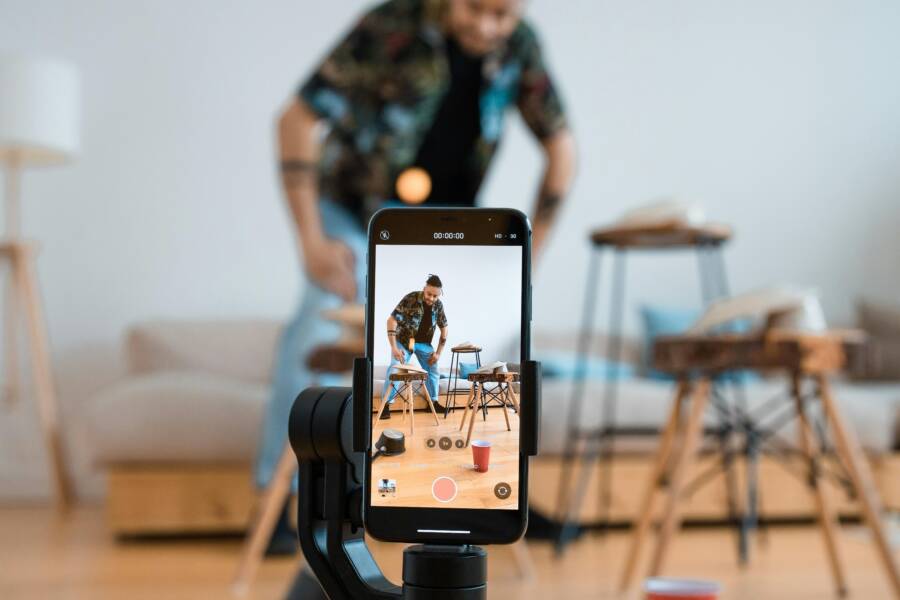
You can produce professional, high-quality video content using only your smartphone. You do not need expensive gear to capture crisp, engaging visuals that stop the scroll.
The secret to better videos is mastery of framing and camera settings. By positioning your subjects correctly and adjusting your exposure before you hit record, you achieve a polished look that rivals professional cameras.
Let’s look at the specific techniques for framing and settings that improve your video quality today.
Framing Tips for Professional Looking Smartphone Clips
Quality video production starts with how you frame your subject within the screen. Proper composition creates a polished look that tells the viewer exactly where to focus. You don’t need a massive film crew to make your footage look intentional. Simple adjustments to your physical positioning and camera settings turn casual clips into professional content.
Using the Rule of Thirds to Balance Your Shot
The rule of thirds is a standard technique for creating visual balance. It suggests that you divide your frame into nine equal segments using two horizontal lines and two vertical lines. You place your subject along these lines or at the points where they intersect. This method prevents your footage from looking cluttered or static.
Most modern phones include a built-in grid feature to help you visualize these lines. You can enable this in your device settings. On an iPhone, go to Settings, tap Camera, and toggle the Grid switch to the on position. Android users typically find this option within the camera app settings menu under a Grid or Assistive Grid label.
Placing your subject on these intersection points adds a sense of depth to your video. If you record an interview, align the person’s eyes with the top horizontal line. This placement keeps the viewer engaged and makes the frame feel open. It turns a standard video into a professional shot by giving the subject room to breathe.
Finding the Right Distance and Angle
The angle of your camera dictates how the viewer perceives the subject. Shooting at eye level is the most effective way to build trust with your audience. When the camera sits at the same height as the eyes of your subject, the perspective feels natural and honest. If you place the camera too high, the subject appears diminished; if it sits too low, they look aggressive or larger than life.
Distance also plays a role in the quality of your output. Avoid using the digital zoom on your smartphone at all costs. Digital zoom crops into your image, which lowers the resolution and introduces grain. You should move your body closer to the subject instead to maintain sharp detail.
Stability is perhaps the most important factor in how professional your footage looks. Even a slight tremor in your hands creates a distracting vibration in the final clip. Use a tripod or a stable surface to keep the camera locked in place. If you must move the camera while recording, hold your elbows close to your ribcage to create a natural tripod with your body. These small physical adjustments result in smooth, steady footage every time you hit record.
Essential Smartphone Camera Settings for Clarity
Achieving high-quality video relies on selecting the right settings before you start recording. Many users leave their smartphone on default modes, but manual adjustments offer more control over the final visual result. You can capture crisp, professional footage by simply tweaking your resolution, frame rate, and exposure settings.
Choosing Between 1080p and 4K Resolution
Resolution determines the total number of pixels in your video, which affects the sharpness of your image. Most modern phones allow you to switch between 1080p (Full HD) and 4K (Ultra HD).
- Use 1080p when you want to save storage space or need to upload quickly to social media. Most platforms like Instagram and TikTok compress videos, so the extra detail of 4K is often lost during the upload process.
- Record in 4K if you plan to edit your footage, crop the frame, or project the video on a large screen. This resolution provides extra data, allowing you to sharpen the image or zoom in slightly during post-production without losing clarity.
Keep in mind that 4K files occupy significantly more space on your device. If you are recording a long event, check your remaining storage to ensure you do not run out of room mid-shoot.
Adjusting Frame Rates for Smooth Movement
Frame rate refers to the number of individual images the smartphone records every second. Your choice between 30fps and 60fps changes the overall aesthetic of your video.
- Choose 30fps for a natural, cinematic look that matches traditional film and television. It is the best choice for interviews, vlogs, and stationary talking-head videos.
- Select 60fps when you record motion, such as sports, moving vehicles, or action sequences. This setting captures more fluid movement, which makes the video look highly realistic and polished.
Be aware that 60fps requires more light than 30fps. If you record in a dark room, 60fps may result in grainy, noisy footage because the camera shutter speed stays higher. Stick to 30fps in low-light environments to keep your image clean.
Locking Exposure and Focus for Consistency
The automatic settings on a smartphone often shift as the lighting in your scene changes. If your subject moves or a light flickers, your camera might constantly adjust the brightness, which creates a distracting, pulsing effect in the video.
You can prevent this by using the AF/AE lock feature. This function fixes both the focus and the exposure at your desired level.
- Frame your subject and determine the best lighting.
- Tap and hold your finger on the main subject on your phone screen until a yellow box or an “AE/AF Lock” indicator appears.
- Slide your finger up or down to manually adjust the brightness if the scene looks too dark or washed out.
- Record your clip with the confidence that the lighting and focus will remain steady throughout the entire shot.
Locking these settings prevents the camera from “hunting” for a focus point. It ensures the viewer stays focused on the subject, not on the technical errors of the device.
Lighting and Environment Factors
Lighting is the most significant factor in achieving professional video quality with your smartphone. Even the most expensive mobile device produces grainy or muddy footage in poor conditions because small sensors need plenty of light to capture detail. By managing your environment, you create a clean image that requires less editing later.
Prioritizing Natural Light Sources
Natural light is free, abundant, and flattering for almost every subject. Position your subject facing a window during the day to obtain soft, even illumination on their face. This setup creates a natural glow in the eyes, often called a catchlight, which makes the subject appear more lively.
Avoid placing your subject directly in front of a bright window unless you intend to create a silhouette effect. When the light source sits behind the person, your smartphone camera tries to compensate for the background brightness, which leaves the subject in shadow. Instead, let the light hit the front of the subject to maintain consistent exposure across their features.
If you record outdoors, seek out open shade rather than direct sunlight. Harsh, midday sun creates deep shadows under the eyes and nose, which are difficult to remove in post-production. Overcast days provide the best conditions for outdoor filming because the clouds act as a giant diffuser, softening the light for a professional look.
Controlling Artificial Lighting Setups
When natural light is unavailable, you must take control of your environment using artificial sources. A simple two-light setup works well for most indoor projects. Place one light at a 45-degree angle to the side of the subject to act as the primary light. Then, place a second, dimmer light on the opposite side to fill in the shadows.
Avoid using overhead house lights, as they create unflattering shadows under the brow and chin. If you use lamps, remove the shades to increase the light output, or bounce the light off a white wall to soften the intensity. You can also experiment with affordable LED ring lights, which provide a balanced glow that eliminates harsh spots on the face.
Managing Background Distractions
Your background contributes as much to the professional appearance of your video as the subject itself. Clear away clutter, laundry, or unrelated items that might draw the viewer’s eye away from the main message. A tidy space implies preparation and focus, while a messy background can ruin the credibility of your content.
Create depth in your shot by moving the subject away from the wall. If the subject stands directly against a flat surface, the video looks two-dimensional and static. Moving them a few feet forward introduces space behind them, which allows the camera to create a soft, blurred background effect.
Pay attention to background motion that might distract the viewer. Avoid recording near busy doorways, windows with moving traffic, or ceiling fans. A static background ensures the viewer stays engaged with your content rather than focusing on the environment around you.
Consistent attention to these details separates amateur clips from polished productions. Check your frame for unwanted items before you hit record to ensure your environment supports your message. Small changes in how you position lights and clear your background lead to major improvements in your final output.
Common Mistakes and Quick Fixes
Even experienced creators run into technical hitches when using a smartphone for video. Identifying these errors early saves time and prevents you from having to reshoot your content. Most issues stem from simple oversights regarding camera handling or environmental factors.
Preventing Blurry or Shaky Footage
Shaky video is the most common sign of amateur work. When you hold your phone in one hand, your natural heartbeat and breathing cause micro-tremors that appear as vibration in your clips.
- Keep your phone secure by gripping the sides with both hands, or better yet, rest your elbows against your ribs.
- Avoid using the digital zoom feature, as it magnifies camera shake while reducing the overall image quality.
- If you record while standing, keep your feet shoulder-width apart to create a stable base for your body.
If you plan to walk while filming, try walking with a slight bend in your knees to absorb the impact of your steps. This technique mimics the motion of a professional gimbal. If your footage still feels unsteady, consider investing in a basic tripod or a dedicated phone mount.
Correcting Poor Audio Quality
Bad audio ruins a great visual more quickly than poor lighting ever could. Smartphones often capture too much ambient noise, such as wind or distant traffic, when the built-in microphones remain exposed.
- Move as close to your subject as possible to prioritize their voice over the background environment.
- Check for wind interference, and move into a sheltered area if you record outdoors.
- Consider using a simple lavalier microphone that plugs directly into the charging port of your smartphone.
If you do not have an external microphone, record in a quiet room with soft surfaces like rugs or curtains. These materials absorb sound reflections and reduce the hollow echo that makes videos sound unprofessional. Always perform a test recording of ten seconds and play it back through headphones to confirm the sound levels are clear before you start your full session.
Solving Exposure and Color Issues
Unpredictable brightness often happens because smartphone sensors attempt to balance light automatically. This creates a strobing effect where the video shifts between dark and light during a single take.
- Lock your exposure by tapping and holding the subject on the screen until the AE/AF Lock indicator appears.
- Manually lower the brightness slider if the scene looks overexposed or washed out.
- Check your white balance by ensuring your light sources match in color temperature, such as using all daylight-balanced lamps.
When you mix different types of light, like cool fluorescent office lights and warm sunlight, your camera struggles to determine the correct color. This results in unnatural skin tones. Whenever possible, stick to one type of light source per scene to keep your colors consistent and professional.
Addressing these technical oversights transforms your raw footage into high-quality content. Small adjustments to your recording process lead to cleaner images and better audio, ensuring your message remains the priority for your audience.
Conclusion
Great video production depends on your attention to detail rather than expensive gear. By applying the rule of thirds, locking your AE/AF settings, and choosing the right lighting, you transform your smartphone into a capable production tool.
These technical habits become second nature with regular practice. Take time to experiment with different angles and lighting setups in your next shoot. Each session improves your ability to capture clear, engaging footage for your audience.