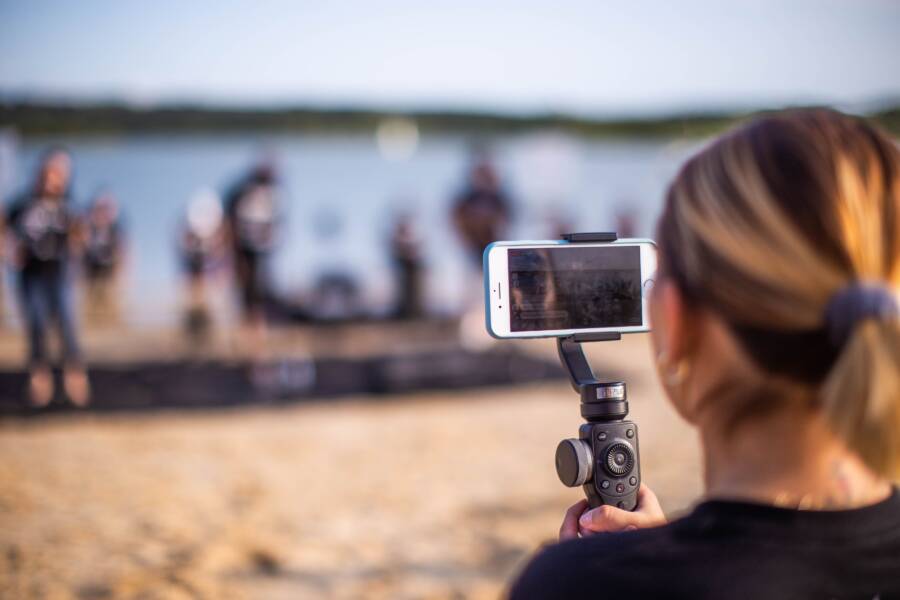
Built-in video stabilization uses your smartphone sensors to detect and cancel out shaky hand movements in real time. It effectively turns jittery footage into smooth, professional clips without the need for external gimbals or heavy equipment.
Most modern phones include this feature enabled by default, yet you can often tweak your settings to improve quality further. You will find that high-quality results depend more on knowing how to adjust these hidden options than on buying expensive gear.
Understanding these settings is the first step toward getting cinematic results from your mobile device.
Why Video Stabilization Matters for Your Smartphone
Video stabilization transforms shaky, amateur footage into steady, professional-looking clips. When you record a video with your smartphone, natural hand tremors and movement create jittery playback. Stabilization technology uses internal sensors and software to counteract this motion. Without it, your videos often look messy and difficult to watch.
Smoothing Out Unwanted Motion
Small vibrations happen naturally when you hold a device. Even if you try to keep your hands steady, minor shakes appear in your recordings. Stabilization compensates for these tremors by shifting the image frame to match your movement. This produces a result that looks like you used a tripod or a mechanical stabilizer.
Your smartphone achieves this through two primary methods:
- Optical Image Stabilization (OIS) uses tiny motors or magnets to move the camera lens. It corrects motion before the light even hits the sensor.
- Electronic Image Stabilization (EIS) relies on algorithms to crop and shift the video frame after the camera captures the image. It uses data from your phone gyroscope to predict and cancel out jitters.
Many modern devices combine both methods to maximize effectiveness. This dual approach ensures that even during rapid movement or walking, your final video remains clear and fluid.
Improving Visual Clarity and Professionalism
Clear footage matters because jittery video distracts your audience from the subject. Viewers often skip over videos that cause motion sickness or visual fatigue. Smooth motion keeps the focus where it belongs, whether you capture family events or social media content. You can achieve high-quality results without expensive external gear when you utilize these built-in tools.
Stabilization also helps in low-light environments. Because the camera does not have to deal with motion blur from shaking, it can use slightly longer exposure times. This captures more detail and reduces noise in dark scenes. When your smartphone maintains a steady frame, the resulting video retains sharpness and better color accuracy.
Using stabilization allows you to record in more dynamic situations. You can track moving subjects or walk while filming with confidence that the output will be watchable. Relying on this technology saves time because you spend less effort fixing shaky clips during the editing process. You get better results immediately, which makes your recording experience much more productive.
How to Turn On and Optimize Stabilization on iPhone
Apple includes native stabilization tools directly within the Camera app. You can manage these settings to balance fluid motion with image quality. Most iPhone models apply optical and electronic stabilization automatically, but certain features require manual activation to achieve the best results.
Using Action Mode for High-Intensity Filming
Action Mode is a feature designed for users who record video while running, hiking, or engaging in fast-paced movement. It mimics the look of a mechanical gimbal by heavily cropping the frame to compensate for aggressive shaking. You enable this mode by tapping the running person icon at the top of your camera interface within the Video tab.
This mode requires significant environmental light because it uses a wider crop and high-speed shutter processing. If you record in dim areas, the image often appears grainy or blurry. You get the best results when you shoot in bright daylight or well-lit indoor spaces.
Keep in mind that Action Mode limits your recording options. For example, it usually caps your resolution at 2.8K to maintain the heavy processing required for the stabilization effect. If you need 4K resolution or cinematic depth of field, you should disable this mode before you hit record.
Balancing Frame Rates and Resolution
Choosing the right combination of frame rate and resolution determines how smoothly your smartphone captures motion. High resolutions like 4K offer incredible detail, but they demand more processing power from your device. If you record in 4K at 60 frames per second, the internal software has less time to calculate and apply stabilization frames compared to 30 frames per second.
Lower frame rates often yield more stable results in challenging conditions. The camera sensor captures more light per frame at 24 or 30 frames per second, which reduces motion blur. If your footage looks jittery even with standard stabilization active, switching your settings to 1080p or 4K at 30 frames per second usually provides a cleaner, more fluid look.
Use this guide to select your recording settings based on your filming environment:
Prioritize 30 frames per second if you move the camera frequently or record in lower light. Reserve 60 frames per second for bright, outdoor scenes where you plan to slow down the footage in post-production. Always check your Camera settings menu to confirm these preferences before you start your shoot.
Activating Stabilization Features on Android Devices
Most Android manufacturers include stabilization tools within the camera interface, but the specific implementation varies based on your hardware. You can check your camera settings to see which modes your device supports. High-end models often allow you to toggle between different stabilization levels, while budget devices might apply a fixed setting automatically.
Understanding Software vs Optical Stabilization
The difference between stabilization methods determines how your smartphone handles movement. Optical Image Stabilization, or OIS, relies on physical components to counteract camera shake. Tiny magnets or motors shift the lens assembly in real time to offset the motion of your hands. Because this happens before the image reaches the sensor, OIS provides clean results without sacrificing video quality. You usually find OIS hardware in premium devices because the modules require extra space inside the smartphone body.
Electronic Image Stabilization, or EIS, is a digital solution that uses the device processor to smooth out footage. Your smartphone analyzes the video feed and crops the edges of the frame to buffer out sudden movements. This method is common in mid-range and budget devices because it does not require specialized hardware components. Many manufacturers now combine OIS and EIS to get the benefits of both worlds. This hybrid approach uses the physical lens movement to handle large vibrations, while the software cleans up any remaining high-frequency jitter.
You can often verify which type your smartphone uses by checking the official specifications on the manufacturer website. Look for terms like OIS or Hybrid Stabilization in the camera section. Devices that lack OIS typically rely entirely on advanced software algorithms. These digital methods have improved significantly in recent years, often producing results that are indistinguishable from optical systems in well-lit conditions. If your footage feels jittery, check if you have inadvertently disabled software stabilization in the settings menu of your camera app. Most brands group these features under a generic label like “Video Stabilization” or “Steady Video” within the primary camera preferences. Enable these options to ensure your hardware and software work together for the most stable result.
Best Practices for Getting Professional Looking Footage
Recording stable video requires more than just relying on internal smartphone sensors. You must understand how your body movement and shooting environment impact the final output. Proper technique acts as a foundation for software stabilization, which produces cleaner results than relying on algorithms alone.
Adopt Stable Shooting Postures
Your body is the primary stabilizer for any handheld shot. You can minimize natural tremors by keeping your smartphone close to your core. Hold the device with both hands and tuck your elbows firmly against your ribs. This position creates a stable tripod effect that prevents most swaying.
If you need to move while recording, walk slowly with your knees slightly bent. This stance helps your legs absorb the shock of each step instead of transferring that force to the camera lens. You should also take smaller steps to keep your torso level throughout the shot.
Try these techniques to improve your physical stability:
- Spread your feet to shoulder width to create a solid base.
- Use a wall or a solid object to lean against for static shots.
- Keep your wrists stiff to prevent the device from tilting during pans.
Master Your Movement and Panning
Smooth camera movement determines the quality of your finished project. Jerky transitions make even the best stabilization software struggle to maintain a clear image. When you pan from side to side, rotate your entire upper body instead of just moving your hands. This rotation keeps the phone centered in your field of view and minimizes unwanted wobbling.
Practice your tracking movements before you start recording important events. Follow your subject with your eyes while keeping the phone steady in front of you. If you rotate your torso at a consistent speed, the resulting footage looks natural and professional. Avoid sudden changes in direction, as these movements often trigger digital stabilization artifacts like warping or ghosting.
Control Your Environment
Lighting conditions dictate how well your phone processes stabilization data. Every smartphone relies on high shutter speeds to maintain clarity during movement. If you record in dark environments, the camera increases exposure time, which causes significant motion blur. This blur often prevents the stabilization software from identifying edges correctly, leading to messy, digital-looking footage.
Always prioritize areas with bright, consistent lighting to help your camera perform at its peak. If you must record indoors, use natural light from windows or add external LED panels to your setup. A well-lit scene allows your phone to use faster shutter speeds. These faster speeds capture sharper frames, which gives the image stabilization algorithms more accurate data to process.
Consider these factors to ensure your footage stays clean:
- Avoid mixing light sources, such as fluorescent bulbs and natural sunlight, as this causes flickering.
- Check your camera lens for smudges before you start, because dirt scatters light and reduces focus accuracy.
- Use a simple smartphone grip or a cage if you find the device too small to hold steadily for long periods.
Focusing on these physical techniques reduces the workload on your device processors. You gain more control over the final output and capture more professional results every time you record.
Frequently Asked Questions About Phone Stabilization
Most users want smooth video without complex hardware, yet they often have concerns about how built-in features affect their files. Understanding how your smartphone processes motion helps you make better decisions while shooting. These common questions cover the practical side of video stabilization.
Does stabilization drain my battery faster?
Yes, stabilization software requires constant processing power, which consumes more energy. When you enable features like active or electronic stabilization, your smartphone hardware works harder to analyze frame data in real time. This increased workload generates heat and leads to faster battery depletion compared to shooting with stabilization turned off. If you plan to record long clips, consider bringing a portable charger or turning off intense modes when the camera remains on a tripod.
Why does my footage look warped at the edges?
Warping often occurs because of electronic image stabilization. This technology crops into your frame to create a buffer zone for motion correction. When the software attempts to fix rapid or extreme movements, the edges of your image appear to stretch or bend unnaturally. You can reduce this effect by moving your body more smoothly or using a physical mount to keep the camera steady. Shooting at a wider angle also provides the software with more frame data, which helps minimize these digital artifacts.
Can I use stabilization and a gimbal together?
Using both internal stabilization and an external gimbal usually causes negative results. Because both systems try to predict and correct motion simultaneously, they often fight each other. This creates a feedback loop that results in jittery, shaky, or distorted video. If you attach your smartphone to a gimbal, turn off the internal stabilization settings in your camera app. Your gimbal handles the physical movement while the camera sensor focuses purely on image quality.
Does stabilization reduce video resolution?
Electronic stabilization typically lowers your effective resolution. Because the software crops the outer edges of your sensor feed to smooth out motion, the remaining image represents a smaller portion of the original frame. Most modern phones automatically scale this output back to your target resolution, but the level of detail is lower compared to a non-stabilized shot. If you need the maximum possible image sharpness, use a tripod and disable electronic stabilization modes.
Is optical stabilization always better than software?
Optical systems generally produce cleaner results because they manipulate the lens before the image reaches the sensor. This physical correction prevents digital artifacts like warping and maintains full resolution. However, software algorithms have improved enough to handle most casual recording tasks without noticeable issues. Many high-end smartphones now combine both methods to provide the best performance in various lighting conditions. You benefit most from optical stabilization in low light, where software often struggles to produce a clear image.
Conclusion
Mastering video stabilization relies less on expensive hardware and more on your physical shooting technique. While your smartphone uses advanced OIS and EIS technology to correct tremors, these tools work best when you maintain a stable base and move with intention.
Practice your posture by tucking your elbows and walking with bent knees to absorb impact. These simple adjustments help your internal camera software produce cleaner, professional results in almost any environment.
You can capture smooth, high-quality video by consistently refining your movement and understanding your device settings. With a bit of patience, your next recording will demonstrate the full potential of your camera.