He Was Drowning in Bills and Burnout Until a Simple Daily Ritual Rewired His Brain for Wealth in Less Than a Week
>>> Start Your Shift Today <<<

TikTok crashes can ruin your editing flow in seconds, and that frustration is all too real on a busy phone. Most freezes come from simple, fixable issues like storage space, outdated apps, or tight settings. This guide shows quick checks and practical tweaks you can try right away, so you can get back to editing without the tech getting in the way.
First, check the basics. Free up storage by moving videos or offloading unused apps, then make sure both TikTok and your phone’s operating system are up to date. A quick restart can clear minor glitches and give the app a fresh start. If you still see crashes, try clearing TikTok’s cache or closing other apps running in the background that might steal memory.
If problems persist, adjust how you edit on your phone. Lower video resolution temporarily or trim clips so the project isn’t stressing the app. Disable overly aggressive effects or transitions that push your device beyond its comfort zone. You can also try editing offline or saving projects locally before syncing to the cloud, which reduces the load on your smartphone.
For deeper fixes, reset app preferences, reinstall TikTok, or perform a soft OS update when available. Check for battery optimization settings that throttle background activity, and whitelist TikTok if your phone locks apps to save power. If nothing helps, test the same project on another device or sign out and back in to refresh your account.
She Pressed Play on a Strange Audio Track and Within Days Her Financial Reality Started Shifting in Ways She Could Not Explain
>>> See How It Works <<<

By following these steps, you’ll often solve the issue quickly and prevent future crashes. The goal is to make editing smooth again, so you can focus on creativity rather than troubleshooting. After all, your smartphone should empower your ideas, not slow them down.
Start with the basics to stop crashes during editing
When your phone starts to misbehave during TikTok edits, the quickest path back to smooth playback is to fix fundamentals first. Basic touches like checking storage, freeing memory, and trimming background load can prevent most crashes. These moves are practical, fast, and don’t require a full reset. Think of it as giving your smartphone a clean slate before you dive back into editing.
Check storage and memory usage
Your device needs free space and available RAM to run TikTok smoothly. If storage is almost full, the system slows or swaps data inefficiently, and apps can freeze when you need them most. Likewise, RAM handles the active tasks, such as editing, rendering previews, and keeping background processes in check. When RAM is exhausted, TikTok may crash or stutter.
How to check and act on Android
- Free up space: Go to Settings > Storage to see what’s taking up space. Remove or offload large apps you rarely use. If your device offers a “Free up space” or “Smart Storage” option, enable it.
- View memory usage: Open Settings > Apps or Battery & performance to see which apps are consuming memory. Force stop heavy apps you don’t need during editing.
- Identify heavy background apps: Check recently used apps and close those running in the background before you start editing.
How to check and act on iPhone
- Free up space: Open Settings > General > iPhone Storage to view a breakdown by app. Offload unused apps or delete items you no longer need.
- See memory pressure: You won’t see RAM in real time like Android, but a consistently slow device after updates usually hints at constrained memory. Freeing space helps here.
- Identify heavy background apps: Double-press the home or swipe up to view the App Switcher and swipe away apps you aren’t using during editing.
Practical tip: aim to keep at least 15–20% free space on both platforms. That headroom gives your system room to maneuver during edits and renders. If you notice TikTok sluggishness, start by freeing up space, then check memory usage again. For more detailed steps on iPhone storage management, see Apple’s guidance on checking and managing storage: https://www.apple.com/support/article/iphone-storage
For Android users, freeing space is also essential. Google’s help article on freeing up space explains the relationship between storage and memory and provides concrete steps for clearing space on many devices: https://support.google.com/android/answer/7431795?hl=en
If you want a quick reference on checking storage on iPhone, Apple’s official guide is a solid read: https://support.apple.com/en-us/guide/iphone/iph47c931112/ios
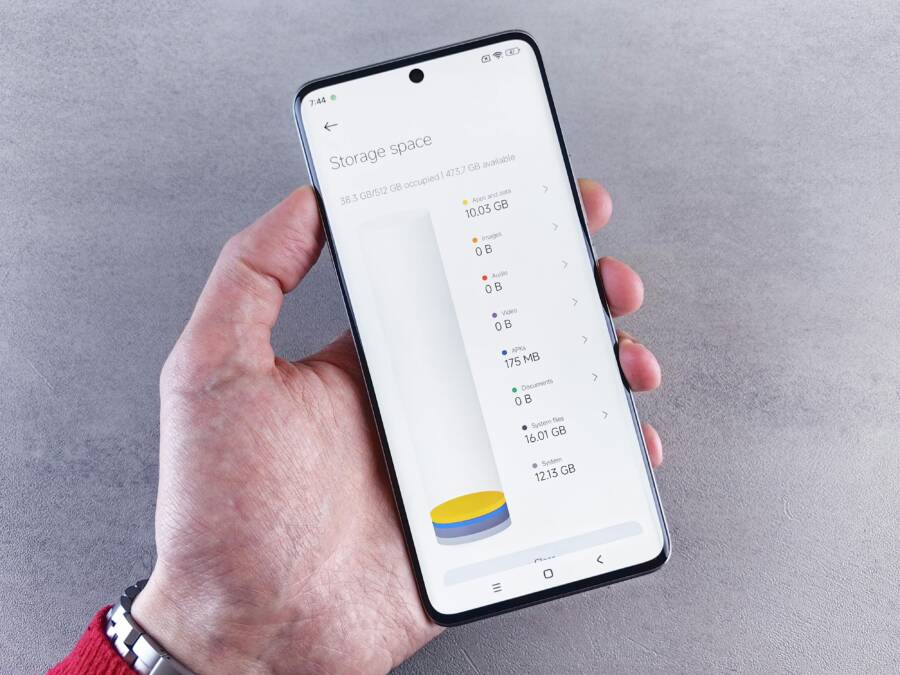
Images can illustrate how storage dashboards look on a phone.
 Photo by Andrey Matveev
Close background apps and restart your phone
Background processes quietly gnaw at resources. A few apps running in the background can steal memory and CPU cycles, leaving TikTok with fewer resources to work with. The easiest fix is to close unnecessary apps and restart the device. A fresh start clears temporary data, resets background activity, and often resolves stubborn crashes during editing.
How to view and close apps on Android
- Open the recent apps screen (usually by tapping the square/overview button or swiping up and holding).
- Swipe away or tap “Close all” for apps you don’t need right now.
- If your device supports a memory manager, you can clear cached RAM from this screen as an extra boost.
How to view and close apps on iPhone
- Open the App Switcher by double-pressing the Home button or swiping up and pausing (depending on model).
- Swipe up on apps to close them one by one.
- If you’ve noticed a crash pattern, a quick restart adds another layer of stability.
Restart routine for both Android and iPhone
- Save your current TikTok project if possible.
- Close all nonessential apps.
- Power off the device, wait 15–20 seconds, then turn it back on.
- Open TikTok and resume editing from the last autosave or draft.
If you find apps still hogging resources after a restart, consider a more thorough check of background activity settings. A well-timed restart fixes many temporary glitches and gives editing a clean slate.
For further reading on keeping apps from restarting in the background on Android, check out practical tips from reputable sources: https://itechhacks.com/app-restarts-when-minimized-android-fix/ and a broader take on preventing Android background closures: https://www.androidsis.com/The-definitive-guide-to-preventing-Android-from-closing-your-apps-in-the-background
Image: A calm phone reset can restore performance.
Photo by Andrey Matveev
Clear TikTok cache or offload data
TikTok, like many apps, stores cache to speed things up. Over time, cached files accumulate and can slow the app or cause instability during edits. Clearing cache is a fast way to reclaim space and refresh the app, but there are nuances to this move.
Android steps to clear cache
- Open Settings > Apps > TikTok.
- Tap Storage & cache, then choose Clear cache.
- If you’re comfortable with a deeper reset, you can also Clear storage, but note this removes all local data for TikTok on the device.
iPhone steps to clear cache
- In TikTok, go to Profile > Settings and privacy > Free up space or Clear cache.
- Clearing cache removes temporary files but keeps your account and online content intact.
- If you choose to offload data, that means removing the app while keeping its documents and data, so reinstalling restores access to your edits from the cloud.
Notes on data and edits
- Clearing cache generally preserves your drafts and account data, but clearing all data removes local drafts. Always back up drafts when possible before making these changes.
- If you’re unsure, start with cache clearing first and monitor performance.
Useful references for cache management
- How to clear TikTok cache on iPhone and Android: https://us.norton.com/blog/cleaning/clear-tiktok-cache
- A step-by-step TikTok cache guide: https://imyfone.com/ios-data-recovery/how-to-clear-tiktok-cache
- Norton’s quick three-step TikTok cache guide: https://us.norton.com/blog/cleaning/clear-tiktok-cache
Image: Clearing cache can reclaim space and speed up TikTok.
Photo by Andrey Matveev
What you gain from taking these steps
- Faster load times and smoother edits.
- Fewer crashes and less lag during previews.
- A straightforward workflow that keeps your creative focus on the edit, not the device.
If you want a deeper dive into storage management and how it affects performance on both Android and iPhone, the official support pages above are solid references. They lay out concrete, device-specific steps that can save you time during a hectic editing session. And if you run into any particular hiccup after trying these basics, you’ll have a clearer idea of what to troubleshoot next.
Update TikTok to the latest version
Keeping TikTok updated is one of the simplest ways to stabilize editing on your phone. New builds fix bugs that can cause crashes, improve performance, and sometimes add small but meaningful optimizations to memory use. If you skip updates, you’re more likely to run into glitches right in the middle of a project.
How to check for updates in the app store
- Open the Google Play Store (Android) or the App Store (iPhone).
- Search for TikTok. If you see an “Update” button, tap it to install the latest version.
- Turn on auto updates so TikTok stays current without manual checks. On Android, enable auto update in the Play Store settings. On iPhone, go to Settings > App Store > App Updates and switch on Automatic Updates.
Verify the version after updating
- Open TikTok and go to your profile or the App info page in the store to confirm the current version number.
- If you manage multiple devices, consider updating all to the same version to avoid compatibility issues during edits.
Why this matters
- Bug fixes are rolled into newer builds, and those fixes often target crashes during editing, rendering, or exporting. Staying current reduces the odds you’ll hit a known fault with a simple tap.
External reads you can trust
- How to update TikTok on iPhone, Android, or Samsung devices shows quick steps for both platforms. https://www.youtube.com/watch?v=gZjN0lGXrAM
- How to update software on Android phones provides context on system updates that support app stability. https://www.youtube.com/watch?v=VCo1Sq1uCFY
- A practical TikTok cache guide helps you clear space after updating to optimize performance. https://imyfone.com/ios-data-recovery/how-to-clear-tiktok-cache
Image
 Photo by cottonbro studio
Update your device OS and essential apps
An up-to-date operating system is the backbone of app stability. When the OS has the latest security patches, memory management improvements, and bug fixes, apps like TikTok run more smoothly. Don’t forget to update other apps your editing workflow relies on, such as video codecs, photo editors, or cloud apps you use for storage.
How to install pending OS updates
- Android: Settings > System > System update. If an update is available, download and install it. Some devices may show this under Settings > About phone > System updates.
- iPhone: Settings > General > Software Update. If an update is listed, install it. A restart after the update helps the system settle.
Back up important data before updating
- Save drafts, projects, and media to cloud storage or a local backup. Updates can occasionally reset preferences or, in rare cases, affect local app data.
- Verify your most recent edits are saved or autosaved in TikTok before starting updates.
Why it helps
- OS updates improve stability and memory handling, which reduces the chance of crashes during long edits or heavy transitions.
- Keeping other essential apps current prevents compatibility problems that can ripple into TikTok.
External reads you can trust
- How to stop TikTok from running in the background provides tips that complement OS updates by reducing competing tasks. https://apps.uk/how-to-stop-tiktok-from-running-in-the-background/
- How to update software on Android phones adds a broader view of why system updates matter for app stability. https://www.tiktok.com/@techhub_ga/video/7323968978282482986?lang=en
Image
Photo by Andrey Matveev
Tips for a smooth OS update
- Schedule updates during a break in editing, not mid project.
- Ensure enough battery life or connect to power before starting a large update.
- After updating, check critical apps for any new permissions prompts and adjust as needed.
Review permissions and settings that affect performance
Permissions and settings can make or break editing flow. Some settings keep TikTok lean by limiting background activity, while others ensure the app can access what it needs for a smooth editing experience. A quick audit now can prevent unexpected crashes later.
Key permissions to review
Thousands of People Were Struggling With Money Until They Discovered This One Ancient Secret Hidden in Sound
>>> Unlock It Now <<<

- Storage access: TikTok needs writing access to save caches, drafts, and temporary files. Denying storage can cause save errors or failed exports.
- Background activity: Allowing or restricting background activity determines whether TikTok can finish tasks or continue processes when the app is in the background.
- Microphone and camera: If you’re adding voiceovers or in-app recording, these permissions matter for a seamless edit.
- Network access: A stable connection helps with autosaves and cloud syncing, reducing the risk of hangs during export.
How restricting background activity can help
- Limiting background tasks reduces memory and CPU contention during editing. If other apps aggressively update or stream content in the background, TikTok may stall or crash.
- Grant only the permissions TikTok truly needs, then monitor performance. If you see issues, you can tweak permissions one by one to spot the offending setting.
Quick checks in Android and iOS
- Android: Settings > Apps > TikTok > Permissions. Toggle off any nonessential permissions. Then go to Battery > Background restrictions and ensure TikTok isn’t forcibly restricted.
- iOS: Settings > TikTok > Privacy & Security. Review each toggle and adjust for what you actually use during editing. Also check Background App Refresh settings to control activity when the app isn’t in the foreground.
Additional performance tweaks
- Disable aggressive effects or high-resolution transitions when editing on older devices. You can re-enable them once you’ve finished the rough cut.
- If you routinely work with large files, consider increasing the internal storage management on your device or moving heavy media to cloud storage before editing.
- Keep your device from overheating during long sessions. Heat can throttle performance and trigger stability issues.
Image
Photo by Andrey Matveev
What to do if crashes persist after checking permissions
- Revisit storage and memory: free space and clear RAM if your device supports it.
- Reset app preferences: this can re-enable lost default settings that apps rely on to function correctly.
- Reinstall TikTok: a clean install clears lingering data and can resolve stubborn issues.
- Test editing on another device: if the problem follows you to a second device, the issue may lie with the project file or the account data.
Useful references for permissions and background activity
- How to stop TikTok from running in the background provides practical guidance on reducing background load. https://apps.uk/how-to-stop-tiktok-from-running-in-the-background/
- TikTok keeps crashing on your phone. Best fixes to try covers a broad set of scenarios, including permissions. https://www.carlcare.com/ng/tips-detail/if-tiktok-keeps-crashing-on-your-phone-here-are-best-fixes-to-try/
Final takeaways
- Regular updates to TikTok and your device OS curb many crash scenarios.
- A clean permission set and restrained background activity can deliver steadier editing sessions.
- When things break, a measured approach—start with caches and storage, then look at app data and reinstall if needed—gets you back to editing quickly.
Optimize editing on your phone for stability
Editing on a small screen can feel like a tightrope walk. The key to a stable session is balancing the editor’s workload with your device’s capabilities. In this section, you’ll find practical, no-nonsense ways to tune your editing setup so TikTok runs smoothly from start to export. Think of it as fine tuning your mobile studio so creativity never gets slowed by tech friction.
Edit with fewer effects and lower preview quality
High preview resolution and a flurry of effects push your phone to its limit. Each effect, mask, and transition requires extra processing power and memory, which can cause stutters or crashes during playback and rendering. The trick is to temporarily pull back during editing and reapply high quality later when you export.
- Keep live previews lean. Disable real-time previews for effects you’re not actively tweaking.
- Use smaller preview windows. A compact preview reduces GPU load and memory usage.
- Save the heavy work for export. When you’re ready to finalize, enable full preview quality and re-enable all effects.
Benefits are clear: faster edits, fewer hiccups, and a smoother creative flow. When you finish the rough cut, switch back to higher quality to review and export without sacrificing detail. For reference on best TikTok upload settings that preserve quality, see this guide: https://agencygdt.com/best-tiktok-upload-settings/
Image
 Photo by Plann
Work with smaller files and shorter clips
Long clips and heavy media are tempting, but they strain mobile editors. A project built from bite sized pieces is easier to manage on the go and reduces the risk of a crash mid edit.
- Simple workflow: shoot or gather short clips, then stitch them in TikTok or a lightweight editor for rough cuts.
- Rough cut first, polish later: assemble a rough timeline, then reimport the finished sequence back into TikTok for final touches.
- Name and organize assets as you go. Clear organization prevents loading delays when you assemble the final sequence.
A practical approach is to export a rough cut as a single file and import it into TikTok for the final pass. If you prefer third party tools, a quick cut in a separate editor can save time and keep your main app responsive. For additional ideas on clip quality and workflow, check out this guide on improving TikTok quality on a phone: https://www.mixcord.co/blogs/content-creators/how-to-get-better-quality-on-tiktok
Image
Photo by Andrey Matveev
Disable auto downloads and background tasks while editing
Background activity can quietly hog bandwidth and memory, leading to stutters or crashes when you’re editing.
- Turn off auto downloads for media in TikTok settings.
- Restrict background fetch for media and cloud syncing during the edit session.
- Reenable after exporting to keep your projects safe in the cloud.
To apply these settings, head to your device settings and adjust background activity and auto-update preferences. This simple change frees up resources for the editing task at hand. If you want a deeper dive on how to stop TikTok from running in the background, this guide can help: https://apps.uk/how-to-stop-tiktok-from-running-in-the-background/
Image
Photo by Andrey Matveev
Use a reliable storage path and keep your phone charged
Where you store media matters as much as the clips you shoot. Fast access storage and steady power prevent slowdowns and throttling during long edits.
- Prefer internal storage for quick read/write speeds. External SD cards can introduce latency.
- If you can, edit while plugged in or with a healthy battery. Heat and power throttling can slow processing when the device runs on reserve power.
A straightforward approach is to keep your active project and media on internal storage and back up later to cloud when the edit is complete. If you’re curious, Apple’s guidance on managing iPhone storage offers useful context for keeping a clean workspace: https://www.apple.com/support/article/iphone-storage
Image
Photo by Andrey Matveev
Additional tips to keep things smooth
- Monitor heat: long sessions can throttle performance. Take short breaks to let the device cool.
- Clear caches periodically: cached data can bloat over time and slow things down.
- Keep essential apps up to date: it helps with compatibility and stability during edits.
External reads you can trust
- Does TikTok drain your battery? Here’s how to stop it (2025 guide) offers practical power management tips that help editing sessions stay uninterrupted: https://medium.com/social-media-and-email-fixes/does-tiktok-drain-your-battery-tips-to-keep-your-phone-charged-and-ready-df6783863b01
- How to stop TikTok from draining battery on mobile devices provides concise steps to preserve power during long sessions: https://www.tiktok.com/discover/how-to-stop-tiktok-from-draining-battery
In the end, stability comes from smart limits. By editing with lighter settings, chunking media, and holding back heavy tasks until export, you keep TikTok responsive and your ideas flowing. If you’d like extra reassurance, consider testing a similar project on another device to confirm whether the issue is project-specific or device-related. This approach often reveals where the bottleneck lies and helps you plan a smoother workflow next time.
Deeper fixes if crashes persist
If TikTok still crashes during editing after the quick checks, it’s time for deeper fixes. These steps are more thorough but still practical. Each move aims to isolate whether the problem is tied to the app, your account, or the device itself. As you go, test after each change to see if stability improves.
Reinstall TikTok and test with a fresh profile
A clean install often resolves stubborn issues by eliminating corrupted local data and settings. Do this in a careful sequence and verify whether the problem travels with your account.
- Uninstall TikTok
- Android: Settings > Apps > TikTok > Uninstall.
- iPhone: Tap and hold the TikTok icon, choose Remove App, then Delete App.
- Reinstall TikTok
- Android: Open the Google Play Store, search for TikTok, and install.
- iPhone: Open the App Store, search for TikTok, and install.
- Test with a fresh profile
- Create a new TikTok account and log in from the same device.
- Start a small editing project to see if crashes occur with the new account.
- If the fresh profile runs smoothly, the issue could be tied to your original account data, settings, or a compromised cache tied to that account.
- If the fresh profile still crashes, the problem is more likely device or system related, not account specific.
- Compare results
- Run a short edit on both profiles under similar conditions (same video quality, same effects disabled). Note any differences.
Useful references for reinstall steps
- How to reinstall TikTok on Android and iPhone: https://www.youtube.com/watch?v=Y_dvlPKb3OA
- What happens if you uninstall and reinstall TikTok: https://www.tiktok.com/discover/what-happens-if-you-uninstall-and-reinstall-tiktok?lang=en
- How to reinstall TikTok on iPhone: https://www.youtube.com/watch?v=QvBMCdSUMb0
If you discover the issue follows your account, consider resetting app data for a clean slate with care. You can also sign out and back in to refresh session data without a full reinstall.
Reset app preferences or clear data as a last resort
When settings drift or app data becomes corrupted, resetting can restore a stable baseline. This is a last resort because it can reset preferences and clear local drafts.
Android: reset app preferences
- Go to Settings > Apps > TikTok > Menu (three dots) > Reset app preferences.
- This re-enables all default permissions and back to the original app behavior without deleting user accounts or media.
- After the reset, reopen TikTok and test a short edit to gauge stability.
Android: what data clears
- Resetting app preferences does not remove your TikTok account or cloud content.
- It may reset disabled notifications, default mobile data settings, and background data restrictions.
- If you use a lot of custom shortcuts or accessibility options, you may need to re-enable them.
iOS: reset options and caveats
- iOS doesn’t offer a direct “reset app preferences” toggle like Android. You can try offloading the app, then reinstalling to refresh app data while keeping documents if possible.
- Offloading removes the app but keeps its documents and data; reinstalling gives access to your content again.
Back up before you reset
- Save drafts and project files to cloud storage or a local backup before taking this step.
- Verify that autosaves or cloud sync are enabled so you don’t lose recent edits.
Why reset can help
- It clears misconfigured permissions, corrupted caches, or odd app state that blocks normal operation.
- If the crash stops after the reset, you’ve identified a configuration issue as the root cause.
Extending the safeguards
- After resetting, recheck essential permissions (storage, microphone, camera) and background activity.
- Keep auto updates enabled for both TikTok and your device OS to minimize recurring issues.
External references for app resets and troubleshooting
- First steps for TikTok troubleshooting: https://support.tiktok.com/en/log-in-troubleshoot/troubleshooting/first-steps
- Clear TikTok cache guidance: https://us.norton.com/blog/cleaning/clear-tiktok-cache
- How to clear TikTok cache: https://www.wikihow.com/Clear-Tiktok-Cache
Try a different device or editing app as a workaround
If the crashes persist across resets, testing a different device or switching editing tools can reveal whether the problem is device-specific or tied to TikTok itself.
- Borrow a nearby smartphone: A quick test on another device can confirm if the issue is global to your account or limited to your device.
- Use a separate editing app for mobile work: Apps like CapCut, InShot, or VN offer strong mobile editing options. They can handle heavy clips and transitions with less stress on older hardware.
- Transfer projects between apps: Many editing apps support importing media, arranging cuts, and exporting, then you can reimport the final piece back into TikTok if needed.
How to move projects between apps
- Export a rough cut from your current app as a high-quality video file.
- Open the new editing app and import that file for finishing touches.
- Export the final video and upload to TikTok or save to cloud for later posting.
Recommended reading and tools for alternatives
- Best CapCut alternatives for video editing in 2025: https://www.miracamp.com/learn/capcut/best-alternatives
- Top 7 CapCut alternatives: https://www.techsmith.com/blog/capcut-alternative/?srsltid=AfmBOophhBTtvSMgdRVjJUpZpL-0FTBvFqBWaR1xxk6Bd1o3OLK4bOue
- Mobile video editing apps comparison: https://advertiserreview.com/social-media/tiktok/how-to-clear-tiktok-cache
When to escalate
- If a different device fixes the issue, the problem is likely specific to your original phone or its config.
- If the issue follows the project or account across devices, the root cause may be the project file itself or account data. In that case, consider exporting the project in parts, testing with smaller files, or starting a new project to isolate problem segments.
A quick recap of the approach
- Reinstall TikTok and test with a fresh profile to separate account data from device behavior.
- Reset app preferences or clear data as a last resort to restore default app behavior.
- If needed, try another device or editing app to determine where the bottleneck lies.
External links
Thousands of People Were Struggling With Money Until They Discovered This One Ancient Secret Hidden in Sound
>>> Unlock It Now <<<
- Reinstall and testing steps: https://www.youtube.com/watch?v=Y_dvlPKb3OA
- Account impact of uninstalling: https://www.tiktok.com/discover/what-happens-if-you-uninstall-and-reinstall-tiktok?lang=en
- Fresh iPhone reinstall guide: https://www.youtube.com/watch?v=QvBMCdSUMb0
Images and visuals can help you see the difference. For instance, a clean reinstall or fresh profile session often appears as a reset in app behavior, which is reassuring when you’re chasing stability. If you want more context on how other editors manage crashes on mobile devices, this collection of guides offers practical insights without getting bogged down in theory.
Conclusion
Stability comes from sticking to the tested steps: free up storage, close background apps, update TikTok and your OS, and trim heavy edits during the session. By gradually testing each fix, you’ll confirm whether the issue is device related or tied to the project, and you can keep editing on your smartphone with more confidence. If you want to stay in control, keep this guide handy and bookmark it for quick reference during future edits on your smartphone or other devices. Share your results in the comments and tell us which fix worked best for you.
Thousands of People Were Struggling With Money Until They Discovered This One Ancient Secret Hidden in Sound
>>> Unlock It Now <<<