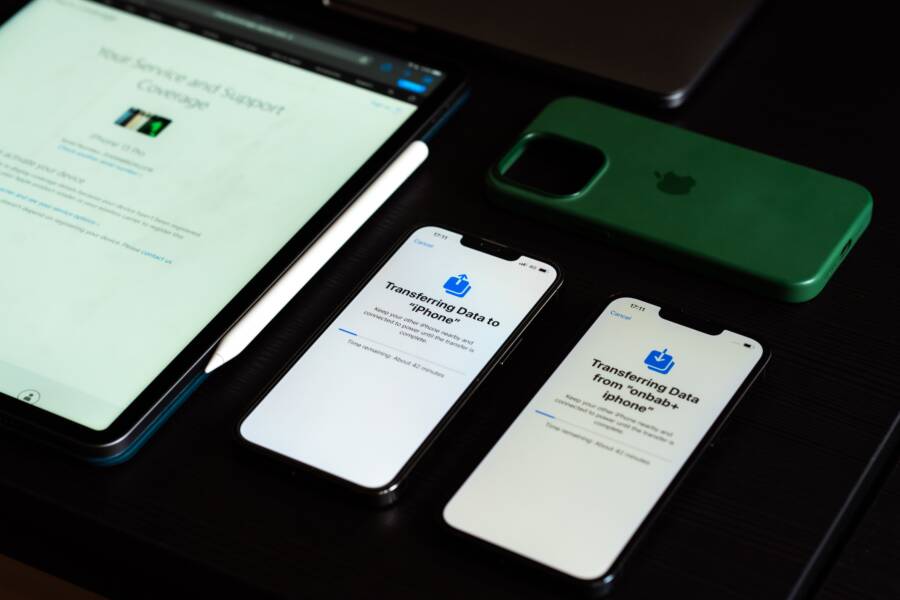
When your smartphone feels hot while syncing photos, it is usually because the processor and wireless radio are working overtime. This temperature increase is a normal reaction to heavy data transfers and background image processing.
You can manage this heat by adjusting how your device handles background uploads and updates. A few simple changes to your settings will keep your device cool while your media files back up to the cloud.
Understanding Why Cloud Uploads Make Your Device Warm
When your smartphone syncs files to the cloud, it performs a series of intensive tasks that generate significant thermal energy. This heat is a direct byproduct of your hardware pushing data through complex software layers. While a warm device is a common side effect of these operations, knowing why it happens helps you distinguish between normal activity and potential issues.
How Background Syncing Taxes Your Processor
Syncing is rarely a simple act of moving data from one location to another. Before a file leaves your device, the processor must prepare it for transit. This preparation involves two primary tasks, which are data compression and encryption.
Your smartphone compresses files to reduce the amount of data sent over your cellular or Wi-Fi network. It then encrypts those files to protect your privacy during the transfer process. Both operations demand high-speed calculations from your CPU. As the processor performs these math-heavy tasks, it draws more power from the battery. This increased energy consumption converts into heat, which radiates through the internal components of your smartphone and eventually reaches the outer casing.
Constant background activity means your processor rarely gets the chance to idle. If your cloud service is constantly checking for changes or uploading small file fragments, the CPU remains in a high-power state. This sustained activity prevents the device from cooling down effectively, causing the temperature to rise during long sync sessions.
The Impact of High Resolution Media on Hardware
The type of content you sync significantly influences how hard your hardware works. Modern smartphone cameras capture images and videos at high resolutions, resulting in large file sizes that take longer to process and transmit.
When you trigger a cloud backup for a folder containing high-quality media, the hardware experiences a substantial load. The system must read these massive files from your storage, run them through compression algorithms, and manage the wireless radio to maintain a stable upload connection. Because these media files are so large, the process takes much longer than uploading simple text documents.
Consider the following factors that increase the heat load during media syncing:
Large file sizes require the processor to handle sustained, high-intensity calculations for several minutes or even hours.
Video files often require additional transcoding, where the device converts the video into a different format that the cloud service prefers.
Poor network conditions force your smartphone to keep the wireless radio at maximum power for longer durations to overcome data packet loss.
These demands create a demanding environment for your internal components. While modern hardware is designed to handle this workload, the thermal output is inevitable when you sync large libraries of high-resolution media. Understanding this helps you predict when your device might get warm and why it happens.
Quick Steps to Cool Down Your Smartphone During Syncs
You can manage your device temperature by adjusting how it handles data. When your smartphone warms up during a sync, it usually signals that the system is straining to process large files. These steps will help you lower the thermal load and keep your hardware stable.
Managing Your Sync Settings Effectively
The way your smartphone handles data uploads plays a major role in its thermal output. Constant syncing over cellular networks forces the wireless radio to work at high power, which generates significant heat. You can reduce this strain by limiting uploads to Wi-Fi connections only. This prevents the phone from struggling with weaker cellular signals that require more energy to maintain a connection.
Scheduling your syncs for off-peak hours is another effective tactic. Many cloud services allow you to pause automatic updates until you are ready. By syncing during the night or when you are not actively using the device, you avoid the heat generated by running the display and multiple apps at the same time. This also ensures the processor can focus entirely on completing the file transfer without interruptions.
Removing Heat Traps Like Cases and Direct Sunlight
Your phone casing serves as a heat sink, but it cannot perform its job if airflow is restricted. Thick or heavy duty cases often trap heat against the glass and metal body. If your smartphone feels hot, remove the case for a while to allow air to circulate around the components. This simple adjustment helps the heat escape faster, especially during intensive tasks like high-resolution cloud backups.
Environmental factors also contribute to overheating. Direct sunlight, even through a window, raises the internal temperature of a device before you even start a sync. Keep your phone in a cool, shaded area while it processes data. Placing it on a flat, hard surface, such as a wooden desk or glass table, also allows heat to dissipate more efficiently than placing it on a soft surface like a bed or couch.
Stopping Background Apps to Free Up Resources
Running multiple applications while your smartphone performs a cloud sync divides your processor power. Every active app competes for memory and CPU cycles, forcing the device to work harder to maintain performance. This added workload prevents the system from cooling down during the taxing sync process.
Before starting a large cloud upload, close any unnecessary background apps. Games, video streaming services, and social media feeds are common culprits that keep the processor in a high-power state. A lighter system load allows the chip to complete the sync tasks with less energy, which directly translates to lower thermal output. If your phone becomes uncomfortably hot, stop all background activity immediately to let the hardware recover.
Long Term Strategies to Prevent Overheating
Reducing thermal stress on your device requires more than just cooling it down when it gets hot. You should address how the system manages resources over time. Consistent maintenance keeps your smartphone running within a safe temperature range, even during heavy tasks like cloud synchronization.
Keeping Software Updated for Better Efficiency
Manufacturers frequently release software updates that refine how your smartphone executes background tasks. These updates contain optimizations for the operating system, which often include smarter management of power consumption and processor scheduling. When the system becomes more efficient, it generates less heat during intensive operations.
Developers identify bottlenecks that cause unnecessary CPU spikes during data transfers. Through patches, they instruct the phone to process data in smaller batches or prioritize tasks when the device is idle. This approach minimizes the total time the processor spends in high-power states.
You should always install the latest firmware versions provided by the device manufacturer. These updates also contain patches for background services that might otherwise loop or crash, consuming battery and creating excess heat. Regularly checking for system updates ensures you benefit from these performance improvements.
When to Worry About Excessive Heat
Distinguishing between normal warmth and dangerous overheating is essential for hardware longevity. It is perfectly common for your smartphone to feel warm to the touch during a large cloud sync. The hardware is working hard, and the outer shell dissipates that thermal energy into the air.
However, you should take action if the device exhibits the following symptoms:
The phone displays an explicit temperature warning on the screen.
The device becomes too hot to hold comfortably in your hand.
You notice significant lag, stuttering, or apps closing on their own.
The phone fails to charge because the battery temperature is too high.
Consistent overheating in situations where the workload is low suggests a potential hardware or battery issue. If the device gets hot while sitting idle in a cool room, the battery might be degrading or a faulty component could be drawing too much current. In these cases, you should contact the manufacturer or visit a service center. Replacing a failing battery often resolves chronic temperature problems, as a healthy battery handles power distribution much more effectively than a worn one.
Conclusion
Your smartphone generates heat while syncing cloud photos because the processor, memory, and wireless radios work at high capacities. Most of this warmth is a normal byproduct of intensive data encryption and compression. You can manage these temperatures by prioritizing Wi-Fi transfers, removing heavy cases, and closing background apps before you begin a backup.
Consistent device maintenance, such as keeping your operating system updated, helps the hardware run more efficiently over time. If your phone remains cool under normal conditions, these simple adjustments should prevent future overheating during cloud syncs. Monitor your device for signs of excessive heat, but trust that your phone is usually capable of handling its own thermal management.