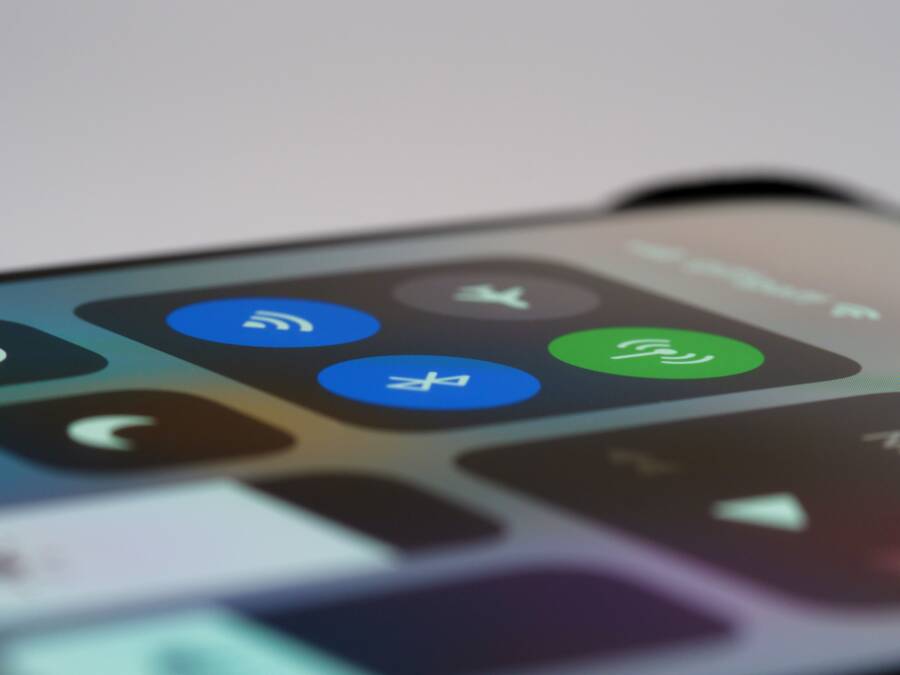
Most smartphones cannot maintain simultaneous active connections to two audio devices because the hardware defaults to a single Bluetooth profile for media playback. Your phone usually switches between devices rather than sending data to both at once. If you find your audio cuts out or fails to pair with a secondary device, you are likely hitting a standard software limitation.
Understanding Bluetooth Connection Limits
Bluetooth technology relies on specific profiles to manage how data moves between your smartphone and external hardware. Most systems handle only one A2DP (Advanced Audio Distribution Profile) connection at a time. This profile dictates how high-quality stereo audio travels from your device to your headphones or speakers. Because the operating system prioritizes one stream to prevent signal interference, it blocks a second audio output.
Many modern devices include multi-point technology to bypass this issue, but your phone settings often restrict the total number of active links. Older Bluetooth versions struggle to balance the bandwidth required for two simultaneous data streams. When you try to force a connection, the device often drops the first link to establish the second.
Steps to Troubleshoot Connectivity
You should first verify if your accessories support simultaneous connections. Some hardware requires a firmware update through a dedicated app before multi-point features work correctly. Check your settings to ensure your phone software is current, as manufacturers frequently patch connection bugs.
If the pairing fails, reset your Bluetooth cache to clear conflicting data:
Open your phone settings and navigate to the connection menu.
Select Bluetooth and choose to forget all currently paired devices.
Toggle the Bluetooth radio off for ten seconds before turning it back on.
Pair your primary device first, followed by the secondary accessory.
Test the connection by playing audio through both units individually. If one device remains unresponsive, the hardware configuration might not allow the two units to run together.
Device Compatibility and Hardware Variations
Not every smartphone supports the same number of active Bluetooth connections. High-end models often utilize upgraded Bluetooth controllers that handle more traffic than budget-friendly options. You can compare your specific hardware specs online to see if your phone supports simultaneous output.
Most users find that switching manually between devices provides a more stable experience than trying to force a dual connection. If you require audio in two places at once, look for accessories that specifically list multi-point capability on their packaging.
Final Thoughts on Bluetooth Stability
Connectivity issues usually stem from hardware capacity rather than a faulty phone. By keeping your firmware updated and checking the compatibility of your speakers or headphones, you can resolve most pairing errors. Focus on the limitations of your specific hardware to manage your expectations for wireless streaming. If problems persist, try using a third-party audio splitter app to manage your output channels more effectively.
Understanding How Bluetooth Connections Work on Your Device
Bluetooth functions as a wireless bridge between your smartphone and external accessories. It uses short-range radio waves to exchange data across a specific frequency. When you pair two devices, they establish a secure handshake to verify identity and capabilities. This process allows your phone to send audio, contact information, or sensor data to a peripheral. Connectivity relies on consistent signal strength and strict adherence to communication protocols.
The Role of Bluetooth Version and Hardware Limits
Bluetooth versions determine the efficiency and capacity of your wireless data transfers. Older standards like 4.0 often encounter bottlenecks when managing multiple streams. They lack the bandwidth to maintain high-fidelity audio while simultaneously sending control signals to a secondary device. This limitation forces the hardware to choose between connections. Consequently, you experience audio stuttering or frequent disconnections during playback.
Modern versions, such as 5.0 and beyond, improve this situation by increasing data throughput and range. These standards allow for more robust communication between your smartphone and multiple peripherals. Even with newer versions, your specific device hardware imposes physical limits on how much data it handles at once. Some processors struggle to sync audio across two distinct paths without creating significant lag. You should check your device specifications if you frequently face connection drops while using multiple accessories.
Identifying Compatible Device Profiles
Bluetooth connectivity depends heavily on predefined communication profiles. These profiles act as a language set that tells your smartphone how to talk to a connected device. A major source of frustration arises when users attempt to connect two accessories that use identical, restricted profiles. Many legacy headsets only support a one-to-one connection. They lack the internal logic to share a single data stream with another unit.
You can often see these limits in the device documentation or app settings. If your accessories are designed for simple, direct links, your phone cannot force them to behave like multi-point hardware. Trying to bridge two incompatible items often results in one device kicking the other off the network. Verify that your accessories explicitly support simultaneous connections before you assume your smartphone has a fault. Pairing two devices that compete for the same dedicated profile almost always leads to a connection failure.
Troubleshooting Steps to Fix Multi-Device Connection Errors
Connection errors often happen when your smartphone holds onto old handshake data or suffers from temporary software glitches. These problems prevent your phone from communicating properly with external accessories. You can resolve most conflicts by refreshing the internal radio settings and clearing out the clutter in your pairing list. These steps reset the connection environment, allowing your hardware to establish fresh, stable links with your preferred audio equipment.
Refreshing Your Bluetooth Settings
A full reset of your connection interface forces the operating system to drop problematic links and scan for devices again. This process clears out the temporary cache that often causes stuttering or pairing failures. Start by navigating to your settings menu and turning off the Bluetooth radio. You should wait at least ten seconds before you reactivate it. This pause gives the internal controller enough time to dump corrupted data packets that interfere with signal stability.
If the problem persists, toggle airplane mode on for a brief moment. This action disables all wireless radios on your smartphone, which effectively terminates any background tasks trying to manage active connections. Turning off airplane mode after a few seconds brings your radio back into a clean state. If you still face issues, perform a full restart of your device. A standard reboot clears the system memory and stops any processes that might be hogging the Bluetooth bandwidth during your setup attempts.
Managing Your List of Paired Devices
Over time, your smartphone accumulates a long list of paired devices, including old headphones, speakers, or car systems you no longer use. These saved entries sometimes cause interference because your phone keeps checking for their availability in the background. If an old device is nearby, your phone might try to pull the signal away from your current hardware. This conflict explains why your audio cuts out or fails to connect correctly.
You should manually remove any hardware you do not use on a daily basis. Navigate to your Bluetooth settings and look for the list of saved connections. Select each unused device and choose the option to forget it or remove it from your history. Keeping this list short reduces the processing load on your Bluetooth controller and prevents unwanted auto-connection attempts. Once you clean up the list, pair your primary accessory again to ensure it takes priority in your configuration. This housekeeping makes your daily connection process more reliable and significantly reduces the chance of mid-session signal drops.
Common Limitations and When You Need New Gear
Every smartphone relies on specific internal hardware to manage Bluetooth connections. Even when your phone software is up to date, physical limitations often prevent your audio from sounding clear or stable. These constraints usually stem from the Bluetooth version supported by your device or the specific protocols allowed by your wireless accessories. Recognizing these barriers helps you decide if a simple settings adjustment is enough or if your equipment requires an upgrade.
Recognizing the Difference Between Multipoint and Standard Bluetooth
Many users assume their smartphone manages every connection equally, yet a major difference exists between standard Bluetooth and multipoint technology. Standard Bluetooth devices typically maintain a one-to-one link. When you connect a new accessory, the phone often forces the older one to disconnect to manage its limited resources. Your phone might be ready to handle multiple tasks, but the peripheral device must support multipoint connectivity to maintain two active sources simultaneously.
If your headphones lack multipoint hardware, they cannot talk to your phone and another source at the same time. This hardware gap often leads to frequent pairing requests as the devices fight for control. You can identify this limitation by checking the packaging or manual of your headphones or speakers.
Standard Bluetooth: Connects to one device at a time and requires a manual disconnect before pairing with a new source.
Multipoint Bluetooth: Allows the accessory to stay linked to two host devices, such as a smartphone and a laptop, without manual intervention.
If your current gear supports only standard connections, no amount of software troubleshooting on your phone will force it to work with two audio streams. Upgrading to accessories that explicitly list multipoint support is often the only way to achieve the flexibility you need. This shift in hardware capability allows your smartphone to send data to your primary headset while keeping a secondary device ready for calls or alerts. If you frequently switch between work and personal devices, prioritizing this feature saves you from constant manual pairing.
Frequently Asked Questions About Bluetooth Connectivity
Users often face similar hurdles when managing wireless devices on a smartphone. These common questions address typical pairing conflicts and signal performance issues. Reviewing these points helps you quickly diagnose why your gear might not act as expected.
Why does my phone drop my audio connection when I connect a second device?
Most smartphones manage a single active audio profile at one time. When you link a second accessory, the device often prioritizes the newest request to maintain stability. If the accessories lack multi-point support, the system kicks the first device off to satisfy the new handshake. This behavior is a built-in safety feature to prevent data corruption. Check if your hardware supports simultaneous links in the manufacturer manual to confirm if this limit is normal for your setup.
Does turning off Wi-Fi help when Bluetooth is acting up?
Wi-Fi and Bluetooth share the same 2.4 GHz radio frequency on many smartphones. When both technologies run at high capacity, they can interfere with one another and cause signal drops. Toggling Wi-Fi off for a few seconds confirms if the interference comes from network traffic. If your audio quality improves immediately, try moving your router or switching your home Wi-Fi to the 5 GHz band. This step reduces congestion in the frequency range your headphones use.
Can old software cause pairing failure?
Outdated firmware on your smartphone or your accessories often leads to handshake errors. Manufacturers release updates to fix bugs that prevent your phone from recognizing new devices. If you cannot pair your gear, check the app store for a companion app that might hold pending firmware updates. Keeping both the smartphone operating system and your accessory software current prevents most persistent connection issues.
How do I know if my accessory is broken or if it is a phone problem?
Testing your hardware with another device provides a clear answer. Try connecting your headphones or speakers to a tablet, a computer, or a different smartphone. If the accessory works perfectly with another unit, the issue likely sits with your smartphone settings or Bluetooth cache. If the accessory still fails to connect or skips audio, the hardware inside the peripheral itself has a fault.
Are there any apps that help manage multiple connections?
Several third-party apps exist to monitor and force connections to stubborn peripherals. These tools provide a dashboard to view signal strength and battery levels for all paired items. While they cannot override physical bandwidth limits of your smartphone, they make it easier to switch between devices without digging into system menus. Search your device app store for Bluetooth connection managers to find a interface that simplifies your daily workflow.
Conclusion
Fixing Bluetooth issues often requires a mix of routine maintenance and realistic hardware expectations. Most connection problems resolve by updating your smartphone firmware, verifying that your accessories support multi-point technology, and clearing out old, unused devices from your pairing list.
Persistence is often the most effective tool when you face persistent signal drops or pairing failures. You may need to cycle your connection settings several times or refresh the cache to get your smartphone and peripherals into sync.
If your gear still refuses to hold two connections at once, the issue likely resides in the hardware specifications of your accessories. Replacing non-compatible equipment with multi-point enabled hardware remains the only final solution for active dual-device output.